I’ve seen this IP address come up most often with people who have DSL internet service through providers like CenturyLink, Lumen, or Windstream — specifically when they’re issued a Comtrend gateway. It’s also the default for certain ZTE and Huawei modem/routers deployed by regional ISPs. Whatever brought you here, 192.168.16.254 works exactly like any other router admin address, and yes — it works on your phone too, despite what some sites will tell you. This guide walks you through logging in on a PC, on an iPhone, and on Android, explains what to do when it won’t load, and covers the settings actually worth changing once you’re inside.
192.168.16.254 – Router Login Admin Page
What Is 192.168.16.254?
192.168.16.254 is a private IP address that serves as the local admin gateway for certain router and modem/router combo devices. Type it into a browser while connected to your home network and you’re not visiting a website on the internet — you’re connecting directly to the hardware sitting in your home. It only responds when you’re on the same local network, via Wi-Fi or an Ethernet cable plugged in.
The address belongs to the 192.168.0.0/16 private range, one of three blocks permanently set aside for internal network use by what is NAT (Network Address Translation) standards. These addresses are not routable on the public internet — nobody outside your home can reach 192.168.16.254 under any circumstances.
Here’s something most people don’t know: the 192.168.16.x subnet is deliberately unusual. ISPs that deploy Comtrend gateways choose less common address ranges like 192.168.16.x specifically to avoid IP conflicts. If they used 192.168.1.1 — like most retail routers — and their customers plugged in a second router (which also defaults to 192.168.1.1), you’d get an instant IP conflict. Putting the ISP gateway at 192.168.16.254 sidesteps that problem entirely. It’s a thoughtful choice that just happens to confuse anyone who’s used to the more common addresses.
Default Login Credentials for 192.168.16.254
The label on the back or bottom of your device is always the best starting point — ISP-provisioned gateways in particular often have a unique per-unit admin password printed there. Use that first. If nothing is printed, try these known defaults:
| Brand / Model | Default Username | Default Password |
|---|---|---|
| Comtrend (most ISP models) | admin | admin |
| Comtrend AR-5381u, AR-5387un | admin | admin |
| Comtrend CT-5365, CT-6373 | admin | admin |
| ZTE (ISP provisioned) | admin | admin |
| ZTE (alternate) | admin | password |
| Huawei (ISP gateways) | admin | admin |
| Huawei HG series | admin | admin |
| D-Link (select DSL models) | admin | (blank) |
| Netgear (ISP provisioned) | admin | password |
| Cisco (SOHO/ISP) | admin | admin |
| Generic fallback | admin | admin |
A heads-up specifically for CenturyLink and Lumen DSL customers: some Comtrend gateways provisioned by these ISPs use a unique admin password printed on the device label rather than a universal admin/admin default. Before trying anything else, flip the device over and read the label carefully — there’s often a field labeled “Admin Password,” “Gateway Password,” or “Management Password” that’s separate from the Wi-Fi password.
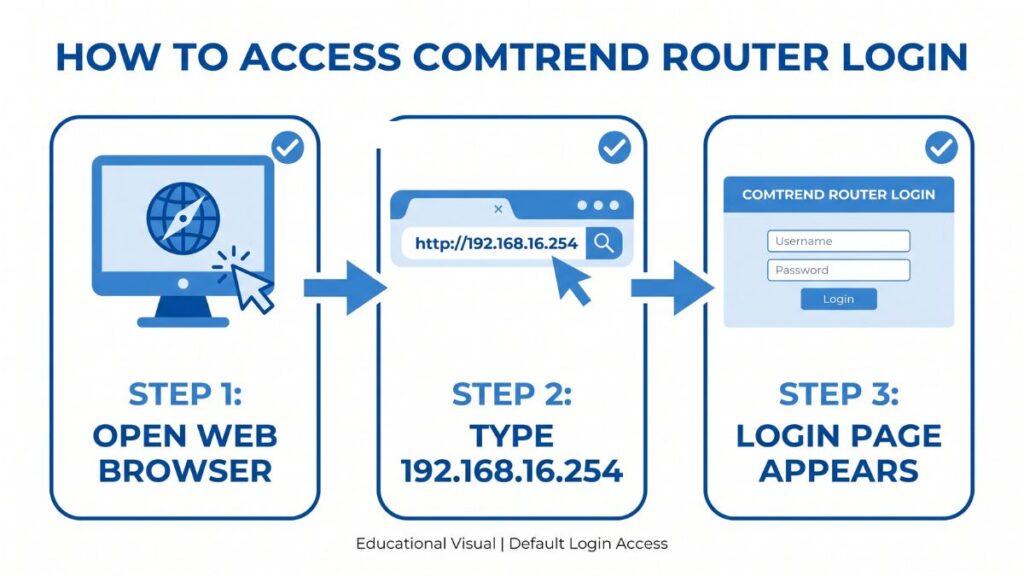
How to Log In on a PC or Laptop
- Make sure your computer is connected to the router — via Wi-Fi connected to the gateway’s wireless network, or with an Ethernet cable plugged into one of the LAN ports (not the DSL or WAN port, which connects to the phone line or incoming internet).
- Open any web browser: Chrome, Firefox, Edge, or Safari all work.
- Click into the address bar at the very top of the browser window — the bar that displays the current page’s URL, not a search box or Omnibox on a new tab.
- Type
http://192.168.16.254and press Enter. - A login screen should appear. Enter your username and password from the table above, or from the label on your device.
- Click Login, Sign In, or OK.
⚠️ Address bar, not search bar. Typing 192.168.16.254 into Google or another search engine will give you search results, not your router. The address bar is the long bar at the very top of the browser where the current URL is shown. Click directly into that bar, type http://192.168.16.254, and press Enter.
If you get a “This site can’t be reached” error, a browser timeout, or just a blank screen — don’t assume the address is wrong yet. Head to the Troubleshooting section below. There’s almost always a quick fix.
How to Log In on Your Phone
One competing guide for this IP address actually states that accessing 192.168.16.254 “usually does not work on a mobile phone.” That’s simply not true — it works fine on both iPhone and Android, provided you follow the right steps. Here’s exactly how.
iPhone (Safari)
- Open Settings → Wi-Fi and confirm you’re connected to your home or gateway network — not cellular data. Look for the checkmark next to your network name and check that the signal bars show Wi-Fi, not LTE/5G.
- Open Safari.
- Tap the address bar at the top. If a URL is already there, tap once to select and clear it.
- Type
http://192.168.16.254and tap Go on the keyboard. - The admin login page should load. Enter your credentials and tap the login button.
💡 iPhone tip: Safari can sometimes treat a bare IP address as a search term rather than a URL. The http:// prefix tells Safari definitively that it’s a direct address. If you still land on a search results page, tap the address bar, type the full address, and look for a “Go to 192.168.16.254” suggestion appearing above the keyboard — tap that directly.
Android (Chrome)
- Swipe down from the top of your screen and confirm Wi-Fi is connected to your home network — make sure you’re not on mobile data, because local IP addresses won’t load over cellular.
- Open Chrome or your default browser.
- Tap the address bar at the top of the screen.
- Type
http://192.168.16.254and tap Go or the Enter key. - The login screen should appear. Enter your credentials.
Android tip: Chrome on some versions removes the http:// and treats the text as a search query. If that happens, try adding a trailing slash: http://192.168.16.254/ — it forces Chrome to treat the input as a URL rather than a search. Alternatively, look for a “Navigate to 192.168.16.254” autocomplete suggestion below the address bar and tap it directly.
Troubleshooting: 5 Problems and How to Fix Them
If you’re unable to access the 192.168.16.254 router login page, you’re not alone. Below are the most common issues users face and how to fix them quickly.
1. The Page Won’t Load — Connection Refused or Timeout
Cause: You’re either not on the right network, 192.168.16.254 isn’t your device’s actual gateway, or the device is temporarily unresponsive.
Fix: Verify your Default Gateway first. On Windows, open Command Prompt (Win+R → type cmd → Enter) and run ipconfig. Look for “Default Gateway” under your active adapter. On Mac, go to System Preferences → Network → select your active connection → look for “Router.” On iPhone, go to Settings → Wi-Fi → tap your network name → look for “Router.” If your gateway shows something other than 192.168.16.254 — say, 192.168.1.1 or 10.0.0.1 — use that address instead. If the address is correct but the page still won’t load, try restarting the gateway: power it off, wait 30 seconds, power it back on, then wait 2 full minutes before trying again. Don’t panic — a simple reboot fixes this more often than you’d expect.
2. Login Page Loads But Credentials Are Rejected
Cause: Your ISP provisioned the gateway with a custom password, the label shows different credentials than the defaults, or the password was changed at some point by someone else.
Fix: Re-read the label on the back of the device very carefully. Comtrend gateways deployed by CenturyLink and Lumen often have a distinct admin password printed separately from the Wi-Fi password — they’re easy to mix up at a glance. Also check: are you sure you’re entering the admin password and not your Wi-Fi network password? They’re completely different credentials. Work through the credentials table row by row before giving up. If you’re genuinely locked out, the factory reset section below will get you back in.
3. The Login Page Renders Broken or Won’t Fully Load
Cause: Browser cache corruption or a compatibility issue with the gateway’s web interface. DSL-era admin panels — including Comtrend’s — were often designed for older browsers and can display oddly in modern Chrome or Edge.
Fix: Start with a hard refresh: Ctrl+F5 on Windows, Cmd+Shift+R on Mac. If the page still looks wrong, switch browsers — Firefox tends to handle older ISP gateway interfaces more reliably. Also worth trying: temporarily disable all browser extensions, especially ad blockers, content blockers, and privacy tools. These can mistakenly interfere with local network admin pages. If you’re on Edge, check Settings → Default browser → Internet Explorer compatibility, and add 192.168.16.254 as a compatible site.
4. You’re In the Admin Panel But the Internet Is Down
Cause: The admin panel at 192.168.16.254 runs on your local network and works independently of your internet connection. Getting into the panel just means the LAN is working — it says nothing about whether your DSL line is syncing with your ISP.
Fix: In the admin panel, look for Status, DSL Status, WAN Status, or Broadband to check your connection state. For DSL connections, specifically look at the DSL sync status — it should say “Connected,” “Up,” or show a sync speed. If it says “No Carrier,” “Training,” or “Down,” the DSL line itself isn’t connecting. Check that the phone cable is firmly plugged into the DSL port, try a different cable if you have one, and contact your ISP if the line still won’t sync. For fiber connections through a Comtrend or ZTE ONT, look for a “PON” or “Fiber” status indicator instead.
5. You Log In Successfully But Get Immediately Kicked Out
Cause: A stale or conflicting session cookie in your browser is interfering with the gateway’s authentication. Common after ISP-pushed firmware updates, which can happen overnight without any notification.
Fix: Open a private or incognito window (Ctrl+Shift+N in Chrome on Windows, Cmd+Shift+N on Mac) and navigate to http://192.168.16.254 fresh. Incognito windows carry no existing cookies, so you get a completely clean session. If that works, go back to your regular browser and clear cookies specifically for this address: in Chrome, go to Settings → Privacy and security → Cookies and other site data → See all cookies → search “192.168.16.254” → delete all matching results.
Factory Reset Guide
When you’re fully locked out or the gateway is in a bad state that rebooting can’t fix, a factory reset gets you back to a clean starting point.
Back up your settings first — if you can still access the admin panel, find Management → Backup and Restore, Administration → Save Configuration, or similar. Export a settings file. Also write down your ISP connection credentials (PPPoE username and password for DSL, or any static IP settings your ISP provided) — you’ll need those to get back online after the reset. Your ISP can resupply them if needed.
What gets erased: Every setting you’ve personally configured — your Wi-Fi name (SSID), Wi-Fi password, admin password changes, port forwarding rules, static IP leases, parental controls, custom DNS, and any custom firewall rules. ISP-provisioned settings embedded in the firmware may persist on some models, but your personal configurations will not.
How to physically reset:
- Make sure the gateway is powered on — the power LED should be lit.
- Find the Reset pinhole on the back or bottom of the device. It’s usually labeled “Reset” or “RST” and requires a straightened paperclip, SIM ejector pin, or toothpick to press.
- Press and hold for the appropriate duration:
- Comtrend DSL gateways (AR series, CT series): hold 10–15 seconds until the Power LED flashes rapidly, then release
- ZTE ADSL/VDSL gateways: hold 10 seconds until all LEDs flash or the device reboots
- Huawei HG series: hold 6 seconds — the indicator light will change, signaling reset
- Generic DSL modem/router: hold 20–30 seconds to be safe
- Release and wait 3–5 minutes for the full reboot — DSL gateways often take longer than standard consumer routers because they need to re-train the DSL line during startup.
After the reset, reconnect to the device’s default Wi-Fi network (check the label for the default SSID and password), then navigate to http://192.168.16.254 and log in with the factory defaults shown on the label.
What to Do After You Log In
Getting in is step one. Here’s what’s actually worth doing once you have access.
1. Change Your Admin Password
Whether the label shows admin/admin or a unique ISP-generated password, the admin credentials should be something only you know. Anyone on your Wi-Fi can attempt to reach 192.168.16.254 — and if the default password is still in place, they’re in your router settings.
- Find Management, Administration, System Tools, or Maintenance in the main menu.
- Look for Admin Password, Login Password, or Change Password.
- Enter your current password to confirm your identity.
- Set a new password — at least 12 characters, mixing uppercase, lowercase, numbers, and a symbol. Store it in a password manager so you don’t lock yourself out.
- Save and apply. You’ll be logged out — sign back in with the new password to confirm it worked.
2. Change Your Wi-Fi Password
Go to Wireless, WLAN, or Wi-Fi Settings in the menu. Find the Password, Pre-Shared Key, or WPA Key field. Update it to something strong and memorable. Every device on your wireless network will need to reconnect with the new password — make a mental note of anything that might be tricky to reconnect (smart TVs, streaming sticks, smart home hubs) before you hit save. I always make a list first. Saves a lot of frustration.
3. Set Your Security Mode to WPA2 or WPA3
In the Wireless settings, look for Security Mode, Encryption, or Authentication. Set it to WPA2-PSK (AES) at minimum. If your gateway offers WPA3 or a WPA2/WPA3 mixed mode, choose that. Avoid WEP and original WPA — both are long-broken protocols with widely known exploits. Many older Comtrend DSL gateways max out at WPA2, and that’s perfectly fine — just make sure it’s actually enabled and not left at a weaker setting from factory. How to create a strong Wi-Fi password is a handy tool for checking whether your new password is actually strong before you set it.
4. Review Connected Devices
Find DHCP Clients, Connected Devices, LAN Status, or Attached Devices in the menu. You’ll see a list of every device currently on your network — IP address, MAC address, and sometimes a device name or hostname. Give it a scan. Unfamiliar entries could be old forgotten devices, smart home gadgets you didn’t realize were connecting, or — worst case — neighbors who somehow got your Wi-Fi password. Most gateways let you block devices by MAC address directly from this screen. Knowing how to find devices on your network is a genuinely useful skill to have once a month or so.
5. Enable a Guest Network
Check under Wireless or Guest Network for this option — availability varies by Comtrend and ZTE model. If it’s there, enabling it takes about five minutes and is one of the simplest practical security improvements you can make. Guests connect to the internet without touching your main network, keeping your printers, file storage, and smart home devices completely isolated from anyone you invite over. Set a simple, shareable password and leave it on permanently.
6. Firmware Updates and Port Forwarding
On ISP-provisioned gateways, firmware updates are usually managed by the ISP automatically — pushed remotely without you needing to do anything. If you do see a firmware option under Management or Administration, it’s worth checking, but don’t be surprised if it’s greyed out or shows a note about remote management.
For port forwarding — gaming with open NAT, running a home server, accessing security cameras remotely — look under NAT, Firewall, Port Forwarding, or Virtual Servers. Keep in mind that some ISPs restrict this or require enabling it through their customer portal first. Understanding what is a subnet mask is also useful context if you’re doing any kind of advanced network configuration.
Common Misspellings of 192.168.16.254
These are the most common typo variants people search when looking for 192.168.16.254:
192.168.16.245
192.168.16.254.
192.168.l6.254
192.168.16.25.4
192.168.16254
192.168.16.2544
192 168 16 254
http//192.168.16.254
www.192.168.16.254
192.168.16.254/
https://192.168.16.254
Correct address:
192.168.16.254
Which Brands and ISPs Use 192.168.16.254?
Brands that commonly use 192.168.16.254 as their default admin gateway:
- Comtrend — the primary brand associated with this address. Comtrend manufactures DSL, VDSL, and fiber gateways widely deployed by North American ISPs. Models that commonly use this gateway include the AR-5381u, AR-5387un, CT-5365, CT-6373, VR-3025un, and various NXG-series units. If your ISP handed you a Comtrend and you haven’t changed anything, 192.168.16.254 is almost certainly your admin address.
- ZTE — several ZTE DSL and VDSL modem/router models deployed in ISP environments use this address, particularly the ZXDSL and ZXHN series units.
- Huawei — certain Huawei HG-series gateways provisioned by regional ISPs, particularly in fiber and VDSL deployments, use the 192.168.16.x range.
ISPs that commonly deploy gateways at 192.168.16.254:
- CenturyLink / Lumen — DSL customers issued Comtrend hardware are among the most common users of this address in the US.
- Windstream — Windstream’s residential DSL customers are often provisioned with Comtrend gateways.
- Embarq and other regional DSL providers — several smaller and historically independent phone companies that merged into CenturyLink territory use Comtrend hardware.
If you have CenturyLink or Windstream DSL service and this IP isn’t loading, run ipconfig on Windows or check your Wi-Fi settings on your phone to confirm the exact Default Gateway your device is seeing — provisioning can occasionally vary by region, model year, or account type.
FAQ
What’s the difference between my Wi-Fi password and my router admin password?
These are completely separate credentials. Your Wi-Fi password is what you enter on a phone or laptop to join your wireless network — it’s the one you share with guests. Your router admin password is what you enter at 192.168.16.254 to get into the settings panel and configure the device. On Comtrend gateways, both are usually printed on the label, often in different sections. Changing one has no effect on the other.
Can I access 192.168.16.254 on my phone?
Yes, absolutely — despite what some outdated guides claim. It works on both iPhone and Android, provided you’re connected to your home Wi-Fi (not mobile data) when you try. The steps are in the login section above. The key on iPhone is to include the full http:// prefix in Safari; on Android, the same applies in Chrome.
My ISP (CenturyLink/Lumen/Windstream) gave me this gateway. Can I change all the settings?
Not always — some settings on ISP-provisioned Comtrend gateways are locked at the ISP level. You might find certain firewall rules, DNS settings, or remote management options are greyed out or redirect to the ISP’s portal. This is normal and intentional — your ISP uses remote management to monitor and maintain the connection. For settings you can’t access in the admin panel, call your ISP or check their online portal.
Can anyone outside my home access 192.168.16.254?
No. Private IP addresses like 192.168.16.254 only exist on your local network. No device outside your home can reach this address from the internet — it’s not publicly routable. The only risk is someone on your own Wi-Fi network accessing it, which is why changing the admin password matters.
I typed 192.168.16.254 and got a Google search page. What happened?
You typed it into a search bar rather than the address bar. The address bar is the URL field at the very top of the browser window — the one that shows the current website’s address. Click into that specific bar at the top, clear any text, type http://192.168.16.254, and press Enter.