
I’ve helped a lot of people get into their router settings, and 192.168.0.1 is probably the address I see people searching about most. Whether your Wi-Fi password needs changing, you’re locking down your network security, or you just bought a new router and have no idea what to do — this guide walks you through everything, step by step, including the stuff competitors’ guides always leave out (like how to do this from your phone).
What Is 192.168.0.1?
In plain English: 192.168.0.1 is your router’s home address on your local network. It’s the door you knock on when you want to access your router’s control panel — that dashboard where you can change Wi-Fi passwords, block devices, update firmware, and a lot more.
This address is what networking folks call a private IP address, defined under RFC 1918 — the standard that reserves certain IP ranges (like 192.168.x.x) exclusively for local, private use. That means 192.168.0.1 is never your public-facing internet address. It only works if your device is connected to the same network as the router — either over Wi-Fi or an Ethernet cable.
Most people don’t know this: your router actually has two IP addresses at once. One faces the outside world (your public IP, assigned by your ISP), and one faces inward to your home network — that’s http://192.168.0.1/ . Think of it as a back door that only works from inside the house.
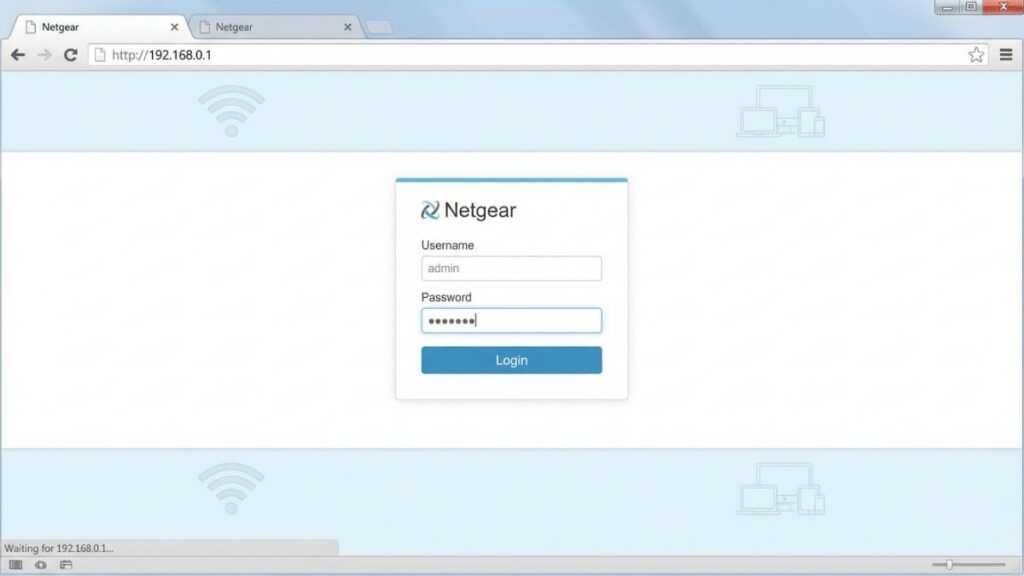
Default Login Credentials for 192.168.0.1
Before you try anything, check the sticker on the bottom or back of your router. That label is the most reliable source for your specific username and password — manufacturers sometimes change defaults between firmware versions, and the sticker reflects what your router actually shipped with.
That said, here are the most common defaults for routers that use 192.168.0.1:
| Brand | Default Username | Default Password |
|---|---|---|
| D-Link | admin | (blank) or admin |
| Netgear | admin | password |
| TP-Link | admin | admin |
| Tenda | admin | admin |
| Belkin | admin | (blank) |
| Cisco | admin | admin or cisco |
| Linksys | admin | admin |
| Asus | admin | admin |
| Spectrum (router) | admin | password |
| Huawei | admin | admin |
How to Log In from a PC or Mac
- Make sure you’re connected to the router’s network — Wi-Fi or Ethernet both work. Ethernet is more reliable for making settings changes.
- Open any browser — Chrome, Firefox, Edge, Safari, whatever you prefer.
- Click in the address bar at the very top of the browser window.
- Type
http://192.168.0.1and press Enter. - A login page will appear. Enter your username and password (check the defaults table above or your router’s sticker).
- Click Login, Sign In, or OK — the button label varies by brand.
You’re in. The router’s admin dashboard will load, and it’ll look different depending on your brand.
How to Log In from a Phone
Competitors almost never cover this properly. Here’s how to do it on both iPhone and Android.
iPhone (iOS)
- Go to Settings → Wi-Fi and connect to your router’s network if you aren’t already.
- Tap the ⓘ (info icon) next to your network name.
- Look for Router in the list — this confirms the IP address you need. It should say 192.168.0.1.
- Open Safari (important: use Safari, not the Google app).
- In the address bar at the top, type
192.168.0.1and tap Go. - Enter your username and password on the login screen that appears.
Android
- Go to Settings → Network & Internet (or Connections on Samsung) → Wi-Fi.
- Tap and hold your current network, then tap Manage network settings or tap the ⚙️ gear icon.
- Look for Gateway — it should confirm 192.168.0.1.
- Open Chrome (or any browser).
- Tap the address bar at the top, type
192.168.0.1, and hit Go. - Log in with your credentials.
Troubleshooting: 5 Reasons 192.168.0.1 Won’t Load
Don’t panic. Login issues are almost always one of these five things.
Problem 1: You’re Not Connected to the Right Network
Cause: Your device is connected to a neighbor’s Wi-Fi, a hotspot, or VPN — not your own router.
Fix: Open your Wi-Fi settings and confirm you’re connected to your home network. If you’re using a VPN, disconnect it temporarily. VPNs route traffic through external servers and will block local IP access entirely. Once connected to the right network, try finding your default gateway to confirm the router’s actual IP.
Problem 2: Your Router Uses a Different IP Address
Cause: Not every router uses 192.168.0.1. Some use 192.168.1.1, 10.0.0.1, or 192.168.1.254.
Fix:
Windows: Press Win + R, type cmd, press Enter. Then type ipconfig and look for “Default Gateway.”
Mac: Go to System Settings → Network → your connection → Details → TCP/IP. Look for “Router.”
iPhone: Settings → Wi-Fi → tap the ⓘ → Router.
Android: Settings → Wi-Fi → tap the network → look for Gateway.
Whatever that gateway says — that’s your router’s real IP. Use that instead.
Problem 3: Wrong Username or Password
Cause: The defaults were changed (possibly by you, possibly during a previous setup), or you’re entering them incorrectly.
Fix: Try every combination from the table above. If nothing works, you’ll need to factory reset. Also double-check that Caps Lock is off — these credentials are case-sensitive.
Problem 4: The Page Times Out or Won’t Load at All
Cause: Browser cache issues, a browser extension interfering, or the router is momentarily unresponsive.
Fix: Try a different browser, or open an incognito/private window. If that doesn’t work, unplug your router for 30 seconds and plug it back in. Give it a full 2 minutes to fully restart before trying again.
Problem 5: You’re Typing It Wrong
Cause: The “0” in 192.168.0.1 is a zero, not the letter O. Also, no spaces, no slashes.
Fix:
Wrong formats:
192.168.o.1 ← letter O
192.168.0.l ← lowercase L
192 168 0 1 ← spaces
192/168/0/1 ← wrong separators
Correct: 192.168.0.1 (numbers only, with periods, no spaces)
Factory Reset Guide
Use this only as a last resort — a factory reset wipes everything: your Wi-Fi name, password, any port forwarding rules, parental controls, and custom DNS settings. After a reset, it’s like you just took the router out of the box.
Before you reset: If possible, log in and take screenshots or write down your current settings — especially Wi-Fi passwords you’ve created and any port forwarding rules you’ve set up.
How to reset:
- Find the Reset button on the back or bottom of your router. It’s usually recessed in a tiny hole so you don’t accidentally press it.
- With the router powered on, use a paperclip or SIM ejector tool to press and hold the reset button.
- Hold it for the following time based on your brand:
- D-Link: 10 seconds (until LED flashes)
- Netgear: 7–10 seconds (until Power LED blinks amber)
- TP-Link: 10 seconds (until lights flash rapidly)
- Tenda: 8 seconds
- Belkin: 15 seconds
- Release and wait for the router to fully reboot — usually 1–2 minutes.
- You can now access 192.168.0.1 with the original factory default credentials from the sticker on the router.
What to Do After You Log In
Getting in is the easy part. Here’s what you should actually do once you’re in the admin panel — in order of importance.
1. Change the Admin Password
This is the most important thing. Default admin credentials are publicly documented online. If someone gets on your Wi-Fi, they can access your router’s admin panel in about 30 seconds using those defaults.
Steps:
- Look for Administration, Management, Advanced, or System in the router menu.
- Find Admin Password, Router Password, or Change Password.
- Enter the current password, then your new one (twice to confirm).
- Use something strong — at least 12 characters, mix of letters, numbers, and symbols.
- Save it somewhere — you’ll need it next time.
- Click Save or Apply.
2. Change Your Wi-Fi Password
Go to Wireless Settings or Wi-Fi Settings. Find the field labeled Password, Passphrase, or Pre-Shared Key. Change it to something strong and save it. You’ll need to reconnect all your devices with the new password after.
Most people don’t realize the Wi-Fi password and the admin password are completely separate. Your Wi-Fi password is what guests use to connect; the admin password is what you use to access the router settings. They should definitely be different.
3. Set Your Security Mode to WPA3 (or WPA2 at Minimum)
Under Wireless Security, look for the Security Mode or Encryption dropdown. Set it to WPA3-Personal if your router supports it, or WPA2-PSK (AES) as a fallback. Avoid WEP and WPA — they’re outdated and easy to crack. The Wi-Fi Alliance’s official WPA3 overview explains why the upgrade matters.
4. Check Connected Devices
Under Connected Devices, DHCP Client List, or Device Manager, you can see everything currently connected to your network. Scan this list for devices you don’t recognize. If something looks unfamiliar, you can block it by MAC address. Not sure what a MAC address is? Here’s a quick explainer.
Our guest network is literally called “GuestWiFi” at my house — simple works — and putting visitors on it means they can’t see the main network’s devices.
5. Set Up a Guest Network
Look for Guest Network or Guest Wi-Fi in the wireless settings. Create a separate network for visitors, smart home devices, and IoT gadgets. Give it a different name and password than your main network. This isolates guest devices from your computers, phones, and shared drives.
6. Port Forwarding (for Gamers, Cameras, Remote Access)
If you’re running a game server, security cameras, or need remote access to a home computer, port forwarding is how you tell your router where to send incoming traffic. Go to Advanced → Port Forwarding or Virtual Server. Learn how port forwarding works before diving in — getting it wrong can expose unintended services.
7. Update the Firmware
Under Administration → Firmware Update or Software Update, check if there’s a newer firmware version available. Router firmware updates patch security vulnerabilities. Many routers can check automatically — enable that if yours supports it.
Common Misspellings of 192.168.0.1
People search for this IP using all sorts of typos. If you landed here via one of these, you’re in the right place:
Which Router Brands and ISPs Use 192.168.0.1?
Always use 192.168.0.1 as the default:
- D-Link — this is their signature address across most home routers
- Netgear — used as primary on most consumer models (also accessible via routerlogin.net)
- Tenda — consistent across their lineup
- Belkin — most home and travel routers
- Huawei — home gateway devices
Sometimes use 192.168.0.1 (check the sticker):
- TP-Link — some models use 192.168.0.1, others use 192.168.1.1 or tplinkwifi.net
- Asus — primarily uses 192.168.1.1 but some older models differ
- Spectrum-provided routers — many use 192.168.0.1
These providers use a different default address:
- Xfinity/Comcast → 10.0.0.1
- AT&T → 192.168.1.254
- Verizon Fios → 192.168.1.1
- CenturyLink/Lumen → 192.168.0.1 or 192.168.1.1 (model dependent)
If your ISP-provided gateway isn’t loading at 192.168.0.1, check the label on the device or call your ISP’s support line — they’ll tell you the right address in 30 seconds.
Frequently Asked Questions
They’re two completely different things. Your Wi-Fi password is what you (and guests) enter to join your wireless network. Your admin password is what you enter at 192.168.0.1 to access the router’s control panel. You can have a weak Wi-Fi password and a strong admin password, or vice versa — but you really should make both strong.
No. This IP only works on your local network. Someone across town can’t load your router admin page. That said, if someone is connected to your Wi-Fi, they can try — which is why changing the default admin password matters.
First, confirm you’re connected to your router’s network (not a hotspot or VPN). Then check your actual default gateway using ipconfig (Windows) or Network settings (Mac/phone) — your router might use a different IP than 192.168.0.1.
Functionally, yes. Most browsers will automatically add http:// if you don’t type it. If the page doesn’t load without it, try adding http:// manually.
On Windows: ipconfig → Default Gateway. On Mac: System Settings → Network → Details → TCP/IP → Router. The gateway listed there is always your router’s current IP, regardless of what it’s been changed to.
1.Try all default combos from the table above.
2. Make sure Caps Lock is off.
3. Check the sticker on the router — it may have a unique password.
4. If you definitely changed it and forgot it, factory reset is the only option.
Wrapping Up
192.168.0.1 is your router’s front door — and knowing how to open it puts you in control of your own network. Change that admin password, get off WEP, set up a guest network for visitors, and you’re already ahead of most home users. If something didn’t work for you in this guide, drop a comment below and describe what you’re seeing — happy to help troubleshoot.