
Here’s something most guides on this address get wrong: 192.168.0.100 isn’t always a router’s default gateway. In a lot of cases, it’s actually the IP address that a router’s DHCP server has automatically assigned to a device on your network — a laptop, a printer, a smart TV, or sometimes a wireless access point. That distinction matters a lot, because the steps to access the admin panel are different depending on which situation you’re actually in. This guide covers both, along with separate login steps for PC, iPhone, and Android, plus the full troubleshooting and security walkthrough.
What Is 192.168.0.100?
192.168.0.100 is a private IPv4 address that falls within the 192.168.0.x range — one of the three private IP ranges defined under RFC 1918 private address ranges. Private addresses like this one only work within your local network. You can’t reach them from outside your home, and someone on the internet can’t ping them. That’s by design.
Here’s the thing most people don’t realize: there are actually two ways you might encounter 192.168.0.100.
Scenario A — It’s a device IP (most common). Your router uses a gateway like 192.168.0.1 and its DHCP server automatically assigns addresses to devices on your network. 192.168.0.100 is one of the addresses in that pool. If your laptop, phone, printer, or smart TV has been assigned 192.168.0.100, typing it into a browser won’t pull up a login page — it’s just your device’s address on the network, not an admin portal.
Scenario B — It’s a router or access point admin address (less common but it happens). Some Netgear routers, wireless access points, and a handful of other devices use 192.168.0.100 as their actual admin interface address. In this case, typing it into a browser will open a login page.
How do you know which situation you’re in? Check the label on the bottom or back of the device you’re trying to access. If it lists 192.168.0.100 as the “Router IP,” “Admin IP,” or “Default Gateway,” you’re in Scenario B. If it doesn’t — or if your main router’s gateway is something like 192.168.0.1 — you’re probably in Scenario A.
Default Login Credentials for 192.168.0.100 Devices
If 192.168.0.100 is your device’s admin address, here are the most common factory default credentials by brand. As always, the sticker on the bottom or back of your specific device is the most accurate source — manufacturers often vary defaults by model and firmware version.
| Brand | Default Username | Default Password |
|---|---|---|
| Netgear | admin | password |
| Netgear (newer models) | admin | admin |
| TP-Link | admin | admin |
| D-Link | admin | (blank) |
| Asus | admin | admin |
| Linksys | admin | admin |
| Cisco | cisco | cisco |
| Tenda | admin | (blank) |
| Belkin | (blank) | (blank) |
| Arris | admin | password |
| Huawei | admin | admin |
How to Log Into 192.168.0.100 — PC Steps (Windows & Mac)
These steps work in any browser — Chrome, Edge, Firefox, Safari. Pick whichever you normally use.
- Make sure your computer is connected to the same network as the device you’re trying to access — Wi-Fi or Ethernet, either works. If you’re trying to reach a wired access point, plugging in directly via Ethernet will be more reliable.
- Open your browser.
- Click in the address bar at the top of the browser — not the search bar in the middle of the Google homepage. This is the single most common mistake people make.
- Type exactly:
192.168.0.100and press Enter. - If a login page appears, enter your username and password from the table above (or from the device label).
- Click Login, Sign In, or OK — the button label varies by brand.
- You’re in. You should see the device’s admin dashboard.
How to Log Into 192.168.0.100 — Mobile Steps
Most guides skip this entirely. Here’s exactly how to do it on iPhone and Android.
iPhone (Safari or Chrome)
- Open Settings → Wi-Fi and confirm you’re connected to your home network. You can’t reach a local IP address over mobile data.
- Open Safari (or Chrome for iOS if Safari gives you trouble).
- Tap the address bar at the top of the browser.
- Type
192.168.0.100and tap Go. - If the login page loads, enter your credentials and tap Login.
Android
- Pull down the notification shade and make sure Wi-Fi is on and connected to your home network. Turn off mobile data if it’s on — Android sometimes routes traffic over LTE even when Wi-Fi is connected.
- Open Chrome (or any browser you prefer).
- Tap the address bar.
- Type
192.168.0.100and tap Go or press Enter on your keyboard. - Enter your credentials when the login page appears and tap Login.
Troubleshooting: 192.168.0.100 Not Working?
Don’t stress — most issues here have simple fixes. Here are the five most common problems.
1. “This site can’t be reached” — page won’t load at all
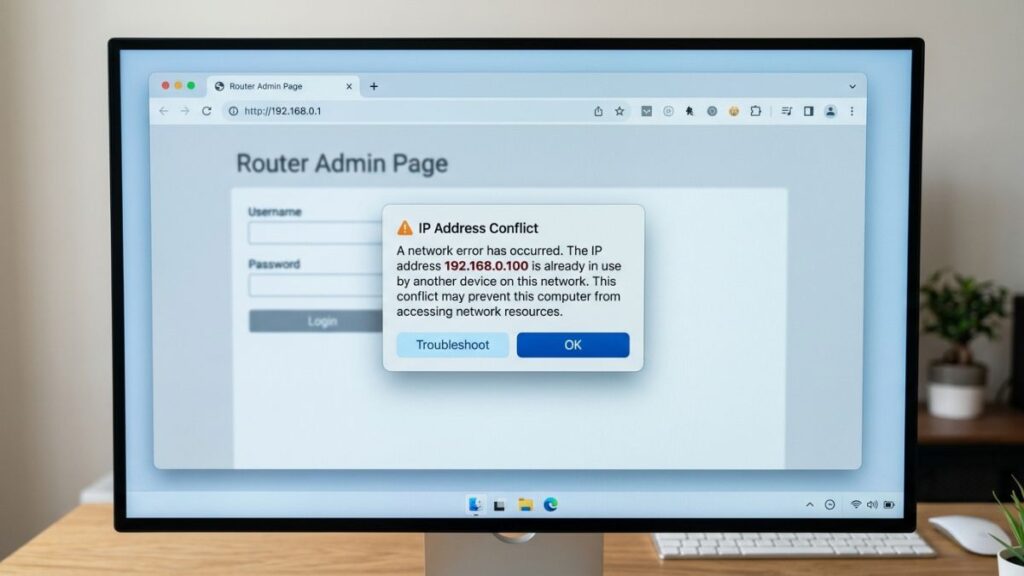
Cause: 192.168.0.100 may not be your router’s gateway address. It could be a DHCP-assigned IP for one of your devices, or your router might use a different gateway entirely (like 192.168.0.1 or 192.168.1.1).
Fix: Find your actual gateway. On Windows, open Command Prompt and type ipconfig — look for “Default Gateway” under your active adapter. On Mac, go to System Preferences → Network → your active connection → look for “Router.” On iPhone, go to Settings → Wi-Fi → tap the (i) next to your network → look for “Router.” Use that IP address in your browser instead.
2. Page loads but credentials aren’t accepted
Cause: Either the defaults have been changed, or — very commonly — you’re accidentally using your Wi-Fi password instead of the admin password. They’re different things.
Fix: Check the label on the bottom of your device first. If the credentials were changed and you don’t know them, a factory reset is the only way to recover access. Jump to the factory reset section below.
3. Login page loops or keeps refreshing
Cause: Your browser cache or stored cookies are conflicting with the session. Happens a lot in Chrome, especially if you’ve visited the admin page before.
Fix: Open an incognito/private window and try again. If it works, clear your browser’s cache and cookies normally. This resolves the looping issue the majority of the time.
4. You’re on Wi-Fi but 192.168.0.100 still times out
Cause: Some routers and access points only allow admin access over a wired connection. They disable web UI access over Wi-Fi as a security measure.
Fix: Plug your laptop directly into one of the device’s LAN ports using an Ethernet cable and try again. Once you’re inside the admin panel, you can usually re-enable wireless admin access from there.
5. 192.168.0.100 connects to the wrong device
Cause: On some networks, especially those with multiple access points or network extenders, 192.168.0.100 might resolve to a device other than the one you’re trying to configure. How DHCP works explains why different devices on the same network can end up with similar addresses.
Fix: Use Ethernet to connect directly to the specific device you want to configure. Wired connections bypass the ambiguity of Wi-Fi and ensure you’re talking to the right piece of hardware.
Factory Reset Guide for Devices Using 192.168.0.100
A factory reset wipes your custom settings and returns the device to its out-of-the-box state — including credentials, Wi-Fi name and password, and any port forwarding or QoS rules you’ve set. Do this only when you’re locked out and have no other option.
Before resetting: If you can still log in, export your settings first. Most routers have a “Backup Configuration” or “Save Settings” option in the Administration or System section. Keep that file somewhere safe.
How to reset:
- Locate the Reset button on the device. It’s usually a small pinhole on the back or bottom — you’ll need a paperclip or SIM ejector pin to press it.
- Make sure the device is powered on.
- Press and hold the reset button for the time recommended for your brand:
- Netgear: 10–15 seconds (hold until the Power LED blinks amber)
- TP-Link: 10 seconds (hold until LEDs flash)
- D-Link: 10 seconds
- Asus: 10 seconds
- Linksys: 10 seconds
- Arris: 15–20 seconds
- Release and wait 60–90 seconds for the device to fully reboot.
- Log in using the factory default credentials from the table above.
What gets erased: Admin password, Wi-Fi name (SSID), Wi-Fi password, any port forwarding rules, guest network settings, parental controls, and QoS configurations. Your internet connection should resume automatically once your devices reconnect to the (now-default) network.
What to Do After You Log In
Getting in is just the beginning. Here’s what actually matters once you’re inside the admin panel — most people skip all of this and wonder why their network feels insecure or slow.
1. Change the Admin Password (This One’s Non-Negotiable)
The default admin password for most routers and access points is publicly documented — “admin/password” for Netgear is literally written on thousands of help pages. Anyone connected to your Wi-Fi can look it up and get into your admin panel in under a minute.
Here’s how to change it:
- Find the Administration, System, Management, or Advanced section in your dashboard. The label varies by brand.
- Look for Change Password, Admin Password, or Router Password.
- Enter the current password, then type your new one.
- Make it at least 12 characters with a mix of letters, numbers, and symbols. Following NIST password guidelines is a smart baseline — length matters more than complexity.
- Save the change. You’ll be logged out and prompted to log back in with the new password.
Write it down somewhere offline. There’s no “forgot password” option for router admin panels.
2. Update Your Wi-Fi Name and Password
Your Wi-Fi password is completely separate from the admin password. Head to Wireless Settings or Wi-Fi Setup in the dashboard. Change the network name (SSID) to something recognizable but not personally identifying — your address or last name isn’t a great choice. Pick a strong, unique Wi-Fi password while you’re in there.
3. Set the Right Security Mode (WPA2 or WPA3)
This controls how your wireless traffic is encrypted. If your device is still using WEP or original WPA, your network is genuinely vulnerable. Navigate to Wireless Security or Security Mode and switch to WPA2-Personal (AES) at minimum. If your hardware supports it, WPA2 vs WPA3 explained breaks down why WPA3 is worth enabling if you can. WPA2 with AES is solid for most home setups right now.
4. Check What Devices Are Connected
Most admin panels have a section called Connected Devices, Attached Devices, DHCP Client List, or similar. This lists every device currently on your network with its name, IP address, and MAC address. Scroll through it. If you see device names you don’t recognize, someone might be using your Wi-Fi without your permission — you can usually block them directly from this screen.
Most people don’t know this: how to find devices on your network goes deeper on identifying unknown devices using their MAC addresses — it’s worth bookmarking.
5. Enable a Guest Network
If friends and family frequently ask for your Wi-Fi password, a guest network is the cleaner solution. It gives them internet access while keeping your main network — and all the devices on it — completely isolated. Look for Guest Network or Guest Wi-Fi in the dashboard. You can set it with its own name and password. The setup takes about two minutes and it’s one of those small things that genuinely improves your network security without any ongoing effort.
6. Update the Firmware
Firmware updates patch security vulnerabilities, fix bugs, and sometimes add new features. Look for Firmware Update, Software Update, or Advanced → Firmware in your admin panel. Newer Netgear and Asus devices check automatically and prompt you. Older devices often need a manual check. Do it at least once when you set things up, then check every few months.
7. Port Forwarding (If You Need It)
If you run a home server, gaming server, security camera, or anything else that needs to be reachable from outside your home network, you’ll need port forwarding. It tells your router to direct incoming traffic on specific ports to a specific local device. Look for Port Forwarding, Virtual Server, or Advanced → NAT in the dashboard. What ports are and how they work is a solid primer if you’re new to this.
Common Misspellings of 192.168.0.100
Typing errors happen — especially on mobile keyboards. Here are all the variants people commonly search for:
If you typed one of these and ended up here, no worries. Just make sure you enter it correctly in your browser’s address bar — no spaces, no extra characters: 192.168.0.100
Which Routers and Devices Use 192.168.0.100?
This is where 192.168.0.100 is genuinely different from most other addresses on this site. It has two distinct use cases.
As a DHCP-assigned device address (most common use)
Most routers that use 192.168.0.1 as their gateway assign client devices addresses starting from 192.168.0.100 or higher. So if your router is a D-Link, Netgear, or Spectrum-issued unit, and it has DHCP configured to hand out addresses in the 192.168.0.100–192.168.0.200 range, then 192.168.0.100 is likely just your first connected device — not a separate admin page.
As an admin portal (less common)
Some Netgear devices — particularly certain wireless access points and range extenders — ship with 192.168.0.100 as their default admin IP. This is intentional: when you plug an access point into a 192.168.0.x network, using 192.168.0.100 instead of 192.168.0.1 prevents a conflict with the main router’s gateway.
Major US ISPs and their actual default gateway IPs:
- Xfinity/Comcast → 10.0.0.1
- AT&T → 192.168.1.254
- Verizon FiOS → 192.168.1.1
- Spectrum/Charter → 192.168.0.1
If your ISP is one of the above and you’re trying to get into your ISP-provided gateway, use the ISP-specific address instead of 192.168.0.100. The exception: if you’ve added a third-party access point or extender to your setup, that device might legitimately use 192.168.0.100 as its own admin interface.
FAQ — 192.168.0.100 Login
These are two totally separate passwords. Your Wi-Fi password is what you enter on a phone or laptop to join the wireless network. Your router admin password is what you enter at 192.168.0.100 (or whatever your gateway is) to access the device’s settings. Changing one doesn’t change the other. A huge number of people accidentally type their Wi-Fi password at the admin login prompt and then assume the login is broken — check which password you’re actually entering.
It depends on your setup. On most home networks, it’s a DHCP-assigned address for a connected device (laptop, phone, printer, etc.). On some Netgear access points, it’s the actual admin gateway. Check the label on your hardware or run ipconfig (Windows) / ifconfig (Mac) to see what your real gateway address is.
Your device might only allow admin access over a wired Ethernet connection. Try plugging directly into the device with an Ethernet cable and loading 192.168.0.100 again. Also make sure mobile data is turned off on your phone — Android sometimes prefers mobile data over Wi-Fi, which breaks local network access entirely.
Either someone on your network changed the admin password, or your router reset itself (power outage, firmware update, etc.). Try the factory defaults from the table above first. If those don’t work either, a factory reset is the cleanest path forward.
No. It’s a private IP address — it doesn’t exist on the public internet and can’t be reached from outside your local network. The only people who can access it are devices already connected to your Wi-Fi or wired to your router.
Yes, completely. Several Netgear WiFi extenders and access points use 192.168.0.100 as their default admin IP to avoid conflicting with the main router at 192.168.0.1. This is intentional and works as expected on 192.168.0.x networks.
Older device admin panels (especially on Netgear extenders and budget routers) weren’t built for modern mobile browsers. Try loading the page in Chrome on desktop, or in Chrome with “Request Desktop Site” enabled if you’re on mobile. Clearing browser cache also helps with rendering issues on pages you’ve visited before.