
I’ve helped a lot of people get into their router admin panel, and 192.168.2.1 is one of those addresses that trips people up mostly because it looks so similar to 192.168.1.1 — but it isn’t the same thing, and typing the wrong one just gives you an error page with no explanation. This guide covers exactly how to log in from a PC, iPhone, or Android phone, what to do if the page won’t load, and what settings to actually change once you’re inside.
What Is 192.168.2.1?
192.168.2.1 is a private IPv4 address — specifically, it’s used by certain router brands as their default gateway, which is the address your browser uses to reach the router’s admin control panel.
Because it’s a private address (defined under RFC 1918 private address ranges), it only works on your local network. You can’t reach it from outside your home, and typing it into a device that isn’t connected to the right router will get you nowhere. That’s actually a good thing — it means your admin page isn’t exposed to the open internet.
The “2” in 192.168.2.1 is what makes it different from the more common 192.168.1.1. A small number of router brands — mainly Belkin, some SMC models, older Siemens gateway devices, and a few Zyxel units — use the 192.168.2.x range instead of the more popular 192.168.1.x range. If your router uses this address and you’ve been typing 192.168.1.1 trying to get in, that’s why it hasn’t been working.
Default Login Credentials for 192.168.2.1 Routers
Before you try to log in, you need a username and password. Most routers using 192.168.2.1 ship with factory defaults — the table below covers the most common ones.
One thing most people skip: The most reliable source is the label on the bottom or back of your router. Manufacturers often customize defaults per model, and the sticker on your specific unit is always going to be more accurate than any table online.
| Brand | Default Username | Default Password |
|---|---|---|
| Belkin | (none / leave blank) | (none / leave blank) |
| Belkin (newer models) | admin | admin |
| SMC Networks | admin | smcadmin |
| Siemens | admin | admin |
| Zyxel | admin | 1234 |
| Asus | admin | admin |
| Linksys | admin | admin |
| TP-Link | admin | admin |
| D-Link | admin | (blank) |
| Netgear | admin | password |
| Tenda | admin | (blank) |
| Cisco | cisco | cisco |
How to Log Into 192.168.2.1 — PC Steps (Windows & Mac)
This works in any browser — Chrome, Firefox, Edge, Safari. Doesn’t matter which one.
- Make sure your computer is connected to the router — either by Wi-Fi or an Ethernet cable. You can’t reach the admin page if you’re on a different network.
- Open your browser.
- Click in the address bar at the top — not the Google search bar. This is the step that trips people up the most. If you type 192.168.2.1 into the search bar, it’ll just run a Google search.
- Type exactly:
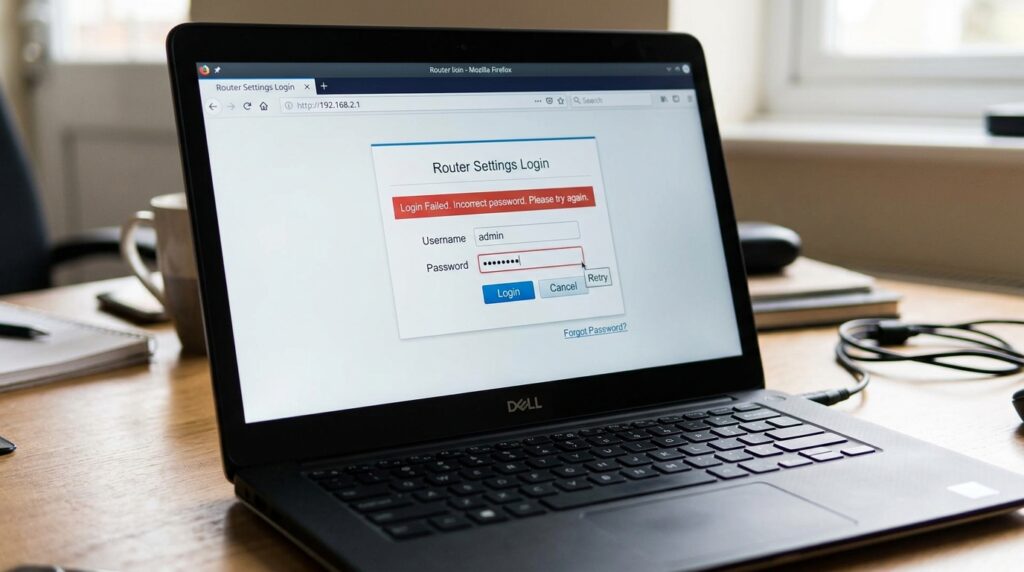
192.168.2.1and press Enter. - A login page should appear. Enter your username and password from the table above (or from the sticker on your router).
- Click Login, Sign In, or OK — depends on the interface.
- You’re in. You should now see your router’s admin dashboard.
How to Log Into 192.168.2.1 — Mobile Steps
Competitors almost never cover this, which is exactly why we do. Here are separate steps for iPhone and Android.
iPhone (Safari)
- Open Settings → Wi-Fi and make sure you’re connected to your home network (the one your router broadcasts).
- Open Safari.
- Tap the address bar at the top.
- Type
192.168.2.1and tap Go. - The router login page will load. Enter your credentials.
- Tap Login or Submit.
Tip: If the page doesn’t load in Safari, try Chrome for iOS instead — some router interfaces don’t render well in Safari on older iOS versions.
Android
- Swipe down and check that Wi-Fi is on and connected to your home network. Don’t use mobile data — it’ll bypass your router entirely.
- Open Chrome (or your preferred browser).
- Tap the address bar.
- Type
192.168.2.1and tap Go or press Enter. - Enter your username and password when prompted.
- Tap Login.
Android tip: If nothing loads, toggle airplane mode on and off — this forces your phone to reconnect to Wi-Fi properly and sometimes fixes a stubbornly stuck connection.
Troubleshooting: 192.168.2.1 Not Working?
Don’t panic. This happens to everyone at some point. Here are the five most common problems and how to fix them.
1. The page just won’t load (blank screen or “site can’t be reached”)
Cause: You’re probably not actually connected to the right router, or your device is using mobile data instead of Wi-Fi.
Fix: On your phone, make sure Wi-Fi is on and turn off mobile data temporarily. On a laptop, try plugging in an Ethernet cable directly to the router — this bypasses any Wi-Fi connection issues. Then try 192.168.2.1 again.
2. Wrong IP address — 192.168.2.1 isn’t your router’s gateway
Cause: Not every router uses 192.168.2.1. If you’re not using a Belkin or SMC device, your router might use 192.168.1.1, 192.168.0.1, or 10.0.0.1 instead.
Fix: Find your actual router IP. On Windows, open Command Prompt and type ipconfig — look for “Default Gateway.” On Mac, go to System Preferences → Network → your connection → Advanced → TCP/IP. On iPhone: Settings → Wi-Fi → tap the (i) next to your network → look for “Router.” That number is your gateway — use that in your browser instead.
3. Username and password not accepted
Cause: The defaults have been changed at some point, or you’re mixing up the Wi-Fi password with the admin password (they’re different things).
Fix: Check the sticker on your router first. If the credentials were changed and you don’t know what they are, a factory reset is your only real option — see the section below.
4. Login page loads but keeps refreshing or throwing errors
Cause: Browser cache or cookies interfering with the login session. This happens more often than you’d think, especially in Chrome.
Fix: Open an incognito/private window and try again. If that works, clear your browser’s cache and cookies normally, then try the regular browser. This fixes the issue about 80% of the time.
5. Connected to Wi-Fi but 192.168.2.1 still times out
Cause: Your router’s admin interface might be disabled on Wi-Fi — some routers only allow admin access over a wired connection for security.
Fix: Plug your laptop or desktop into one of the router’s LAN ports using an Ethernet cable and try again. If that works, you can usually re-enable wireless admin access from inside the dashboard.
Factory Reset Guide for 192.168.2.1 Routers
A factory reset wipes everything — your Wi-Fi name, password, admin credentials, port forwarding rules, everything — and returns the router to how it shipped from the factory. Do this only if you’re locked out with no other options.
Before you reset: If you have any custom settings you want to keep, log in first (if you still can) and export your configuration. Belkin routers usually have a “Save/Restore Configuration” option buried in the advanced settings.
How to reset:
- Find the Reset button — it’s a small pinhole on the back or bottom of the router. You’ll need a paperclip or a SIM card ejector tool to reach it.
- With the router powered on, press and hold the reset button.
- Hold for the recommended time by brand:
- Belkin: 10 seconds (some models need up to 15 — hold until the lights flash)
- SMC: 10–15 seconds
- Zyxel: 10 seconds
- Linksys: 10 seconds
- TP-Link: 10 seconds
- Release the button. The router will reboot — give it 60–90 seconds to fully restart.
- Your router’s settings are now back to factory defaults. Log in using the credentials from the table above.
What gets wiped: Wi-Fi name (SSID), Wi-Fi password, admin username and password, all port forwarding rules, any custom DNS settings, parental controls, and QoS configurations. Your internet should still work after the reset as long as you reconnect your devices to the router’s new (default) Wi-Fi network.
What to Do After You Log In
Getting into your router is just step one. Here’s what you should actually do once you’re inside — most people never bother with this stuff, but it makes a real difference for both security and performance.
1. Change the Admin Password (Do This First)
Leaving the default admin password on your router is one of those quiet security risks that most people ignore until something goes wrong. The defaults are literally published online — anyone on your network can look them up.
Here’s how to change it:
- Look for a section called Administration, System, Management, or Advanced Settings in your router’s dashboard (it varies by brand).
- Find the option labeled Admin Password, Router Password, or Change Password.
- Enter your current password, then type your new one.
- Use something long — at least 12 characters. A random mix of letters, numbers, and symbols works well. A strong password checker can tell you how secure yours is.
- Save the changes. You’ll need to log in again with the new password immediately.
2. Change Your Wi-Fi Name and Password
Your Wi-Fi password is separate from your admin password — two different things. The Wi-Fi password is what guests and devices use to connect to your network. Go to Wireless Settings or Wi-Fi Setup in your dashboard to change the network name (SSID) and password. Pick something memorable for the name and strong for the password.
3. Switch to WPA2 or WPA3 Security
This controls how your Wi-Fi traffic is encrypted. If your router is still set to WEP or WPA (old versions), change it. Look for Wireless Security or Security Mode and pick WPA2-Personal (AES) at minimum. If your router supports WPA3, even better — the Wi-Fi Alliance WPA3 overview explains why it’s stronger. WPA2 with AES is perfectly solid for most home networks right now.
4. Check Connected Devices
Your admin panel will have a Connected Devices, DHCP Client List, or Attached Devices section that shows everything currently on your network. This is worth checking occasionally — if you see device names you don’t recognize, someone might be on your Wi-Fi without permission. You can usually block unknown devices directly from this page.
Most people don’t know this: your router records each device by its MAC address — a permanent hardware identifier that’s different from the IP address. Understanding what a MAC address is makes it a lot easier to identify which device is which on that list.
5. Set Up a Guest Network
If people regularly come over and ask for your Wi-Fi, a guest network is worth setting up. It gives them internet access without letting them see your main network devices — your laptop, smart TV, and NAS stay isolated. Look for Guest Network or Guest Wi-Fi in your dashboard. Our guest network is literally called “GuestWiFi” — simple works.
6. Update Your Firmware
Router firmware updates fix security vulnerabilities and sometimes improve performance. Look for Firmware Update, Software Update, or Router Update in the admin panel. Many newer routers check automatically, but older Belkin and SMC models often need a manual update. Updating your router firmware takes about 5 minutes and is worth doing at least once a year.
7. Port Forwarding
If you run anything at home that needs to be reachable from the internet — a game server, a security camera, a home media server — you’ll need to configure port forwarding. It tells your router to send incoming traffic on specific ports to a specific device on your network. This is advanced territory, but how port forwarding works is a solid explainer if you want to dig into it.
Common Misspellings of 192.168.2.1
People type this wrong all the time. Here are the most common variants that people search for — they all mean the same thing, just mistyped:
If you typed any of these and landed here — you’re in the right place. Just make sure you type it correctly in your browser’s address bar: 192.168.2.1
Which Router Brands and ISPs Use 192.168.2.1?
Not every router uses this address, so it’s worth knowing who does and who doesn’t.
Common Brands Using 192.168.2.1
Belkin: One of the most common routers using 192.168.2.1. Many Belkin models from N150 to AC-series use this default IP address.
SMC Networks: Several SMC ADSL gateways and home routers operate on this IP range.
Siemens: Older SpeedStream gateway models, especially in DSL setups across Europe and the US.
Zyxel: Some older Zyxel DSL routers use 192.168.2.1 as their default gateway.
Brands That Sometimes Use 192.168.2.1
Asus: Some older router models may use this IP, but most modern devices use different default gateways.
Linksys: A few DSL-based models may use 192.168.2.1, though most use other IP addresses like 192.168.1.1.
Major ISPs and Their Default Gateway IPs
Xfinity / Comcast: 10.0.0.1
AT&T: 192.168.1.254
Verizon FiOS: 192.168.1.1
Spectrum / Charter: 192.168.0.1
If your ISP is Xfinity, AT&T, Verizon, or Spectrum and you’re trying to get into your ISP-provided gateway router, 192.168.2.1 is probably not the right address for you. Use the ISP-specific IP listed above instead.
FAQ — 192.168.2.1 Router Login
These are two completely different passwords. Your Wi-Fi password is what you enter on your phone or laptop to connect to your wireless network. Your router admin password is what you enter at 192.168.2.1 to access the router’s settings dashboard. Changing one doesn’t change the other. Most people only know their Wi-Fi password and have never touched the admin password — which is usually still “admin” or blank.
The page only loads if your device is connected to the router that uses this IP. If you’re on a different network, on mobile data, or your router uses a different default IP, you’ll get that error. Check your connection and verify your gateway IP first using ipconfig on Windows or the network settings on your phone.
Double-check that caps lock is off and you’re entering the admin password (not your Wi-Fi password). If you’re sure the password is right and it still fails, the credentials were changed at some point. Your only option is a factory reset.
No. 192.168.2.1 is a private IP address — it only exists within your local network. Someone outside your home can’t reach it over the internet. However, anyone connected to your Wi-Fi can access it, which is why changing your admin password is important.
Factory reset is the only way to recover access. There’s no “forgot password” option for router admin panels. Once you reset, you can log in with the default credentials again.
The fastest way: on Windows, open Command Prompt and run ipconfig. Look for “Default Gateway” under your active adapter. On Mac, go to System Preferences → Network → your connection → look for “Router IP.” That’s your gateway.
Some older router interfaces (especially older Belkin models) were built before modern mobile browsers were common. They render poorly on phones. Try loading the page on a desktop browser instead, or use Chrome on your phone and request “Desktop site” from the three-dot menu.
Wrapping Up
Getting into 192.168.2.1 is straightforward once you know it’s a Belkin/SMC thing and not the more common 192.168.1.1. If you run into issues, the troubleshooting section above covers the most common problems — and most of them are fixed with something simple like switching from Wi-Fi to Ethernet or clearing browser cache. Once you’re in, take 10 minutes to change the default admin password and update your Wi-Fi security — your future self will thank you.
Got questions or ran into something this guide didn’t cover? Drop a comment below and I’ll do my best to help.