
I’ve seen a lot of people searching for 192.168.8.1 who are surprised when the page looks nothing like a standard home router interface — and that’s because this IP is heavily used by Huawei mobile hotspots and pocket WiFi routers (MiFi devices), not just traditional wall-plugged routers. It’s also the default gateway for GL.iNet travel routers, which are popular with VPN users. That said, the login process is nearly the same across all of them, and this guide covers PC, iPhone, and Android steps, plus a full troubleshooting walkthrough and security checklist for once you’re inside.
What Is 192.168.8.1?
192.168.8.1 is a private IPv4 address used as the default gateway on certain routers and mobile hotspot devices. When you type it into a browser on a connected device, it opens the admin control panel where you can change passwords, adjust Wi-Fi settings, and manage your network.
It’s a private address — part of the 192.168.0.0/16 range reserved for local networks by RFC 1918 private address ranges. That means it only works inside your local network. You can’t reach it from outside your home, and nobody on the open internet can access it either. That’s by design.
What makes 192.168.8.1 different from more common gateway IPs like 192.168.0.1 or 192.168.1.1 is the brand set that uses it. This address is closely associated with Huawei — specifically its MiFi pocket WiFi devices and some home gateway models — and with GL.iNet, a brand known for small travel routers with built-in VPN support. A handful of other brands use it too, but if you’re typing 192.168.8.1 into your browser, there’s a good chance you’re working with one of those two.
Default Login Credentials for 192.168.8.1 Routers
Before you log in, you need a username and password. The table below covers the most common factory defaults by brand. Check the sticker on the bottom or back of your device first — it’s the most accurate source, since defaults can vary even within the same brand depending on the model and firmware version.
| Brand | Default Username | Default Password |
|---|---|---|
| Huawei (home routers) | admin | admin |
| Huawei (MiFi / pocket WiFi) | admin | admin |
| GL.iNet | root | goodlife |
| GL.iNet (newer firmware) | (none) | goodlife |
| Eminent | admin | admin |
| Medialink | admin | password |
| Nexx | admin | admin |
| GL.iNet (first-time setup) | (none) | Set during wizard |
| TP-Link | admin | admin |
| D-Link | admin | (blank) |
| Netgear | admin | password |
| Tenda | admin | (blank) |
How to Log Into 192.168.8.1 — PC Steps (Windows & Mac)
This works in any modern browser — Chrome, Firefox, Edge, Safari. Pick whichever you normally use.
- Connect your computer to the router or hotspot — via Wi-Fi or Ethernet cable. For MiFi/pocket routers, Wi-Fi is the standard connection method since most don’t have Ethernet ports.
- Open your browser.
- Click in the address bar at the very top of the browser window — not the Google search bar. This is the most common mistake people make, and it results in Google searching for the IP instead of loading your router.
- Type exactly:
192.168.8.1and press Enter. - A login page will appear. Enter your username and password from the table above, or from the label on your device.
- Click Login or Sign In.
- You’re in. The admin dashboard should now load.
How to Log Into 192.168.8.1 — Mobile Steps
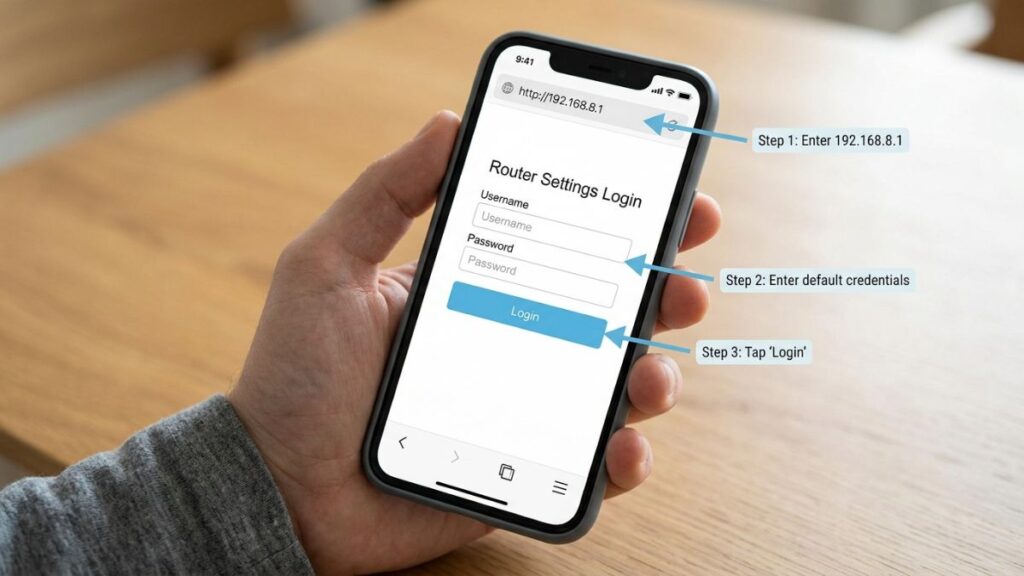
Most guides for this IP address completely ignore mobile login steps. Here they are, separated by platform.
iPhone (Safari or Chrome)
- Go to Settings → Wi-Fi and make sure you’re connected to your router or Huawei hotspot network. You cannot reach 192.168.8.1 over mobile data — it’s a local address only.
- Open Safari (or Chrome if Safari gives you trouble).
- Tap the address bar at the top.
- Type
192.168.8.1and tap Go. - Enter your username and password when the login page loads.
- Tap Login or Submit.
iPhone tip for Huawei MiFi: Huawei’s newer pocket router dashboards are actually mobile-optimized and look great in Safari. If the page still won’t load, try turning off Wi-Fi Assist in Settings → Wi-Fi (scroll down). Wi-Fi Assist can switch you to cellular when it thinks Wi-Fi is slow, which kills access to local IPs like 192.168.8.1.
Android
- Pull down the notification shade and confirm Wi-Fi is on and connected to your router or hotspot network.
- Turn off mobile data temporarily — on Android, mobile data can override Wi-Fi for local requests, which breaks access to local addresses entirely.
- Open Chrome (or your preferred browser).
- Tap the address bar.
- Type
192.168.8.1and tap Go or press Enter. - Enter your credentials when prompted and tap Login.
Troubleshooting: 192.168.8.1 Not Working?
Don’t panic if the page won’t load — it’s one of the most common issues with this address and there are clear fixes. Here are the five you’re most likely dealing with.
192.168.8.1 Login Problems & Fixes
1. “This site can’t be reached” — nothing loads at all
Cause: Your device isn’t properly connected to the router or hotspot that uses 192.168.8.1. This is especially common with MiFi devices when your phone has switched over to cellular data.
Fix: On your phone, manually disable mobile data and confirm Wi-Fi is connected to the correct network. On a laptop, try an Ethernet cable if the device has a port. Then open a fresh browser window and try 192.168.8.1 again. If it still fails, run ipconfig (Windows) or check your Wi-Fi settings (Mac/iPhone) to confirm your actual gateway — it might not be 192.168.8.1 at all.
2. Login credentials aren’t accepted
Cause: Either the default password was changed at some point, or you’re entering the Wi-Fi password instead of the admin password. These are two completely different things.
Fix: Check the sticker on your device first. For GL.iNet routers, try root / goodlife. For Huawei, try admin / admin. If neither works, the password was changed — a factory reset is the only path forward from here. See the section below.
3. The login page loads but loops or won’t submit
Cause: Your browser has cached an old or broken session from a previous login. Chrome is especially prone to this with router admin pages.
Fix: Open an incognito/private window and try logging in again. If that works, clear your regular browser’s cache and cookies, then switch back. This fixes the looping issue the majority of the time without any other changes needed.
4. Two routers on the same network — you’re hitting the wrong one
Cause: If you have a home router and a travel router or MiFi device both running on the 192.168.8.x range, there can be an IP conflict. When you type 192.168.8.1, your browser may load the wrong device’s admin page. GL.iNet users who connect their travel router behind a home network sometimes hit this. Understanding what is a default gateway can help you work out which device is acting as the actual gateway.
Fix: Connect your computer directly to the specific device (via Ethernet or by connecting only to that device’s Wi-Fi network, not both). This removes any ambiguity about which device 192.168.8.1 belongs to.
5. Page loads but looks broken or displays incorrectly
Cause: Older Huawei gateway interfaces (particularly ADSL/fiber models) can render poorly on modern browsers, especially on Safari. Some GL.iNet older firmware interfaces have similar display issues.
Fix: Try Chrome or Firefox on desktop. For GL.iNet, check if a firmware update is available — newer GL.iNet firmware versions have a completely rebuilt admin interface that works perfectly across all modern browsers. Clearing your browser cache also helps if you’ve previously visited the page.
Factory Reset Guide for 192.168.8.1 Routers
A factory reset wipes all custom settings and returns the device to how it shipped — credentials, Wi-Fi name, password, port forwarding rules, everything. It’s the nuclear option, but sometimes it’s the only way back in.
Before resetting: If you can still log in, export your configuration. Look for a Backup or Save Configuration option in the Administration or System section. For GL.iNet routers, this is under System → Backup and Restore.
How to reset:
- Find the Reset button — it’s a small pinhole on the back or bottom of the device. You’ll need a paperclip or SIM ejector tool to press it.
- Make sure the device is powered on.
- Press and hold the reset button for the recommended duration by brand:
- Huawei MiFi (E-series): Press and hold for 3–5 seconds until the indicator light changes. Some models require the button to be held through a full reboot cycle (~10–15 seconds).
- Huawei home routers: 10 seconds — hold until the WLAN LED blinks.
- GL.iNet: Press and hold for 10 seconds. The LED will flash rapidly, then release.
- TP-Link: 10 seconds
- Netgear: 10–15 seconds
- D-Link: 10 seconds
- Release the button and wait 60–90 seconds for the device to reboot fully.
- Connect to the device’s default Wi-Fi network (the name will be on the device label) and log in at 192.168.8.1 using factory defaults.
What gets wiped: Your custom admin password, Wi-Fi name (SSID), Wi-Fi password, any port forwarding or firewall rules, VPN configurations (on GL.iNet), guest network settings, and parental controls. Your ISP connection details may also be cleared on some modem-router combos.
What to Do After You Log In
Getting into the admin panel is step one. Here’s what you should actually do once you’re inside — these settings matter more than most people realize.
1. Change the Admin Password (Do This First)
The default credentials for most devices on 192.168.8.1 are publicly listed on every router database online. admin/admin takes about five seconds to guess. Anyone on your network can look it up and get into your router settings without your knowledge.
Here’s how to change it:
- Find the Administration, System, Management, or Advanced section in your dashboard.
- Look for Change Password, Admin Password, or Security Settings.
- Enter your current password, then type a new one.
- Make it at least 12 characters. Random combinations of letters, numbers, and symbols work best. How to create a strong Wi-Fi password also applies to admin passwords — the principles are the same.
- Save, log back in with the new password.
For GL.iNet routers: The password change is under System → Admin Password. Easy to find.
2. Change Your Wi-Fi Name and Password
Your Wi-Fi password is completely separate from your admin password — changing one doesn’t change the other. Head to Wireless or Wi-Fi Settings and update both the network name (SSID) and the Wi-Fi password. For Huawei MiFi devices, this is usually on the main dashboard screen right after login — it’s designed to be the first thing you do.
3. Switch to WPA2 or WPA3 Security Mode
This controls the encryption standard your wireless traffic uses. If you’re still on WEP or original WPA, your network is genuinely at risk. Find Wireless Security or Security Mode and select WPA2-Personal (AES) at minimum. If your device supports it, WPA3 is better — the Wi-Fi Alliance WPA3 overview breaks down why. Most modern Huawei and GL.iNet devices support WPA3, so it’s worth enabling if you see it as an option.
4. Review Connected Devices
Your admin panel has a section — usually called Connected Devices, Clients, or DHCP List — that shows every device currently on your network. Go through it. If you see device names you don’t recognize, someone may have joined your network without permission. Most interfaces let you block or kick unknown devices directly from this screen.
Most people don’t know this: every device on your network shows up here with both its IP address and its MAC address. The MAC address is a permanent hardware ID that doesn’t change, which makes it more reliable for identifying devices than the IP (which can change). How to find your router’s IP address also covers how to cross-reference devices using this info.
5. Enable a Guest Network
If you share your hotspot or router with guests, a guest network keeps them separated from your main network. That means your personal devices — your laptop, your smart home gadgets — aren’t visible to whoever’s on the guest network. For Huawei MiFi devices, look for Wi-Fi Settings → Guest Wi-Fi. For GL.iNet, it’s under Wireless → Guest Network. Takes two minutes and it’s genuinely one of the better security moves you can make for your home setup.
6. Update the Firmware
Firmware updates fix security holes, squash bugs, and sometimes add new features. For GL.iNet, go to System → Upgrade — there’s even an online update check built right in. For Huawei devices, go to Settings → System → Firmware Update. Huawei’s mobile hotspot interfaces often show a notification dot when an update is available. Tap it. Router firmware update guide walks through why keeping firmware current matters.
7. Port Forwarding and VPN (Advanced)
For GL.iNet users specifically: one of the main reasons people buy GL.iNet routers is the built-in VPN client support. Go to VPN → OpenVPN Client or WireGuard Client to set up a VPN tunnel for your entire network. It’s genuinely easier than most router VPN setups. For port forwarding, look under Network → Firewall → Port Forwarding. For Huawei home routers, port forwarding is usually under Advanced → NAT → Virtual Server.
Common Misspellings of 192.168.8.1
This IP gets mistyped more than most because the “8” section looks unusual compared to common addresses. Here are every variant that people search for:
If any of these brought you here, no worries — the correct format is 192.168.8.1 in your browser’s address bar with no spaces, no www, and no extra characters.
Which Router Brands Use 192.168.8.1?
Brands that consistently use 192.168.8.1 as their default gateway:
Huawei is the primary name here. Huawei uses 192.168.8.1 across a wide range of its products — including the popular E5577, E5783, E5885, and B525 MiFi pocket routers, as well as some of its home broadband gateway units. If you’re using a Huawei device of any kind, this is likely your admin address.
GL.iNet is the other major name. GL.iNet makes compact travel routers — the GL-MT300N-V2 (Mango), GL-AR750S (Slate), GL-AXT1800 (Slate AX), and others — all of which default to 192.168.8.1. These are popular among travelers and anyone who wants a portable VPN router.
Brands that sometimes use 192.168.8.1 (varies by model):
- Eminent (some wireless router models)
- Medialink
- Nexx
- STC, Zain, Zong, Telenor (carrier-branded Huawei MiFi devices)
Major US ISPs and their standard gateway IPs (for comparison):
- Xfinity/Comcast → 10.0.0.1
- AT&T → 192.168.1.254
- Verizon FiOS → 192.168.1.1
- Spectrum/Charter → 192.168.0.1
If you have an ISP-provided home gateway from one of these carriers, 192.168.8.1 is probably not your router’s address. The address is more relevant if you’re using a Huawei-based mobile hotspot plan, a GL.iNet travel router, or a separately purchased router from one of the brands listed above.
FAQ — 192.168.8.1 Router Login
These are two completely different passwords that serve completely different purposes. Your Wi-Fi password is what you enter on your phone or laptop to connect to the wireless network. Your admin password is what you enter at 192.168.8.1 to access the router’s settings dashboard. Changing one doesn’t affect the other. On a Huawei MiFi device, the Wi-Fi password is often printed on the device label — but the admin password defaults to admin unless you’ve changed it.
The most common cause is that your device isn’t actually connected to the router or hotspot that uses this IP. On a phone, make sure mobile data is turned off and that you’re connected to the correct Wi-Fi network. If it still fails, run ipconfig on Windows or check your network settings on iPhone — look for “Default Gateway.” That’s your actual router address, and it might not be 192.168.8.1.
Huawei pocket routers limit admin access to devices connected to their Wi-Fi or USB tether. If you’re on cellular data or connected to a different network, you won’t be able to reach the admin page. Make sure you’re on the Huawei device’s own Wi-Fi network — not your home network.
For older GL.iNet firmware (3.x and below): username is root, password is goodlife. For newer firmware (4.x and above): there’s no default password — you’re required to set one during first-time setup. If you’ve already set one and forgotten it, a factory reset is the only way to recover.
Wait a full 90 seconds after the reset before trying to connect. Router interfaces sometimes take longer to come back up than the indicator lights suggest. Try connecting via Ethernet if the device has a port. If it still doesn’t work, the device may be defective or the reset didn’t fully complete — hold the reset button for longer (up to 30 seconds on some models) and try again.
Yes. Most routers let you change the LAN IP address from inside the admin panel. For GL.iNet, it’s under Network → LAN. For Huawei routers, look under Home Network → LAN Settings. If you change it, write it down — you’ll use the new IP for all future admin access.
Yes. It’s a local private address — it only works within your local network and there’s no external internet exposure. Your admin panel isn’t reachable from outside your home. The main security risk is leaving default credentials unchanged, which someone already on your network could exploit.