Every time you type a URL into your browser, a small miracle happens in the background — one that takes less than a second but involves a chain of servers spanning the globe. That miracle has a name: DNS, or the Domain Name System. Without it, you’d need to memorize strings like 172.217.3.110 just to check your email.
This guide breaks down exactly how DNS works — from the moment you hit Enter to the page loading in your browser — plus record types, caching, security threats, troubleshooting commands, and how to pick a faster, more private DNS resolver.
What Is DNS?
The Domain Name System is the internet’s address book. It translates human-readable domain names — like google.com — into the numerical IP addresses that computers actually use to find each other, such as 142.250.80.46. DNS servers eliminate the need for anyone to memorize those numbers, handling billions of lookups every day, automatically and invisibly.
Think of it this way: when you save a contact in your phone as “Mom,” you don’t memorize her phone number. You just tap her name. DNS works the same way for websites. You type amazon.com, and DNS finds the number for you.
The system was invented in 1983 by Paul Mockapetris at USC, after Stanford’s Elizabeth Feinler could no longer maintain a single master list of every internet-connected computer by hand. Today, the standards are maintained by the IETF in RFC 1035, and the infrastructure is distributed across thousands of servers worldwide.
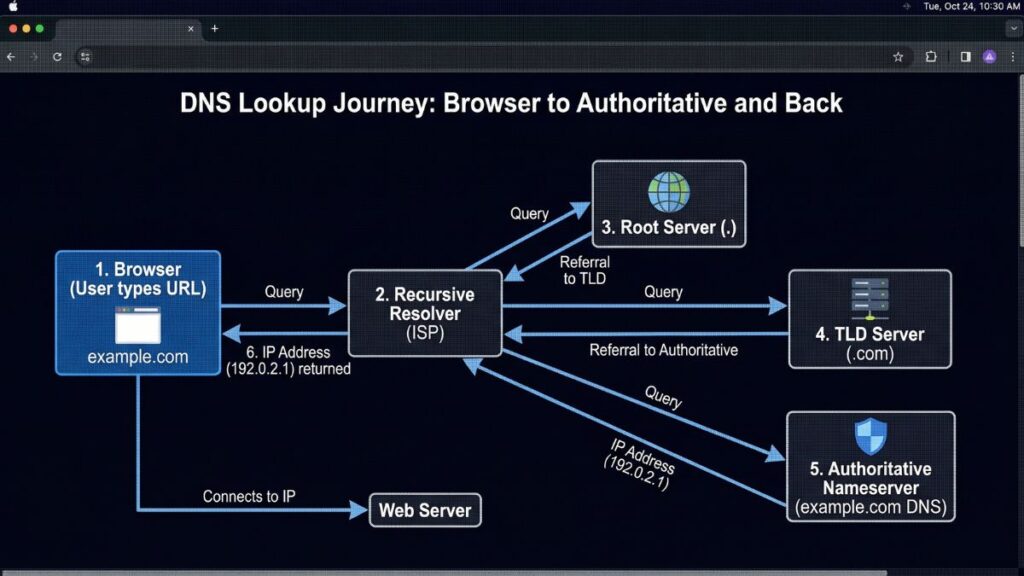
How a DNS Lookup Works: The 8-Step Process
Here’s what actually happens when you type example.com into your browser. Most people assume it’s instant magic — and it is fast — but there’s real work happening behind the scenes.
Step 1: You type the URL. Your browser checks its own internal DNS cache first. If it has visited example.com recently and the result hasn’t expired, it skips steps 2 through 8 entirely. That’s why repeat visits to sites feel so fast.
Step 2: The OS cache is checked. If the browser has no cached result, it asks your operating system’s DNS resolver. Your OS keeps its own cache too. No luck? On to the next step.
Step 3: The query goes to the recursive resolver. Your device sends the request to a DNS recursive resolver — usually one run by your ISP, or a public resolver like Google (8.8.8.8) or Cloudflare (1.1.1.1). This resolver is the workhorse: it does the legwork of finding the answer on your behalf.
Step 4: The resolver asks a root nameserver. If the resolver doesn’t have the answer cached, it contacts one of 13 sets of root nameservers maintained by organizations like ICANN. These root servers don’t know the IP for example.com, but they know who does: the TLD servers.
Step 5: The root server points to the TLD server. For example.com, the root server directs the resolver to the .com TLD (Top-Level Domain) nameserver. Different TLDs have different servers — .org, .net, .uk each have their own.
Step 6: The TLD server points to the authoritative nameserver. The .com TLD server knows which nameserver is authoritative for example.com specifically, and returns that address.
Step 7: The authoritative nameserver returns the IP. This is the final stop. The authoritative nameserver holds the actual DNS records for the domain and returns the IP address — say, 93.184.216.34 — back to the recursive resolver.
Step 8: Your browser connects. The resolver passes the IP back to your browser, which then opens an HTTP or HTTPS connection to that IP address and loads the page.
The whole process typically completes in 20–120 milliseconds. And because each server caches results along the way, most lookups skip several of these steps entirely.
The Four Key Servers in Every DNS Query
Understanding who does what makes the whole system click.
The DNS Recursive Resolver is your query’s first stop after your local machine. Think of it like a librarian who doesn’t personally know where every book is, but knows exactly how to find out. It does all the legwork — querying root servers, TLD servers, and authoritative servers — so your browser doesn’t have to.
The Root Nameserver is the starting point of the authoritative chain. There are 13 sets of root servers globally, but “13 sets” doesn’t mean 13 physical machines — it means 13 IP addresses, each backed by hundreds of servers worldwide using Anycast routing. The root server doesn’t know your answer; it just knows where to send the resolver next.
The TLD Nameserver handles the last portion of your domain — .com, .org, .net, .io, and so on. Each TLD has its own set of servers managed by different organizations. Verisign, for example, manages the .com and .net TLD servers.
The Authoritative Nameserver is the final authority. It holds the actual DNS zone file for your domain and returns the definitive answer. When you update a DNS record through your domain registrar or hosting provider, you’re updating the records on this server.
DNS Record Types Explained
Most people only know about the A record — but DNS is a lot richer than that. Here’s a practical breakdown of every record type you’re likely to encounter:
| Record Type | What It Does | Example Use Case |
|---|---|---|
| A | Maps a domain to an IPv4 address | example.com → 93.184.216.34 |
| AAAA | Maps a domain to an IPv6 address | example.com → 2606:2800:21f:cb07::1 |
| CNAME | Aliases one domain name to another | www.example.com → example.com |
| MX | Directs email to the right mail server | Routes @example.com email |
| TXT | Stores text data; used for SPF, DKIM, DMARC, domain verification | Prevents email spoofing |
| NS | Specifies the authoritative nameservers for a domain | Delegates a domain to its DNS host |
| SOA | Start of Authority — zone metadata | Serial number, refresh intervals |
| PTR | Reverse DNS — maps IP back to domain | Used by mail servers for spam checks |
| SRV | Specifies port and location of services | Used by SIP, XMPP, and other protocols |
| CAA | Restricts which CAs can issue SSL certificates | Security for certificate issuance |
A few things most people don’t realize: a CNAME record and an A record cannot coexist on the same hostname — DNS rules forbid it. And a missing PTR record is one of the most common reasons email lands in spam; mail servers check whether your sending IP resolves back to a valid domain name.
The A record is the workhorse. The MX record is what makes email delivery possible. The TXT record is where all the email security magic happens — SPF, DKIM, and DMARC all live here, working together to stop spoofing and phishing.
What Is DNS Caching and TTL?
TTL, or Time To Live, is a value set on every DNS record. It tells resolvers how long (in seconds) they can store — or cache — that record before they need to fetch a fresh copy. A TTL of 86400 means the record can be cached for 24 hours. A TTL of 300 means just 5 minutes.
Caching is a core feature of DNS, not a bug. Without it, billions of DNS queries would hammer authoritative servers every second. Because resolvers cache results, most lookups are answered in milliseconds from memory rather than traveling the full lookup chain.
The tradeoff: longer TTLs mean faster DNS responses but slower propagation of changes. If you update an A record and your old TTL was 24 hours, some users may keep hitting the old IP address for up to a day.
Common TTL values in practice:
- 300 seconds (5 min) — Use when you’re about to make a migration or major change. Changes propagate quickly.
- 3600 seconds (1 hour) — A solid middle ground for most records.
- 86400 seconds (24 hours) — Good for stable records that rarely change, like NS records.
- 604800 seconds (7 days) — For very stable infrastructure that never moves.
Pro tip: If you’re migrating your website to a new server, lower your TTL to 300 seconds at least 24–48 hours before the move. That way, when you update the A record, the old cached values expire quickly. Once the migration is verified, raise the TTL back up.
DNS Security: Attacks You Need to Know
The domain name system was designed in 1983, when the internet was a small research network with no adversaries. Security wasn’t part of the original design. Today, that’s a problem.
DNS Spoofing and Cache Poisoning
DNS cache poisoning is when an attacker inserts fraudulent records into a resolver’s cache. The next time someone queries that resolver for the poisoned domain, they get sent to the attacker’s IP address instead of the real one — without any warning. DNS spoofing is what the user experiences: they think they’re on yourbank.com but they’re actually on a fake site harvesting their credentials.
DNS Hijacking
DNS hijacking redirects queries at a deeper level — often by compromising a router, DNS server, or even the domain registration itself. Unauthorized changes to NS records hand over full control of a domain’s resolution. This is one of the highest-severity DNS attacks because it’s nearly invisible to end users.
DDoS Attacks on DNS
In 2016, a massive DDoS attack on DNS provider Dyn knocked major websites — Twitter, Netflix, Reddit — offline for hours across large parts of the US. Attackers flooded Dyn’s DNS servers with traffic until they couldn’t respond to legitimate queries. The lesson: if your DNS provider goes down, so does your website.
DNSSEC: The Fix
DNSSEC (DNS Security Extensions) adds cryptographic signatures to DNS responses. When a resolver receives a DNSSEC-signed response, it can verify the answer came from a legitimate authoritative server and wasn’t tampered with in transit. It doesn’t encrypt DNS queries (that’s what DoH and DoT do), but it does verify their integrity.
Implementing DNSSEC is especially important for any domain handling financial transactions, login credentials, or sensitive data. <!– SCREENSHOT PLACEHOLDER: Add a diagram showing how a DNS cache poisoning attack redirects a user to a fake website vs. the legitimate site –>
How to Troubleshoot DNS Problems
Sound familiar? Your site works fine, but a colleague says they can’t reach it. Or you update a DNS record and it “doesn’t seem to work.” DNS issues follow predictable patterns once you know where to look. Don’t panic — most problems are solvable in minutes.
Step 1: Check if It’s Really DNS
Type the numeric IP address directly into your browser. If the site loads, your problem is DNS — not the server, not the firewall, not the hosting. DNS is the culprit.
Step 2: Flush Your Local Cache
Your operating system caches DNS results. If you recently updated a record, your machine might still be serving the old answer.
- Windows:
ipconfig /flushdns - Mac:
sudo dscacheutil -flushcache; sudo killall -HUP mDNSResponder - Linux:
sudo systemd-resolve --flush-caches
Step 3: Use nslookup or dig
These are your best friends in DNS debugging.
nslookup example.com
This returns the IP address your current DNS resolver is returning for a domain. If it’s the wrong IP, you know the problem is either a misconfigured DNS record or a stale cache.
For more detail, use dig:
dig example.com
The dig command shows TTL values, the answer section, and which server responded — far more useful for pinpointing problems.
Step 4: Try a Different DNS Resolver
Switch your device to Google DNS (8.8.8.8) or Cloudflare (1.1.1.1) temporarily. If the problem disappears, the issue is with your ISP’s resolver — not your DNS records.
Step 5: Verify the Actual DNS Records
Log into your DNS provider’s dashboard and verify your records. Look for:
- Typos in the domain name
- Wrong IP address on the A record
- Missing records (e.g., a
wwwCNAME not pointing anywhere) - TTL set far too high, slowing propagation
Common Error Messages Decoded
| Error | What It Means |
|---|---|
NXDOMAIN | Domain doesn’t exist — missing record or misspelled domain |
SERVFAIL | The server responded but something’s broken upstream |
REFUSED | The server is refusing to answer your query |
| Timeout | Can’t reach the DNS service at all — firewall or server outage |
Remember: DNS runs on port 53. UDP for most queries, TCP for large responses and zone transfers. A firewall blocking port 53 will kill DNS queries silently.
DNS Privacy: DoH and DoT
Here’s something most people don’t realize: traditional DNS queries are sent in plain text. Your ISP, network admin, or anyone else watching your traffic can see every domain you look up — even if the actual sites you visit are HTTPS.
Two protocols fix this:
DNS over HTTPS (DoH) encrypts DNS queries inside regular HTTPS traffic on port 443. It’s indistinguishable from normal web traffic, which makes it resistant to blocking and surveillance. Firefox and Chrome both support DoH natively.
DNS over TLS (DoT) encrypts DNS queries using TLS on a dedicated port (853). It’s more transparent for network administrators to monitor — which makes it preferred in enterprise environments where IT teams need visibility.
Both are a significant privacy improvement over plain DNS. If privacy matters to you — or you’re using public Wi-Fi — enabling DoH in your browser is a simple, immediate win.
Public DNS Providers Compared
Your ISP assigns you a DNS resolver by default, but you’re not stuck with it. Public resolvers are often faster, more reliable, and more privacy-respecting.
| Provider | Primary IP | Secondary IP | Privacy | DoH Support | Notable Feature |
|---|---|---|---|---|---|
| Cloudflare | 1.1.1.1 | 1.0.0.1 | Strong — logs purged within 24h | Yes | Fastest average response globally |
| Google Public DNS | 8.8.8.8 | 8.8.4.4 | Moderate — some query logging | Yes | Extremely reliable uptime |
| Quad9 | 9.9.9.9 | 149.112.112.112 | Strong | Yes | Blocks known malicious domains |
| OpenDNS | 208.67.222.222 | 208.67.220.220 | Moderate | Yes | Content filtering options |
| ISP Default | Varies | Varies | Varies (often poor) | Rarely | Geographically close |
For most people, Cloudflare (1.1.1.1) is the best choice — fastest response times, strong privacy policy, and DoH support. For families or networks where you want built-in malware blocking, Quad9 is an excellent alternative.
Common DNS Mistakes (And How to Fix Them)
Mistake 1: TTL set too high before a migration. If your A record has a TTL of 86400 and you need to move servers today, users could keep hitting the old server for up to 24 hours. Fix: always lower TTL to 300 before any planned change. Raise it back after.
Mistake 2: Forgetting to renew your domain. This one stings. Even Google briefly lost google.com in 2015 when it lapsed. Set up auto-renew and add a calendar reminder 60 days before expiry. Registrars typically wait 20–30 days after expiry before auctioning a domain, but don’t test that.
Mistake 3: A record and CNAME on the same hostname. A CNAME record says “this name is an alias.” You cannot have any other records on an aliased hostname. If you try, you’ll get unpredictable behavior — often silent failures that are hard to trace.
Mistake 4: No AAAA record. IPv6 is no longer the future — it’s the present. If your domain only has an A record, clients that prefer IPv6 may fail resolution initially. Add an AAAA record pointing to your IPv6 address, and you’ll cover both.
Mistake 5: Missing PTR records for email. If you’re running a mail server, your sending IP must have a valid PTR record that resolves back to a matching domain name. No PTR record = spam folder, almost guaranteed. And unlike A records, PTR records are managed by your hosting provider or ISP, not your domain registrar.
Mistake 6: Testing from only one device. DNS results vary by resolver and cache state. “It works on my computer” is not a green light. Test from multiple devices and locations, or use an online DNS checker to query from multiple global vantage points.
Mistake 7: Breaking DNSSEC during a migration. A broken DNSSEC chain looks exactly like a server-side failure — and it will send you in the wrong direction for a long time. If you’re migrating nameservers, confirm DNSSEC is properly configured at both the registrar and new DNS provider before completing the transfer.
FAQ
DNS stands for Domain Name System. It works like a phone book for the internet: instead of looking up a person’s number, it looks up the IP address for a domain name. When you type netflix.com, DNS finds the actual server address so your browser knows where to connect.
Most DNS changes propagate globally within a few minutes to a few hours, but in theory can take up to 48 hours depending on the TTL set on the old record. If you lowered your TTL to 300 seconds before making changes, propagation for most users will complete within 5–10 minutes.
A “DNS server not responding” error usually means one of three things: your ISP’s DNS servers are down or overloaded, your router is misconfigured, or a firewall is blocking port 53. The fastest fix is to switch to a public DNS resolver like Cloudflare (1.1.1.1) or Google (8.8.8.8) and test again.
A domain registrar is where you purchase and register your domain name (like GoDaddy or Namecheap). DNS is the system that routes traffic to the right server once you own the domain. The registrar tells the internet which nameservers are authoritative for your domain — but those nameservers can be hosted anywhere.
DNSSEC adds cryptographic signatures to DNS responses, allowing resolvers to verify that answers haven’t been tampered with. It protects against cache poisoning and DNS spoofing. If you run a site handling logins, payments, or sensitive data, enabling DNSSEC is strongly recommended. Most modern DNS providers support it with one click.
Yes. Your registrar and your DNS provider are independent. You can keep your domain at any registrar and point it to nameservers from Cloudflare, AWS Route 53, or any other DNS host. Just update the NS (nameserver) records at your registrar to point to your new provider.
Both encrypt your DNS queries to prevent surveillance. DoH (port 443) wraps DNS inside regular HTTPS traffic — it’s harder to block and better for privacy on untrusted networks. DoT (port 853) uses a dedicated encrypted channel — it’s easier for network admins to monitor and manage, making it more common in corporate environments.