Most people update their phone, their laptop, and their apps without thinking twice — but then leave the router on firmware from 2021 and wonder why their Wi-Fi feels sluggish or their security feels shaky. Your router is the first device that touches every packet of data entering and leaving your home. Keeping its firmware current isn’t optional maintenance. It’s the foundation everything else sits on.
This guide covers exactly how to update router firmware on every major brand, what to do before you start, what mistakes can brick your device, and what to do if something goes wrong.
What Is Router Firmware?
Router firmware is the software permanently embedded in your router’s hardware — it’s the operating system that tells the device how to route traffic, manage security, handle Wi-Fi protocols, and control every feature you interact with. Unlike the apps on your phone, firmware doesn’t update itself by default on most routers. It sits quietly in the device’s flash memory until you actively push a new version in.
Manufacturers release new firmware to patch security vulnerabilities, fix bugs that cause dropped connections or slow speeds, and add support for new networking standards. In short: new firmware is the difference between a router that’s actively protecting your network and one that’s been sitting wide open for months.
Why Updating Router Firmware Matters
Let’s be direct about what’s at stake. A router running old firmware isn’t just missing features — it’s likely running with known, publicly disclosed security vulnerabilities that attackers can exploit. Cybercriminals actively scan home networks for routers with unpatched firmware. Once they’re in, they can intercept traffic, redirect you to fake websites, or use your network as a launchpad for attacks on other systems.
The FBI has issued advisories specifically warning about end-of-life routers that no longer receive firmware patches, noting that they become easy prey for sophisticated malware once vendor support ends. This isn’t a theoretical concern — it’s one of the most documented vectors for home network compromise.
Beyond security, firmware updates regularly include real performance improvements: better Wi-Fi range, faster throughput, more stable connections, and support for newer devices and protocols. And for anyone using a router’s guest network, parental controls, or VPN features, firmware updates often patch the exact bugs that make those features misbehave.
So yes — updating router firmware is worth the five to ten minutes it takes.
How to Check Your Current Firmware Version
Before you update, you need to know what version you’re already running.
- Open a browser and type your router’s IP address into the address bar — usually
192.168.1.1or192.168.0.1. (Check the sticker on your router if you’re not sure.) - Log in with your admin username and password.
- Look for firmware version information on the main dashboard or under Administration, Advanced, or System Info — the exact location varies by brand.
- Write down both the firmware version number and the hardware version. You’ll need both in a moment.
Compare what you see against the latest available firmware on your manufacturer’s support page. If the version numbers match, you’re up to date. If not, read on.
Before You Update: Back Up Your Config
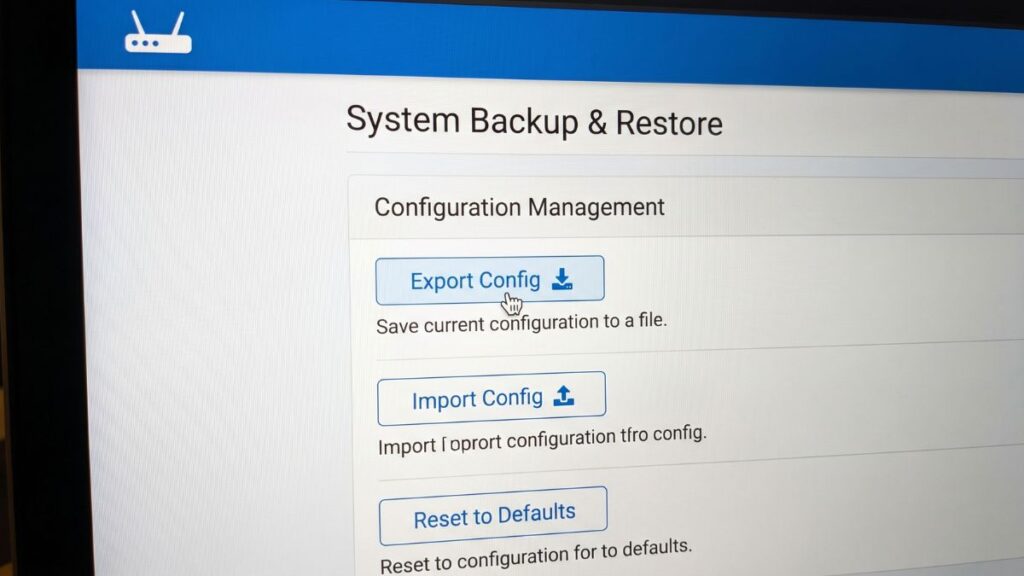
Most guides skip this. Don’t skip this.
Router firmware updates sometimes reset the device to factory defaults — especially on ASUS routers, where it’s actually recommended procedure after certain updates. If that happens without a backup, you’ll spend an hour rebuilding your settings from scratch: your Wi-Fi name, password, port forwarding rules, guest network config, parental controls, static IP assignments, everything.
A config backup takes about 60 seconds.
On most routers:
- Log into the admin panel.
- Navigate to Administration > Backup Settings (or similar — labels vary by brand).
- Click Export or Backup to download a config file to your computer.
- Save it somewhere you’ll find it. Your desktop works fine.
That file is your insurance. If the update goes sideways, you restore from the file and you’re back to exactly where you started.
Auto-Update vs. Manual Update
Most modern routers offer automatic firmware updates, and the question of whether to use them is worth a quick answer.
Auto-updates are convenient and mean you’ll never fall far behind. But they do occasionally push updates that introduce new bugs — and those updates install without warning, sometimes mid-day. For home users, the convenience almost always outweighs the risk.
Manual updates give you control. You can read the release notes first, wait a week or two for other users to report any problems with a new version, and then update on your own schedule. This “wait a week” approach is genuinely good practice for anyone who can’t afford network disruption — early firmware releases occasionally have issues that the manufacturer patches in a follow-up version within days.
The best approach: enable auto-updates for security patches (most routers distinguish between security updates and feature updates) and manually review major version updates before applying them.
See the comparison table at the end of this article for a full breakdown.
How to Update Router Firmware: Universal Steps
These steps apply to virtually any home router. Brand-specific steps follow in the next section.
- Use a wired Ethernet connection if possible. Doing a firmware update over Wi-Fi is fine in practice, but a wired connection eliminates any risk of a wireless dropout mid-update. That’s the scenario that can brick a router.
- Log into your router’s admin panel by typing its IP address into a browser address bar.
- Back up your current config (see above).
- Navigate to the firmware update section. Look under Administration, Advanced, System, or Management — it’s labeled differently on every brand.
- Check for available updates. Most modern routers have an online check button. Click it and wait.
- Read the release notes before clicking Update. Seriously — if the notes say “reset to factory defaults required after update,” you need to know that before the update runs.
- Click Update or Upgrade and don’t touch anything. Do not power cycle the router. Do not close the browser. Do not try to use the internet. The update process will take between 2 and 10 minutes — the router will restart itself when complete.
- Wait for the router to come back online. Lights will blink, go dark, and then stabilize. Once your devices reconnect, log back in and confirm the firmware version has changed.
- If a factory reset is recommended or required, restore your saved config backup.
That’s the core process. Now let’s go brand by brand.
Brand-by-Brand Firmware Update Instructions
TP-Link (Archer Series and Deco Mesh)
TP-Link routers split into two categories: those that support TP-Link Cloud (and can update automatically) and older models that require a manual file upload.
Automatic update (Cloud-enabled routers):
- Go to
http://tplinkwifi.netor192.168.0.1and log in. - If an update is available, an update icon appears in the upper right corner of the dashboard.
- Click the icon, review the release notes, and click Upgrade.
- Alternatively, use the Tether app: tap the management icon at bottom right > System > Firmware Update.
- Do not turn off the router or disconnect the Ethernet cable during the upgrade.
Manual update (older models without Cloud support):
- Go to your router’s product page on tp-link.com and find your exact model.
- Match the hardware version on the download page to the hardware version printed on your router’s label. This is critical — the wrong firmware file can damage the device.
- Download the firmware ZIP file and extract the
.binfile inside. - Log into
http://tplinkwifi.net, go to Advanced > System > Firmware Upgrade. - Click Browse, select the
.binfile, and click Upgrade.
Important note from TP-Link: EU and US firmware files are different and not interchangeable. Download from the version of the TP-Link site that matches your region.
ASUS (RT Series and ZenWiFi)
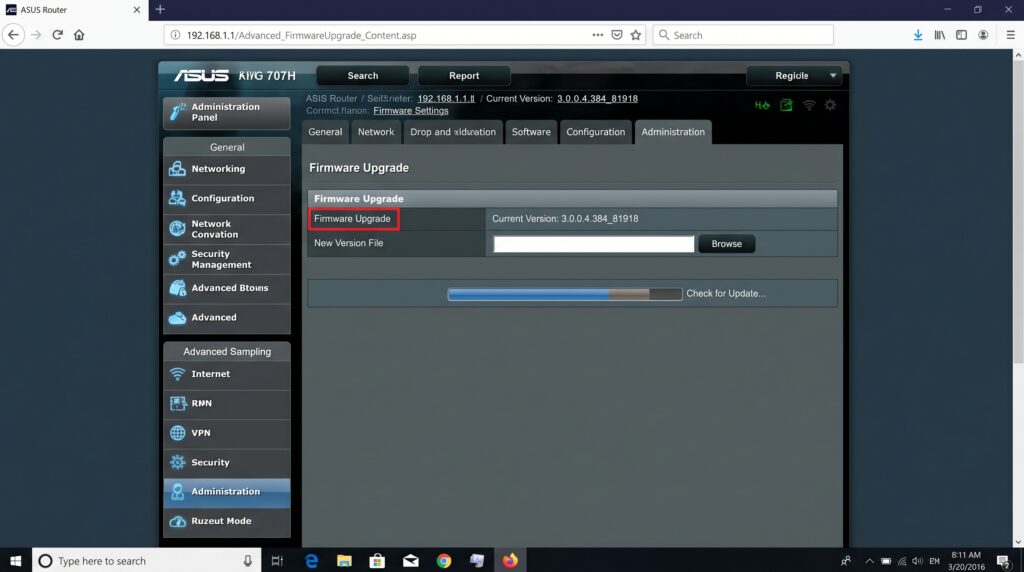
ASUS strongly recommends performing a factory reset after major firmware updates. Back up your config first.
Via the web UI (WebGUI):
- Go to
http://www.asusrouter.comor192.168.1.1and log in. - Look for a pop-up notification in the upper right corner if a new firmware version is available.
- Click Update Now, then navigate to Administration > Firmware Upgrade.
- Click Check to fetch the latest version, then click Firmware Upgrade.
- Wait — do not power off the router.
- After the upgrade, ASUS recommends going to Administration > Restore/Save/Upload Setting > Factory Default and clicking Restore to clear any potential conflicts with old settings.
Enabling auto-updates on ASUS: Go to Administration > Firmware Upgrade, enable Auto Firmware Upgrade, and set a preferred time — ideally overnight when the network isn’t in use.
NETGEAR (Nighthawk and Orbi)
Via the web browser:
- Connect to your network — Ethernet preferred.
- Go to
http://www.routerlogin.netor192.168.1.1. - Log in with your admin credentials (default username is
admin). - Go to Advanced > Administration > Firmware Update.
- Click Check for available updates.
- If an update is available, click Yes to download and install it.
- After clicking Upgrade, do not navigate away or power off the router until the process completes and the router restarts.
Via the Nighthawk app: Open the app, tap the router icon, and look for a firmware update notification under Settings. For Orbi mesh systems, update the main router first — the satellite nodes update automatically after.
Google Nest / Google Home
Google handles firmware automatically — you don’t push updates manually. However, you can check your current firmware version and prompt a check for updates.
- Open the Google Home app.
- Tap your router device.
- Tap the gear icon (Settings) > Technical info.
- Your current firmware version is listed here.
Google typically applies updates overnight. If you want to manually trigger a check, tap Settings > Network & General > Updates in the Google Home app. There’s no firmware file to download or upload — Google manages the entire process automatically.
Amazon Eero
Like Google, Eero pushes firmware updates automatically through the cloud.
- Open the Eero app.
- Tap Settings > Software Version to see your current firmware.
- Eero updates overnight during low-traffic periods automatically.
You can’t manually upload firmware on Eero — it’s a fully managed system. If you’re concerned about an update, check the Eero community forum for reports about the latest version before it deploys to your network.
D-Link (DIR Series)
- Download the latest firmware from dlink.com/support for your exact model.
- Open a browser and go to
http://dlinkrouter,http://dlinkrouter.local, orhttp://192.168.0.1. - Log in (default username is
Admin; the password field may be blank if you’ve never set one). - Click Maintenance > Firmware Update.
- Click Browse, locate the downloaded
.binfile, and click Upload. - The update takes up to 30 seconds — do not interrupt it.
The Hardware Version Warning (Critical)
This is the mistake that actually bricks routers, and almost no guide covers it prominently enough. So here it is, upfront.
Your router’s model number (e.g., “Archer AX3000”) is not enough to identify the correct firmware. The same model can have multiple hardware versions — v1, v2, v3, and so on — and each hardware version requires its own firmware file. Installing v2 firmware on a v1 hardware unit can corrupt the device permanently.
How to find your hardware version: Look at the label on the bottom of your router. It will say something like “Hardware Version: V2” or “Ver:3.0”. Some manufacturers print it as “HW:” followed by a number.
When you download firmware, match this number exactly to the hardware version listed on the manufacturer’s download page. When in doubt, don’t guess — contact manufacturer support and ask.
What Happens During the Update (Timeline)
People panic mid-update more than you’d think. Here’s what normal looks like:
- 0:00–0:30 — You click Upgrade. The router begins downloading the firmware file (if updating online) or receiving the uploaded file.
- 0:30–2:00 — The router writes the new firmware to its flash memory. Lights may blink erratically. This is normal.
- 2:00–5:00 — The router reboots. All lights go dark, then the power light comes on, then the internet light. Wi-Fi will be unavailable during this time.
- 5:00–10:00 — The router fully restarts and reinitializes. On some models, this takes several minutes. Don’t touch it.
- 10:00 — Devices start reconnecting automatically. Log back into the admin panel and confirm the new firmware version is showing.
If it’s been more than 15 minutes and the router still won’t respond, see the troubleshooting section below.
What to Do If the Firmware Update Fails
Don’t panic. A failed update doesn’t automatically mean a dead router.
First, try a power cycle. Unplug the router, wait 30 seconds, and plug it back in. Let it sit for 3–5 full minutes — some routers take longer to boot after a failed update. Then try to access the admin panel via its IP address.
If the router won’t respond at all, it may be in a soft-brick state. Many routers have a built-in recovery mode:
- Hold the reset button for 10–30 seconds while the router is powered on until the lights change (vary by model — check your manual).
- Connect a computer directly to the router via Ethernet.
- Try accessing
192.168.0.1or192.168.1.1in a browser — some routers serve a minimal recovery interface in this state. - If you see a recovery page, you can upload the firmware file manually to restore the router.
TP-Link also offers a TFTP-based firmware recovery method for fully bricked units — details are on their support site for your specific model.
If none of the above work, contact your router manufacturer’s support line. A soft-bricked router isn’t necessarily a lost cause — manufacturers have recovery procedures that aren’t publicly documented.
Is Your Router End-of-Life?
Here’s something most people don’t know: router manufacturers eventually stop releasing firmware for older models. Once a router hits end-of-life (EOL), it stops receiving security patches — permanently.
The FBI and CISA have both warned that EOL routers are actively targeted by attackers because their vulnerabilities are known, documented, and never going to be fixed.
How to check if your router is still supported:
- Go to your manufacturer’s support page and search for your exact model.
- Check when the last firmware update was released. If it was more than 2–3 years ago, that’s a warning sign.
- Look for an explicit “end of life” or “end of support” notice on the product page.
If your router is EOL and no longer receiving firmware updates, no amount of careful patching will protect it. At that point, the right move is a replacement — not another update check.
Common Mistakes to Avoid
Using the wrong firmware file. Matching model number alone isn’t enough — hardware version matters. Always verify both before downloading.
Updating over Wi-Fi during a storm or unstable power. A power outage mid-update is the most reliable way to brick a router. Update during stable conditions, ideally with the router on a UPS (uninterruptible power supply) if you have one.
Not reading the release notes. Some firmware versions require a factory reset after installation. If you skip the notes and don’t know this, you’ll wonder why your settings are gone.
Downloading firmware from third-party sites. Only download from the manufacturer’s official website. Third-party firmware files are a known malware vector — attackers specifically create fake firmware packages and seed them across the web.
Interrupting the update. Never close the browser, navigate away, or power cycle the router while an update is in progress. Wait until it’s done, even if it seems stuck.
Updating a mesh node before the main router. Always update the primary router first on mesh systems. Nodes typically update automatically once the main unit is done.
Troubleshooting After a Firmware Update
Wi-Fi isn’t working after the update Some firmware updates reset Wi-Fi settings to defaults. Log into the admin panel via Ethernet and check your SSID and password settings — you may need to reconfigure them or restore your backup config.
The admin panel shows the old firmware version Try a hard refresh in your browser (Ctrl+Shift+R on Windows, Cmd+Shift+R on Mac) and log in again. If the version still shows the old number, the update may not have completed. Try running it again.
Devices can connect to Wi-Fi but can’t reach the internet This is often a DNS or WAN settings issue triggered by a partial reset. Log into the admin panel and check your internet connection settings under WAN or Internet Setup — you may need to re-enter your ISP connection type (DHCP, PPPoE, etc.).
The router is back online but running slower than before Clear your device’s DNS cache (on Windows: ipconfig /flushdns in Command Prompt) and restart the connected devices. Also check if the update reset your QoS or bandwidth settings.
A specific feature stopped working after the update Check the release notes for the firmware version — sometimes features are moved, renamed, or temporarily disabled in a new release. If the feature was working before and is simply missing now, a factory reset followed by restoring your backup config often resolves it.
Auto-Update vs. Manual Update: Comparison Table
| Factor | Auto-Update | Manual Update |
|---|---|---|
| Effort required | None | 5–15 minutes |
| Risk of running outdated firmware | Very low | Higher if you forget |
| Can review release notes first | No | Yes |
| Can wait for early-adopter issues to surface | No | Yes |
| Risk of disruptive update mid-day | Yes | No (you control timing) |
| Suitable for home users | Yes | Yes |
| Suitable for home offices / power users | With care | Preferred |
| Available on all routers | No | Yes |
| Supported by Eero / Google Nest | Only option | Not available |
FAQ
Check every one to three months. Most home users can rely on auto-updates if their router supports them. If you manage updates manually, set a calendar reminder — quarterly is a reasonable cadence. After any major security news involving routers, check immediately regardless of your normal schedule.
Not automatically — but it can. Some updates, particularly major version updates on ASUS routers, recommend or require a factory reset afterward. Always back up your config before updating so you can restore settings in seconds if needed.
Yes, and most people do. The risk is lower than it used to be because modern routers handle wireless updates gracefully. That said, using a wired Ethernet connection eliminates any chance of a wireless dropout mid-update, which is the main cause of failed updates. If you’re at all concerned, plug in a cable first.
Some ISP-provided routers (like those rented from your cable company) are managed entirely by the ISP — you won’t see or control firmware updates. The ISP pushes them automatically. If you’re using your own router and the option is missing, your model may be end-of-life and no longer supported.
No. Only download firmware from your router manufacturer’s official website. Third-party downloads carry a real risk of tampered or malicious firmware files — this is a documented attack vector. If the official support page doesn’t have a file for your model, contact manufacturer support directly.
Try holding the reset button for 30 seconds, then connect via Ethernet and access the recovery interface at your router’s IP address. Many routers have a built-in recovery mode accessible after a failed update. If that doesn’t work, contact your manufacturer’s support — soft-bricked routers are often recoverable with the right procedure.
Log into the admin panel and look under Administration or System settings. If you see an “Auto Firmware Upgrade” or “Automatic Updates” toggle, your router supports it. Fully managed systems like Google Nest and Amazon Eero update automatically by design.