If you’re an Xfinity or Comcast customer and you’ve been trying to get into your router settings, 10.0.0.1 is the address you need — not 192.168.1.1. That’s the mix-up I see most often with this IP, so if you’ve been getting a “page not found” error, that’s probably why. This guide covers everything: how to log in on a computer or phone, what to do when it won’t work, and what to actually change once you’re inside.
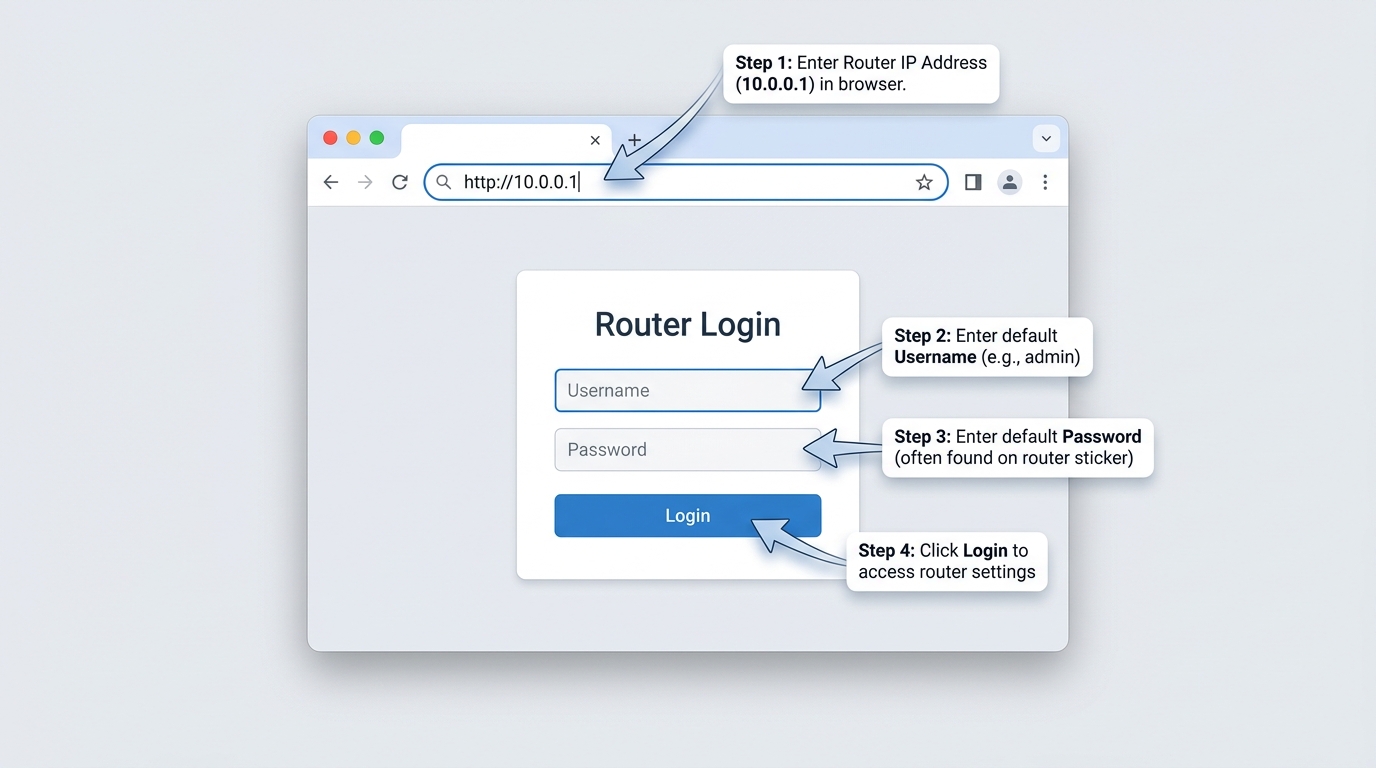
10.0.0.1 – Router Login Admin Page
What Is 10.0.0.1?
10.0.0.1 is a private IP address used as the default gateway on certain home routers and gateways — most notably the equipment issued by Xfinity (Comcast), as well as Apple AirPort base stations and some Cisco and Arris hardware.
Like all private IPs, 10.0.0.1 only exists within your local network. You can’t reach it from outside your home — it doesn’t exist on the public internet. Type it into your browser and you’re talking directly to your router, not to any external server.
The address belongs to the 10.0.0.0/8 block — the largest of the three private IP ranges defined by RFC 1918. This range covers 10.0.0.0 all the way to 10.255.255.255, giving network administrators an enormous pool of addresses for private use. For home users, though, the only address in this block you’ll ever deal with is 10.0.0.1.
When you type 10.0.0.1 into your browser, it opens your router’s admin panel — the control room for your entire home network. That’s where you can change your Wi-Fi name and password, see every device connected to your network, set up parental controls, update firmware, and a lot more.
Default Username and Password for 10.0.0.1
The credentials you need depend on who made your router or gateway. For Xfinity customers, the login is a little different from most other routers — here’s the full breakdown:
| Brand / Device | Default Username | Default Password |
|---|---|---|
| Xfinity / Comcast Gateway | admin | password |
| Xfinity xFi Gateway (newer) | admin | password |
| Arris (Comcast-issued) | admin | password |
| Apple AirPort | (blank) | public |
| Cisco (some models) | cisco | cisco |
| Cisco (other models) | admin | admin |
| Motorola (Comcast-issued) | admin | motorola |
| Technicolor (Comcast) | admin | password |
| ARRIS TG series | admin | password |
🔐 Tip: Xfinity customers: If you’ve gone through the Xfinity app setup, your gateway may have a unique password printed on the label on the side of the device — it’s a long string of characters, not “password.” Check the label first before trying the defaults above.
🍏 Note: Apple AirPort users: The AirPort base station is configured through the AirPort Utility app on Mac or iOS, not through a browser admin panel. Typing 10.0.0.1 in a browser may show a basic status page but won’t give full admin access.
How to Log In to 10.0.0.1 on a Computer
These steps work on any computer — Windows or Mac — and in any browser.
- Make sure your computer is connected to your home Wi-Fi, or plugged into the router with an Ethernet cable.
- Open any browser — Chrome, Firefox, Edge, or Safari all work.
- Click into the address bar at the very top of the browser window. This is where the URL shows — not the Google search bar.
- Type
10.0.0.1and press Enter. - The router login page will appear. Enter your username and password.
- Click Login or Sign In.
- The admin dashboard loads. You’re in.
⚠️ Common mistake: If you type 10.0.0.1 into a Google search, you’ll get search results — not your router. You need the address bar at the very top of the browser. Also, if the page fails to load, try typing http://10.0.0.1 with the http:// prefix — some browsers default to HTTPS which blocks the connection.
How to Log In to 10.0.0.1 on iPhone
Most guides skip mobile entirely. Here’s exactly how to do it on iPhone:
- Open Settings → Wi-Fi and confirm you’re connected to your home network. Mobile data won’t reach your router — it needs to be Wi-Fi.
- Tap the (i) icon next to your network name. Look for the Router line to confirm your gateway is 10.0.0.1.
- Open Safari (or Chrome for iPhone).
- Tap the address bar at the top and type
10.0.0.1. - Tap Go on the keyboard.
- The router login page will load. Enter your credentials.
- Tap Login.
If you’re an Xfinity customer, the gateway admin panel on mobile may look slightly different from the desktop version — some settings are simplified or hidden. For full access to all settings, a computer is more reliable.
How to Log In to 10.0.0.1 on Android
- Go to Settings → Network & Internet → Wi-Fi and connect to your home network. Turn off mobile data if it’s interfering with the connection.
- Tap your network name → Advanced → look for Gateway. Confirm it shows 10.0.0.1.
- Open Chrome or any browser.
- Tap the address bar and type
10.0.0.1. - Tap Go or press the arrow.
- Enter your username and password on the login page.
- Tap Login.
ℹ️ Note: On Samsung phones, the path is sometimes Settings → Connections → Wi-Fi — the exact location depends on your Android version and manufacturer.
Troubleshooting: When 10.0.0.1 Won’t Work
Don’t panic — almost every login problem comes down to one of these five issues.
Problem 1: 10.0.0.1 Login Page Not Loading
Cause: You’re either not connected to your home network, or you’re entering the IP address in a search bar instead of the browser address bar.
Fix: Make sure you’re connected to your home Wi-Fi (not mobile data or hotspot). Then type 10.0.0.1 directly into the address bar at the top of your browser. If it doesn’t load, try http://10.0.0.1 since some browsers force HTTPS, which doesn’t work with most router login pages.
Problem 2: Xfinity Router Login Username or Password Incorrect
Cause: Xfinity gateways often use custom credentials instead of the standard admin / password combination.
Fix: Check the label on your Xfinity router — it usually contains the correct admin login details. If you can’t access the admin panel, use the Xfinity app: open the app → Internet → See Network → manage settings directly without logging into 10.0.0.1.
Problem 3: 10.0.0.1 Not Your Router IP Address
Cause: If you’re using a separate router with your Xfinity modem, that router may use a different IP like 192.168.1.1 or 192.168.0.1.
Fix: Find your Default Gateway:
Windows: Win + R → type cmd → run ipconfig
Mac: System Settings → Network → Wi-Fi → Details
iPhone: Settings → Wi-Fi → (i) → Router
Android: Settings → Wi-Fi → Network → Advanced → Gateway
Use that IP address to access your router login page.
Problem 4: Connected to the Wrong Network
Cause: Your device may be connected to a secondary router instead of your Xfinity gateway.
Fix: Check your Wi-Fi network name. To access 10.0.0.1, you must be connected to the Xfinity network or directly via Ethernet. If you’re connected to another router, switch networks and try again.
Problem 5: 10.0.0.1 Page Not Loading Due to Browser or Cache
Cause: Browser cache, extensions, VPNs, or DNS issues may block access to local IP addresses.
Fix: Open an Incognito or Private window and try again. If it works, disable extensions like ad blockers or whitelist 10.0.0.1. Also turn off VPNs, as they can prevent access to local router login pages.
Factory Reset Guide for 10.0.0.1 Routers
If you can’t log in and nothing else has worked, a factory reset restores the original default credentials. Fair warning: this wipes everything — your Wi-Fi name, password, parental controls, port forwarding rules, all of it. If there are settings you’ve customized and want to keep, write them down first.
How to reset:
- Make sure the device is powered on.
- Find the Reset button — on Xfinity gateways it’s usually on the back, sometimes labeled RESET or inside a pinhole.
- Use a paperclip or SIM ejector tool to press and hold it.
- Hold for the number of seconds listed for your device (see table below).
- Release when the lights change — usually they’ll all flash, then the gateway will restart.
- Wait 2–3 minutes for a full reboot. Xfinity gateways take slightly longer than standard routers.
- Log in using the default credentials from the label on your device.
| Device | Hold Time | Indicator |
|---|---|---|
| Xfinity xFi Gateway (XB6, XB7, XB8) | 30 seconds | LED turns white, then restarts |
| Arris TG1682G / TG3482G | 30 seconds | All LEDs flash |
| Arris SBG series | 15–30 seconds | Power LED flashes |
| Motorola MG7700 | 10 seconds | Power LED blinks |
| Apple AirPort (all models) | 6 seconds (soft reset) or hold until amber (factory reset) | Amber LED |
| Cisco DPC3941T | 15 seconds | Lights restart |
Xfinity-Specific Note
After resetting an Xfinity gateway, you may need to re-activate it using the Xfinity app or by contacting Xfinity support if your connection was configured with account-specific settings. Most users won’t need this step — but if your internet stops working after a reset, this is likely the reason.
What to Do After You Log In
Getting into the admin panel is just the beginning. Here’s what’s actually worth changing — in order of importance.
1. Change the Admin Password
Default admin passwords are publicly documented online. If you leave admin / password unchanged, anyone who connects to your Wi-Fi can access your router settings. Go to Gateway → Connection → Wi-Fi → Edit (Xfinity UI) or Administration → Set Password (standard routers). Pick something at least 12 characters long and store it somewhere you won’t lose it.
Step-by-step for Xfinity gateways:
- Log into
10.0.0.1. - Navigate to Troubleshooting → Change Password (or Gateway → Administration).
- Enter the current password, then your new password twice.
- Click Save or Apply.
2. Change Your Wi-Fi Name (SSID) and Password
Go to Gateway → Connection → Wi-Fi. From here you can update both the 2.4GHz and 5GHz network names and passwords separately. After saving, every device on your network will disconnect and need to reconnect with the new password. It’s worth keeping a note of both during the transition.
3. Set Encryption to WPA2 or WPA3
While you’re in the Wi-Fi settings, check your Security Mode. It should be set to WPA2-PSK (AES) at minimum — this is the standard that most devices support. If your gateway offers WPA3, use it. Older settings like WEP or WPA (without the 2) can be cracked quickly with freely available tools. The Wi-Fi Alliance’s official WPA3 overview explains why the upgrade matters.
4. Check Connected Devices
Go to Connected Devices or Gateway → Connection → Connected Devices in the Xfinity admin panel. You’ll see a list of every device on your network by name and MAC address. If you see something unfamiliar — a device name you don’t recognize — you can block it directly from this screen. Most people are surprised how many devices show up here: smart TVs, old phones, tablets, printers, smart speakers, all of them appear.
5. Set Up a Guest Network
A guest network gives visitors internet access without putting them on your main network where your phones and computers live. In the Xfinity admin panel, go to Gateway → Connection → Wi-Fi → look for Guest Network. Enable it, give it a separate name and password, and make sure “Allow guests to see each other and access my local network” is turned off if that option exists.
6. Configure Port Forwarding (If Needed)
If you’re running a home server, a gaming setup, or remote desktop software, port forwarding routes incoming traffic to the right device. In the Xfinity panel, go to Advanced → Port Forwarding. Worth reading up on how port forwarding works before making changes — incorrect settings can expose your network.
7. Update the Firmware
Xfinity gateways receive firmware updates automatically from Comcast — in most cases you don’t need to do this manually. But if you have a Cisco or Arris device you purchased yourself, check Administration → Firmware Update and install any available updates. Firmware patches fix real security vulnerabilities.
Common Misspellings of 10.0.0.1
These are the typos that will land you on an error page or a search result instead of your router:
10.0.0.0.1
10.0.01
10001
10.0.0.l
10.0 0.1
www.10.0.0.1
https://10.0.0.1
10.0.0.1.com
10,0,0,1
The correct address is always: 10.0.0.1 — three dots, four numbers, no letters, no extras.
Which Brands and ISPs Use 10.0.0.1?
Devices that almost always use 10.0.0.1:
- Xfinity / Comcast gateways — XB6, XB7, XB8, and older Arris/Motorola models issued by Comcast
- Apple AirPort — AirPort Express, AirPort Extreme, AirPort Time Capsule (all discontinued but still widely used)
- Arris SBG and TG series — when issued by Comcast
Devices that sometimes use 10.0.0.1:
- Cisco small business routers (model-dependent)
- Some older Motorola cable modems with built-in Wi-Fi
- Piso WiFi vending machines (popular in the Philippines, occasionally seen in US)
Major US ISPs and their default router IPs:
| ISP | Default Router IP | Notes |
|---|---|---|
| Xfinity / Comcast | 10.0.0.1 | All current Comcast-issued gateways |
| AT&T | 192.168.1.254 | Some older AT&T models use 192.168.1.1 |
| Verizon Fios | 192.168.1.1 | Check the label on your router |
| Spectrum | 192.168.0.1 | Spectrum-issued equipment |
| T-Mobile Home Internet | 192.168.12.1 | Nokia gateway hardware |
| Cox | 192.168.0.1 | Standard for most Cox-issued modems |
If you’re a Comcast subscriber and 10.0.0.1 isn’t working, it’s worth noting: Comcast’s xFi app gives you most of the same controls as the admin panel — Wi-Fi name, password, parental controls, device management — without needing to touch the IP at all.
Frequently Asked Questions
What is 10.0.0.1 used for?
It’s the default gateway address for certain home routers — primarily Xfinity/Comcast gateways and Apple AirPort base stations. Type it into your browser’s address bar while connected to your home network and it opens the router’s admin settings panel.
Is 10.0.0.1 only for Xfinity?
No, but Xfinity is by far the most common device in the US that uses it. Apple AirPort base stations and some Cisco and Arris hardware also default to this address. If you’re not an Xfinity customer and 10.0.0.1 is your gateway, check the brand label on your device.
Why isn’t 10.0.0.1 loading?
The most likely causes are: you’re on mobile data instead of home Wi-Fi, you typed it into the search bar instead of the address bar, or your router uses a different IP. Run ipconfig on Windows (or check Settings → Wi-Fi on iPhone) to find your real Default Gateway address.
What’s the default password for 10.0.0.1 Xfinity?
For most Xfinity gateways, the defaults are admin for the username and password for the password. However, newer xFi gateways (XB7, XB8) may have a unique password printed on the device label. Always check the label on the side or bottom of your gateway first.
What’s the difference between my Wi-Fi password and my admin password?
Your Wi-Fi password is what you type on your phone or laptop to connect to the internet. Your admin password is what you enter at 10.0.0.1 to access the router’s control panel. They’re entirely separate. Both should be changed from their defaults, and neither should be reused from other accounts.
Can I access 10.0.0.1 from my phone?
Yes — both iPhone and Android work fine, as long as you’re on home Wi-Fi (not mobile data). Open any browser, type 10.0.0.1 in the address bar, and tap Go. Full step-by-step for both phones is in the login sections above.
I’m an Xfinity customer — do I even need to use 10.0.0.1?
Not necessarily. The Xfinity app handles most common tasks — Wi-Fi password changes, parental controls, device management, and more — without needing the admin panel. But for advanced settings like port forwarding, custom DNS, or bridge mode configuration, you’ll need to go through 10.0.0.1 directly.
What is bridge mode and how do I enable it on Xfinity?
Bridge mode disables the Xfinity gateway’s routing functions and passes your connection directly to a personal router. This avoids the “double NAT” problem when you have both an Xfinity gateway and your own router. Go to 10.0.0.1 → Gateway → At a Glance → find Bridge Mode and enable it. Note: enabling bridge mode disables Wi-Fi on the Xfinity gateway itself.
Conclusion
10.0.0.1 is the gateway to your Xfinity or Comcast home network — and now you know exactly how to use it. Whether you needed to change a password, check connected devices, or set up bridge mode, the admin panel at 10.0.0.1 has everything. If you ran into a problem and couldn’t find the fix above, drop a comment — happy to help troubleshoot.