192.168.123.254 – How to Log Into Router Admin Page
So you’ve typed 192.168.123.254 into your browser and you’re staring at a login screen — or nothing loaded at all. Either way, you’re in the right place. This guide walks you through the full login process on a PC, iPhone, and Android phone, covers five specific reasons it won’t load and how to fix each one, explains the factory reset process step-by-step, and tells you what to actually do inside your router once you’re in.
I’ve walked a lot of people through this exact process. It’s almost always simpler than it looks. Let’s get through it.
Router Access Panel
Type
192.168.123.254
in your browser or click the link to access the router admin page.
It works only when you’re connected to the same Wi-Fi network.
192.168.123.254 is a private IP address that functions as a default gateway — it’s the address your router uses to identify itself on your local network. Open it in a browser and you get your router’s admin panel: the control dashboard for everything from Wi-Fi names and passwords to connected devices, security settings, and parental controls.
Here’s something most people don’t realize: this address doesn’t exist anywhere on the public internet. It’s part of a reserved block of addresses used exclusively for private networks — things like home Wi-Fi, office LANs, and similar local setups. That’s why it only works when you’re connected to your own network. You can’t reach it from a hotel, a coffee shop, or your phone’s mobile data. It’s a local-only address by design.
The 192.168.123.x range is less common than addresses like 192.168.1.1 or 192.168.0.1 — which is exactly what makes it confusing when it shows up. If your router uses it, it’s almost certainly a US Robotics device, though a few other brands have used this range as well.
Understanding what is NAT helps explain why private IPs like this one exist — your router translates between your internal network addresses and the single public IP your ISP assigns you.
Default Credentials for 192.168.123.254
Before you can get into the admin panel, you need a username and password. If no one’s changed them since the router was set up, try the defaults below. US Robotics is the primary brand for this IP address, so those entries come first.
Brand
Default Username
Default Password
US Robotics (USR8011)
(blank)
admin
US Robotics (other models)
admin
admin
Abocom
admin
admin
OvisLink
admin
admin
Billion Electric
admin
admin
TP-Link
admin
admin
Asus
admin
admin
Linksys
admin
admin
D-Link
admin
(blank)
Netgear
admin
password
Cisco
admin
cisco
Tenda
admin
(blank)
Belkin
(blank)
(blank)
💡 Tip: Most reliable approach: Flip your router upside down or look at the back. There’s almost always a sticker with the exact default username and password for your specific model printed on it. Brand-level defaults like the table above are a solid starting point, but your sticker is always the source of truth.
One thing to watch with US Robotics routers: the USR8011 ships with no username and admin as the password. Leave the username field completely empty — don’t type the word “none” or “blank.” Just click past it and enter admin in the password field.
How to Log Into 192.168.123.254 on a PC
Most login failures on a PC come down to one thing: people type the IP address into the search bar instead of the address bar. The search bar sends your query to Google. The address bar navigates directly to the page. They look similar but do completely different things.
Make sure your PC is connected to your router — via an Ethernet cable or Wi-Fi.
Open any browser: Chrome, Firefox, Edge, Safari — doesn’t matter which.
Click into the address bar at the very top of the browser. That’s where the URL usually shows (like https://google.com).
⚠️ Don’t type it into Google: If you see Google search results, you used the search bar. Click the address bar, clear whatever’s in it, and type the IP fresh.
Type 192.168.123.254 and press Enter.
A login page should load. Enter your username and password.
Click Login or Sign In.
If you’re in, great — skip to the “What to Do After Login” section. If nothing happened or you got an error, go to troubleshooting.
How to Log Into 192.168.123.254 on a Phone
Most guides give you one set of generic steps and call it a day. Here are separate instructions for iPhone and Android — because the steps are actually a bit different.
On iPhone (Safari)
Connect your iPhone to the Wi-Fi network managed by your router.
Open the Safari app. Not the search bar in your Settings or Spotlight — the actual Safari browser.
Tap the address bar at the top of Safari.
Type 192.168.123.254 and tap Go.
The router login page should appear. Enter your credentials and tap Login.
💡 Tip: If Safari tries to search Google instead of navigating to the page, try typing http://192.168.123.254 with the full prefix. That forces Safari to treat it as a URL rather than a search query.
On Android
Connect your Android phone to your router’s Wi-Fi. Make sure you’ve actually switched to Wi-Fi — some phones keep mobile data active in the background even when Wi-Fi is on, which routes traffic away from your local network.
Open Chrome or whichever browser you use.
Tap the address bar at the top.
Type 192.168.123.254 and tap Go or the enter key.
The login screen should load. Enter your username and password, then tap Login.
📱 Tip: If Chrome shows “This site can’t be reached,” your phone might be routing through mobile data. Pull down your notification shade and verify that Wi-Fi is connected to your router’s network — then try again.
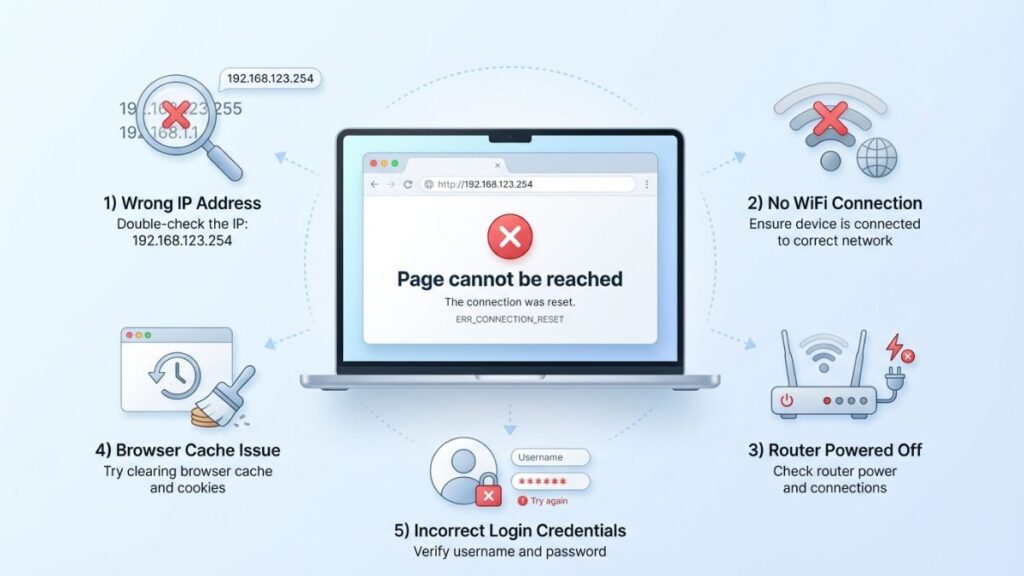
Common reasons why your router login page is not working and how to fix them
1. You’re not on the right network
This is far and away the most common cause. 192.168.123.254 only responds to devices connected to the local network it manages. If your laptop is connected to a different Wi-Fi network, if your phone has mobile data active, or if you’re on a guest network from a different router — this IP won’t respond.
Fix: On Windows, open Command Prompt and type ipconfig. Look at Default Gateway under your active connection. If it shows something other than 192.168.123.254, that’s your actual router address. On a Mac, go to System Preferences → Network → Advanced → TCP/IP and check the Router field. On your phone, disable mobile data and confirm Wi-Fi shows connected to your home network.
2. The IP address has been changed
Someone may have changed the router’s gateway IP from 192.168.123.254 to something else — either intentionally for security or accidentally during a configuration change. The router still works fine, but 192.168.123.254 no longer opens anything.
Fix: Use the ipconfig / Default Gateway method above to find the current gateway IP. Whatever that shows is where your admin panel actually lives now.
3. You have a typo in the address
192.168.123.254 has more digits than most common router IPs — which means more chances for a typo. The most common mistakes are dropping the 123 to get 192.168.254, flipping numbers to get 192.168.132.254, or accidentally adding an extra digit.
Fix: Type it carefully, one segment at a time: 192.168.123.254. Double-check before hitting Enter. You can also try the how to find your router’s IP address guide to confirm the right address instead of guessing.
4. Your browser is stuck on a cached error
Browsers remember previous states, and sometimes a failed request gets cached. That means even after you fix the underlying issue, your browser might keep showing the same error because it “remembers” the last attempt.
Fix: Press Ctrl + Shift + R on Windows or Cmd + Shift + R on Mac to force a hard refresh. Better yet, open a private / incognito window and try 192.168.123.254 fresh from there. If it loads in incognito, clear your browser cache.
5. The router needs a reboot
Don’t panic — routers are small computers, and like any computer, they occasionally get stuck. If your router’s firmware has locked up or it’s been running for weeks without a restart, the admin panel can become unresponsive even though internet access still works fine.
Fix: Unplug the router from power. Wait a full 30 seconds — not five or ten, but thirty. Plug it back in and give it 60–90 seconds to fully boot. Then try 192.168.123.254 again. A simple power cycle fixes this more often than people expect.
Factory Reset Guide for 192.168.123.254 Routers
If you’ve forgotten the admin password and none of the defaults from the credentials table work, a factory reset is your last option. It’s a full wipe — everything goes back to how the router shipped from the factory.
💡 Tip: Back up your settings first if you can still get in. Most router admin panels have a Backup or Export Configuration option under the Administration menu. Use it before resetting so you don’t have to rebuild everything from scratch.
What gets wiped in a factory reset:
Admin username and password (reset to factory defaults)
Wi-Fi name (SSID) and Wi-Fi password
Port forwarding rules
Static IP assignments
Parental controls and filters
Custom DNS entries
Any firmware customizations
How to reset — step by step:
Keep the router powered on. Don’t unplug it.
Find the Reset button — on most routers it’s a small pinhole on the back or bottom panel.
Straighten a paperclip or use a SIM ejector tool.
Press and hold the Reset button. Keep holding.
Watch for the LED lights to blink, flash, or change pattern — that signals the reset has triggered.
Release the button and wait 60–90 seconds for the router to reboot.
Try 192.168.123.254 again with the factory default credentials from the sticker on your router.
Hold times by brand (approximate):
Brand
Hold Time
US Robotics
10–15 seconds
TP-Link
10 seconds
Netgear
7–10 seconds
Asus
10 seconds
Linksys
10–15 seconds
D-Link
10 seconds
Cisco
10–15 seconds
What to Do After You Log In
Getting into the admin panel is step one. Here’s what actually needs configuring — in order of importance.
1. Change Your Admin Password
This is non-negotiable. The factory default admin password is publicly listed in documentation, router databases, and guides exactly like this one. Anyone on your network can look it up and access your router settings. Change it immediately.
Log into 192.168.123.254.
Look for Administration, Management, System, or Tools in the navigation menu. The exact label varies by brand.
Find Admin Password, Router Password, or Change Password.
Enter your current password, then your new one twice to confirm.
Pick something strong — a passphrase is often easier to remember than a random string. Following NIST password guidelines is a solid approach: longer is better, and personal information is always a bad choice.
Save the change and re-login with your new password.
2. Change Your Wi-Fi Password
Go to Wireless Settings or Wi-Fi Settings. Find the Password, Passphrase, or Pre-Shared Key field. Change it to something strong and unique — not your name, address, or phone number. After saving, every connected device will need to reconnect with the new password.
3. Switch to WPA2 or WPA3 Encryption
While you’re in wireless settings, check the Security Mode or Encryption Type field. If it shows WEP — change it right now. WEP is a decades-old protocol that can be cracked in seconds with freely available tools. WPA2-Personal is the current minimum standard. If your router supports the WPA3 security standard, use that instead — it’s significantly more resistant to modern attacks.
4. Check Connected Devices
Under DHCP Client List, Connected Devices, or Attached Devices, you’ll see everything currently on your network. Each entry typically shows a device name, IP address, and what is a MAC address — a hardware identifier unique to each network adapter. Look for anything unfamiliar. A device you don’t recognize is worth investigating — you can usually block it by MAC address right from this screen.
5. Set Up a Guest Network
A guest network creates a separate, isolated Wi-Fi zone. Visitors get internet access but can’t see or interact with your main network, your computers, your smart home devices, or your NAS drives. Our guest network at home is just called “GuestWifi” — nothing fancy, but it keeps things clean. Look for Guest Network or Guest Zone in your router settings. See how to set up a guest network for detailed steps if your router’s interface isn’t obvious about it.
6. Check Port Forwarding and Update Firmware
If you run any services that need to be reachable from outside your network — a game server, a NAS, a home security system — you’ll set that up under Port Forwarding. Understanding how port forwarding works before you dive in saves a lot of confusion.
Firmware updates are worth doing once you’re logged in. Go to Administration → Firmware Update or Advanced → Firmware. Check for an update, install it if one’s available, and set a calendar reminder to check again every few months. Firmware patches fix security vulnerabilities that attackers actively exploit.
Common Misspellings of 192.168.123.254
This is a longer address than most router IPs, which gives people more opportunities to get it wrong. Here are the most common typo variants people search for :
192.168.123.25
192.168.1.23.254
192.168.132.254
192.168.123.254.
192.168.123.25.4
192.168.l23.254
192.168.123.254/admin
19216812.3254
http//192.168.123.254
192.168.123
The correct address: 192.168.123.254 — four number groups, three dots, no letters anywhere.
Which Brands and ISPs Use 192.168.123.254?
This isn’t one of the common default gateway IPs like 192.168.1.1 or 192.168.0.1, so the list of brands is narrower.
Brands That Commonly Use 192.168.123.254
US Robotics — primary brand for this IP; the USR8011 and several other USR models default to this address
Abocom — some broadband router models
OvisLink — certain ADSL modem-router combos
Billion Electric — some older ADSL/fiber gateway models
Brands That Occasionally Use It
TP-Link — a small number of regional or older models; most use 192.168.0.1 or 192.168.1.1
Zyxel — some DSL gateway models have used the 192.168.123.x range
Frequently Asked Questions
Why does 192.168.123.254 show “This site can’t be reached”?
You’re either not connected to that router’s network, the router’s gateway IP has been changed, or there’s a typo in the address. Run ipconfig on Windows (or check System Preferences → Network on Mac) to confirm your actual Default Gateway IP.
The US Robotics USR8011 has a blank username — what do I enter?
Leave the username field completely empty. Don’t type “none” or “blank” — just skip past it and enter admin in the password field. Some router models genuinely ship with no username requirement for the initial setup.
What’s the difference between my Wi-Fi password and my router admin password?
They’re two completely separate passwords. Your Wi-Fi password is what you enter on your phone or laptop to connect to the network. Your router admin password is what you enter at 192.168.123.254 to access the settings panel. Changing one doesn’t affect the other.
Can I change the 192.168.123.254 gateway IP to something else?
Yes. After logging in, go to LAN Settings and look for the Local IP Address field. You can change it to any valid private IP. Once saved, you’ll need to use the new address to access the admin panel going forward.
I forgot my admin password. What do I do?
If none of the defaults work and you can’t get in, you’ll need to do a factory reset. See the factory reset section above for exact steps. After the reset, the default credentials from your router’s sticker will work again.
Is it safe to access my router admin panel?
Yes — logging in is completely safe. The risk isn’t the login itself; it’s leaving weak default credentials in place that anyone on your network could use. Change the default admin password as soon as you’re in and you’re fine.
Can I reach 192.168.123.254 from outside my home network?
No. Private IP addresses in the 192.168.x.x range are not routable on the public internet. You can only access your router admin panel from inside your own network — via Wi-Fi or a direct Ethernet connection to the router.