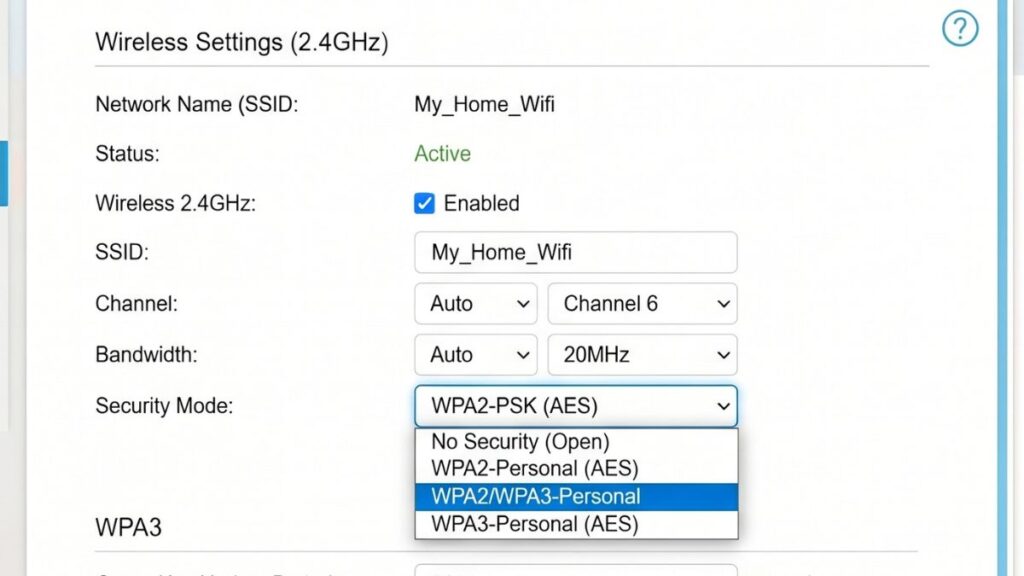
If you’ve ever dug into your router’s settings, you’ve seen those letters — WPA2, WPA3 — sitting in a dropdown menu you probably ignored and moved on. Fair. But that choice actually matters a lot more than most people realize. Your Wi-Fi security mode is the difference between a network that’s reasonably locked down and one that’s easier to crack than you’d expect.
I’ve gone through this setup process on dozens of routers, and the WPA2 vs WPA3 question comes up every single time. So here’s a straight answer: what each one actually does, which you should pick, and why your router’s security mode is worth spending two minutes on.
What Is WPA? (Quick Background)
WPA stands for Wi-Fi Protected Access. It’s the security protocol that encrypts the connection between your device and your router — so that anyone snooping nearby can’t just read your traffic.
The original WEP (Wired Equivalent Privacy) from the 1990s was so weak it’s basically a joke now. WPA replaced it, then WPA2 replaced WPA, and now WPA3 is the newest standard — released by the Wi-Fi Alliance in 2018 and slowly rolling out across home and business routers.
WPA2 — Still Solid, Still the Most Common
WPA2 has been the standard since 2004. It uses AES (Advanced Encryption Standard) encryption, which is the same algorithm the US government uses for classified data. That’s not marketing fluff — AES-128 and AES-256 are genuinely strong ciphers.
Most routers made in the last 15 years support WPA2. It’s also what virtually every Wi-Fi device in your house is compatible with — phones, laptops, smart TVs, game consoles, you name it.
Where WPA2 Falls Short
WPA2 has one well-known weakness: the four-way handshake.
When a device connects to your router, there’s a brief exchange of encrypted data called a handshake. In WPA2, an attacker sitting nearby can capture that handshake passively — without ever connecting to your network. Then they take that captured data offline and run dictionary attacks or brute-force it against a list of common passwords.
If your Wi-Fi password is something like John1985 or homewifi123, it can be cracked this way. It’s called an offline dictionary attack, and it’s been the main knock against WPA2 for years.
The other issue: WPA2 uses PMK (Pairwise Master Key) caching. Each device on your network shares a master key derived from your password. If someone gets that key — through a breach or a weak password — they can decrypt past traffic too, not just future traffic.
WPA3 — The Upgrade That Actually Changes Things
WPA3 does several things differently, and the improvements aren’t minor.
1. SAE Replaces the Four-Way Handshake
The biggest change is that WPA3 uses SAE — Simultaneous Authentication of Equals — instead of the old handshake. SAE is based on a cryptographic method called Dragonfly, and it closes the offline dictionary attack hole completely.
Here’s why: with SAE, an attacker can’t capture a handshake and crack it later at their leisure. Each authentication attempt requires real-time interaction with the router. That means brute-force attacks have to happen live, one guess at a time, against a device that will lock them out. It’s a fundamentally different threat model.
2. Forward Secrecy
WPA3 also adds forward secrecy (technically called Perfect Forward Secrecy or PFS). Each session gets its own unique encryption key. So even if someone recorded your encrypted Wi-Fi traffic for months and then somehow cracked your password later — they still can’t decrypt the old recordings. Each session is isolated.
That’s a big deal for people who care about long-term privacy.
3. 192-Bit Security Mode (WPA3-Enterprise)
For home users, this doesn’t come up much. But WPA3-Enterprise — the version used in offices, hospitals, and government networks — offers 192-bit security mode, up from the 128-bit minimum in WPA2-Enterprise. Tighter encryption for higher-stakes environments.
4. Easier Setup for Devices Without Screens
WPA3 includes something called Wi-Fi Easy Connect (formerly DPP — Device Provisioning Protocol). You can connect a smart home device — a thermostat, a smart plug, whatever — by scanning a QR code instead of entering a password. Niche for most home users, but useful if you have a lot of IoT gear.
WPA2 vs WPA3: Side-by-Side
| Feature | WPA2 | WPA3 |
|---|---|---|
| Released | 2004 | 2018 |
| Encryption | AES (CCMP) | AES (GCMP-256 for Enterprise) |
| Authentication | 4-way handshake (PSK) | SAE (Dragonfly) |
| Offline dictionary attacks | Vulnerable | Resistant |
| Forward secrecy | No | Yes |
| Device compatibility | Universal | Modern devices (2018+) |
| Required since | 2006 (Wi-Fi Alliance) | 2020 (Wi-Fi Alliance mandate) |
| Mandatory on new routers | Yes | Yes (since 2020) |
Which One Should You Use?
WPA3 if your router and devices support it. WPA2 if they don’t. WPA2/WPA3 transition mode if you’re in between.
Here’s how to think about it:
Use WPA3 Personal if your router was bought in the last 3–4 years and your main devices (phone, laptop) are from 2019 or later. You get all the benefits — SAE, forward secrecy, better protection against weak passwords — and most modern devices handle WPA3 fine.
Use WPA2/WPA3 Mixed Mode (also called Transition Mode) if you have a mix of newer and older devices. Your WPA3-capable devices will connect using WPA3. Your older devices fall back to WPA2. This is what I personally run at home — it’s a reasonable middle ground without kicking off older gear.
Use WPA2 only if your router doesn’t support WPA3 at all, or if you have older devices that break in WPA3 mode. Smart home devices from 2016–2018 are the usual culprits — some of them have compatibility issues with WPA3 that still haven’t been patched.
Never use WPA (version 1), WEP, or “Open” (no security). These are completely broken. If you see any of these in your router’s dropdown, change it immediately.
How to Check and Change Your Security Mode
You do this through your router’s admin panel. If you haven’t logged in before, here’s how:
- Open a browser and type your router’s IP address into the address bar — not the search bar. Common ones are 192.168.1.1, 192.168.0.1, or 10.0.0.1.
- Log in with your admin credentials (often printed on a sticker on your router).
- Go to Wireless Settings or Wi-Fi — the exact label varies by router brand.
- Look for Security Mode, Authentication Type, or Encryption — again, varies by brand.
- Change the dropdown to WPA3 Personal, WPA2/WPA3 Mixed, or WPA2 depending on your situation.
- Save the settings. Your devices will reconnect — you may need to re-enter the Wi-Fi password on each one.
The whole thing takes about three minutes once you’re in the admin panel.
Where to Find the Setting by Router Brand
Different brands put this in different spots:
- TP-Link: Wireless → Wireless Security → Version dropdown
- Netgear: Advanced → Advanced Setup → Wireless Settings
- Asus: Wireless → General → Authentication Method
- D-Link: Setup → Wireless Settings → Security Mode
- Linksys: Wireless → Wireless Security → Security Mode
- Belkin: Wireless → Security
If your router is older and you don’t see WPA3 as an option, it may be worth checking for a firmware update. Some routers had WPA3 support added in later firmware releases.
Does WPA3 Slow Down Wi-Fi?
A little, technically. The SAE handshake is more computationally intensive than the old four-way handshake.
In practice, you won’t notice it. The handshake happens once when a device connects — not during normal browsing, streaming, or downloading. Your Netflix speed is not going to drop because you switched to WPA3.
On very old router hardware with weak processors, there’s been some reported impact on connection reliability with some devices. This is rare and specific. If you switch to WPA3 and something breaks, that’s why — switch to WPA2/WPA3 Mixed Mode and it’ll sort itself out.
What About WPA2 Enterprise vs WPA2 Personal?
You’ll sometimes see “Personal” and “Enterprise” options alongside WPA2 or WPA3.
Personal (also written as PSK — Pre-Shared Key) is for home networks. One password, everyone shares it.
Enterprise uses a RADIUS authentication server. Each user has their own login credentials. This is for offices, schools, and corporate networks — not your home. If you accidentally select Enterprise on a home router, you’ll lose connectivity until you change it back.
Stick with Personal for home use.
Is WPA2 Still Safe Enough?
Yes, with caveats.
WPA2 is not broken the way WEP was broken. You’re not going to wake up one morning and find your neighbor downloaded your traffic while you slept. But WPA2’s vulnerability to offline dictionary attacks is real, and it means your password strength matters more than it does with WPA3.
If you’re on WPA2, use a Wi-Fi password that’s genuinely strong — at least 16 characters, random, not based on your address or your name. Something like Maple-Truck-47-Rain is far better than Smith2024. The NIST password guidelines are worth a read if you want the technical reasoning.
WPA3 raises the floor. Even a mediocre password is significantly harder to crack under WPA3 because offline attacks aren’t possible. But a strong password under WPA2 is still solid protection in practice.
Frequently Asked Questions
WPA3-SAE is the newer and more secure option. If your devices are from 2019 or later, pick WPA3-SAE. If you have older devices, use the mixed mode that shows both.
Yes, temporarily. Changing your security mode kicks all devices off the network. They’ll reconnect once you re-enter the password. It’s a one-time annoyance.
Many IoT devices — smart bulbs, older thermostats, budget cameras — only support WPA2. Switch to WPA2/WPA3 Mixed Mode to keep those devices working while still getting WPA3 on your phone and laptop.
Yes. WPA3 is a security protocol, not a frequency band. It works on both 2.4 GHz and 5 GHz networks, and on Wi-Fi 6 (802.11ax) and Wi-Fi 6E as well.
Always AES. TKIP (Temporal Key Integrity Protocol) is an older algorithm that was used with the original WPA. It’s weaker than AES and can cause speed issues on modern networks. If you see WPA2-TKIP/AES as a combined option, AES-only is better if available.
Since 2020, the Wi-Fi Alliance requires WPA3 support for devices to be Wi-Fi Certified. Most routers sold after that date support it, though some budget models handle it inconsistently.
Use WPA2 with a strong password. If your router is more than 6–7 years old, it might be worth considering an upgrade anyway — older routers miss out on security patches and firmware updates.