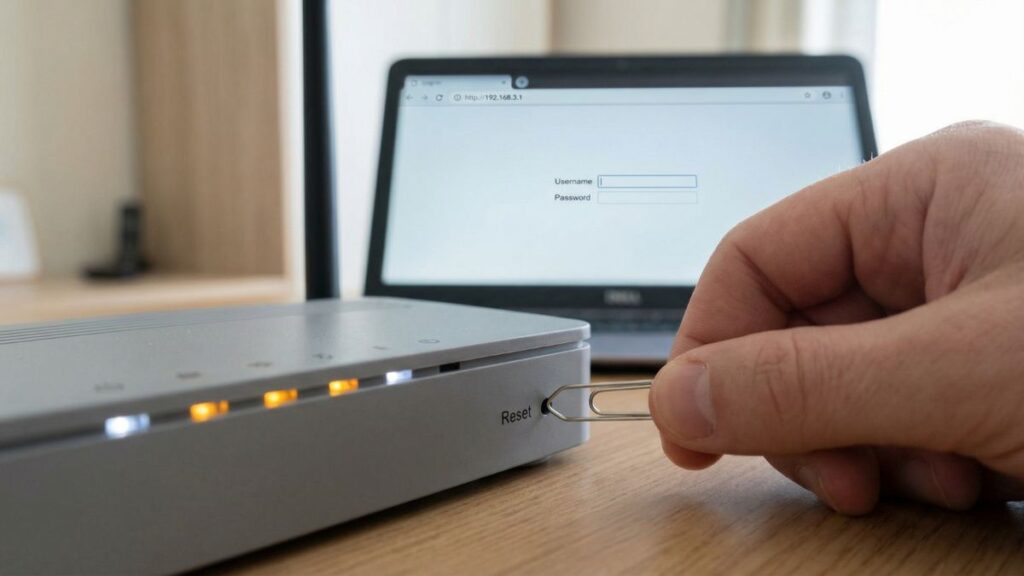
You typed 192.168.3.1 into your browser and either got a login screen, an error, or nothing at all. This guide covers all three outcomes. I’ll walk you through logging in on a PC, iPhone, and Android phone, explain five specific reasons the page won’t load and how to fix each one, run through the factory reset process, and show you what to actually configure once you’re inside the admin panel.
I’ve helped a lot of people through this exact process. Most of the time it comes down to one small thing. Let’s figure out which one it is.
Router Access Panel
Type
192.168.3.1
in your browser or click the link to access the router admin page.
It works only when you’re connected to the same Wi-Fi network.
192.168.3.1 is a private IP address that functions as a default gateway — your router’s internal management address. Type it into a browser while connected to your home network and it opens your router’s admin dashboard, where you can control everything from your Wi-Fi name and password to connected devices, parental controls, and security settings.
The 192.168.3.x address range isn’t one of the most common router subnets. You’ll mostly encounter it on Huawei routers and Xiaomi (Mi/MiWiFi) routers, along with some Speedefy and Tenda models. That makes this IP less familiar than 192.168.1.1 or 192.168.0.1, which is probably why you’re here searching for it.
Here’s something most people don’t know about this address: it’s completely invisible to the public internet. It belongs to a block of reserved private address space, defined under RFC 1918 private address ranges, that can only be used inside local networks. There’s no way to reach 192.168.3.1 from outside your home — not from mobile data, not from another Wi-Fi network, not from anywhere else. It exists only on your network, which is exactly how it’s supposed to work.
One thing worth knowing specifically for Xiaomi users: MiWiFi routers support both 192.168.3.1 and a domain-based login at miwifi.com. Both go to the same admin panel. If you’re on a Xiaomi router, either one works — pick whichever is easier to remember.
Default Credentials for 192.168.3.1
You need a username and password to get past the login screen. If no one’s changed the defaults since the router was set up, try the table below. Huawei and Xiaomi are the primary brands for this IP, so their entries lead.
Brand
Default Username
Default Password
Huawei
admin
admin
Huawei (some ISP models)
admin
(printed on router label)
Xiaomi / MiWiFi
admin
admin
Xiaomi (newer models)
(none)
(set during first-time setup)
Speedefy
admin
admin
Tenda
admin
(blank)
TP-Link
admin
admin
Asus
admin
admin
Linksys
admin
admin
D-Link
admin
(blank)
Netgear
admin
password
Belkin
(blank)
(blank)
Cisco
admin
cisco
💡 Tip: Most reliable method: Check the sticker on the bottom or back of your router. It always has the exact default username and password for your specific model. Brand-level defaults in the table above are a starting point, but the sticker is authoritative.
Huawei heads-up: Many ISP-provided Huawei routers — particularly those supplied by carriers in the US and internationally — ship with a unique password printed on the label rather than a standard default. If admin/admin doesn’t work on your Huawei, look at the label before assuming anything’s wrong.
Xiaomi heads-up: Newer MiWiFi routers don’t have a preset password at all. The first time you log in, you’ll be prompted to create one. If someone set it up before you, that person’s password is what you need — or you’ll need to factory reset.
How to Log Into 192.168.3.1 on a PC
One thing I see trip people up constantly: typing the IP address into the search bar instead of the address bar. The search bar sends it to Google as a search query. The address bar takes you directly to the page. They’re right next to each other visually, but they do completely different things.
Make sure your PC is connected to your router — either over Wi-Fi or with an Ethernet cable plugged in.
Open any browser: Chrome, Firefox, Edge, or Safari all work.
Click the address bar at the very top of the browser window — the strip where you’d normally see a URL like https://google.com.
⚠️ Watch out for the search bar: If you see a Google results page, you typed it in the wrong place. Click the address bar at the top, clear it, and type the IP fresh.
Type 192.168.3.1 and press Enter.
A login screen should appear. Enter your username and password.
Click Login or Sign In.
You’re in. If the page didn’t load, jump to the troubleshooting section below.
How to Log Into 192.168.3.1 on a Phone
Most guides skip past mobile entirely or give one vague sentence. Here are separate steps for iPhone and Android, because the experience is genuinely different on each.
On iPhone (Safari)
Connect your iPhone to the Wi-Fi network managed by your router.
Open the Safari app — not a search box in Settings, Spotlight, or the App Store. The actual Safari browser.
Tap the address bar at the top of Safari.
Type 192.168.3.1 and tap Go.
The router login page should load. Enter your credentials and tap Login.
💡 Tip: If Safari routes you to a search results page instead of the login screen, add the full prefix: http://192.168.3.1. That forces Safari to treat it as an address rather than a search. Xiaomi users can also try miwifi.com as an alternative.
On Android
Connect your Android phone to your router’s Wi-Fi. Double-check that you’ve actually switched to Wi-Fi — Android sometimes keeps mobile data active in the background even when Wi-Fi shows connected, and that routes your traffic away from the local network.
Open Chrome or your preferred browser.
Tap the address bar at the top.
Type 192.168.3.1 and tap Go.
The admin login screen should appear. Enter your username and password, then tap Login.
📱 Tip: If Chrome shows “This site can’t be reached,” the most likely cause is active mobile data overriding Wi-Fi. Swipe down to your notification panel and confirm that Wi-Fi is connected to your router. If it is, try disabling mobile data temporarily and reload the page.
192.168.3.1 only responds to devices that are on the local network it manages. If your device is connected to a different Wi-Fi network, a neighbor’s router, or a guest zone from a different device — this address won’t respond.
Fix: On Windows, open Command Prompt and run ipconfig. Find the Default Gateway line under your active connection — it should read 192.168.3.1. If it shows a different address, that’s your actual router IP, not this one. On Mac, go to System Preferences → Network → Advanced → TCP/IP and check the Router field. On your phone, turn off mobile data and make sure Wi-Fi shows as connected to your home network.
2. The gateway IP was changed from the default
Someone may have changed the router’s internal IP from 192.168.3.1 to something else — a common security tweak, or something that happened during a setup wizard. The router works fine either way, but 192.168.3.1 no longer points to anything.
Fix: Use the Default Gateway method above to find the current IP. If you can’t get in at all and suspect this happened, a factory reset (see below) will restore the original 192.168.3.1 address.
3. There’s a typo in the address
192.168.3.1 is short and simple, but common mistakes still happen. People frequently type 192.168.31.1 (missing a dot), 192.168.3.10 (extra digit), or 192.168.3.l (lowercase L instead of the number 1).
Fix: Type it one segment at a time: 192 . 168 . 3 . 1. The third octet is just 3 — not 30, not 31, not 03. Confirm before pressing Enter.
4. The browser is serving a cached error
Browsers cache previous requests, including failed ones. If you tried 192.168.3.1 earlier when the router was off or misconfigured, your browser might be “remembering” that error and serving it again even after you fix the underlying problem.
Fix: Try a hard refresh — Ctrl + Shift + R on Windows or Cmd + Shift + R on Mac. If that doesn’t work, open a new private or incognito window and try the address fresh. If it loads in incognito but not normally, clearing your browser cache will solve it.
5. The router needs a restart
Don’t panic if nothing else explains it — routers are small computers, and they occasionally freeze or get into a bad state, especially if they’ve been running for weeks without a reboot. Your internet connection might still work fine while the admin interface is unresponsive.
Fix: Unplug the router from power. Wait a full 30 seconds. Plug it back in and give it 60–90 seconds to fully boot. Then try 192.168.3.1 again. A power cycle fixes this more often than you’d expect, and it costs you nothing to try.
Factory Reset Guide for 192.168.3.1 Routers
If you’ve forgotten your admin password and none of the defaults work, a factory reset is your last resort. It wipes everything and restores the router to how it shipped from the factory.
💡 Tip: Back up your settings first if you can still log in. Most admin panels have a Backup or Export Configuration option under the Administration or System menu. Save that file before you reset — it lets you restore your settings afterward instead of rebuilding everything from scratch.
What gets erased:
Admin username and password (reverts to factory defaults)
Wi-Fi network name (SSID) and Wi-Fi password
All port forwarding rules
Parental controls and URL filters
Static IP assignments
Custom DNS settings
Any changes made during setup
How to reset — step by step:
Reset your router using the reset button to fix login or connectivity issues
Keep the router powered on. Don’t unplug it before resetting.
Find the Reset button — usually a small pinhole on the back or bottom of the router.
Use a straightened paperclip, SIM ejector pin, or the end of a pen.
Press and hold the Reset button firmly.
Keep holding until the LED indicator lights blink, change color, or go out — this confirms the reset triggered.
Release and wait 60–90 seconds for the router to fully reboot.
Try logging into 192.168.3.1 with the factory defaults from your router’s label.
Hold times by brand:
Brand
Approx. Hold Time
Huawei
10–15 seconds
Xiaomi / MiWiFi
10 seconds (until LED blinks)
Speedefy
10 seconds
TP-Link
10 seconds
Tenda
8–10 seconds
Netgear
7–10 seconds
Asus
10 seconds
Linksys
10–15 seconds
What to Do After You Log In
Getting in is just the start. Here’s what to actually configure once you have access, in order of importance.
1. Change Your Admin Password
The default admin password is the first thing anyone tries when they want unauthorized access to a router. It’s listed publicly in brand documentation, support forums, and guides like this one. Change it immediately.
Log into 192.168.3.1.
Look for Administration, System Tools, Management, or Advanced Settings in the menu. On Huawei routers, it’s often under System Tools → Password. On Xiaomi, look under Administration or Settings.
Find the Admin Password or Change Password field.
Enter your current password, then your new one twice to confirm.
Use something memorable but hard to guess. Refer to how to create a strong password if you want a framework — a passphrase of three or four random words works well and is much easier to remember than a string of random characters.
Save and log back in with the new credentials.
2. Change Your Wi-Fi Password
Navigate to Wireless Settings or Wi-Fi Settings. Find the Password, Passphrase, or Key field and change it to something strong and unique. Avoid your name, address, phone number, or anything personal. After saving, all connected devices will be kicked off and will need to reconnect with the new password.
3. Check Your Encryption Mode — WPA2 or WPA3
While you’re in wireless settings, look at the Security Mode or Encryption field. If it shows WEP or open/none — change it right now. WEP is outdated, widely compromised, and gives attackers easy access to your traffic. WPA2-Personal is the current minimum standard for home networks. If your router firmware supports WPA2 vs WPA3, go with WPA3 — it’s significantly more resistant to brute-force attacks.
4. Check Who’s on Your Network
Under DHCP Client List, Connected Devices, or Network Map, you’ll find a list of every device currently connected. Each entry usually shows a device name, its local IP address, and its MAC address — a unique hardware identifier. Look for anything you don’t recognize. Most routers let you block a suspicious device by MAC address directly from this screen. It’s worth doing a quick scan every month or so.
5. Set Up a Guest Network
A guest network is a separate Wi-Fi zone that gives visitors internet access without letting them see or interact with your main network devices — your computers, smart home gear, or any NAS drives. Think of it as a walled garden. On Huawei and Xiaomi routers, look for Guest Network or Guest Zone in the wireless settings. Our home guest network is just called “GuestWifi” — nothing fancy, but it keeps the main network clean. See how to set up a guest network for a detailed walkthrough.
6. Port Forwarding and DNS
If you run anything that needs to be reachable from outside your network — a game server, remote desktop, home security camera system — you’ll set it up under Port Forwarding or Virtual Server in your router’s menu. It’s worth understanding how DNS works too, since many router panels let you set custom DNS servers (like 1.1.1.1 or 8.8.8.8), which can improve privacy and sometimes speed.
7. Update Your Router Firmware
Check for firmware updates under Administration → Firmware Update or System Tools → Software Update. Huawei and Xiaomi both push fairly regular firmware updates through their admin panels. Install any available update, then set a reminder to check again in a few months. Firmware patches fix security vulnerabilities that attackers actively look for in older versions.
Common Misspellings of 192.168.3.1
People search for this address in all sorts of broken forms. Here are the most common typos and why each one fails:
192.168.31.1
192.168.3.10
192.168.3.l
192.168.3.1.
19216831
192.168.3
http//192.168.3.1
192.168.03.1
192.168.3.01
www.192.168.3.1
The correct address: 192.168.3.1 — four numbers, three dots, nothing else.
Which Brands and ISPs Use 192.168.3.1?
Brands That Commonly Use 192.168.3.1
Huawei — one of the primary brands for this IP. Many Huawei home routers and some ISP-supplied Huawei gateway units default to 192.168.3.1
Xiaomi / MiWiFi — Xiaomi’s router line frequently defaults to 192.168.3.1. Xiaomi also supports miwifi.com as an alternative login URL that points to the same panel
Speedefy — a newer mesh and Wi-Fi 6 router brand; several models use 192.168.3.1 as their default gateway
Tenda — some Tenda models use this range, though others default to 192.168.0.1
Brands That Sometimes Use It
TP-Link — most TP-Link routers use 192.168.0.1 or 192.168.1.1, but a few models have shipped with 192.168.3.1
Netgear — primarily 192.168.0.1, but some regional or older models have used 192.168.3.x
Frequently Asked Questions
Why does 192.168.3.1 say “This site can’t be reached”?
Most likely you’re not connected to that router’s network, or there’s a typo. Run ipconfig on Windows (or check Network settings on Mac) and look at the Default Gateway line. If it doesn’t say 192.168.3.1, that’s not your router’s address.
What’s the difference between my Wi-Fi password and my admin password?
They’re two completely separate things. Your Wi-Fi password is what your phone or laptop uses to connect to the network. Your admin password is what you enter at 192.168.3.1 to access the settings panel. Changing one has no effect on the other — and both should be changed from their defaults.
My Xiaomi router shows miwifi.com — is that the same as 192.168.3.1?
Yes, exactly. Xiaomi’s MiWiFi routers support both 192.168.3.1 and miwifi.com as login addresses. Both open the same admin panel. Use whichever is easier for you.
My Huawei router has a unique password on the label — why won’t admin/admin work?
Many ISP-supplied Huawei routers ship with a unique password printed on the router label rather than a standard default. Look for a label on the bottom or back with a field that says “Admin Password,” “Login Password,” or similar. That’s the password you need.
Can I change the 192.168.3.1 IP to something else?
Yes. After logging in, go to LAN Settings and find the Local IP Address field. You can change it to any valid private IP in the 192.168.x.x range. Once you save, the router reboots and you’ll need to use the new address for future admin access.
I forgot my admin password and can’t get in. What now?
Factory reset the router — see the detailed guide above. After the reset, the router reverts to factory credentials. On Huawei, that means checking your label. On Xiaomi, a reset will bring you back to the first-time setup screen.
Is it safe to log into my router admin panel?
Completely safe — it’s just a local web page. The security risk isn’t logging in; it’s leaving default credentials in place afterward. Change the admin password right after you log in for the first time, and you’ve addressed the main vulnerability.