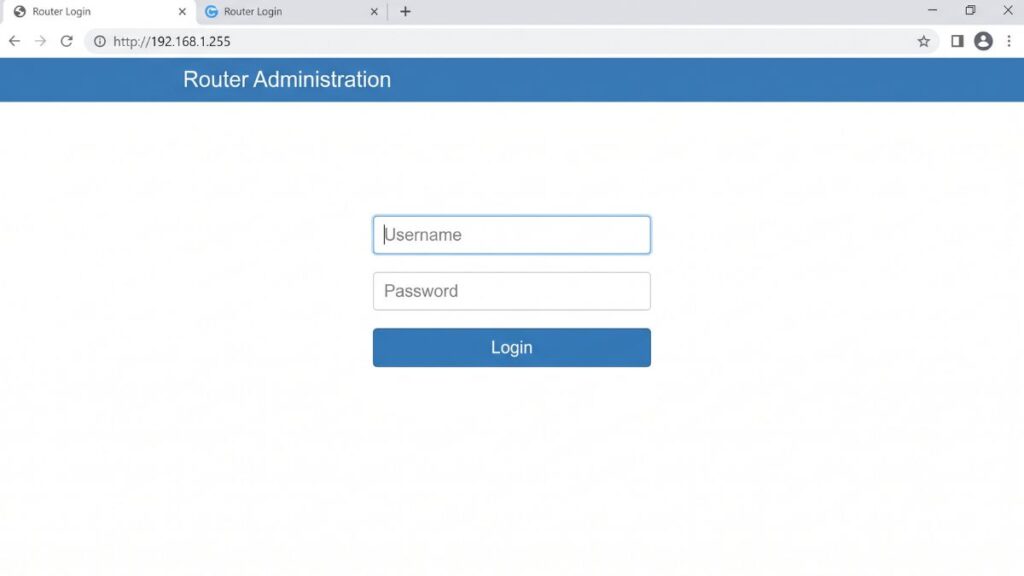
If you typed 192.168.1.255 into your browser expecting a router login page and got nothing — or got an error — don’t worry. You’re not alone, and there’s a very specific reason it didn’t work. I’ve helped a lot of people troubleshoot home networks, and this particular address causes more confusion than almost any other in the 192.168.1.x range.
Here’s the short answer: 192.168.1.255 is not a router login address. It’s a broadcast address — a special IP reserved for sending data to every device on the 192.168.1.x network simultaneously. No router uses it as a login page. But if you landed here, you were probably looking for your router’s admin panel, and this guide will get you there.
Router Access Panel
Type
192.168.1.255
in your browser or click the link to access the router admin page.
It works only when you’re connected to the same Wi-Fi network.
To understand why 192.168.1.255 won’t load a login page, you need a tiny bit of background on how IP addresses work on home networks.
Every home router creates a private local network — a bubble of IP addresses that exists only inside your home. These private ranges are defined by RFC 1918 private address ranges, the internet standard that carves out blocks of IP space exclusively for local use. The 192.168.0.0–192.168.255.255 range is the most familiar one.
Within a typical home network using the 192.168.1.x subnet, addresses work like this:
192.168.1.0 — The network address (identifies the subnet itself, not a device)
192.168.1.1 through 192.168.1.254 — Usable addresses for routers, computers, phones, smart TVs, etc.
192.168.1.255 — The subnet broadcast address
That last one is the key. When any device sends a packet to 192.168.1.255, it’s like broadcasting a message to the entire room — every device on the subnet receives it. No single device “owns” this address. There’s no router sitting at 192.168.1.255 waiting for you to log in, because it’s a logical concept, not a device.
Most people who end up searching for 192.168.1.255 either:
Misread or mistyped their router’s actual IP (usually 192.168.1.1)
Saw it in a network scan or log and wondered what it was
Were told to check their router settings and grabbed the wrong number
Whatever brought you here — let’s get you to the right place.
What Address Should You Actually Use?
Your router’s admin page lives at its default gateway IP — a real, device-specific address in the 192.168.1.x range (not the broadcast address at the end).
Here are the most common router login IPs used in the US:
Router Brand
Default Login IP
Notes
TP-Link
192.168.1.1 or 192.168.0.1
Newer models may use tplinkwifi.net
Asus
192.168.1.1
Also accessible via router.asus.com
Linksys
192.168.1.1 or 192.168.1.254
Older models vary
D-Link
192.168.0.1
Some models use 192.168.1.1
Netgear
192.168.0.1 or 192.168.1.1
Also try routerlogin.net
Cisco (home/SMB)
192.168.1.1
Tenda
192.168.0.1 or tendawifi.com
Belkin
192.168.2.1 or 192.168.1.1
Xfinity/Comcast gateway
10.0.0.1
Not in the 192.168.1.x range at all
AT&T (BGW320 etc.)
192.168.1.254
Note: ends in 254, not 255
Most reliable source: The sticker on the bottom or back of your router. It usually shows the exact login IP, default username, and default password — all in one place.
192.168.1.255 Router Administration Login Page
How to Find Your Actual Router IP (The Sure-Fire Method)
Don’t guess. Here’s how to find your exact default gateway in about 30 seconds.
On Windows (PC or Laptop)
Press Windows key + R, type cmd, hit Enter
In the black window that opens, type ipconfig and press Enter
Look for Default Gateway under your active network adapter
That’s your router’s IP — type it into your browser’s address bar
On Mac
Click the Apple menu → System Settings (or System Preferences on older Macs)
Go to Network → select your active connection (Wi-Fi or Ethernet)
Click Details → look for the Router field
That number is your login IP
On iPhone
Open Settings → tap Wi-Fi
Tap the blue (i) icon next to your connected network
Scroll down to find Router — that’s it
On Android
Open Settings → Wi-Fi (or Connections on Samsung)
Long-press your network name → tap Manage network or the gear icon
Look for Gateway or Router IP in the network details
How to Log Into Your Router — Step by Step
Once you have the correct IP (probably 192.168.1.1 for most US home routers), logging in is straightforward.
On a Computer
Open any web browser — Chrome, Firefox, Safari, Edge, doesn’t matter
Click into the address bar at the top (not the search bar in the middle of the page)
Type your router’s IP — for example, 192.168.1.1 — and press Enter
⚠️ Address bar, not search bar. If you type 192.168.1.1 into a Google search bar, you’ll get search results, not your router. The address bar is at the very top of the browser window.
A login page should appear. Enter your username and password.
If you’ve never changed them, check the label on your router. Common defaults are admin / admin, admin / password, or a unique printed password.
On iPhone
Make sure you’re connected to the Wi-Fi network your router controls
Open Safari (Safari works more reliably than Chrome on iOS for this)
Tap the address bar at the top and type your router’s IP (e.g., 192.168.1.1)
Tap Go — the router login page should load
Enter your credentials and tap Login
On Android
Connect to your home Wi-Fi
Open Chrome or your preferred browser
Tap the address bar and type the router’s IP address
Tap the enter/go button on your keyboard
Enter your username and password when prompted
5 Reasons Your Router Login Page Isn’t Loading
If you’re trying to access your router admin page and entered 192.168.1.255 or a similar address, you might not be using the right IP. Below are the most common issues and how to fix them quickly.
1. You’re using the wrong IP address
Cause: This is the big one. If you typed 192.168.1.255, that’s the broadcast address — it will never load a login page.
Fix: Use ipconfig (Windows) or check your network settings (Mac/iPhone/Android) to find your actual default gateway, then try that instead.
2. You’re not connected to that router’s network
Cause: Your device has to be on the same network as the router. If you’re connected to a neighbor’s Wi‑Fi, a VPN, or a hotspot, you won’t reach your home router’s admin page.
Fix: Don’t panic — just verify you’re on the right network and try again.
3. Browser is autocorrecting or searching instead of navigating
Cause: Some browsers will redirect bare IP addresses to a search engine.
Fix: Make sure you’re clicking directly into the address bar (URL bar) at the top of the window, not the search bar. Try adding http:// in front, like http://192.168.1.1, to force the browser to treat it as an address.
4. Cached settings or browser extensions are blocking it
Cause: Ad blockers and privacy extensions sometimes interfere with local network pages.
Fix: Try opening an Incognito/Private window — extensions are usually disabled there. Or try a completely different browser.
5. Your router’s IP has been changed from the default
Cause: If someone previously logged into the router and changed the default gateway IP, the old address won’t work anymore.
Fix: Use the ipconfig / network settings method above to find the current address. If that fails too, a factory reset (see below) will restore defaults.
How to Factory Reset Your Router
Use this as a last resort — a factory reset wipes all your custom settings. That means your Wi-Fi name and password go back to factory defaults, any port forwarding rules are gone, and your admin password resets.
Before you reset: If you have custom settings you want to keep, log in first and look for an option to export/backup your configuration. Not every router has this, but it’s worth checking.
To reset:
Find the reset button on your router — it’s usually a small recessed pinhole on the back or bottom
With the router powered on, press and hold the reset button using a paperclip or pin
Hold it for the amount of time your brand requires:
TP-Link: 10 seconds
Asus: 10 seconds
Netgear: 7–10 seconds
D-Link: 10–15 seconds
Linksys: 15 seconds
Release when the lights flash or the router reboots
Wait 60–90 seconds for the router to fully restart
Connect to the default Wi-Fi network (shown on the label) and log in with the default credentials
After the reset, your router’s IP goes back to whatever the factory default is — 192.168.1.1 for most brands.
What to Do After You Log In
Getting into the router admin panel is the first step. Here’s what you should actually do once you’re in.
1. Change the Admin Password (Do This First)
The default admin password for most routers is admin — and everyone on the internet knows that. Changing it takes two minutes and dramatically improves your security.
Look for a menu called Administration, System, Management, or Advanced Settings
Find Admin Password, Router Password, or Login Password
Enter your current password, then enter a new one
Click Save or Apply
When picking a password, skip the obvious stuff. Using how to create a strong password as a reference is worth your time — a passphrase like BlueSky!Tractor99 is both strong and memorable.
2. Change Your Wi-Fi Password
Your Wi-Fi password (what guests type to join your network) is separate from the admin password above. Find it under Wireless, Wi-Fi Settings, or WLAN. Look for a field called Password, Passphrase, or Pre-Shared Key.
3. Set Your Wi-Fi Security Mode to WPA2 or WPA3
While you’re in the wireless settings, check your security mode. You want WPA2-Personal or, if your router and devices support it, WPA3. The WPA3 security standard offers better protection against brute-force attacks. Anything labeled WEP or WPA (without a number) is outdated — change it.
4. Check Connected Devices
Most routers have a section called Attached Devices, DHCP Clients, or Connected Devices. Here you’ll see a list of every device on your network, often with MAC addresses. It’s a good idea to scan this occasionally — if you see anything you don’t recognize, your Wi-Fi password may need changing. Understanding what is a MAC address helps you identify devices by their hardware ID when the name isn’t obvious.
5. Set Up a Guest Network
If you have people over frequently, a guest network is a smart move. It lets visitors get online without touching your main network where your phones, laptops, and smart home devices live. Most modern routers have a Guest Network option under Wireless settings. Turn it on, give it a separate name (SSID) and password. Our guest network is literally called “GuestWiFi” — simple works.
6. Port Forwarding (For Gamers and Remote Workers)
If you game online, run a home server, or use remote desktop tools, you may need to open specific ports. Look for Port Forwarding, Virtual Server, or NAT/Gaming in the router menu. Understanding how port forwarding works before diving in will save you time.
7. Update Your Firmware
Router firmware updates fix security vulnerabilities and sometimes improve performance. Check Administration or Advanced for a Firmware Update or Software Update section. Some routers check automatically; others need a manual trigger. Do this once after setup, then check every few months.
Common Misspellings of 192.168.1.255
If you didn’t find what you were looking for because of a typo, here are common variants people search:
192.168.l.255
192.168.1.25s
192.168.1.2255
192.168.1.55
192.168.1.225
192-168-1-255
192.168.o.255
Correct address:192.168.1.255
— None of these load router login pages (192.168.1.255 is typically the broadcast address). Try 192.168.1.1 for your router instead.
Which Brands and ISPs Use the 192.168.1.x Network?
Understanding who uses this subnet (and who doesn’t) helps you set expectations.
Brands that almost always default to 192.168.1.x: TP-Link, Asus, Linksys, Cisco (home models), and most generic/budget routers default to the 192.168.1.x subnet, with the router itself at 192.168.1.1. This is probably the single most common home router setup in the US.
Brands that sometimes use 192.168.1.x: Netgear and D-Link are a mixed bag — some models use 192.168.0.x, others use 192.168.1.x. Your best bet is the label on the device itself.
Brands and ISPs that use a different address:
Xfinity/Comcast — Their gateway devices typically use 10.0.0.1, completely outside the 192.168.x.x range
AT&T (BGW320, BGW210) — These use 192.168.1.254, which is in the right subnet but ends in 254, not 1
Verizon FiOS — Their routers often use 192.168.1.1, but some models use 192.168.0.1
Spectrum — Most Spectrum-provided routers use 192.168.1.1, though some use 192.168.0.1
The broadcast address (192.168.1.255) never changes regardless of brand — it’s always the last address in the subnet, not a router login.
Frequently Asked Questions
What’s the difference between 192.168.1.255 and 192.168.1.1?
192.168.1.1 is a device address — typically the router itself, listening for login connections. 192.168.1.255 is a broadcast address that no single device owns. This is why one opens a login page and the other doesn’t.
What’s my router’s default IP if I don’t know it?
Run ipconfig on Windows or check your network settings on Mac/iPhone/Android and look for the “Default Gateway” or “Router” field. That’s the exact IP you need.
I can reach my router at 192.168.1.1 but forgot my admin password. What now?
If your router’s label has a printed admin password, try that. If you’ve changed it and forgotten it, a factory reset is your only option — hold the reset button for 10–15 seconds, and it’ll go back to defaults.
What’s the difference between my Wi-Fi password and my router admin password?
These are two completely separate things and people mix them up constantly. Your Wi-Fi password is what you (and guests) type to join the wireless network. Your router admin password is what you type on the router’s login page to access settings. Changing one doesn’t change the other.
Is 192.168.1.255 dangerous or a sign of an attack?
Seeing 192.168.1.255 in your network logs is normal — it’s broadcast traffic, not an intrusion. If you’re seeing an unusual amount of it, it could indicate a network misconfiguration or a device behaving oddly, but it’s not inherently a red flag.