If you’ve landed here after typing 192.168.2.100 into your browser and getting nowhere, I get it — this address is one of the more confusing ones. Unlike 192.168.1.1 or 192.168.0.1, the .100 address isn’t a router’s default gateway in the traditional sense. This guide explains exactly what 192.168.2.100 is, when it does open a router or device admin panel, and how to get in on both PC and phone — plus how to actually secure your network once you’re inside.
192.168.2.100 Router Login – Admin Page
What Is 192.168.2.100?
192.168.2.100 is a private IPv4 address in the 192.168.2.x subnet. To understand what that means for you, there are two separate scenarios where this address shows up:
Scenario 1 — A device on your network has been assigned this IP. This is the most common case. When a router uses 192.168.2.x as its local subnet (common with Belkin, SMC, and some Edimax models), it assigns private IPs to connected devices via DHCP — Dynamic Host Configuration Protocol. Your laptop, phone, or smart TV might have been given 192.168.2.100 as its local address. In this case, typing 192.168.2.100 into a browser won’t open a router panel; it’s the address of a device, not the router itself.
Scenario 2 — A device or router has been manually configured to use 192.168.2.100 as its admin address. Certain routers (especially older or business-grade units), IP cameras, NVR/DVR systems, smart home hubs, and access points are sometimes factory-configured with a static IP of 192.168.2.100. In that case, yes — typing 192.168.2.100 into your browser should bring up a login page.
This address falls inside the private IP range defined by what is NAT and the broader RFC 1918 standard, which means it’s completely invisible to the public internet. It only works from inside your own local network — and only when you’re connected to the same router.
Most people don’t know this distinction exists, and it’s the #1 reason people get frustrated trying to reach 192.168.2.100. If you’re not sure which scenario applies to you, the troubleshooting section below walks you through figuring it out in under two minutes.
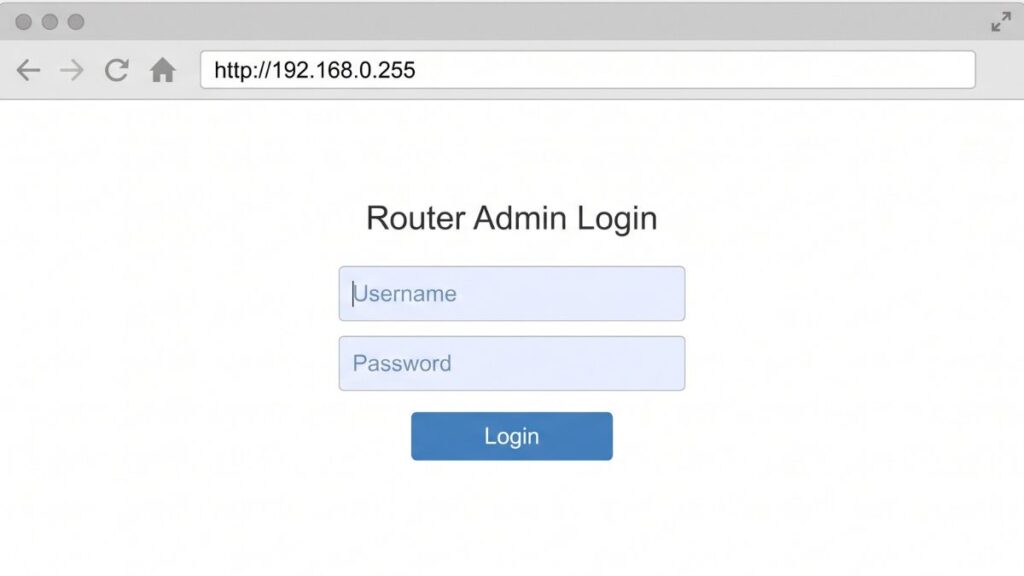
Default Login Credentials
If 192.168.2.100 does open an admin panel (router, camera, or other device), here are the most common factory default credentials by brand:
| Brand | Default Username | Default Password |
|---|---|---|
| Belkin | (leave blank) | (leave blank) or admin |
| SMC Networks | admin | admin or smcadmin |
| Edimax | admin | 1234 |
| D-Link | admin | (leave blank) |
| TP-Link | admin | admin |
| Asus | admin | admin |
| Netgear | admin | password |
| Linksys | admin | admin |
| Tenda | admin | admin |
| Cisco | cisco | cisco |
| Hikvision (IP cameras) | admin | 12345 |
| Dahua (IP cameras) | admin | admin |
Always check the sticker on the bottom or back of your device first.That label is the most reliable source — defaults vary by model and firmware version, and the sticker reflects your exact unit.
Passwords are case-sensitive. Admin ≠ admin. If none of the above work and you haven’t changed the credentials yourself, skip down to the factory reset section.
How to Log In — Desktop or Laptop (PC & Mac)
This works in any modern browser — Chrome, Firefox, Edge, Safari — they all handle router login pages fine.
- Connect to the right network first. Plug in an Ethernet cable from the router/device to your computer, or join the Wi-Fi network from that router. 192.168.2.100 is a local address — it’s completely unreachable from outside that network.
- Open your browser.
- Click the address bar at the very top of the browser window — the bar that shows the current page’s URL.
⚠️ Don’t use the search bar. Typing 192.168.2.100 into Google or Bing searches the web for that string of numbers. It won’t open your device’s admin panel. You need the address bar — the URL field — not the search box.
- Type:
http://192.168.2.100and press Enter. - If a login page appears, enter your username and password.
- Click Login, Sign In, or OK.
If you get a “This site can’t be reached” error instead of a login page, 192.168.2.100 probably isn’t the admin address of any device on your network. Jump to the troubleshooting section.
How to Log In — Mobile Phone
iPhone (iOS)
- Go to Settings → Wi-Fi and verify you’re connected to the correct router’s Wi-Fi network.
- Open Safari — it handles local admin pages more reliably than third-party browsers on iOS.
- Tap the address bar and type:
192.168.2.100 - Tap Go.
- If a login page loads, enter your credentials and tap Login.
iPhone tip:If Safari redirects to a search engine, try adding http:// in front: type http://192.168.2.100 in full. This tells Safari it’s a network address, not a search query.
Android
- Go to Settings → Wi-Fi (or Connections → Wi-Fi) and make sure you’re connected to the right network.
- Open Chrome or your device’s default browser.
- Tap the address bar and type:
http://192.168.2.100 - Tap Go or the arrow icon.
- On the login screen, enter your credentials and tap Login.
Android tip:Some Android versions show a persistent “Did you mean to search?” prompt. Ignore it and tap Go — or prefix the address with http:// to bypass the prompt entirely.
Troubleshooting — 5 Reasons 192.168.2.100 Isn’t Working
If you’re trying to access 192.168.2.100 and the router login page won’t load, you’re not alone. Below are the most common issues and how to fix them quickly.
1. 192.168.2.100 Is a Client Device, Not the Router Gateway
Cause: The most common scenario. Your router’s gateway is likely 192.168.2.1 (or similar), and 192.168.2.100 is just a DHCP-assigned address for one of your connected devices — a laptop, phone, or TV. [efficientip](https://efficientip.com/glossary/what-is-dhcp-and-why-is-it-important/)
Fix: Find your actual router gateway. On Windows, open Command Prompt and run ipconfig — look for Default Gateway. On a Mac, go to System Settings → Network → Wi-Fi → Details → Router. Your real router admin page is at that address, not 192.168.2.100. The most common gateways on the 192.168.2.x subnet are 192.168.2.1 and 192.168.2.254. [findip-address](https://www.findip-address.com/192.168.2.100)
2. The Address Bar vs. Search Bar Confusion
Cause: Entering 192.168.2.100 into a search engine instead of the browser’s address bar.
Fix: Click directly on the address bar at the top of the browser window (where the full URL of the current page appears). Clear it, then type http://192.168.2.100 and press Enter. If you’re on Chrome and it keeps searching, the http:// prefix forces it to treat the input as a URL.
3. Wrong Login Credentials
Cause: The default credentials were changed at some point, or you’re using the wrong capitalization. [en.ipshu](https://en.ipshu.com/ip/192.168.2.100)
Fix: Try every combination from the manufacturer’s manual. Still locked out? Don’t panic — a factory reset restores the defaults. You won’t be permanently locked out. Just make sure you note down your ISP login details (PPPoE username/password) before resetting if you use them.
4. Not Connected to the Same Network
Cause: Your device is on a different Wi-Fi network, a mobile hotspot, or cellular data — not the local network that contains the 192.168.2.100 device. [router-network](https://router-network.com/ip/192-168-2-100)
Fix: Check your Wi-Fi connection and make sure you’re on the right network. If you’re using a laptop, an Ethernet cable plugged directly into the router is the most reliable way to reach a local admin page. If you switched to cellular data for any reason, switch back to Wi-Fi first.
5. The Device Using 192.168.2.100 Is Offline or Powered Down
Cause: 192.168.2.100 belongs to a device (camera, access point, secondary router) that’s currently turned off or disconnected. [router-network](https://router-network.com/ip/192-168-2-100)
Fix: Check that the device you’re trying to reach is powered on and connected to the network. For IP cameras and access points, verify the indicator lights show a normal operating state. If you’re unsure which device holds this address, you can use a network scanner to see every device currently active on your network along with their IP addresses.
Factory Reset Guide
If you’re locked out of a device at 192.168.2.100 and can’t recover the login credentials, a factory reset is the way back in.
Before you reset: If you can still access any part of the admin panel, export or photograph your current settings — particularly your ISP PPPoE credentials, any custom DNS settings, and port forwarding rules. A reset wipes all of that.
What gets erased: Wi-Fi name and password, admin password, all custom settings (port forwarding, guest network, DHCP reservations, custom DNS). The device returns to factory defaults.
Steps:
- Keep the device powered on.
- Find the Reset pinhole button — usually on the back or bottom of the device.
- Insert a straightened paperclip or SIM tool and press and hold.
- Hold for the brand-appropriate duration:
- Belkin: ~10 seconds (until the power light blinks)
- SMC: ~15 seconds
- Edimax: ~20 seconds
- TP-Link: ~10 seconds (until LEDs flash rapidly)
- IP cameras (Hikvision/Dahua): ~10–30 seconds; refer to your model’s manual
- Release and wait for the full restart — usually 1–3 minutes.
- Log in using the factory defaults printed on the device’s label.
What to Do After Logging In
Getting in is the easy part. Here’s what actually matters once you’re inside.
1. Change the Admin Password
This is step one, every time. Factory default passwords are publicly documented — anyone on your network who knows the brand of your router can look them up in 10 seconds. Fix that immediately.
- Find Administration, System Tools, Management, or Advanced in the navigation menu.
- Look for Change Password, Admin Password, or Router Password.
- Enter the current password when prompted.
- Set a new password — at least 12 characters, mixing letters, numbers, and symbols. Following NIST password guidelines is worth the extra thought here, since this password protects your entire network.
- Save. Write it down somewhere sensible (not on a sticky note on the router itself).
2. Update Your Wi-Fi Password
Go to Wireless Settings → Security or Wireless Security. Find the passphrase field and set something strong. Your Wi-Fi password and your admin password are completely separate — changing one doesn’t change the other. Most people mix this up.
3. Switch to WPA2 or WPA3 Encryption
While you’re in Wireless Settings, check the security protocol. If you see WEP or plain WPA, change it now — both are deprecated and crackable. Select WPA2-PSK (AES) at minimum. If your devices support it, WPA2 vs WPA3 is worth reading before you decide — WPA3 offers meaningful security improvements for newer hardware.
4. Review Connected Devices
Under DHCP Client List, Connected Devices, or Attached Devices, you’ll see everything currently on your network. Each entry shows a device name (or MAC address) and assigned IP. If something looks unfamiliar — a device name you don’t recognize or one you can’t account for — it may be a freeloading neighbor. What is a MAC address? It’s a hardware identifier unique to each device, and what is a MAC address explains how to use it to track down unknown devices. Changing your Wi-Fi password kicks everyone off and forces reconnection with the new one.
5. Set Up a Guest Network
Most routers from Belkin, TP-Link, and similar brands let you create a separate guest Wi-Fi. Visitors get internet access without reaching any device on your primary network — your computers, NAS drives, printers. Look for Guest Network or Guest Wi-Fi under Wireless Settings. Give it a separate password and, if your router supports it, a bandwidth limit so no single guest hogs the connection. It’s one of those things that sounds optional until a guest accidentally downloads something sketchy. How to set up a guest network walks through the process for most common router brands.
6. Port Forwarding
If you run a home server, gaming setup, or IP camera that needs to be reachable from outside your home network, port forwarding is how you do it. Find it under NAT, Virtual Server, or Port Forwarding in your router’s menu. You’ll need the local IP of the device receiving the traffic and the port number(s) to open. If those terms are new to you, what network ports are is a good starting point before diving into the settings.
7. Update the Firmware
Router firmware updates patch security vulnerabilities — some of them serious. Find Firmware Update or Software Update under Administration or Advanced settings. Many modern routers can check for updates automatically from within the panel. Older Belkin and SMC units often stopped receiving firmware support years ago; if you’re on an end-of-life device, that’s worth knowing and potentially worth upgrading.
Common Misspellings of 192.168.2.100
Every one of these is a real thing people type — and none of them (except the correct one) will open your device’s admin page:
192 168 2 100
192.168.2.10
192.168.2.1000
192.168.2.l00
192.168.21.00
192.168.2.100.
http//192.168.2.100
192.168.200.100
192.168.2.100/
Correct address:
192.168.2.100
— Most common error: letter “l” (lowercase L) instead of “1” (easy on mobile keyboards). Always double-check digits vs. letters.
Which Brands and Devices Use 192.168.2.100?
Devices That May Use 192.168.2.100 as a Static Admin Address
IP cameras and NVR systems are the most common use case. Many Hikvision, Dahua, and unbranded security cameras ship with a static IP in the 192.168.2.x range — often .100 or .64 — and require you to be on that same subnet to reach their web interface. If you’ve set up a home security system and can’t find the camera’s admin page, 192.168.2.100 is worth trying.
Access points and range extenders from brands like TP-Link, Edimax, and Tenda occasionally use static IPs in this range when deployed in bridge or repeater mode, since they’re no longer acting as the gateway themselves.
Secondary routers configured in bridge mode on a 192.168.2.x network may hold a static IP like 192.168.2.100 as their management address rather than a gateway address.
Routers That Use 192.168.2.x as Their Subnet (Gateway at .1 or .254)
If your router uses the 192.168.2.x subnet, 192.168.2.100 is almost certainly a client device address — not the router itself. These brands commonly use 192.168.2.x:
- Belkin (many N150, N300, N600 series models default to 192.168.2.1)
- SMC Networks (small business and ISP-deployed models)
- Some Edimax and Zyxel ADSL/VDSL gateways
None of the major US ISPs default to 192.168.2.x on their gateway devices, so if you’re using ISP-provided hardware exclusively, your admin address is almost certainly something other than 192.168.2.100.
Frequently Asked Questions
Why does 192.168.2.100 say “This site can’t be reached”?
Either no active device on your network is using 192.168.2.100 as its admin address, or you’re not connected to the right network. First, confirm your router’s actual gateway by running ipconfig (Windows) or checking the Router field in your Wi-Fi settings (iPhone/Android). If the gateway shows 192.168.2.1 or similar, use that address instead.
What’s the difference between my Wi-Fi password and my admin password?
They’re entirely separate — this trips up more people than any other router question. Your Wi-Fi password is what you type on a phone or laptop to join the wireless network. Your router admin password is what you enter at the login page (like 192.168.2.100) to access the settings dashboard. You can change one without touching the other. Most people have never changed their admin password and are still running the factory default.
Can I reach 192.168.2.100 from my phone using cellular data?
No. Private IP addresses are only reachable from inside the local network. The moment you switch to LTE or 5G, your phone is on your carrier’s network — not your home router’s network — and 192.168.2.100 becomes completely unreachable. Connect to the router’s Wi-Fi first.
What’s the default gateway for Belkin routers?
Most Belkin home routers default to 192.168.2.1, not 192.168.2.100. If you’re trying to reach a Belkin router admin page, try 192.168.2.1 first. The label on the bottom of your Belkin router should confirm the correct address.
Can two devices on my network both use 192.168.2.100?
No — that causes an IP address conflict and both become unreachable. DHCP prevents this by tracking assigned addresses, but conflicts can still happen if a device with a static IP of 192.168.2.100 is added to a network where DHCP has already assigned that address to something else. If you suspect a conflict, check your router’s DHCP client list to see what’s assigned where.