There are 65,535 of them on every internet-connected device you own. Most people have never thought about a single one. But the moment something stops working — a game won’t connect, a server won’t respond, a file transfer stalls — network ports are almost always part of the story.
Network ports are numbered virtual endpoints that tell your operating system which application should handle incoming data. Without them, every piece of information arriving at your computer would land in a pile with no label, and nothing would know what to do with it. They’re the reason your email doesn’t accidentally open in your browser, and your web pages don’t get routed to your FTP client.
What Is a Network Port?
A network port is a 16-bit number, ranging from 0 to 65535, that identifies a specific process or service on a networked device. Think of your IP address as the street address of a building — it gets data to the right place. The port number is the apartment number inside that building, directing the data to the exact service waiting for it. Your device uses ports to run web browsing, email, file transfers, and video calls all at the same time over a single internet connection, without any of them interfering with each other.
Ports operate at Layer 4 of the OSI networking model — the Transport Layer — and they’re managed entirely in software by your operating system. According to IANA’s official port registry, the total available range gives any device up to 65,535 simultaneous communication channels to work with.
How Ports Actually Work
Here’s the thing — ports don’t work alone. Every network connection involves both an IP address and a port number. Together with a transport protocol (TCP or UDP), these three pieces form a socket, which is the actual endpoint for any network communication.
So when you load a webpage, here’s what happens:
- Your browser picks a random high-numbered source port (say, 54321) on your machine.
- It sends a request to the web server’s IP address on destination port 80 (or 443 for HTTPS).
- The server responds to your IP at port 54321.
- Your OS sees the response is addressed to port 54321 and hands it to your browser.
Sound familiar? You do this hundreds of times a day without thinking about it.
Each application on your machine “listens” on one or more ports — waiting for incoming data. When data arrives tagged with that port number, the OS knows exactly which app gets it. Port 25 goes to your mail server. Port 22 goes to SSH. Port 3306 goes to MySQL. No overlap, no confusion.
The Three Port Ranges Explained
Port numbers are split into three official categories, each serving a different purpose.
Well-Known Ports (0–1023)
These are reserved for the internet’s core services and assigned by IANA. You need administrator or root privileges to bind an application to a port in this range on most operating systems — that’s by design, since these ports are critical. HTTP, HTTPS, FTP, SSH, DNS, and SMTP all live here. Most people will never touch these directly, but they’re running in the background every time you browse the web or send an email.
Registered Ports (1024–49151)
Also managed by IANA, but with less strict requirements. These are used by well-known applications that don’t need system-level access. MySQL uses port 3306, Microsoft’s Remote Desktop Protocol uses 3389, and PostgreSQL listens on 5432. If you’re setting up a home server or configuring a firewall, you’ll deal with this range regularly. Most users can bind applications here without special privileges.
Dynamic/Private Ports (49152–65535)
These are the wild west. No registration, no assignment — your OS grabs ports from this range automatically whenever an application needs a temporary outgoing connection. Every time your browser fetches a new webpage, it uses an ephemeral port from this range. These connections last seconds or minutes, then the port is freed up for someone else.
| Range | Name | Who Uses It |
|---|---|---|
| 0–1023 | Well-Known (System) Ports | Core internet services (HTTP, SSH, DNS) |
| 1024–49151 | Registered Ports | Applications, databases, enterprise tools |
| 49152–65535 | Dynamic / Private Ports | Temporary client connections |
Most Important Network Ports You Should Know
Most people working in IT, networking, or cybersecurity deal with the same set of ports repeatedly. Here’s a practical reference — not an exhaustive list, but the ones that actually come up.
| Port | Protocol | Service | What It’s Used For |
|---|---|---|---|
| 20/21 | TCP | FTP | File transfer (data/control) |
| 22 | TCP | SSH | Secure remote shell access |
| 23 | TCP | Telnet | Unencrypted remote access (avoid this) |
| 25 | TCP | SMTP | Sending email between servers |
| 53 | TCP/UDP | DNS | Domain name resolution |
| 67/68 | UDP | DHCP | Assigning IP addresses automatically |
| 80 | TCP | HTTP | Unencrypted web traffic |
| 110 | TCP | POP3 | Retrieving email (older method) |
| 143 | TCP | IMAP | Retrieving email (modern method) |
| 443 | TCP | HTTPS | Encrypted web traffic |
| 587 | TCP | SMTP (TLS) | Secure email submission |
| 3306 | TCP | MySQL | Database connections |
| 3389 | TCP | RDP | Windows Remote Desktop |
| 5900 | TCP | VNC | Remote desktop (cross-platform) |
| 8080 | TCP | HTTP (alt) | Web proxy, dev servers |
Most people in IT, honestly, memorize about 15 of these and look up the rest. That’s completely fine. The goal isn’t memorization — it’s knowing why each one exists.
For anyone studying for CompTIA Network+ or CCNA, the IANA service name registry is the authoritative reference for all assigned port numbers.
TCP vs UDP: Which Protocol Uses Which Ports?
Here’s something most beginner explanations skip: the same port number can behave differently depending on whether it’s used with TCP (Transmission Control Protocol) or UDP (User Datagram Protocol).
TCP is the reliable one. It establishes a connection before sending data, confirms every packet was received, and retransmits anything that gets lost. That overhead is worth it for things like web browsing, email, and file transfers — where getting every byte right matters.
UDP doesn’t bother with all that. It fires packets and moves on. No handshake, no confirmation. For streaming video, online gaming, and DNS lookups, speed matters more than perfection — so UDP wins there.
Most people don’t realize this: port 53 (DNS) uses both TCP and UDP. UDP handles the fast, everyday queries. TCP kicks in when a response is too large to fit in a single UDP packet, or when a DNS server is syncing its database with another server.
| Feature | TCP | UDP |
|---|---|---|
| Connection | Established (3-way handshake) | Connectionless |
| Reliability | Guaranteed delivery | Best-effort |
| Speed | Slower (more overhead) | Faster |
| Use Cases | HTTP, HTTPS, SSH, FTP, email | DNS, streaming, gaming, VoIP |
Port Forwarding: What It Is and When You Need It
Imagine you’re hosting a Minecraft server on your home PC. Friends want to connect from across the internet. But your router is sitting in front of your PC, acting as a gatekeeper — and it has no idea that incoming traffic on port 25565 should be sent to your gaming rig specifically.
That’s where port forwarding comes in.
Port forwarding is a rule you configure on your router that says: “Any incoming traffic on port X should be forwarded to this specific device inside my network at this internal IP address.” Without it, your router drops the connection because it doesn’t know where to send it.
How to Set Up Port Forwarding (General Steps)
- Log in to your router’s admin panel (usually at 192.168.1.1 or 192.168.0.1).
- Find the “Port Forwarding” or “Virtual Server” section.
- Create a new rule with the external port number, the internal IP address of your device, and the internal port.
- Save and restart your router if needed.
- Test using a tool like canyouseeme.org to verify the port is reachable from outside.
Port forwarding only works reliably if your device has a static internal IP — otherwise the router’s rule points to the wrong machine after a reboot. Check out how to set a static IP address on your local network before you start.
How to Check Which Ports Are Open on Your Machine
This is something most people never think to do — until something breaks. Checking open ports tells you which services are listening for connections, which can help with both troubleshooting and security.
On Windows
Open Command Prompt and run:
netstat -ano
This shows all active connections and listening ports, along with the Process ID (PID) using each one. To match a PID to an application, open Task Manager → Details tab and find the matching PID.
To filter for just listening ports:
netstat -ano | findstr LISTENING
On Linux/macOS
ss -tuln
Or the classic:
netstat -tuln
For a more detailed view including application names on Linux:
sudo ss -tulnp
Using Nmap (Any Platform)
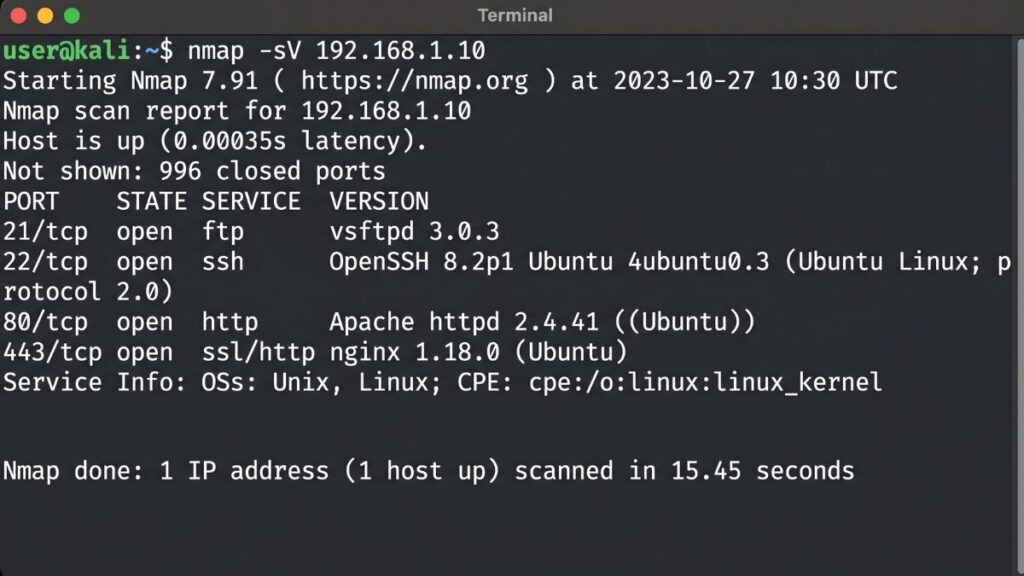
Nmap is the industry-standard port scanner used by network admins and security professionals. To scan your own machine:
nmap -sV localhost
The -sV flag tries to detect the version of each service, which is useful for spotting outdated software. Nmap is free and available from nmap.org.
Network Port Security: What You Actually Need to Do
Open ports are entry points. Every unnecessary open port is a door an attacker might try. That’s not paranoia — that’s just how network-level attacks work. The good news is that basic port security isn’t complicated.
Five Practical Port Security Steps
1. Close ports you don’t need. Run netstat or Nmap periodically and disable any service you don’t recognize or use. If MySQL is listening on port 3306 and you’re not running a database, that’s a problem.
2. Use a firewall. A firewall set to deny all inbound traffic by default, then whitelist only the ports you actually need, is the single most effective thing you can do. On Linux, ufw (Uncomplicated Firewall) makes this straightforward. On Windows, Windows Defender Firewall handles it in the GUI.
3. Never use Telnet (port 23). Telnet sends everything in plaintext, including passwords. SSH (port 22) does the same thing but encrypted. There’s no good reason to use Telnet on a modern network.
4. Change default ports for sensitive services. Attackers scan default ports automatically. Moving SSH from port 22 to a high custom port (say, 49200) won’t stop a determined attacker, but it will eliminate most automated scanning noise. It’s not a substitute for strong authentication — but it’s a useful layer.
5. Monitor your firewall logs. Most firewalls log blocked connection attempts. Reviewing these logs occasionally — even monthly — can reveal if someone is probing your machine for open ports.
Common Port Problems and How to Fix Them
“Connection Refused” on a Port You Know Is Running
Don’t panic — this is one of the most common errors and usually has a simple cause. First, confirm the service is actually running (systemctl status nginx, for example). Then check your firewall rules. A service can be up and running but blocked by a local firewall rule before traffic even reaches it.
On Linux with ufw:
sudo ufw status verbose
If the port isn’t listed, add it:
sudo ufw allow 80/tcp
Port Forward Isn’t Working
The most likely culprits, in order: your device doesn’t have a static local IP, the rule was saved to the wrong port, your ISP is blocking the port at their level (common for port 25), or your device’s local firewall is blocking it even though the router is forwarding correctly. Test each layer separately — start by confirming the service responds locally before debugging the router.
Two Applications Trying to Use the Same Port
This causes one of them to fail to start. Use netstat -ano on Windows to find which process is already using that port, then either stop it or reconfigure one of the applications to use a different port.
ISP Blocking Specific Ports
Some ISPs block port 25 (SMTP) to prevent residential customers from running mail servers. If you’re trying to self-host email and can’t send, this is probably why. Port 587 (SMTP submission with TLS) is usually not blocked and is the correct port to use for outgoing email anyway, per RFC 6409.
FAQ
A network port is a number that tells your computer which app or service should receive incoming data. Your IP address gets data to your device; the port number directs it to the right program. Think of it as the apartment number after the street address.
There are 65,536 ports in total (numbered 0 through 65535). That’s because port numbers are stored as 16-bit integers, which gives exactly 2^16 possible values. In practice, only a few hundred are commonly used.
An open port means a service is actively listening there and will respond to incoming connections. A closed port means nothing is listening, and the computer will send back a rejection message. A “filtered” port is one where a firewall silently drops packets — the sender gets no response at all.
Not on the same IP address using the same protocol at the same time. Two different applications can’t both listen on TCP port 80 simultaneously. However, one service can use TCP port 80 while another uses UDP port 80 — those are treated as separate channels.
It depends on the game. Most multiplayer games publish their required ports in their support documentation. Common examples: Minecraft uses TCP 25565, Steam uses UDP 27000–27100, and PlayStation Network uses both TCP and UDP across several ports. Check the game publisher’s site for exact requirements.
No — they work together but serve different purposes. An IP address identifies a device on a network. A port identifies a specific service or process on that device. You need both to make a complete connection: the IP gets you to the building, the port gets you to the right floor and office.
A firewall controls which traffic is allowed in or out based on rules. Port forwarding is a router feature that redirects incoming traffic on a specific port to a specific device on your local network. They’re complementary: your firewall decides if traffic is allowed, your router decides where to send it.