If you’ve got a Xiaomi MiWiFi router, 192.168.31.1 is your address. It’s the default gateway for nearly every router in Xiaomi’s lineup — the MiWiFi Mini, the MiWiFi 3, 3A, 3C, 3G, the MiWiFi 4 series, the Pro, the HD, and more. What makes Xiaomi’s setup a little different from most routers is that the first-time login experience skips a username and password entirely — you’ll see a setup wizard instead. And beyond the IP itself, you can also reach the admin panel through miwifi.com directly in your browser, which not everyone knows about. This guide covers all of it: logging in from PC and phone, every common failure point, and what to actually configure once you’re in.
192.168.31.1 Router Login – Admin Page Guide
What Is 192.168.31.1?
192.168.31.1 is the default gateway IP address for Xiaomi MiWiFi routers. It’s the address you type into a web browser to access your router’s admin panel — the control center where you manage Wi-Fi settings, passwords, connected devices, parental controls, and more.
It’s a private IP address, part of the 192.168.0.0/16 block reserved for local networks under RFC 1918 private address ranges. Like all private gateway addresses, it only works inside your home network. You can’t access it from outside your home, from a different Wi-Fi network, or from your phone’s cellular data connection — only devices connected to that specific MiWiFi router can reach it.
The “31” in the third octet is what makes this address distinctly Xiaomi. While most consumer router brands default to 192.168.0.x or 192.168.1.x, Xiaomi chose 192.168.31.x for their MiWiFi platform — it’s consistent across almost their entire router product line, which makes it easy to remember once you know it. Understanding how DHCP assigns IP addresses explains why connected devices on your network get addresses like 192.168.31.100, 192.168.31.101, and so on — they all land in the same subnet as the gateway.
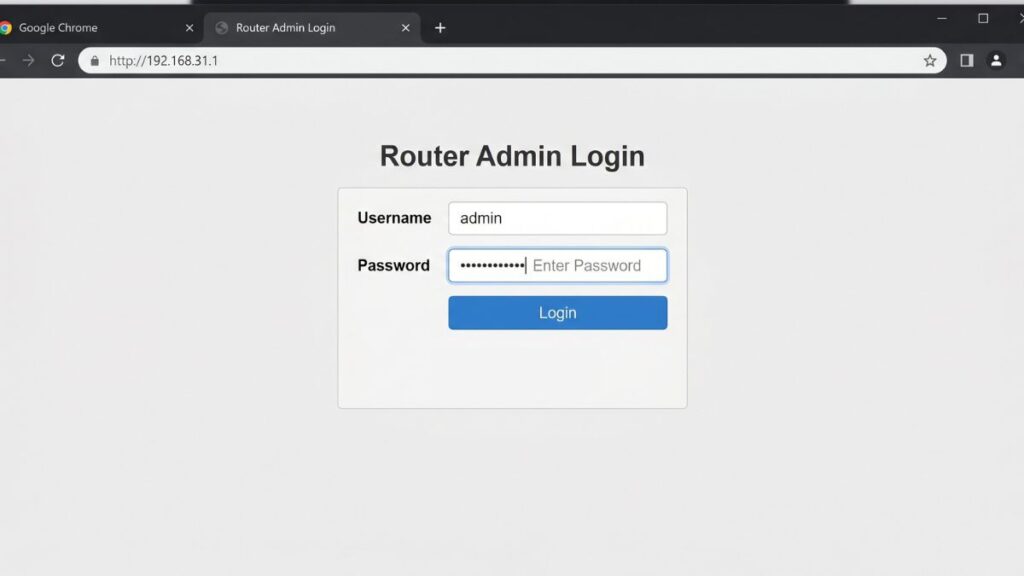
Default Username and Password for 192.168.31.1
Xiaomi’s MiWiFi routers handle login differently from most brands, and it catches a lot of people off guard. Here’s what you’re actually dealing with:
| Router Model | Default Username | Default Password | Notes |
|---|---|---|---|
| MiWiFi 3, 3A, 3C, 3G | admin | admin | Standard defaults |
| MiWiFi 4, 4A | admin | admin | Standard defaults |
| MiWiFi Pro | admin | admin | Standard defaults |
| MiWiFi HD | admin | admin | Standard defaults |
| MiWiFi Mini (R1CM) | (blank) | (blank) | No credentials on first boot |
| MiWiFi R1D, R2D | admin | admin | Standard defaults |
| First-boot setup (all models) | N/A | N/A | No login — setup wizard appears instead |
The most important thing to understand about Xiaomi MiWiFi routers: If you’re setting up a brand-new router or just performed a factory reset, you won’t see a login prompt at all when you navigate to 192.168.31.1. Instead, you’ll land on a setup wizard that walks you through the initial configuration. During this wizard, you’ll create your admin password for the first time. After completing setup, that custom password is what you use for all future logins — not a factory default.
If the router has already been set up, the password is whatever was created during that first-boot wizard. It’s on the sticker on the bottom of your router only if it was printed during manufacturing — on Xiaomi devices, the sticker more commonly shows the default Wi-Fi name and a wireless password, not the admin password.
Alternative login URL: You can also access the MiWiFi admin panel by typing miwifi.com directly in your browser’s address bar instead of the IP address. Both http://192.168.31.1 and http://miwifi.com lead to the same place — use whichever is easier to remember.
How to Log In to 192.168.31.1 on a PC
Works on Windows, Mac, and Linux. Any browser is fine — Chrome, Firefox, Edge, and Safari all work.
- Connect your computer to the MiWiFi router — either via Wi-Fi or an Ethernet cable. For making settings changes, Ethernet is more stable since changing wireless settings can briefly drop a Wi-Fi connection mid-save.
- Open your web browser.
- Click the address bar at the top of the browser window — the bar showing the full URL of the current page, not a search box.
⚠️ Biggest mistake people make: Typing 192.168.31.1 into the Google search bar just runs a web search. It won’t connect to your router. Click the address bar at the very top of the browser — the one that shows a full URL like https://google.com — and type the IP there.
- Type
http://192.168.31.1(or simplymiwifi.com) and press Enter. - If the router is freshly set up: you’ll see the setup wizard. Follow the prompts to configure the router and create your admin password.
- If the router has been set up previously: you’ll see a login page. Enter your admin password and click Login.
You’re in. If the page doesn’t load, see the troubleshooting section below.
How to Log In to 192.168.31.1 on a Phone
Xiaomi’s MiWiFi platform actually has a dedicated app, which makes mobile management easier than on most routers. But you can also use a browser on your phone — here are full steps for both platforms.
On iPhone (iOS) — Browser Method
- Open Settings → Wi-Fi.
- Tap the ⓘ icon next to your connected MiWiFi network name.
- Check the Router field. It should show 192.168.31.1. If it shows a different IP, use that one instead.
- Open Safari or any browser.
- Tap the address bar and type
192.168.31.1ormiwifi.com, then tap Go. - The MiWiFi login page loads. Enter your admin password and tap Login.
On Android — Browser Method
- Go to Settings → Network & Internet → Wi-Fi (path varies slightly by Android version and device brand).
- Tap your active MiWiFi network and look for Gateway in the connection details — it should show 192.168.31.1.
- Open Chrome or your preferred browser.
- Tap the address bar and type
192.168.31.1ormiwifi.com, then press Go. - Enter your admin password and tap Login.
Using the MiWiFi App (iPhone and Android)
Xiaomi offers a dedicated MiWiFi app for both iOS and Android. Once set up, you can manage your router without typing in the IP address every time — just open the app. The app gives you access to connected devices, speed tests, parental controls, and most settings the web interface offers. It’s genuinely one of the better router companion apps available. Look for “MiWiFi” in the App Store or Google Play.
One reminder: make sure you’re connected to Wi-Fi — not cellular data — before trying to reach 192.168.31.1 in a browser. Your phone’s mobile data connection can’t reach your local router.
Troubleshooting: 5 Reasons 192.168.31.1 Won’t Load
If the page isn’t coming up, one of these five things is almost always the cause.
If you can’t reach the 192.168.31.1 MiWiFi (Xiaomi) router login page, you’re not alone. Below are the most common issues and how to fix them quickly.
1. You’re Not on the Right Network
Cause: Your device is connected to a different Wi‑Fi network, mobile hotspot, or cellular data — not the MiWiFi router you’re trying to reach.
Fix: Check your Wi‑Fi connection. On Windows, click the network icon in the taskbar. On mobile, go to Wi‑Fi settings. Make sure you’re on the network broadcast by the Xiaomi router, then try again.
2. The Router’s Gateway IP Has Been Changed
Cause: If someone previously logged into the admin panel and changed the LAN IP address away from 192.168.31.1, the original address no longer works.
Fix: Find the actual gateway IP. On Windows: open Command Prompt and type ipconfig, look for “Default Gateway.” On Mac: System Settings → Network → your active connection → Details → TCP/IP tab. On iPhone: Wi‑Fi settings → your network → ⓘ → Router field. On Android: Wi‑Fi settings → your network → Gateway. Use whatever IP you find there.
3. Browser Cache Is Causing a Conflict
Cause: Your browser stored a broken or expired session for 192.168.31.1 and keeps loading the cached failure instead of making a fresh connection.
Fix: Open a private or incognito window (Ctrl+Shift+N in Chrome, Ctrl+Shift+P in Firefox) and try http://192.168.31.1. If that loads, clear your main browser cache. Alternatively, try miwifi.com — it takes a different browser path and sometimes bypasses the cache issue entirely.
4. You Typed It Into a Search Bar, Not the Address Bar
Cause: Browser search bars and address bars look similar, but they behave very differently. Anything typed into a search box goes to Google or Bing — it doesn’t navigate to a local IP.
Fix: Click specifically in the address bar at the top of the browser window — the one that currently shows a full URL. Type http://192.168.31.1 there and press Enter. Adding http:// in front is important on some browsers, as it signals a navigation intent rather than a search query.
5. The Router Needs a Reboot
Cause: MiWiFi routers, like all routers, can occasionally get stuck in an unresponsive state after extended uptime, power interruptions, or a failed settings save.
Fix: Unplug the router from the power outlet, wait a full 30 seconds, then plug it back in. Wait 60–90 seconds for it to fully restart before trying 192.168.31.1 again. Simple, but surprisingly effective.
How to Factory Reset a Xiaomi MiWiFi Router
If you’ve forgotten the admin password and can’t get into the router, a factory reset is the way back in. Be aware: this erases all your settings — Wi-Fi name, Wi-Fi password, admin password, and every configuration change you’ve made.
Before you reset: If you can still access the admin panel from another device, export your configuration first. In MiWiFi’s interface, look under System or Advanced Settings for a backup or export option.
Reset steps for most MiWiFi models:
- With the router powered on, locate the Reset button. On most MiWiFi models, it’s a small pinhole on the bottom or back labeled “Reset” or “RST.”
- Use a straightened paperclip or SIM eject tool to press and hold the reset button.
- Hold for 10–15 seconds on most models. You’ll see the indicator light flash yellow or the router will reboot.
- Release the button and wait 60–90 seconds for the router to fully restart.
- Navigate to 192.168.31.1 or miwifi.com — the setup wizard will appear, letting you configure the router fresh.
MiWiFi Mini note: The Mini’s reset button is on the back, and it may take slightly longer — hold for up to 20 seconds if the standard hold doesn’t trigger a reset.
What gets erased: Your Wi-Fi network name (SSID), Wi-Fi password, admin password, any parental controls, port forwarding rules, guest network settings, and DNS configurations. You’ll be starting over from the setup wizard.
What to Do After You Log In
Getting into the MiWiFi admin panel is the starting point. Here’s what’s worth doing while you’re in there.
1. Set a Strong Admin Password
On a brand-new or freshly reset MiWiFi router, the setup wizard will ask you to create an admin password before anything else. Don’t rush through this step. If you’re logging into an already-configured router, navigate to System or Advanced → Account to change the password.
Make it genuinely strong — at least 12 characters, mixing uppercase, lowercase, numbers, and symbols. A good benchmark is how to create a strong password. Store it in a password manager rather than leaving it on a sticky note next to the router.
2. Set Up or Update Your Wi-Fi Password
In the MiWiFi interface, go to Common Settings → Wireless Settings (or similar, depending on your model’s firmware version). Here you can update your Wi-Fi network name (SSID) and the wireless password. If you’ve never changed these from the factory defaults, now’s a good time.
3. Enable WPA2 or WPA3 Security
Still in wireless settings — verify the security mode is set to WPA2-PSK (AES) at minimum. If your MiWiFi model supports WPA3 security standard, enabling it provides meaningfully better protection against modern brute-force attacks. WEP and original WPA are outdated and shouldn’t be used.
4. Review Connected Devices
MiWiFi’s interface has a strong device management section — typically accessible right from the home screen of the admin panel. You can see every device connected to your network, their IP and what is a MAC address details, their real-time bandwidth usage, and block individual devices directly from the interface. This is one of MiWiFi’s genuinely stronger features compared to budget competitors. Check it periodically — it’s useful for spotting unexpected devices or bandwidth hogs.
5. Set Up Parental Controls
Xiaomi’s MiWiFi platform has built-in parental control features that are more functional than what most consumer routers offer. You can restrict internet access for specific devices during set time windows, filter certain content categories, and set daily usage limits. Find it under Security or Parental Controls in the admin panel, or in the MiWiFi app under the device management section.
6. Set Up a Guest Network
MiWiFi routers support a guest network that isolates visitors from your main network. Look for Guest Network in the wireless settings. It creates a separate SSID with its own password — guests get internet access without seeing your personal devices, printers, or NAS drives. Our family uses a guest network with a password that gets refreshed seasonally — nobody needs permanent credentials to your home network.
7. Configure Port Forwarding if Needed
If you run a game server, self-hosted application, or security camera system that needs to be reachable from outside your home, port forwarding handles that routing. In MiWiFi’s admin panel, look under Advanced → Port Forwarding or NAT. How port forwarding works is a solid primer before you start opening ports, especially if it’s your first time.
8. Update the Firmware
MiWiFi routers can check for firmware updates directly from the admin panel. Go to System or Advanced → Firmware Update and check for available updates. Keeping firmware current patches security vulnerabilities — it’s one of the most effective and underutilized steps for home network security. How to update router firmware walks through the general process if the MiWiFi interface isn’t obvious about it.
Common Misspellings of 192.168.31.1
If the address isn’t loading, check for these common typos:
192.168.31.l
192.168.3l.1
192.l68.31.1
192.168.31
192.168.31,1
192,168,31,1
192.168.311
www.192.168.31.1
192-168-31-1
http //192.168.31.1
19216831l
Correct address:
192.168.31.1
— four number groups, exactly three periods. Or try miwifi.com to skip IP typing.
Which Xiaomi MiWiFi Models Use 192.168.31.1?
192.168.31.1 is Xiaomi’s standard default gateway across their entire MiWiFi router lineup. Here’s a breakdown by model series:
Uses 192.168.31.1 by default:
- MiWiFi Mini (R1CM)
- MiWiFi R1D
- MiWiFi R2D
- MiWiFi 3 (R3)
- MiWiFi 3A
- MiWiFi 3C
- MiWiFi 3G
- MiWiFi 4
- MiWiFi 4A (R4A)
- MiWiFi HD
- MiWiFi HDR3D
- MiWiFi Lite
- MiWiFi Pro (R3P)
- AX3000 / AX6000 series (most models)
- Xiaomi Router BE7000 and newer flagship models
Other brands that also use 192.168.31.1 (less common):
- Sweex — a legacy Dutch networking brand; some older Sweex routers used 192.168.31.1 as their gateway
- Magenta (T-Mobile Austria) — some ISP-provisioned equipment in Austria has used this address
Frequently Asked Questions
There’s no username and password field on my MiWiFi login page — just a setup wizard. Is that normal?
Yes, completely normal. Xiaomi MiWiFi routers don’t have a pre-set admin password out of the box. When you first connect or after a factory reset, you’ll see a setup wizard that walks you through initial configuration and has you create your admin password. Once that’s done, future logins use the password you created.
I forgot my MiWiFi admin password. What can I do?
Your only option is a factory reset. Unlike some routers, there’s no way to recover a forgotten Xiaomi admin password without resetting the device. Hold the reset button for 10–15 seconds with the router powered on, then follow the setup wizard to create a new password.
Can I access 192.168.31.1 using miwifi.com instead?
Yes — http://miwifi.com and http://192.168.31.1 both lead to the same MiWiFi admin login page. The hostname only works when you’re connected to the MiWiFi router’s network. Use whichever you find easier to remember.
My MiWiFi Mini shows no username or password fields. What do I enter?
Leave both fields blank and press Login — some MiWiFi Mini firmware versions have blank default credentials. After logging in, immediately set a password.
The MiWiFi admin panel is in Chinese. How do I switch it to English?
Look for a language dropdown in the top-right corner of the admin panel or in Settings. Some MiWiFi firmware versions default to Chinese since Xiaomi is a Chinese company — the English option is usually available but may not be selected by default.
My MiWiFi shows 192.168.31.1 isn’t available — I keep getting a “network error.”
Run ipconfig on Windows or check your iPhone’s Router field in Wi-Fi settings. If the shown gateway is different from 192.168.31.1, use that address instead — someone may have changed the LAN IP at some point.