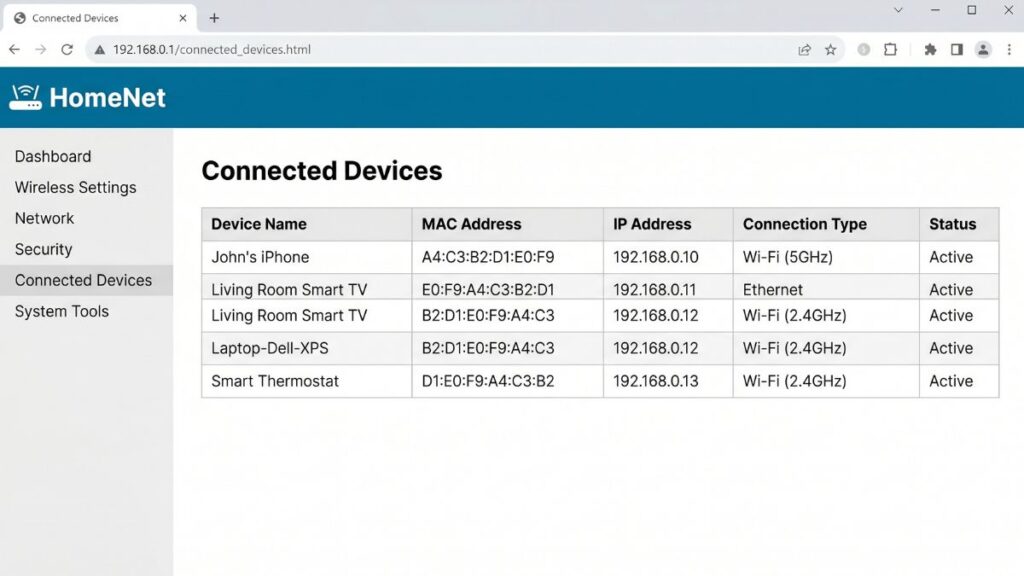
Your router keeps a list of every device connected to your network. It knows your laptop from your phone, your smart TV from your thermostat. That list doesn’t use names — it uses MAC addresses. Every network device has one. If you’ve ever set up DHCP reservations, tried MAC filtering, or wondered why your router shows the same device twice, understanding what a MAC address actually is saves a lot of confusion.
A MAC address is a permanent hardware identifier burned into your network card at the factory. It’s how devices identify each other on a local network. It’s different from an IP address, it doesn’t change when you move between networks, and — with one big modern exception — it’s the same on every Wi-Fi and Ethernet connection that card ever makes.
This guide covers what MAC addresses are, how they’re structured, how your router actually uses them, and how to find yours on any device. There’s also a section on MAC randomization that’s worth reading if you’ve noticed your phone showing up as an unknown device on your router’s list.
What Is a MAC Address?
MAC stands for Media Access Control. It’s a unique identifier assigned to a device’s network interface — the physical hardware that handles Wi-Fi or Ethernet connections. Every network card, Wi-Fi chip, and Ethernet port in existence gets one burned in during manufacturing.
When data moves across your local network — from your router to your laptop, from your phone to a printer — the devices use MAC addresses to find each other. Think of it like a serial number for a network card. Your router doesn’t care what name you gave your laptop. It knows your laptop by its MAC address: the same string of characters every time that device connects.
A few things that make MAC addresses distinct from IP addresses:
They’re assigned by the hardware manufacturer, not by software. They’re supposed to be globally unique — no two devices should share the same one. They operate at Layer 2 of the networking model, meaning they work on your local network segment and don’t travel across the internet the way IP addresses do. And they’re permanent, at least in the traditional sense. (Modern smartphones complicate that last point — more on that in the randomization section.)
If you have a laptop with both Wi-Fi and an Ethernet port, it has two MAC addresses. One for each network interface. A device with Bluetooth has a third. Each interface gets its own identifier, even if they’re all inside the same machine.
What a MAC Address Looks Like (and How to Read One)
A MAC address is 12 hexadecimal characters, usually grouped into pairs separated by colons or hyphens. Here’s an example:
00:1A:2B:3C:4D:5E
You might also see it written as:
00-1A-2B-3C-4D-5E
Or on Cisco equipment, in dot notation:
001A.2B3C.4D5E
All three represent the same address. The formatting is just a style choice.
Hexadecimal means the characters run from 0–9 and then A–F. So a single pair can be anything from 00 to FF. Six pairs of hexadecimal characters gives 48 bits total — enough to create 281 trillion unique addresses. That sounds like more than enough, and for now it is, though manufacturers do eventually cycle through and reuse ranges.
How the OUI Works: Reading Manufacturer Info from a MAC Address
Here’s something most people don’t know: the first six characters of a MAC address identify the manufacturer. This is called the Organizationally Unique Identifier (OUI), and it’s assigned by the IEEE to each hardware vendor.
So when your router’s connected-devices list shows a device with MAC address 3C:5A:B4:xx:xx:xx, the 3C:5A:B4 prefix belongs to Google. A MAC starting with CC:46:D6 is a Cisco device. 00:17:F2 is Apple. The last six characters are assigned by the manufacturer to uniquely identify that specific device within their range.
This is actually useful in practice. If you see an unfamiliar device on your network and you don’t recognize the name it’s broadcasting, you can look up the first six characters of its MAC address in an OUI lookup tool. It’ll tell you who made the hardware, which often tells you what the device is. That mysterious entry might turn out to be your smart TV, your Nest thermostat, or your Wi-Fi printer — they just don’t always announce their names helpfully.
One caveat: MAC randomization (covered below) deliberately fakes the OUI field in the randomized address, so you can’t look up manufacturer info for randomized MACs.
MAC Address vs. IP Address: What’s the Difference?
This is the question I get most often, so let’s answer it directly.
Both a MAC address and an IP address identify a device, but they work at different layers and serve different purposes.
Scope: A MAC address only matters on your local network. Once a data packet leaves your router and heads out to the internet, the MAC address is stripped off and replaced. It never travels beyond your local network segment. An IP address, by contrast, travels across the internet and tells the world’s routers how to route your traffic.
Assignment: MAC addresses are assigned by hardware manufacturers and embedded into the physical network card. IP addresses are assigned by software — either manually, or automatically by your router’s DHCP server every time a device connects.
Permanence: A traditional MAC address is fixed and doesn’t change. An IP address can change anytime your router reassigns it (unless you’ve set up a DHCP reservation or a static IP).
Format: MAC addresses are 48 bits written in hex. IP addresses are 32 bits (IPv4) written in decimal, like 192.168.1.100, or 128 bits (IPv6).
The relationship between them: when your laptop wants to send data to another device on your local network, it knows the destination IP address — but it needs the MAC address to actually deliver the frame. That translation happens via ARP (Address Resolution Protocol). Your device broadcasts “who has IP 192.168.1.1?” and the router responds with its MAC address. Now your laptop knows exactly where to send the frame.
Think of it this way: the IP address is like a mailing address. The MAC address is like the person’s actual face. The IP address tells you where to go; the MAC address confirms who you’re handing the package to once you’re there.
How Your Router Uses MAC Addresses
Your router works with MAC addresses constantly, mostly behind the scenes.
Tracking connected devices. Every router maintains a table — sometimes called an ARP table or MAC address table — that maps IP addresses to MAC addresses. This is how it knows which device is which. Open your router’s admin panel (usually at 192.168.1.1 or 192.168.0.1) and navigate to the connected devices section. What you’re seeing is this table — every device currently on your network, identified by its MAC address and the IP address the router assigned to it.
DHCP address assignment. When a new device connects, it requests an IP address via DHCP. The router assigns one and records the pairing: this MAC address gets this IP. By default, that IP might change the next time the device connects. DHCP reservation — which I’ll cover in its own section — fixes the MAC address to a permanent IP, which is essential for port forwarding and local server hosting.
MAC filtering. Some routers let you create an allowlist of MAC addresses. Only devices on the list can connect. It’s a security feature, though not a very strong one.
Parental controls and device management. Router-based parental controls almost always operate per-MAC address. You create a policy, assign it to a device’s MAC, and the router enforces it whenever that device connects.
How to Find Your MAC Address on Any Device
Windows
Command Prompt (fastest method):
- Press Windows key, type
cmd, press Enter. - Type
ipconfig /alland press Enter. - Find your active adapter — “Wi-Fi” or “Ethernet adapter.”
- Look for Physical Address — that’s your MAC address, formatted like
00-1A-2B-3C-4D-5E.
Settings GUI (no command line):
- Go to Settings > Network & internet.
- Click your connection type (Wi-Fi or Ethernet).
- Click Hardware properties.
- Look for Physical address (MAC).
<!– SCREENSHOT PLACEHOLDER: Windows Settings > Network & internet > Wi-Fi > Hardware properties screen showing the Physical address (MAC) field –>
Mac
macOS Ventura and later:
- Apple menu > System Settings.
- Click Wi-Fi (or Network for Ethernet).
- Click Details next to your connected network.
- Click the Hardware tab.
- Your MAC address is listed as MAC Address.
Terminal:
ifconfig en0 | grep ether
Replace en0 with en1 for Ethernet if Wi-Fi didn’t show what you expected. The address after ether is your MAC.
iPhone / iPad
- Open Settings.
- Tap General > About.
- Scroll to Wi-Fi Address — that’s your MAC address.
One thing worth knowing: iPhones running iOS 14 and later use a randomized MAC address by default for each network, not the real one. The address shown under “Wi-Fi Address” in About is the hardware MAC — but what your router actually sees may be different. More on this in the randomization section.
Android
Standard Android:
- Open Settings > About phone.
- Tap Status or Phone information.
- Look for Wi-Fi MAC address.
Samsung Galaxy:
- Settings > About phone > Status information.
- Look for Wi-Fi MAC address.
Same caveat as iPhone: Android 10 and later randomize MAC addresses by default. The MAC address shown in About reflects the hardware address, but your router will see a randomized one.
Linux
Open a terminal and run:
ip link show
Look for your interface (wlan0 for Wi-Fi, eth0 for Ethernet). The MAC address appears after link/ether.
Or for just the Wi-Fi MAC:
cat /sys/class/net/wlan0/address
Game Consoles (PS5, Xbox)
PlayStation 5: Settings > Network > View Connection Status. Your MAC address is listed under both “MAC Address (Wi-Fi)” and “MAC Address (LAN).”
Xbox Series X/S: Settings > General > Network Settings > Advanced Settings. Both wired and wireless MAC addresses are shown here.
Game consoles are one of the main reasons people look up MAC addresses — you often need them for DHCP reservations so your console always gets the same local IP address for port forwarding.
MAC Filtering: What It Is and Whether It’s Worth Using
MAC filtering lets you configure your router to only accept connections from devices whose MAC addresses you’ve explicitly approved. Any device not on the allowlist gets rejected at the router level, even with the correct Wi-Fi password.
To set it up: log into your router’s admin panel at 192.168.1.1 or 192.168.0.1, look for Wireless > MAC Filter or Access Control, and add the MAC addresses of your approved devices.
Sounds great. Here’s the problem: MAC filtering is genuinely easy to bypass. A technically motivated attacker can listen to the Wi-Fi traffic on your network, see which MAC addresses are actively communicating, pick one, and set their own adapter to use that same address. It takes about five minutes with free tools. MAC filtering stops casual freeloaders, not anyone who actually wants to get in.
That said, it’s not completely worthless. As one layer among several — strong WPA3 password, firmware kept current, guest network for IoT devices — it adds a small hurdle. Just don’t treat it as your primary security measure or you’ll have false confidence.
The bigger practical problem with MAC filtering in 2026 is randomization. Modern phones and tablets use randomized MAC addresses, which means their MAC address changes. If you’ve allowlisted a specific MAC for your phone and then the phone changes its MAC (which iOS and Android both do), your phone suddenly can’t connect — even though it knows the Wi-Fi password. You’d have to add the new randomized address to the allowlist. It quickly becomes unmanageable.
DHCP Reservation: The Most Useful Thing Your Router Does with MAC Addresses
DHCP reservation is the MAC address feature you’ll actually use. It’s worth understanding well.
By default, your router assigns IP addresses dynamically — it picks a number from a pool and gives it to whatever device requests one. Your desktop might be 192.168.1.100 today and 192.168.1.104 tomorrow after a restart. That shifting address breaks any configuration that depends on knowing a device’s address: port forwarding rules, home server setups, network-attached storage, anything where another device needs to reach yours at a consistent address.
DHCP reservation solves this by telling the router: “Whenever the device with MAC address 00:1A:2B:3C:4D:5E connects, always give it IP 192.168.1.100.” The device still uses DHCP — it still asks the router for an IP — but the router always gives it the same answer.
To set this up: log into your router’s admin panel, find DHCP settings or LAN settings, and look for “Address Reservation,” “DHCP Reservation,” or “Static Lease.” You’ll enter the device’s MAC address and the IP you want it to always receive.
Why this matters in practice:
- Port forwarding requires a static target IP. DHCP reservation is the clean way to guarantee it.
- Home servers, NAS devices, and Raspberry Pi projects all need consistent addresses.
- Parental controls tied to an IP address (rather than a MAC) will break if the IP changes — reservation prevents this.
- Smart home hubs that communicate with other local devices often need fixed addresses to work reliably.
One thing to watch with phones: if your phone uses a randomized MAC on your home network, the “random” address is actually consistent per-network — your phone uses the same randomized address every time it connects to your home Wi-Fi specifically. So DHCP reservation still works. You just use the randomized MAC (which your router sees) rather than the hardware MAC.
MAC Address Randomization: Why Your Phone Looks Like a Stranger on Your Network
This is the biggest change to how MAC addresses work in the last few years, and it catches a lot of people off guard.
Here’s the problem randomization is solving: because a MAC address is unique and consistent, it can be used to track a device across different networks. A shopping mall’s Wi-Fi system, an airport, a coffee shop — if they all see the same MAC address from your phone, they can build a profile of where you’ve been and how often you visit. No app required. Just passive Wi-Fi monitoring.
Modern operating systems address this by randomizing the MAC address your device broadcasts. Instead of sending your real, permanent hardware MAC, your phone generates a fake one.
iOS 14 and later (iPhone, iPad): Randomization is on by default. Your iPhone uses a different randomized MAC for each Wi-Fi network it connects to — and sticks with that same randomized address for that specific network. So your home network always sees the same (randomized) address, your office network sees a different (randomized) address, and the coffee shop sees a third. Apple also rotates these randomized addresses periodically for extra privacy.
Android 10 and later: Same basic behavior. Each network gets its own randomized MAC. The address is consistent per-network unless you explicitly set the device to use its real MAC for a specific connection.
What this means for your home router:
Your router might show a device name like “Unknown device” or a MAC address that doesn’t match what’s printed on your phone’s settings. That’s the randomized address at work. On your home network specifically, the randomized address stays consistent — so DHCP reservation still works, and your router will recognize your phone reliably.
Where randomization causes problems: if you’ve set up MAC filtering and allowlisted your phone’s hardware MAC address. The router sees the randomized one and blocks it. The fix is to either disable randomization for your home network (both iOS and Android let you do this per-network) or allowlist the randomized MAC that your home router actually sees.
To disable randomization for your home network on iPhone: Settings > Wi-Fi > tap the ⓘ next to your home network > toggle Private Wi-Fi Address to off.
On Android: Settings > Network & internet > Wi-Fi > tap your network > tap the gear icon > look for Privacy or MAC address type > switch from “Use randomized MAC” to “Use device MAC.”
Can a MAC Address Be Changed or Spoofed?
Yes — and it’s easier than most people think.
On every major operating system, you can override the hardware MAC address with a software-defined one. This is called MAC spoofing. On Windows, it’s a few clicks in Device Manager. On Linux, one terminal command. On Android, it’s what MAC randomization does automatically.
Legitimate reasons to change a MAC address: MAC randomization for privacy, setting up DHCP reservations when the hardware MAC is awkward, some corporate VPN configurations, and testing network security.
The most common home user scenario: you replaced your router, and your ISP’s modem remembers the MAC address of the old router. Some ISPs lock their service to the first MAC address they see. You can clone your old router’s MAC address onto the new one in the router’s WAN settings — most routers have a MAC clone feature specifically for this.
The security implication: MAC filtering is not a strong security control precisely because MAC addresses can be spoofed. Determined attackers can observe what MAC addresses are on your network and impersonate one. This is why “MAC filtering as your only security” is a bad plan. Use it as a layer, never as the foundation.
FAQ
It’s 12 hexadecimal characters separated into pairs by colons or hyphens — like 00:1A:2B:3C:4D:5E. The first six characters identify the manufacturer; the last six identify the specific device within that manufacturer’s range. You might see it called a “physical address,” “hardware address,” or “Wi-Fi address” depending on the device.
No — they’re different identifiers that serve different purposes. A MAC address is a permanent hardware identifier that works on your local network. An IP address is a software-assigned identifier that can change and works across the internet. Your router uses MAC addresses to track which device is which on your local network, and uses IP addresses to route traffic to the right destination.
They’re not supposed to, but it can happen — and when it does, both devices have serious connectivity problems. The router gets confused about which device to send traffic to and alternates between them. Manufacturers occasionally do reuse address ranges, and on a global scale two matching MACs existing simultaneously is theoretically possible. On your local network, two identical MACs causes immediate, obvious chaos.
Log into your router’s admin panel — typically at 192.168.1.1 for ASUS, NETGEAR, and Linksys routers, or 192.168.0.1 for TP-Link and D-Link. Navigate to the connected devices section (sometimes called DHCP Client List or ARP Table). Every device currently connected to your network will appear with its IP address and MAC address. See our guide on find your router IP address if you’re not sure how to access the admin panel.
Almost certainly MAC randomization. Modern iPhones (iOS 14+) and Android phones (Android 10+) use a randomized MAC address by default. Your router sees an unfamiliar MAC and doesn’t recognize the device. The device still connects fine — it just doesn’t announce itself as “Sarah’s iPhone.” You can either look up the randomized MAC in your router’s connected devices list and label it manually, or disable randomization for your home network in your phone’s Wi-Fi settings. Check our guide on how to set up a guest network if you’re trying to manage which devices can access which parts of your network.
A serial number is assigned by the manufacturer to identify a specific product — it’s tied to the device, not just the network card. A MAC address is tied specifically to the network interface (the Wi-Fi chip or Ethernet port). A laptop has one serial number but might have two or three MAC addresses — one per network interface. Serial numbers are used for warranty and support tracking. MAC addresses are used for network communication.
On your own network: no, not in any meaningful way. Outside your home: historically yes — public Wi-Fi networks could track a device’s movements by spotting the same MAC address across different locations. That’s exactly why iOS and Android introduced MAC randomization. With randomization on, your phone shows a different address at each location, making cross-network tracking impractical. The randomized address at your home network stays consistent, so your home devices recognize your phone — but the airport and coffee shop see something different each visit.
The default username and password for your router’s admin panel are usually printed on the router label. Once you’re in, find the DHCP reservation or address reservation section, enter your device’s MAC address, and assign it a fixed IP. Your device will always get that IP from then on — essential for port forwarding and home server setups.