If you’ve typed 192.168.178.1 into your browser and landed on a login page — or got nothing at all — you’re in the right place. This guide walks you through everything: how to log in on PC, iPhone, and Android, what to do when the page won’t load, how to reset your router if you’re locked out, and how to actually secure your network once you’re in. I’ve helped a lot of people sort out this exact IP address, and the most common problem is simply typing it in the wrong place. We’ll fix that first.
192.168.178.1 – Login Admin
What Is 192.168.178.1?
The short answer: it’s your router’s local address on your home network — the “front door” to your router’s settings panel.
A little more context: every device on your home network gets a private IP address so that your router can keep track of traffic. Your router itself also has one, called the default gateway. On many home routers — especially AVM FRITZ!Box models — that address is 192.168.178.1.
Here’s what makes it private: this address only exists inside your home network. Nobody on the internet can reach it from the outside, because addresses in the 192.168.x.x range are reserved for local use under the RFC 1918 private address ranges. That’s actually a good thing — it means your admin panel isn’t exposed to the public internet. You do still need to protect it with a strong password, though (more on that below).
💡 Tip: Most people don’t know this: 192.168.178.1 is the signature default gateway of AVM FRITZ!Box routers — one of the most popular router brands in Germany and widely used internationally. If you’re on a FRITZ!Box, this is your IP. You can also access the same panel by typing fritz.box in your browser.
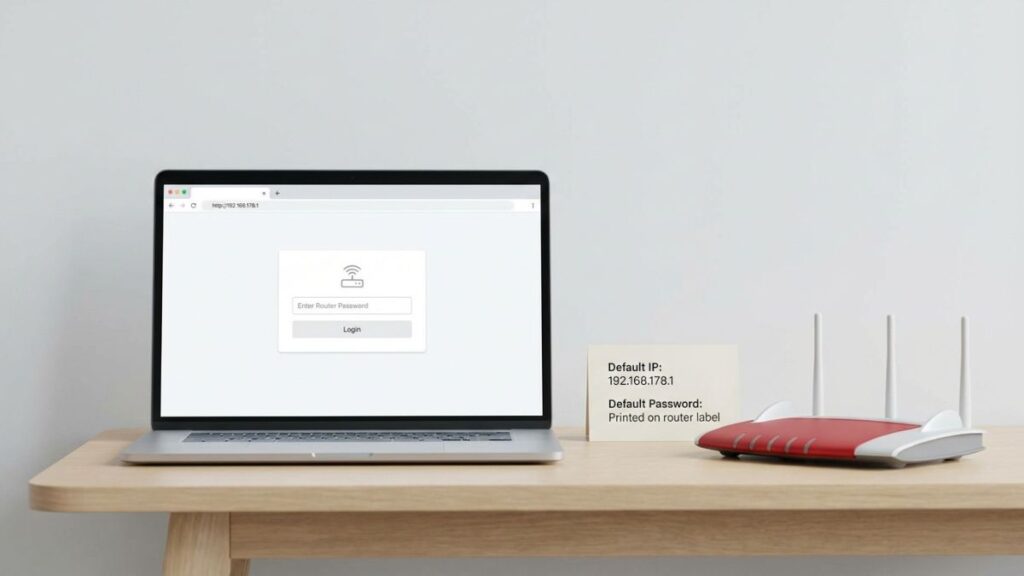
Default Login Credentials for 192.168.178.1
Before you even try the steps below, grab the login credentials. The table below shows common defaults — but always check the label on the back of your router first, because credentials vary by model and some brands ship each unit with a unique password printed on the sticker.
| Brand | Default Username | Default Password |
|---|---|---|
| AVM FRITZ!Box | (leave blank) | (printed on router label) |
| TP-Link | admin | admin |
| ASUS | admin | admin |
| Linksys | admin | admin |
| D-Link | admin | (blank) or admin |
| Netgear | admin | password |
| Cisco | admin | admin or cisco |
| Tenda | admin | admin |
| Belkin | admin | (blank) |
| Huawei | admin | admin |
FRITZ!Box note: AVM FRITZ!Box routers don’t use a universal username/password combo. Every unit ships with a unique password printed on the device label (it looks like a random string of characters). You can also access the panel without credentials at all if you’re connected directly via Ethernet — a security feature AVM built in deliberately.
How to Log In on a PC or Laptop (Windows & Mac)
- Connect to your router first. Either plug in an Ethernet cable or make sure you’re connected to the router’s Wi-Fi network. If you’re not on the same network, nothing will load.
- Open your browser — Chrome, Firefox, Edge, Safari, it doesn’t matter.
- Click into the address bar (the bar at the very top of the browser where you type URLs).
⚠️ Important: Type the IP in the address bar, not the search bar. If you type 192.168.178.1 into Google’s search box, you’ll get search results — not your router. The address bar is at the very top of the browser window.
- Type:
http://192.168.178.1and press Enter. Don’t add “www” in front — it won’t work with www. - A login screen should appear. Enter your username and password from the table above (or from your router’s label).
- Click Login or Sign In. You’re in.
If you’re on a FRITZ!Box and the IP doesn’t load, also try typing fritz.box in the address bar — FRITZ!Box routers accept this as a shortcut.
How to Log In on a Mobile Phone
Competitors usually give you one vague set of “mobile steps.” Here’s what actually works on each platform.
iPhone (iOS)
- Open Settings → tap Wi-Fi.
- Make sure you’re connected to your home network (the one your router broadcasts).
- Tap the (i) icon next to your network name.
- Scroll down to find Router — the IP shown there should be 192.168.178.1. This confirms you’ve got the right address.
- Open Safari (Safari works best for router pages on iOS — Chrome on iPhone sometimes has issues).
- Tap the address bar at the top and type:
http://192.168.178.1 - Hit Go. Enter your credentials when the login page appears.
Android
- Open Settings → Network & Internet (or Connections on Samsung).
- Tap Wi-Fi → tap the name of your connected network.
- Look for Gateway or Router to confirm the IP is 192.168.178.1.
- Open Chrome or your preferred browser.
- Tap the address bar and type:
http://192.168.178.1 - Tap Go or Enter. Log in with your credentials.
💡 Tip: If the mobile login page looks broken or won’t accept input, request the “Desktop site” from your browser’s menu. Router admin panels are designed for desktop browsers and sometimes behave oddly on mobile.
Troubleshooting: 5 Reasons 192.168.178.1 Won’t Load
1. You’re Not Connected to the Right Network
Cause: Your phone or laptop is on a neighbor’s Wi-Fi, a hotspot, or a different network.
Fix: Open your Wi-Fi settings and confirm you’re connected to your own router’s network. Then try again. This solves the problem roughly 40% of the time.
2. Your Router Uses a Different IP Address
Cause: Not all routers use 192.168.178.1. Some use 192.168.1.1, 192.168.0.1, or 10.0.0.1.
Fix: Find your actual gateway IP. Windows, open Command Prompt and type ipconfig — look for “Default Gateway.” On Mac, go to System Settings → Network → your connection → Details. On iPhone, tap the (i) next to your network in Wi-Fi settings. The number listed under “Router” or “Gateway” is what you need to type.
3. Browser Autocorrect Is Breaking the URL
Cause: Some browsers add “https://” automatically or redirect to a search engine when you type a bare IP address.
Fix: Type the full URL manually: http://192.168.178.1 with the http:// prefix. If your browser still won’t cooperate, try a different browser. Don’t panic — this is very common in newer versions of Chrome.
4. The Router’s IP Has Been Changed from the Default
Cause: A previous user (or your ISP) may have changed the router’s LAN IP to something else.
Fix: Run ipconfig (Windows) or check your Wi-Fi details (Mac/phone) to find the current Default Gateway. That’s the actual address to use. If you want a more detailed walkthrough, check out this guide on how to find your router’s IP address.
5. The Router Has Temporarily Locked Admin Access
Cause: Some routers — especially FRITZ!Box units — temporarily block admin access after multiple failed login attempts or during a firmware update.
Fix: Wait 2–3 minutes, then try again. If it’s still locked, power-cycle your router (unplug for 30 seconds, plug back in). If you’re seeing a CAPTCHA or security questions, that’s the anti-brute-force protection doing exactly what it should.
How to Factory Reset Your Router
Before you reset — a quick warning. A factory reset wipes your Wi-Fi name, Wi-Fi password, admin password, port forwarding rules, guest network settings, and any custom DNS or parental controls. Write down anything important before pressing that button.
Steps:
- Keep the router plugged in and powered on.
- Find the Reset button — usually a small pinhole on the back or bottom.
- Use a paperclip, SIM tool, or pin to press and hold the button.
- Hold for the right duration by brand:
- FRITZ!Box: ~15 seconds until the ring starts flashing
- TP-Link: 10 seconds
- Netgear: 7–10 seconds
- Linksys: 10 seconds
- D-Link: 10 seconds
- ASUS: 5–10 seconds until the power light flashes
- Release and wait for the router to reboot (1–2 minutes).
- Log in using the default credentials from the table above, or your router’s label.
What to Do After You Log In
Getting in is just the start. Here’s what you should actually do once you’re in the admin panel.
1. Change Your Admin Password
This is the most important step. The default admin password is publicly known — anyone on your network could log in with it.
- Look for System, Administration, Device Settings, or Management in the menu.
- Find the option to change the admin/login password.
- Set a strong, unique password — not the same one you use for Wi-Fi. A passphrase like
PurpleTaco!Sunrise42is more secure than a short random string. Following NIST password guidelines — which now favor length over complexity — is a solid approach. - Save the new password and write it down somewhere safe (or use a password manager).
2. Change Your Wi-Fi Password
- Look for Wi-Fi, Wireless, or WLAN in the menu.
- Find your network name (SSID) and the password field.
- Set a new Wi-Fi password. Make it memorable but not obvious — your address, birthdate, or dog’s name aren’t great choices.
- Save. All your devices will need to reconnect with the new password.
ℹ️ Note: Quick note: your Wi-Fi password and your admin password are two completely different things. The Wi-Fi password connects devices to your network. The admin password logs you into the settings panel. Change both.
3. Set Your Security Mode to WPA2 or WPA3
Find Security Mode or Encryption in your wireless settings. Always choose WPA2 at minimum — and if your router offers it, go with WPA3 or WPA2/WPA3 mixed mode. The WPA3 security standard offers significantly stronger protection against modern password-cracking attacks. Avoid WEP and plain WPA — both are outdated and easily compromised.
4. Check Which Devices Are Connected
Look for Connected Devices, Device List, or DHCP Clients in the menu. This shows every device currently on your network. If you see something you don’t recognize, that’s a red flag. You can use what is a MAC address knowledge to identify unknown devices — each device has a unique hardware ID that shows up in this list.
5. Set Up a Guest Network
A guest network is a separate Wi-Fi that runs on the same router but keeps visitors isolated from your main network and devices. It’s perfect for guests, smart home gadgets, and IoT devices you don’t fully trust. Ours at home is called “GuestWiFi” — nothing fancy, it just works. Look for Guest Network or Guest Wi-Fi in your wireless settings.
6. Update Your Router’s Firmware
Firmware updates patch security vulnerabilities and improve performance. Look for System Update, Firmware Update, or Software Update in your admin panel. FRITZ!Box routers can update automatically — turn that on if it’s available. Knowing how to update router firmware takes under five minutes and makes a measurable security difference.
7. Port Forwarding (Advanced)
If you run game servers, remote desktop connections, or security cameras accessible from outside your home, you’ll need port forwarding. Look for Port Forwarding, NAT, or Virtual Server in the menu. Understanding how port forwarding works before you start is strongly recommended — misconfigured rules can expose your network.
Common Misspellings and Typos
People type this IP wrong all the time. If you searched for one of these, you still landed in the right place:
192.168.178.l
192.168.l78.1
192.168.178.1/
192-168-178-1
192.168.178.0
http://www.192.168.178.1
192.168.178
Which Brands and ISPs Use 192.168.178.1?
Brands that commonly use this IP:
AVM FRITZ!Box is the primary brand associated with 192.168.178.1. This is the FRITZ!Box signature gateway — every FRITZ!Box ships with this as its default, and users can also access the admin panel via the domain fritz.box. FRITZ!Box is widely used across Europe and increasingly in the US among tech-savvy users who buy their own hardware instead of renting from ISPs.
Some Huawei routers and modems — particularly older DSL gateway models — also use this subnet.
Some TP-Link models ship with this gateway on certain firmware versions, though TP-Link’s primary defaults are usually 192.168.1.1 or 192.168.0.1.
Frequently Asked Questions
Is 192.168.178.1 the same as fritz.box?
Yes, if you have an AVM FRITZ!Box router. FRITZ!Box routers respond to both http://192.168.178.1 and http://fritz.box — both open the same admin panel. Fritz.box is easier to remember and worth bookmarking.
What’s the difference between my Wi-Fi password and my admin password?
They’re completely separate. Your Wi-Fi password is what you enter on a phone or laptop to join the wireless network. Your admin password is what you enter at 192.168.178.1 to access the settings panel. Most people never change the admin password, which is a real security risk. Change both.
Why does my browser say “Not Secure” when I visit 192.168.178.1?
That’s normal. Router admin panels use plain HTTP by default. The “not secure” warning refers to lack of encryption — but since you’re on a local network, not the internet, this is acceptable. Some routers (including FRITZ!Box) support HTTPS access locally — try https://192.168.178.1 if you want a more secure connection.
Can I access 192.168.178.1 from outside my home?
Not directly — private IP addresses aren’t reachable from the internet, by design. FRITZ!Box routers offer a remote access feature called MyFRITZ! for secure remote management, but it uses a public address, not 192.168.178.1.
The login page loads but my credentials aren’t working. What do I do?
First, try the defaults from the credentials table above. If you have a FRITZ!Box, check the label on the bottom or back of the device — the password is unique to your unit. If you’ve changed the password and can’t remember it, a factory reset is your path forward.