Here’s something that trips people up every time: you type 172.16.0.1 into a browser and nothing you’ve read about router logins seems to apply. That’s because this address belongs to a completely different private range from the 192.168.x.x addresses that fill most router guides. I’ve seen a lot of people waste time assuming their credentials are wrong when the real issue is something far more specific to this IP. This guide covers the full login process on PC and mobile, the unusual default credentials you need to know about, what to do when the page won’t load, how to reset your router, and what’s worth configuring once you’re in.
172.16.0.1 – Router Login Admin Page
What Is 172.16.0.1?
It’s the local management address for your router — the IP you type into a browser to open the admin panel where you can change Wi-Fi settings, manage security, see connected devices, and more.
But 172.16.0.1 is different from most router gateway addresses in one important way: it comes from a different private IP range entirely. The address space you’re most familiar with — 192.168.x.x — is just one of three private ranges defined by the RFC 1918 private address ranges standard. The full set is:
- 10.0.0.0 – 10.255.255.255 (used by large enterprises and Xfinity/Comcast)
- 172.16.0.0 – 172.31.255.255 (the “forgotten” middle block — this is where 172.16.0.1 lives)
- 192.168.0.0 – 192.168.255.255 (the familiar consumer router range)
Most home routers stick to the 192.168.x.x range. The 172.16.x.x block sees less consumer use but is perfectly valid private address space. Routers that use it — particularly Top Global, 2Wire, and Bellnet models — deliberately pick it to reduce the likelihood of conflicts with other devices on customers’ networks that almost universally assume 192.168.x.x.
Like all private IPs, 172.16.0.1 is invisible to the public internet and only reachable from devices on your local network. That’s by design: private addresses can’t be routed across the public internet without NAT.
Most people don’t know this: The default credentials for routers using 172.16.0.1 are often public / public — not the admin / admin that works on virtually every other router. If you’ve been trying admin and getting login errors, this is why. The Top Global MB6800 and similar routers from this IP range use public as both username and password by default.
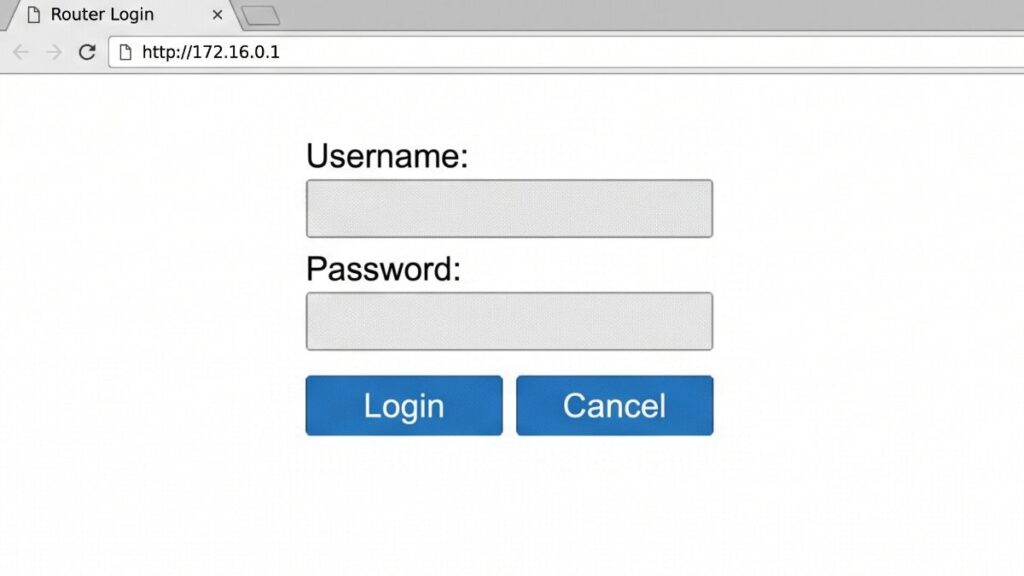
Default Login Credentials for 172.16.0.1
Always verify against the sticker on the bottom or back of your router — credentials vary by model and some units have unique passwords printed on the device label. That said, here are the factory defaults for brands commonly using 172.16.0.1:
| Brand / Device | Default Username | Default Password |
|---|---|---|
| Top Global (MB6800 and similar) | public | public |
| 2Wire (various DSL gateways) | admin | admin or (on label) |
| Bellnet | admin | admin or (on label) |
| Netgear (some models) | admin | password |
| Generic enterprise/corporate router | admin | admin or (on label) |
| Cisco (some configurations) | admin | admin or cisco |
Top Global note: The Top Global MB6800 is the most documented router using 172.16.0.1 with public / public credentials. This is highly unusual — almost no other consumer router brand uses public — so if you’ve never seen this before, you’re not alone. Type public in both the username and password field.
2Wire note: 2Wire gateways (now often rebranded as Pace after the AT&T acquisition) use 172.16.0.1 on some models. These are typically ISP-deployed DSL gateways. Check the router label — many 2Wire units have a unique admin password printed there rather than a universal default.
Corporate/managed network note: If you’re seeing 172.16.0.1 in a workplace or managed environment, the credentials have almost certainly been set by a network administrator. The factory defaults won’t work in this case. Contact your IT department for access.
How to Log In on a PC or Laptop (Windows & Mac)
- Connect to your router first. Use an Ethernet cable plugged into a LAN port for the most reliable connection, or join the router’s Wi-Fi network. You cannot reach 172.16.0.1 from any other network — it only exists on the local network served by that specific router.
- Open your browser. Chrome, Firefox, Edge, and Safari all work. Firefox is often most reliable for older router admin interfaces like those on Top Global and 2Wire hardware.
- Click the address bar at the very top of the browser window — the bar where website URLs appear.
⚠️ The most common mistake by far: Typing 172.16.0.1 into the Google search box. That gets you search results about IP addresses, not your router. You need the address bar at the very top of the browser — not a search bar inside any page.
- Type
http://172.16.0.1and press Enter. Thehttp://prefix is important — some browsers treat bare IP addresses as searches without it. Note that 172.16.0.1 starts with 172, not 192 — this confuses a lot of people on first attempt. - A login screen appears. Enter your username and password. For Top Global routers: type
publicfor both. For other brands, check the table above or your router’s label. - Click Login. You’re in.
How to Log In on a Mobile Phone
Platform-specific instructions for each platform — not a vague “open your browser” paragraph.
iPhone (iOS)
- Open Settings → tap Wi-Fi.
- Confirm you’re connected to your own router’s network — not a neighbor’s, not a hotspot.
- Tap the (i) icon next to your connected network name.
- Scroll down to Router — if it shows 172.16.0.1, you’ve confirmed both the correct network and the correct IP.
- Open Safari — it handles older-style router admin pages better than Chrome on iOS.
- Tap the address bar and type:
http://172.16.0.1 - Tap Go. Enter your credentials on the login page that appears. Remember: for Top Global, both fields are
public.
Android
- Open Settings → Network & Internet (Samsung: Connections → Wi-Fi).
- Tap your connected network name.
- Look for Gateway or Router in the network details — confirm it reads 172.16.0.1.
- Open Chrome or your preferred browser.
- Tap the address bar and type:
http://172.16.0.1 - Tap Go or press Enter. Enter your credentials on the login screen.
💡 Tip: If the router’s admin panel doesn’t render properly on mobile — buttons misaligned, menus cut off — tap your browser’s menu and select Request Desktop Site. Router admin interfaces, especially on older hardware like Top Global and 2Wire units, are designed exclusively for desktop browsers.
Troubleshooting: 5 Reasons 172.16.0.1 Won’t Load
If you’re unable to access the 172.16.0.1 router login page, you’re not alone. Below are the most common issues users face and how to fix them quickly.
1. You’re Trying admin / admin — But the Default Is public / public
Cause: This is by far the most common problem specific to this IP address. Virtually every router guide on the internet defaults to recommending admin / admin. For Top Global routers at 172.16.0.1, that’s wrong. The factory credentials are public for both username and password.
Fix: Try public / public. If that doesn’t work either, check the sticker on the bottom of the router. If there’s no sticker guidance and neither public/public nor admin/admin works, a factory reset is your next step.
2. You’re Confusing 172.16.0.1 with 192.168.x.x — and Connecting to the Wrong Network
Cause: Because 172.16.x.x is such an unusual range for home routers, some devices on your network may be on a 192.168.x.x subnet from a secondary router, while your main gateway is at 172.16.0.1. If your laptop picked up a 192.168.x.x address from a range extender or mesh node, you’re on the wrong segment to reach 172.16.0.1.
Fix: Check which network you’re actually connected to. On Windows, run ipconfig in Command Prompt and look at your IPv4 Address — if it starts with 192.168, you may be on a secondary subnet. Use an Ethernet cable plugged directly into the main router’s LAN port to ensure you’re on the right segment. Understanding what is a subnet mask can also help you diagnose whether your device is in the same subnet as the gateway.
3. Your Browser Is Redirecting the IP to a Search Engine
Cause: Modern browsers, especially Chrome, sometimes misidentify numeric IP addresses — particularly less common ones like 172.16.0.1 — as search queries rather than local URLs. This can happen even when you type carefully.
Fix: Always prefix the address with http://: type http://172.16.0.1 in full. If Chrome keeps redirecting it, try Firefox or Edge — both handle local IP addresses more reliably. Never use www. before the address; it won’t work.
4. The Router’s LAN IP Has Been Changed from 172.16.0.1
Cause: In managed environments (offices, retail, hospitality), or if the router was previously configured by someone else, the LAN gateway may have been changed to a different address.
Fix: Find the actual current gateway. On Windows, open Command Prompt and type ipconfig — look for “Default Gateway.” On Mac, go to System Settings → Network → your connection → Details. On iPhone, tap (i) next to your network; on Android, check advanced Wi-Fi details for “Gateway.” Use whatever address appears there. The complete guide on how to find your router’s IP address covers every platform step by step.
5. You’re on a Corporate or Managed Network
Cause: The 172.16.x.x range is widely used in corporate and enterprise networking. If you’re at work or on a business network and seeing 172.16.0.1, you may be behind a managed router or firewall that blocks web access to the admin panel from regular client devices — or the admin credentials have been set by IT.
Fix: Don’t try to access or modify router settings on a corporate network without authorization — this is typically restricted and may violate IT policy. Contact your IT or network team. If this is your own home or small office network with a router that happens to use this range, a factory reset (see below) will restore default access.
How to Factory Reset Your Router
A factory reset erases all configuration and restores the router to its original out-of-the-box state. Before you proceed, write down anything you’ll need to re-enter: your Wi-Fi name (SSID), Wi-Fi password, and if you have PPPoE settings from an ISP, those credentials too.
Steps:
- Keep the router powered on.
- Find the Reset button — on Top Global routers it’s typically a small recessed button on the back or bottom labeled “Reset.” On 2Wire gateways, it’s usually a pinhole on the back.
- Press and hold the reset button using a paperclip, pin, or SIM ejector tool.
- Hold for the appropriate time per brand:
- Top Global (MB6800 and similar): Hold 10–15 seconds until the LED lights flash or cycle
- 2Wire / Pace: Hold 10 seconds
- Bellnet: Hold 10–15 seconds
- Netgear (various): Hold 7–10 seconds until the power LED blinks amber
- Generic router: 15 seconds is safe for most models
- Release and wait 2–3 minutes for the router to fully reboot.
- Log in using the default credentials:
public/publicfor Top Global, oradmin/admin(or label credentials) for other brands.
Important: A factory reset on a 2Wire or ISP-deployed DSL gateway will also wipe your broadband PPPoE settings. After resetting, you may need to re-enter your ISP username and password to restore internet access. Have those credentials available before resetting — check your ISP documentation or call their support line if you don’t have them.
What to Do After You Log In
Getting in is step one. Here’s what actually matters once you’re inside the admin panel.
1. Change Your Admin Password — Especially If It’s public
A username and password of public is — by design — the most openly documented credential imaginable. It’s not meant to be a security barrier; it was chosen by router manufacturers as a signal that the device expects configuration. The moment you log in, change this.
- Look for System, Administration, Management, or Security in the router menu.
- Find the admin password or login credentials section.
- Set a strong, unique password. The NIST password guidelines recommend prioritizing length — a passphrase like
CopperRidge!Antenna44is both easy to remember and highly secure. - Save the new password and store it somewhere safe — a password manager is ideal.
2. Change Your Wi-Fi Password
- Look for Wireless, Wi-Fi Settings, or WLAN in the navigation.
- Find the password field — often labeled “Pre-Shared Key,” “WPA Key,” or “Network Key.”
- Set a new Wi-Fi password — meaningful to your household, not guessable to outsiders.
- Save. Every connected device will need to reconnect with the new password.
Important distinction: Your Wi-Fi password connects devices to your wireless network. Your admin password logs you into 172.16.0.1. They are completely separate. Changing one doesn’t change the other. If your default admin password is public, it stays public until you explicitly change it — even after changing your Wi-Fi password.
3. Set Security Mode to WPA2 or WPA3
In wireless settings, find Security Mode or Encryption. Set it to WPA2-PSK (AES) at minimum. If your router offers WPA3 or WPA2/WPA3 mixed mode, use it — the WPA3 security standard provides significantly stronger resistance to password-cracking attacks than WPA2 alone. Avoid WEP and WPA (TKIP) entirely — both are decades past their useful life.
4. Check Which Devices Are Connected
Find Connected Devices, DHCP Clients, or Device List in the admin panel. Every device on your network appears here with a name and often a MAC address. Unrecognized devices on a 172.16.x.x network may be less obvious than on a 192.168.x.x network — knowing what is a MAC address helps you identify each device’s hardware ID to determine whether unfamiliar entries belong to your household.
5. Set Up a Guest Network
A guest network creates a separate Wi-Fi that visitors can use without getting access to your main network or local devices. This is especially valuable on a 172.16.x.x network, which is more likely to appear in small business or multi-tenant environments where you don’t want clients or guests touching internal resources. Look for Guest Network or Guest Wi-Fi in the wireless settings. A good walkthrough on how to set up a guest network covers the general process if your router’s menu labels aren’t obvious.
6. Update Firmware
Find System Update, Firmware Upgrade, or Software Update in the admin panel. Top Global and 2Wire routers are older hardware that may not have automatic update features — you may need to download firmware from the manufacturer’s website and upload it manually. Keeping firmware current patches known vulnerabilities. Check the Netgear setup guide if your device is a Netgear model using this IP range.
7. Port Forwarding
If you host game servers, run a home NAS, or need a service accessible from outside your local network, look for Port Forwarding, NAT, or Virtual Server in the admin panel. Understanding how port forwarding works before making changes prevents accidentally exposing services you didn’t intend to. Every open port is a potential attack surface — only forward ports that are actively needed.
Common Misspellings and Typos
The 172.16.x.x range generates some unique typo patterns because so many people expect to see 192.168.x.x:
192.16.0.1
172.168.0.1
172.16.0.l
172.16.o.1
172-16-0-1
172.16.0.1/
http://www.172.16.0.1
172.16.0.0
172 16 0 1
17216.0.1
The first two — 192.16.0.1 and 172.168.0.1 — are especially common because people visually merge the 172.16 prefix with the more familiar 192.168 pattern.
Correct address:
172.16.0.1
Which Brands and ISPs Use 172.16.0.1?
Brands that use this IP as a default:
Top Global is the most consistently documented brand using 172.16.0.1. The Top Global MB6800 wireless router, in particular, ships with 172.16.0.1 as its default LAN IP and public / public as factory credentials. Top Global is a Taiwanese networking hardware maker whose products appear across various markets, often as white-label or OEM units under different branding.
2Wire (later acquired and rebranded as Pace, then folded into Calix) deployed DSL gateways using 172.16.0.1 in certain firmware configurations, typically in business DSL installations and some ISP deployments where the 192.168.x.x range was already in use downstream.
Bellnet routers — regional ISP-deployed hardware in some markets — also use this IP on specific models.
Netgear uses 172.16.0.1 on a small subset of models and configurations, primarily older business-grade units.
Beyond specific brands, 172.16.0.1 (and the broader 172.16.x.x range) appears frequently in:
- Corporate and enterprise networks — IT departments sometimes deliberately assign gateways from the 172.16.x.x block to create clear visual separation from the 10.x.x.x ranges used for internal subnets and the 192.168.x.x ranges used on employee devices.
- VPN exit nodes and virtual networks — Various VPN products and virtual networking platforms use the 172.16.x.x range for tunnel interfaces and virtual adapters. If you see 172.16.0.1 after connecting to a VPN, that’s the VPN gateway, not a physical router.
- Docker and container networks — Docker assigns 172.17.0.1 (and other addresses in the 172.16-31 range) as its default bridge network gateway. If you’re a developer who has run Docker, this range may look familiar.
US ISPs and their typical default gateways (for comparison):
| ISP | Typical Default Gateway |
|---|---|
| Xfinity / Comcast | 10.0.0.1 |
| AT&T | 192.168.1.254 |
| Verizon FiOS | 192.168.1.1 |
| Spectrum / Charter | 192.168.0.1 |
| T-Mobile Home Internet | 192.168.12.1 |
None of the major US consumer ISPs use 172.16.0.1 as their standard gateway. If you’re on a US home ISP and see this address, you’re likely running a Top Global, 2Wire, or older Netgear router you own independently — or you’re behind a VPN or container network.
Frequently Asked Questions
Why does 172.16.0.1 start with 172 instead of 192?
Both 172.16.x.x and 192.168.x.x are private IP ranges — they’re just different blocks defined by the same standard (RFC 1918). The 172.16.0.0 through 172.31.255.255 block is the middle of three private ranges. It’s less common in consumer hardware, which is why it looks unfamiliar. Your router works exactly the same way regardless of which private range it uses.
What’s the difference between my Wi-Fi password and my admin password?
Completely separate. Your Wi-Fi password (also called the WPA key or network key) connects phones and laptops to your wireless network. Your admin password logs you into 172.16.0.1 to configure the router. For Top Global routers, the default admin credentials are public / public — meaning anyone on your network can access the settings panel until you change this.
I see 172.16.0.1 as my gateway but I’m not on a home router. What’s going on?
A few common scenarios: you’re on a VPN (which assigns a virtual gateway in the 172.16.x.x range), you’re on a corporate or managed network that uses this range, or you’re running Docker or a container environment (which defaults to 172.17.0.1 or similar). In none of these cases should you try to access 172.16.0.1 in a browser expecting a router admin panel — it won’t work that way in corporate or virtual networking contexts.
The browser says “Not Secure” when visiting 172.16.0.1. Should I be worried?
No — this is standard for local router admin panels. The warning means the connection uses plain HTTP rather than HTTPS. On a private local network, this is acceptable. You can try https://172.16.0.1 if your router supports encrypted local access, but most older hardware at this IP does not