If your devices are picking up addresses in the 192.168.76.x range, there’s a good chance your router’s admin page is sitting at 192.168.76.1 — waiting for you to log in and actually configure it properly. I’ve seen a lot of home networks running on factory defaults for years. This guide is your fix for that. We’ll cover how to log in from a PC or phone, what to do when the page won’t open, and — most importantly — what to change once you’re inside.
192.168.76.1 – Router Login Admin Page
What Is 192.168.76.1?
192.168.76.1 is a private IP address that serves as the default gateway for certain routers. Think of it as the front door to your router’s control panel — type it into a browser on your local network, and you’ll land on the admin login page.
It’s part of the private IP space defined in how DHCP assigns IP addresses — specifically the 192.168.0.0/16 block that’s reserved for home and business networks under the RFC 1918 standard. Addresses in this range never travel over the public internet. They exist only inside your local network, which is why 192.168.76.1 works from your couch but nowhere else.
Most people have heard of 192.168.1.1 or 192.168.0.1 — those are the common ones. The 192.168.76.x subnet is less mainstream, which means it tends to show up in enterprise-grade hardware, ISP-provisioned equipment, and some less common consumer brands. If your router assigned your devices addresses like 192.168.76.10 or 192.168.76.25, then 192.168.76.1 is almost certainly where the admin panel lives.
Default Login Credentials for 192.168.76.1
Here are the factory default usernames and passwords for the major brands you’re most likely to encounter on this subnet. That said — always check the physical label on the back or bottom of your router first. It’s printed right there and is more accurate than any table online.
| Brand | Default Username | Default Password |
|---|---|---|
| Acer | admin | admin |
| TP-Link | admin | admin |
| Asus | admin | admin |
| Linksys | admin | admin |
| D-Link | admin | (blank) |
| Netgear | admin | password |
| Cisco | cisco | cisco |
| Tenda | admin | admin |
| Belkin | admin | (blank) |
| Huawei | admin | admin |
Acer is worth calling out specifically — router-network.com documents Acer devices using 192.168.76.1, which is unusual since Acer is primarily known for laptops and monitors rather than networking equipment. If you have an Acer network device or a router bundled with an Acer system, this is likely your address.
If none of these credentials work, the password was changed at some point. The only recovery path is a factory reset — covered below.
How to Log In From a PC or Laptop
Follow these steps on Windows or Mac:
- Connect to your router — plug in an Ethernet cable or connect to its Wi-Fi network.
- Open any web browser — Chrome, Firefox, Edge, or Safari all work.
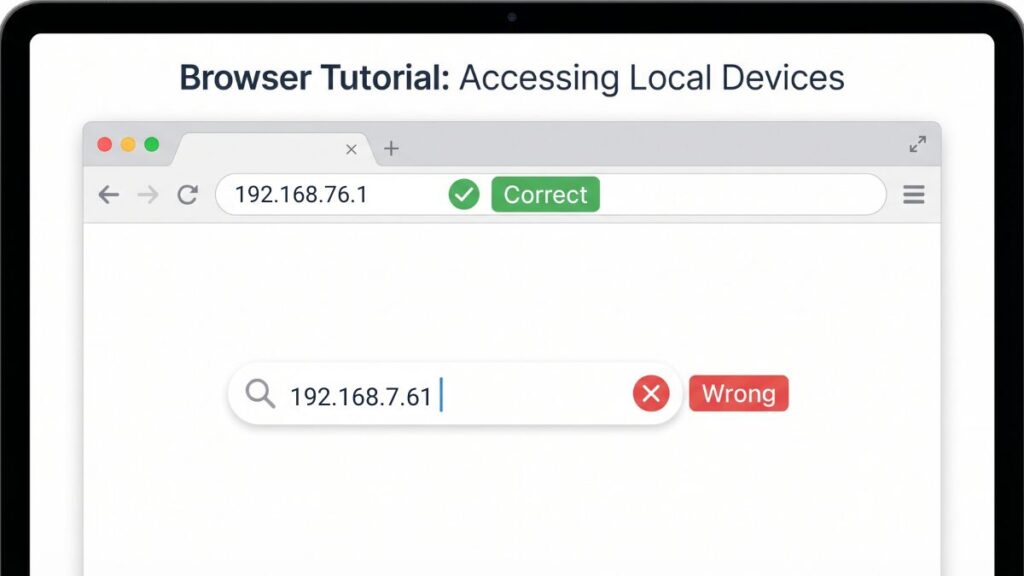
- Click the address bar at the very top of the browser window — not the search box in the middle of the page, and not a Google search bar.
⚠️ Critical tip: Type http://192.168.76.1 directly into the address bar, not into a search engine. Putting it into Google just searches for the number — it doesn’t connect you to your router.
- Press Enter. The router login page should appear within a few seconds.
- Enter your username and password from the table above, or from the label on your router.
- Click Login or Sign In. You’re in.
If the page loads but looks broken or unstyled, try a different browser. Some older router firmware has quirks with specific browsers.
How to Log In From a Mobile Phone
Most guides skip the mobile steps entirely or throw out one generic paragraph. That’s not good enough — logging in from a phone is slightly different on iPhone vs. Android, and there are a few traps to avoid.
On iPhone (iOS)
- Go to Settings → Wi-Fi and make sure you’re connected to your home network.
- Open Safari — it handles router admin pages more reliably than third-party browsers on iOS.
- Tap the address bar at the top and type:
192.168.76.1 - Tap Go on the keyboard.
- If Safari shows a “This Connection Is Not Private” warning, tap Show Details → Visit This Website. This is normal — your router doesn’t have an SSL certificate, and that’s fine on your own local network.
- Enter your login credentials and tap Login.
On Android
- Go to Settings → Network & Internet → Wi-Fi and confirm you’re on your home network.
- Open Chrome or your default browser.
- Tap the address bar and type:
192.168.76.1 - Tap Go or the search arrow.
- Enter your credentials and log in.
Watch out: Android sometimes decides your Wi-Fi “has no internet” and silently switches to mobile data. If the page won’t load, go to Settings → Wi-Fi, tap your network name, and enable “Stay connected even without internet.” Then try again.
Troubleshooting — 5 Reasons 192.168.76.1 Won’t Open
Most login problems have simple causes. Here are the five I see most often, and exactly how to fix each one.
If you’re unable to access the 192.168.76.1 router login page, you’re not alone. Below are the most common issues users face and how to fix them quickly.
1. The page spins forever and never loads
Cause: Your device isn’t actually connected to the router — it might be on a neighbor’s Wi-Fi, connected to a different network, or relying on mobile data.
Fix: Disconnect from everything and reconnect specifically to your router’s Wi-Fi. Better yet, plug in directly via Ethernet for the login process. Then try the page again.
2. “This site can’t be reached” error
Cause: 192.168.76.1 may not be your router’s actual IP address. Not every router uses this address — yours might use something different.
Fix: Find your real default gateway. On Windows, open Command Prompt and type ipconfig — look for the “Default Gateway” line. On Mac, go to System Settings → Network → your connection → Details → TCP/IP. On iPhone, go to Settings → Wi-Fi → tap your network → look for “Router.” Use whatever IP address is listed there instead of 192.168.76.1. This method from what is a default gateway explains why this address is assigned the way it is.
3. Wrong username or password
Cause: Either the factory defaults were changed and nobody remembers the new ones, or you’re using the wrong brand’s credentials.
Fix: The sticker on your router is your first stop — the exact credentials are printed there. If those don’t work, the password was changed. You’ll need a factory reset to restore defaults. Before you do that, try a few common variations: admin/admin, admin/password, admin/(blank).
4. Login page loads, but you’re immediately logged out
Cause: Browser session or cookie conflicts, or an outdated browser with compatibility issues.
Fix: Open an Incognito or Private window (Ctrl+Shift+N on Chrome, Ctrl+Shift+P on Firefox) and try logging in from there. If it works in Incognito, clear your main browser’s cache and cookies, then try again normally.
5. Page loads fine but settings won’t save
Cause: Some router admin panels are fussy about which browser they work with, especially on older firmware builds.
Fix: Try a different browser. Firefox tends to work better with legacy router interfaces than Chrome does. Also confirm you’re clicking the Apply or Save button — some routers require you to save each section separately rather than globally.
How to Factory Reset Your Router
Before you hit reset, know what you’re trading away: all your custom settings get wiped. Your Wi-Fi name, Wi-Fi password, any port forwarding rules, parental controls, static IP assignments — gone. Everything goes back to factory defaults.
Back up first if you can. Most router admin panels have a “Backup” or “Export Configuration” option under Administration or System settings. It takes under a minute.
Reset steps:
- Find the recessed Reset button on the back or bottom of the router — you’ll need a pin, toothpick, or unfolded paperclip to reach it.
- With the router powered on, press and hold the Reset button.
- Hold for 10–15 seconds for most TP-Link, Asus, and Tenda models. Netgear and some Cisco devices may require 20–30 seconds. The lights will flash or change pattern when the reset triggers.
- Release and wait for the router to fully reboot — usually 60–90 seconds.
- Connect to the default Wi-Fi network (listed on the router’s label) and log in using the factory default credentials.
What to Do After You Log In
Getting into the admin panel is just step one. Here’s what actually matters once you’re inside.
1. Change Your Admin Password First
This is the most skipped step in home networking, and it’s also the most important. The factory default credentials are identical across every router of that model — which means anyone on your network can look up the defaults and walk right into your settings. Most people don’t know this, and it’s a real exposure.
- Find Administration, System Tools, or Management in the menu.
- Look for Admin Password, Router Password, or Account Settings.
- Set a new password — something at least 12 characters long that you don’t use anywhere else. NIST password guidelines recommend length over complexity: “CorrectHorseBatteryStaple” beats “P@$$w0rd” every time.
- Click Save and write it down somewhere physical.
2. Update Your Wi-Fi Name and Password
- Go to Wireless or Wi-Fi Settings.
- Change the SSID (your network name) — avoid anything that identifies your address, apartment number, or router brand.
- Update the Wi-Fi Password to something strong and unique — not the same as your admin password.
- Click Apply.
3. Switch to WPA2 or WPA3 Security
While you’re in Wireless settings, check your security protocol. You want WPA2-PSK (AES) at minimum. If your router supports WPA2 vs WPA3, go with WPA3 — it’s more resistant to brute-force attacks and is the current recommended standard. Avoid WEP entirely and skip plain WPA — both are outdated and crackable with basic tools.
4. Review Connected Devices
Head to Connected Devices, DHCP Client List, or Device Manager to see everything currently on your network. You’ll see device names and their what is a MAC address — the hardware identifier tied to each network adapter. If you see something you don’t recognize, that’s worth investigating.
5. Set Up a Guest Network
A guest network is a separate Wi-Fi with its own password that’s isolated from your main devices. Guests can get online, but they can’t see your computers, printers, or smart home gadgets. I keep mine active all the time — it’s called something boring and obvious, and people appreciate not having to ask for the real password. Find it under Wireless → Guest Network and enable it with a separate password.
6. Configure Port Forwarding (If Needed)
If you’re running a home server, gaming setup, or security camera system that needs to be reachable from outside your home, you’ll need port forwarding. Go to Port Forwarding, Virtual Server, or NAT in the menu. You’ll map an external port to an internal IP address and port. Learn more about how port forwarding works before you start — getting this wrong can expose things you didn’t mean to expose.
7. Update Your Firmware
Router firmware updates fix security vulnerabilities that attackers actively exploit. Go to Administration → Firmware Update or System → Software Update. Some routers check for updates automatically; others require you to download a file from the manufacturer’s site and upload it manually. Either way, it’s worth doing once a year at minimum.
Common Misspellings of 192.168.76.1
One wrong character and you’ll get an error instead of a login page. Here are the typos to watch for:
192.168.76.l
192.168.76,1
192.168.7.61
192.168.76.01
192.168 76.1
192:168:76:1
http://www.192.168.76.1
192.168.67.1
Correct address:
192.168.76.1
— If your page isn’t loading, read the address bar character by character.
Which Routers and ISPs Use 192.168.76.1?
The 192.168.76.x subnet is less common than the 192.168.0.x or 192.168.1.x ranges, which means it turns up in more specific scenarios:
Brands documented using this address:
- Acer — certain Acer-branded networking devices use 192.168.76.1 as their default gateway, which is unusual for a company known for PCs. If your network hardware came bundled with or was configured alongside Acer equipment, this is likely your address.
- ZTE and Huawei — enterprise and ISP-provisioned models sometimes use custom subnets like 76.x
- Routers reconfigured by network administrators to avoid subnet conflicts
US ISPs that use different default addresses:
- Xfinity/Comcast → 10.0.0.1
- AT&T → 192.168.1.254
- Verizon FiOS → 192.168.1.1
- Spectrum → 192.168.0.1
- CenturyLink/Lumen → 192.168.0.1
If none of the above match your ISP and you still can’t reach 192.168.76.1, check your actual default gateway using ipconfig (Windows) or Network Settings (Mac/iPhone) — it takes 10 seconds and removes all the guesswork.
Frequently Asked Questions
What is 192.168.76.1 used for?
It’s the local address of your router’s admin panel. Typing it into a browser on your local network opens the settings page where you control Wi-Fi, security, connected devices, and more.
Why won’t 192.168.76.1 load in my browser?
The most common causes are: your device isn’t connected to the right network, you typed it into a search bar instead of the address bar, or 192.168.76.1 isn’t actually your router’s IP address. Run ipconfig on Windows (or check Network settings on Mac/iPhone) to confirm your actual gateway.
What’s the default username and password?
For most brands, it’s admin / admin. But check the label on your router — it’s always more reliable. If credentials were changed and you don’t know the new ones, you’ll need to factory reset.
Is 192.168.76.1 accessible from the internet?
No. It’s a private IP address that only works inside your local network. Nobody outside your home can type it into a browser and reach your router.