Every time you load a webpage, stream a video, or send an email, your data makes a quiet trip through a device you probably don’t think about much. It passes through your default gateway. That term shows up in Windows network settings, in router troubleshooting guides, in error messages — but most explanations of it are either way too technical or maddeningly vague.
Your default gateway is your router, and its IP address is the address you type into a browser to manage your network. That’s the 80% answer. But if you want to actually understand what’s happening behind the scenes — and why it matters when something breaks — keep reading.
Default Gateway Definition
A default gateway is the device on your network that handles all traffic headed outside your local network. When your laptop wants to load a webpage, it sends the request to the default gateway, which then forwards it out to the internet.
Think of it like a front door. All your devices — your phone, your smart TV, your laptop — are inside the house. When any of them want to talk to the outside world (a website, a server, a streaming service), they don’t have a direct line. They go to the front door first. That door is the default gateway.
On a home network, the default gateway is almost always your Wi-Fi router. Its IP address — typically something like 192.168.1.1 or 192.168.0.1 — is called the default gateway address. When you see “Default Gateway” listed in your Windows network settings or your phone’s Wi-Fi details, that’s exactly what you’re looking at: your router’s local IP address.
How a Default Gateway Actually Works
Here’s what’s actually happening when you open a webpage.
Your laptop has a local IP address — something like 192.168.1.105. That address exists only on your home network. The web server you’re trying to reach has a completely different, public IP address somewhere out on the internet. These two addresses are on entirely different networks.
Your laptop checks its routing table — a short internal list of where to send different kinds of traffic. When the destination isn’t on the local network (and most internet traffic isn’t), there’s no specific route entry for it. So the device falls back to the default route, which points to the default gateway. In other words: “I don’t know how to get there directly, so I’ll send it to the gateway and let it figure it out.”
The router receives that packet, looks up the destination, and routes it through your ISP and out onto the internet. The response comes back the same way — through the internet, to your router, and back to your device. You see a webpage. The whole process took milliseconds.
This is why the “default” in default gateway matters. It’s not the only gateway that can exist on a network — large corporate environments have multiple routers handling different subnets. But on a home network, there’s one device handling all external traffic. One default. Your router.
Default Gateway vs. Router: Are They the Same Thing?
For home networks: yes, they’re the same device. Your router is your default gateway.
Technically, a gateway and a router are slightly different concepts. A router forwards packets between networks that use the same protocol (IP to IP). A gateway can bridge networks using different protocols entirely. But in practice — and in every piece of consumer networking equipment you’ll ever encounter — the terms are used interchangeably. When Windows labels the address “Default Gateway,” it means your router.
The distinction matters more in enterprise environments. A corporate network might have dedicated gateway appliances, proxy servers, or firewalls sitting between the internal network and the internet. Each serves a gateway function. At home, it’s just the one box with the blinking lights.
Default Gateway vs. IP Address: What’s the Difference?
This is where people get confused, and honestly, the confusion is understandable because a default gateway is an IP address — just a specific one.
Here’s the breakdown:
Your device’s IP address — this is the address your laptop, phone, or tablet has on your local network. Something like 192.168.1.105. Every device on your network has a unique one. Your router assigns these automatically via DHCP.
Your default gateway address — this is your router’s IP address on the local network. It’s the address devices use to reach the router. Typically 192.168.1.1 or 192.168.0.1. Every device on the network points here as their exit route to the internet.
Your public IP address — this is the address your ISP assigns to your connection. It’s what the outside world sees when you browse. Every device in your home shares this one address. You can find it by searching “what is my IP” in any browser.
So when you open Command Prompt on Windows, type ipconfig, and see this:
IPv4 Address . . . : 192.168.1.105
Default Gateway  . . : 192.168.1.1
Your laptop is 192.168.1.105. Your router (default gateway) is 192.168.1.1. Your public IP is something entirely different — visible only from the internet side.
Common Default Gateway Addresses by Router Brand
Most home routers use one of a small handful of default gateway addresses. If you’re not sure what yours is, try the ones in this table first.
| Router Brand / ISP | Default Gateway Address |
|---|---|
| ASUS | 192.168.1.1 |
| NETGEAR | 192.168.1.1 or 192.168.0.1 |
| TP-Link (standard) | 192.168.0.1 |
| TP-Link Deco (mesh) | 192.168.68.1 |
| Linksys | 192.168.1.1 |
| D-Link | 192.168.0.1 |
| Belkin | 192.168.2.1 |
| Huawei / ZTE | 192.168.8.1 |
| Xfinity / Comcast | 10.0.0.1 |
| AT&T BGW gateway | 192.168.1.254 |
| Spectrum | 192.168.1.1 |
| Verizon Fios | 192.168.1.1 |
| Google Nest Wi-Fi | App-managed (no browser admin panel) |
| Amazon Eero | App-managed (no browser admin panel) |
These are factory defaults. If your ISP or a previous owner changed the router’s IP, the current gateway will be different. Use one of the device methods below to find the actual active address.
How to Find Your Default Gateway on Any Device
You don’t need to guess or memorize an IP address. Every device connected to a network already knows its default gateway — you just have to know where to look.
Windows (quickest method)
- Press the Windows key, type
cmd, and hit Enter. - Type
ipconfigand press Enter. - Find your active connection (Wi-Fi or Ethernet).
- Look for Default Gateway — the address next to it is your router’s IP.
If you prefer to avoid the command line: Settings > Network & internet > Wi-Fi > Hardware and connection properties > Default gateway.
Mac
- Click the Apple menu > System Settings.
- Click Wi-Fi, then click Details next to your connected network.
- Click the TCP/IP tab.
- The Router field shows your default gateway address.
Or in Terminal: netstat -nr | grep default
iPhone / iPad
Settings > Wi-Fi > tap the ⓘ next to your network > Router field
That’s the whole process. Three taps.
Android
Settings > Network & internet > Wi-Fi > tap your network name > Advanced > Gateway
On Samsung: Settings > Connections > Wi-Fi > gear icon next to network > View more > Gateway
Chromebook
Click the status area (bottom right) > Settings > Network > click your Wi-Fi network > Network tab > Gateway
Linux
Open a terminal and run: ip route | grep default
The IP after “via” is your default gateway.
For a complete device-by-device walkthrough including screenshots, see our guide on find your router IP address.
What to Do Once You Have the Address
Once you’ve got your default gateway address, here’s what it unlocks.
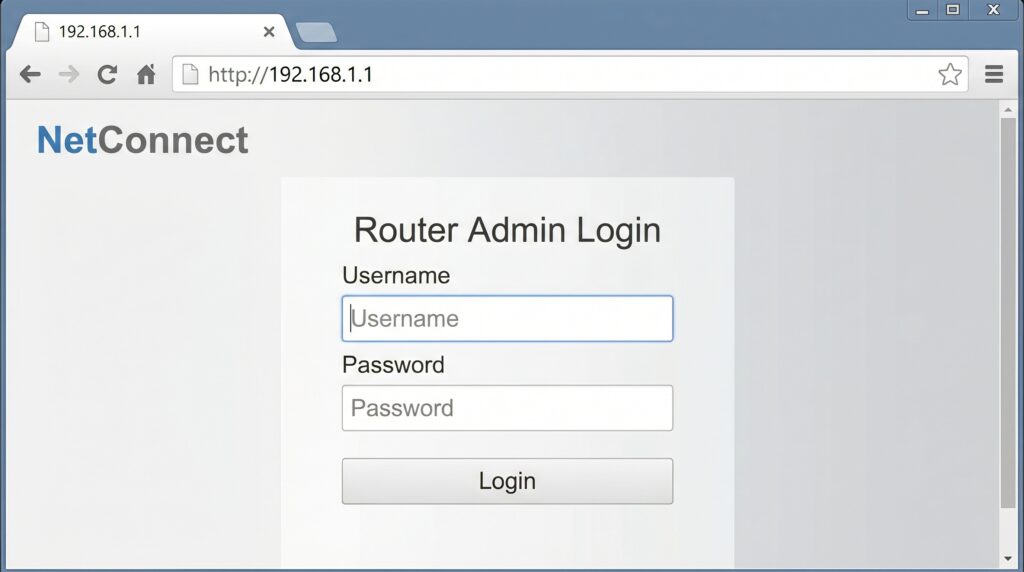
Type it into any web browser’s address bar (not the search bar at the top — the actual URL bar). Hit Enter. Your router’s admin login page will load.
You’ll be prompted for a username and password. These are usually printed on the sticker on the back or bottom of your router. Common defaults are admin / admin or admin / password. If you’ve never changed them from the factory defaults, the sticker is your answer. If you have changed them and forgotten, you’ll need to reset the router — but that’s a last resort.
Once you’re in, you can:
- Change your Wi-Fi name and password
- Set up a guest network for visitors and smart home devices
- Update your router’s firmware
- See every device connected to your network
- Configure port forwarding, parental controls, and QoS
- Change your router’s own admin password (which you should absolutely do if you haven’t)
For help logging in to specific routers, see our default router login guide.
Default Gateway Not Working? How to Fix It
You found your default gateway address but it won’t load in the browser. Don’t panic — this is almost always fixable with one of the following steps.
Problem 1: You’re typing it in the search bar
This is the most common issue, and it’s embarrassingly easy to do. The browser’s search bar and address bar look nearly identical. If you type 192.168.1.1 into a Google search bar, you’ll get search results. Type it into the address bar at the very top of the browser window and press Enter. That’s the field that shows the current page URL.
Problem 2: Your device isn’t connected to the router
The gateway address only works from inside the network. If your phone is on cellular data rather than Wi-Fi, it won’t reach 192.168.1.1. Make sure you’re connected to the right Wi-Fi network, or plug in an Ethernet cable directly to the router.
Problem 3: The router’s IP was changed from the default
The sticker on your router shows the factory default IP. If the IP was changed at any point, that address won’t work anymore. Use the ipconfig / System Settings method to find the current default gateway — your device always knows the right address, regardless of what the sticker says.
Problem 4: Browser cache or extensions are interfering
Some browser extensions, VPNs, or security software block local IP addresses. Try opening an incognito/private window in a different browser. If it loads there, an extension is the culprit.
Problem 5: The router needs a restart
If the router has been running for weeks without a restart, it sometimes stops responding to admin page requests. Unplug it, wait 30 seconds, plug it back in, and wait a full 2 minutes for it to boot. Then try again.
Problem 6: You have a mesh system
Google Nest Wi-Fi and Amazon Eero don’t have browser-based admin pages. No IP address will give you a login screen. You manage these entirely through the Google Home app or the Eero app. The gateway address still exists and is still reachable via ping — it just doesn’t serve a web interface.
FAQ
The two most common are 192.168.1.1 and 192.168.0.1. ASUS, NETGEAR, Linksys, and Verizon Fios routers typically default to 192.168.1.1. TP-Link and D-Link most commonly use 192.168.0.1. ISP gateways like Xfinity often use 10.0.0.1, and AT&T uses 192.168.1.254.
Yes, on a home network. Your router’s local IP address and your default gateway address are the same number. It’s the address your devices send traffic to when that traffic is headed outside the local network — which, for internet browsing, is always. The terms are used interchangeably in home networking contexts.
Yes. Log into your router’s admin panel, navigate to the LAN settings (sometimes labeled Network Settings or Local Network), and you can change the router’s IP to almost any address in the 192.168.x.x range. Just make sure the new address is outside the router’s DHCP range to avoid conflicts. After changing it, you’ll need to use the new address to access the admin panel.
It probably isn’t. Your router’s local IP (the gateway) is usually static — it stays fixed. Your public IP address, on the other hand, can change whenever your ISP reassigns it. If the gateway address shown on your device keeps showing different numbers, check whether multiple network adapters are active (Wi-Fi and a VPN tunnel will both show a gateway), or whether DHCP on your router has an unusual configuration.
This error means Windows can’t detect or reach the router. Common causes: the router is off or rebooting, the Ethernet cable is unplugged or faulty, the device’s network adapter driver needs updating, or the router’s DHCP server isn’t responding. Start by restarting both the router and the device. If that doesn’t fix it, check cables and try updating your network adapter driver in Device Manager.
These work together but serve different roles. The subnet mask defines the boundaries of your local network — it determines which IP addresses are “local” and which are “external.” The gateway is where traffic goes when the destination is external. You need both configured correctly for internet access to work. On most home networks, you’ll never need to touch either — your router handles both automatically via DHCP.
Your router assigns private IP addresses (like 192.168.1.x) to every device on your network. These addresses are invisible to the internet — they only exist inside your home. The default gateway is one of these private addresses. When your device sends traffic to the gateway, the router translates the private source address to your public IP before forwarding the request out to the internet. This process is called NAT (Network Address Translation).