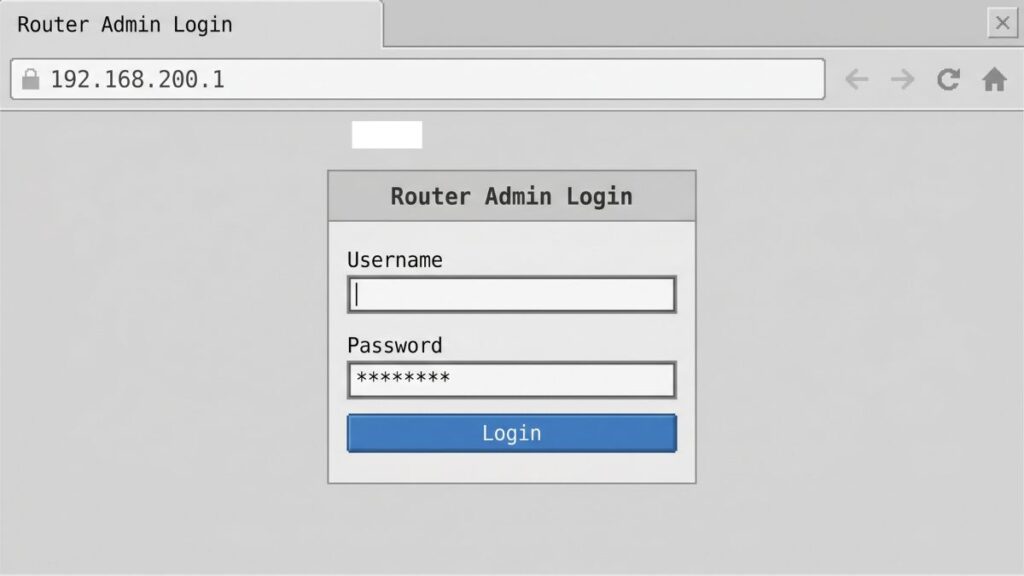
If you’ve landed here, you probably typed 192.168.200.1 into your browser and hit a login screen — or worse, nothing loaded at all. Either way, you’re in the right place. This guide walks you through exactly how to log into the router admin panel at 192.168.200.1, what to do when it won’t load, and what settings you should actually change once you get in.
I’ve helped a lot of people with this, and I’ll say it straight: most problems with this IP come down to two things — being on the wrong network, or typing the address in the wrong place. We’ll cover both.
Router Access Panel
Type
192.168.200.1
in your browser or click the link to access the router admin page.
It works only when you’re connected to the same Wi-Fi network.
192.168.200.1 is a private IP address used as the default gateway on certain routers and network equipment. Think of it as the front door to your router — type it into a browser on a device connected to that network, and you reach the admin panel where you control everything.
This address belongs to the 192.168.0.0/16 private address block defined under RFC 1918 private address ranges. That means it’s reserved for use inside local networks only — it’s completely invisible from the public internet. Nobody outside your home or office can reach it.
Most people know 192.168.1.1 or 192.168.0.1 as common gateway IPs, and those are more popular. But 192.168.200.1 shows up most often on enterprise-grade networking equipment, some ISP-provided modems, and certain industrial routers that use the 192.168.200.x subnet to separate management traffic from regular user traffic. It’s less common than 192.168.1.1, but it works exactly the same way.
One thing most people don’t realize: your router’s IP address and the IP address you use to browse the web are completely different things. Your public IP (the one websites see) is assigned by your ISP. The 192.168.200.1 address only exists on your local network, assigned by how DHCP assigns IP addresses to devices on that subnet.
Default Login Credentials for 192.168.200.1
Before you can do anything in the admin panel, you need a username and password. Here are the most common defaults for routers and devices that use 192.168.200.1 as their gateway:
Brand / Device
Default Username
Default Password
Cisco
admin
admin
Cisco (some models)
cisco
cisco
Huawei
admin
admin
Huawei (ISP models)
telecomadmin
admintelecom
ZTE
admin
admin
ZTE (some ISP firmware)
admin
password
Netgear
admin
password
TP-Link
admin
admin
Asus
admin
admin
D-Link
admin
(blank)
Linksys
admin
admin
Tenda
admin
(blank)
Belkin
admin
(blank)
Generic / OEM
admin
admin
Pro tip: The most reliable source is the sticker on the back or bottom of your router. Manufacturers often set unique credentials per device, especially for ISP-provided equipment. That label overrides anything in any table.
If none of these work and you haven’t changed the password before, a factory reset is your next move — more on that below.
Login page for 192.168.200.1 router admin panel
How to Log In on a PC or Laptop
This takes about 30 seconds once you’re connected to the right network.
Make sure your computer is connected to the router — either by Wi-Fi or with an Ethernet cable. (Ethernet is better for config changes — you won’t get dropped if the Wi-Fi restarts.)
Open any web browser: Chrome, Firefox, Edge, Safari — doesn’t matter.
Click in the address bar at the top of the browser window.
⚠️ Important: The address bar is NOT the search bar in the middle of your homepage. If you type 192.168.200.1 into a Google or Bing search bar, you’ll get search results — not your router. You need the URL bar at the very top of the browser window.
Type: http://192.168.200.1 and press Enter.
You should see a login page. Enter the username and password from the table above (or from your router label).
Click Login or Submit.
That’s it. You’re in.
How to Log In on a Mobile Phone
Competitors almost never cover this separately — but the steps are genuinely different on mobile, and the “address bar vs search bar” problem is even worse on phones.
iPhone (iOS)
Go to Settings → Wi-Fi and confirm you’re connected to the router’s network (not cellular data).
Open Safari (recommended — Chrome sometimes redirects to search).
Tap the address bar at the top of Safari.
Type 192.168.200.1 and tap Go on the keyboard.
If Safari tries to search instead of navigate, type http://192.168.200.1 with the full prefix.
Log in with your credentials.
Android
Pull down your notification shade and confirm Wi-Fi is connected to the right network.
Open Chrome or your default browser.
Tap the address bar at the top.
Type 192.168.200.1 — and here’s the key: make sure Chrome doesn’t treat it as a search. If it does, type http://192.168.200.1 with the full http:// prefix and tap Go.
Log in.
💡 Mobile tip: Some Android browsers aggressively redirect number-dot patterns to search. If that’s happening, try a different browser — Firefox for Android handles raw IP addresses reliably.
Troubleshooting: When 192.168.200.1 Won’t Load
Don’t panic — login failures are almost always one of these five problems.
If you’re unable to access the 192.168.200.1 router login page, you’re not alone. Below are the most common issues users face and how to fix them quickly.
1. Your Device Isn’t on the Right Network
Cause: This is the #1 cause. Your phone or laptop must be connected to the same router that uses 192.168.200.1. If you’re on a different Wi‑Fi network, or using cellular data, you’ll never reach it.
Fix: Check your Wi‑Fi settings, confirm you’re on the correct network, then retry. On phones especially, disable cellular data temporarily to force traffic over Wi‑Fi.
2. 192.168.200.1 Isn’t Actually Your Router’s IP
Cause: Your router might use a completely different address — like 192.168.1.1 or 10.0.0.1. Many routers allow changing the default gateway, so 192.168.200.1 may no longer be valid.
Fix: Find your actual gateway IP. On Windows, open Command Prompt and type ipconfig — look for “Default Gateway.” On Mac, go to System Settings → Network → your connection → Details. On iPhone, tap the (i) next to your Wi‑Fi network. That IP is your real gateway — use that instead. If you’d rather read a full walkthrough, check out how to find your router’s IP address for a step‑by‑step guide on every device type.
3. Browser Cache or Old Session
Cause: Sometimes a stuck browser cache prevents the page from loading correctly.
Fix: Open a private/incognito window and try again. Or clear your browser’s cache and cookies, then retry. This works more often than people expect.
4. The Admin Interface Uses HTTPS
Cause: Some newer routers redirect HTTP to HTTPS automatically but use a self‑signed certificate, which makes browsers throw a security warning.
Fix: Try typing https://192.168.200.1 (with the “s”). If your browser shows a warning about an untrusted certificate, it’s safe to click “Advanced” → “Proceed” on your own local network — this isn’t a sign of anything malicious.
5. The Router Is Offline or Rebooting
Cause: If the router is mid‑reboot or experiencing a hardware issue, no browser in the world can reach its admin panel. [web:10][web:14]
Fix: Check that the router’s power LED is on and solid (not flashing in an error pattern). Try power cycling it — unplug for 30 seconds, plug back in, wait two full minutes, then try again.
How to Factory Reset a Router That Uses 192.168.200.1
If you’ve forgotten your admin password and can’t log in, a factory reset gets you back to the defaults. Fair warning: this also erases your Wi-Fi name, password, and every custom setting you’ve made.
Before you reset: Write down or photograph your current settings if you can still access them somehow. Even better, export a config backup from within the admin panel.
Reset steps:
Find the Reset button on your router — it’s usually a small pinhole on the back or bottom, labeled “Reset” or “RST.”
With the router powered on, use a paperclip or pin to press and hold the reset button.
Hold for 10 seconds for most consumer routers. Cisco and enterprise equipment sometimes requires 15–30 seconds of sustained pressure.
The LEDs will flash or change pattern — that means the reset is in progress.
Release the button and wait 2–3 minutes for the router to fully reboot.
Reconnect to the default Wi-Fi network (the name is usually printed on the router label) and log in with the factory default credentials.
What to Do After You Log In
Getting into the admin panel is step one. Here’s what you should actually do once you’re there — most people skip this completely and leave their routers wide open.
1. Change the Admin Password (Do This First)
The default admin password is public knowledge. Anyone on your network can look it up in two seconds. Changing it is the single most important thing you can do.
Log into the admin panel at 192.168.200.1.
Look for Administration, System, Management, or Account in the menu.
Find the option to change the admin/router password (not the Wi-Fi password — that’s separate).
Choose something strong — NIST password guidelines recommend a passphrase of at least 15 characters over a complex short password. “CorrectHorseBatteryStaple” is stronger than “P@ssw0rd!”
Save it somewhere safe — a password manager is ideal.
2. Change Your Wi-Fi Password
If you’re still using the default Wi-Fi password from the label, change it. That password was printed on a sticker that visitors, delivery people, and neighbors might have seen.
Look for Wireless, Wi-Fi Settings, or WLAN in the menu.
Find the security/password field.
Set a strong password — at least 12 characters, mix of letters, numbers, symbols.
3. Set Security to WPA2 or WPA3
While you’re in the wireless settings, check what security protocol you’re using. WEP is ancient and cracked. WPA is outdated. You want WPA2-AES at minimum — or WPA3 if your router supports it.
For details on why this matters, the WPA2 vs WPA3 breakdown from HowToGeek is worth a quick read.
4. Check Connected Devices
Most routers show a list of every device connected to your network — usually under DHCP Client List, Connected Devices, or Device Manager. Review it. If you see devices you don’t recognize, your network may be compromised. The list also shows each device’s MAC address, which is useful for what is a MAC address identification and setting up access controls.
5. Set Up a Guest Network
If you have visitors regularly, a guest network is the cleanest solution. Guests get internet access without being able to see your printers, smart home devices, or shared drives. Our guest network is literally called “GuestWiFi” — simple works.
Look for Guest Network or Guest Wi-Fi in the wireless settings. Set a separate password, and make sure the option to isolate guest traffic from the main LAN is enabled. If you want to how to set up a guest network from scratch, PCMag has a solid walkthrough.
6. Update Your Router Firmware
Router firmware updates patch security vulnerabilities — and most people never update theirs. Look for Firmware Update, Software Update, or System Upgrade in the admin panel. Many newer routers can check for updates automatically. If yours hasn’t been updated in a year or more, there are almost certainly patches available.
Port forwarding lets you open specific network ports to allow external connections — useful for gaming, self-hosted servers, or remote desktop. It’s found under NAT, Port Forwarding, or Virtual Server in most admin panels. If you’ve never set it up, you probably don’t need it — but if you do, how port forwarding works is the clearest explanation I’ve seen.
Common Misspellings of 192.168.200.1
People type fast. Here are the most common typos that lead people here or send them off course:
192.168.200.l
192.168.200.l1
192-168-200-1
192 168 200 1
http//192.168.200.1
192.168.200.01
192.168.2001
19216820001
Correct address:192.168.200.1
— If you’re getting “page not found” errors, double-check you haven’t made one of these typos in the address bar.
Which Brands and ISPs Use 192.168.200.1?
This is a less common gateway IP than 192.168.1.1, but it shows up in specific contexts:
Commonly uses 192.168.200.1:
Cisco enterprise routers and managed switches (especially the RV series)
Huawei enterprise routers and some ISP-provisioned modems
ZTE modems and routers (especially those provided by telecom carriers)
Some Zyxel models configured for business use
Industrial networking hardware from vendors like Moxa and Advantech
Sometimes uses 192.168.200.1 (depends on firmware/config):
ISP-provided modems in certain markets (especially telecom carriers in Asia, Europe, and Latin America that use Huawei or ZTE hardware)
Networks where the admin has manually changed the gateway to avoid conflicts with 192.168.1.x
Uses a different default address:
Xfinity/Comcast → 10.0.0.1
AT&T → 192.168.1.254
Verizon FiOS → 192.168.1.1
Spectrum → 192.168.0.1 or 192.168.100.1
If you’re on one of those major US ISPs, 192.168.200.1 is almost certainly not your gateway — check the label on your modem/router or use the ipconfig / ifconfig method described above.
Frequently Asked Questions
Why does 192.168.200.1 say “this site can’t be reached”?
The most common reason is that your device isn’t connected to the network that uses 192.168.200.1 as its gateway. Check your Wi-Fi connection or try an Ethernet cable. If you’re definitely connected to the right network, try typing http://192.168.200.1 with the full prefix, or try a different browser.
What’s the difference between my Wi-Fi password and my router admin password?
These are two completely separate passwords. The Wi-Fi password is what you enter to connect devices to the network — it’s what you give your guests. The admin password is what you enter at 192.168.200.1 to access the router’s control panel itself. Changing one doesn’t change the other.
I forgot my router admin password. What do I do?
Try the default credentials from the table above — if you never changed it, the default still works. If you did change it and forgot it, a factory reset (pinhole button on the back of the router) will restore the defaults. You’ll lose your Wi-Fi settings in the process.
Is it safe to access 192.168.200.1?
Completely safe — as long as you’re doing it on your own network. This address is local-only and can’t be reached from outside your home. The only risk is if someone else is on your network and accesses your admin panel, which is exactly why changing the default admin password matters.
My ISP technician set this up. Can I still change the password?
Yes, in almost all cases. ISP-provided equipment is still a regular router admin panel — you have every right to change the Wi-Fi password and admin password on hardware in your home. If your ISP has locked down some settings, the Wi-Fi password section is almost always still accessible.