So you’ve typed 192.168.1.0 into your browser and something’s not loading — or maybe you’re just trying to figure out what this address actually is. Either way, you’re in the right place. This guide explains exactly what 192.168.1.0 is, why it behaves differently from most router IPs you’ll see online, what the correct address to use probably is, and how to get into your router admin panel step by step on any device.
I’ve seen a lot of confusion around this specific address, and honestly, most sites don’t give you the full story. Let’s fix that.
Router Access Panel
Type
192.168.1.0
in your browser or click the link to access the router admin page.
It works only when you’re connected to the same Wi-Fi network.
Here’s something most guides won’t tell you: 192.168.1.0 is technically a network address, not a device address. In standard IPv4 networking, the very first address in any subnet — the one where the host portion is all zeros — is reserved to identify the network itself, not any individual device on it.
What does that mean in plain English? The 192.168.1.0 address represents the entire 192.168.1.x subnet. It’s like the name of the street, not the number of any particular house on it. Because of this, most routers and devices won’t accept 192.168.1.0 as a usable host address — so typing it into a browser will usually produce a “connection refused” or “this site can’t be reached” error, even if you’re on the right network.
The address you’re almost certainly looking for is 192.168.1.1 — the router itself. That’s the first usable host address in the 192.168.1.0/24 subnet, and it’s what the vast majority of home routers from TP-Link, Asus, Cisco, Linksys, and others use as their default gateway.
All of that said — some older or non-standard networking devices have been configured to use 192.168.1.0 as an admin interface address. It’s rare, but it happens. So this guide covers both: the technical reality of this address, and what to do whether you’re here because you meant to type 192.168.1.0 or because you meant to type 192.168.1.1.
Both addresses fall within the private IP range defined by what is an IP address standards, meaning neither can be reached from outside your local network — they’re completely invisible to the public internet.
Default Login Credentials for the 192.168.1.x Network
If your router uses the 192.168.1.0 subnet (which means its gateway is almost certainly 192.168.1.1), here are the most common factory default credentials by brand:
Brand
Default Username
Default Password
TP-Link
admin
admin
Asus
admin
admin
Linksys
admin
admin
Cisco (home)
admin
admin
Cisco (enterprise)
cisco
cisco
Netgear
admin
password
D-Link
admin
(blank)
Tenda
admin
(blank)
Belkin
admin
(blank)
ZTE
admin
admin
Huawei
admin
admin
Xiaomi
admin
admin
The label wins every time. The sticker on the back or bottom of your router has the actual default credentials for your specific model. Some ISPs provision routers with unique passwords per device — the table above is a starting point, not a guarantee.
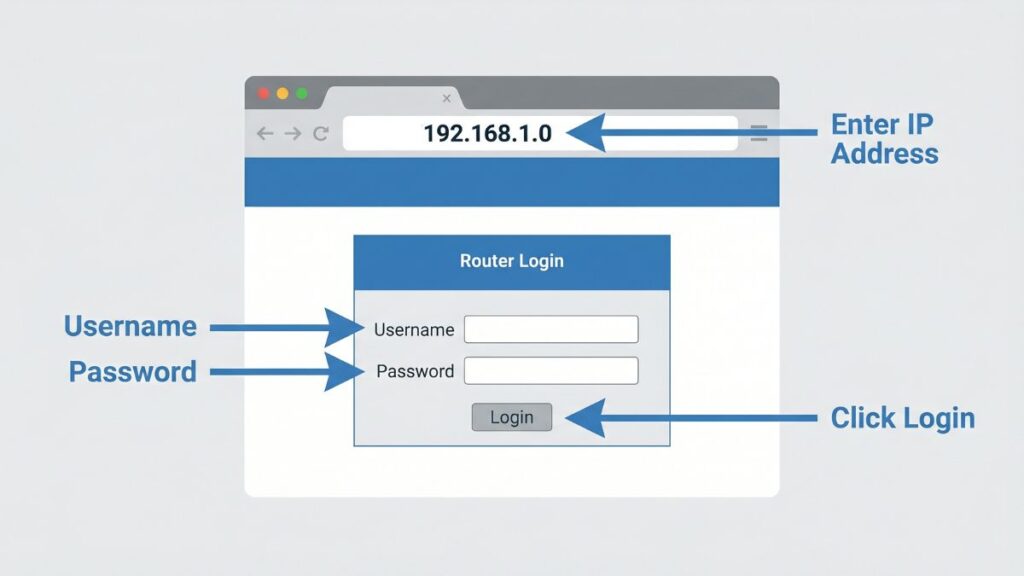
Enter 192.168.1.0 in browser → login with username and password
How to Log In on a PC or Laptop
If you’re trying to reach a router on the 192.168.1.x network from your computer, here’s how to do it correctly:
Connect your computer to the router — either by Wi-Fi or with an Ethernet cable plugged into one of the LAN ports. (Ethernet is always better for config work — you won’t get dropped mid-save.)
Open any web browser: Chrome, Firefox, Edge, Safari — all work.
Click in the address bar at the very top of the browser window.
⚠️ Critical warning: Do NOT type the IP address into a search bar. If you type it into Google or Bing, you’ll get search results — not your router. The address bar is the long bar at the top of the browser that currently shows something like “google.com” or “about:blank.” Click there, then type the IP.
Type http://192.168.1.1 and press Enter. (If you specifically know your router uses 192.168.1.0, try that — but 192.168.1.1 is correct for almost every home router.)
A login page should appear. Enter your username and password from the table above — or from the sticker on your router.
Click Login.
If 192.168.1.1 doesn’t work, you may need to find your actual gateway IP — more on that in the troubleshooting section below.
How to Log In on a Mobile Phone
Phones have their own quirks. The address bar vs. search bar problem is worse on mobile, because the default keyboard on most phones is optimized for searches, not URLs. Here’s how to handle it on both platforms:
iPhone (iOS)
Go to Settings → Wi-Fi and confirm you’re connected to the right network (not using cellular data).
Open Safari — not Chrome. Safari tends to handle raw IP addresses more cleanly as navigation.
Tap the address bar at the top of Safari.
Type 192.168.1.1 and tap Go on the keyboard. If Safari interprets it as a search, type the full http://192.168.1.1 with the prefix instead.
The login screen should load. Enter your credentials.
Android
Swipe down and verify your Wi-Fi is on and connected to the right network.
Open Chrome or your default browser.
Tap the address bar at the top.
Type 192.168.1.1 — if Chrome starts searching instead of navigating, type http://192.168.1.1 with the full prefix and tap Go.
Log in with your username and password.
💡 Mobile tip: Firefox for Android is particularly reliable for navigating to raw IP addresses. If Chrome keeps sending you to a search engine, install Firefox and try there.
Troubleshooting: When the Login Page Won’t Load
Don’t panic — almost every login problem has a simple explanation. Here are the five most common ones:
If you’re trying to reach 192.168.1.0 or 192.168.1.1 and the router login page won’t load, you’re not alone. Below are the most common issues and how to fix them quickly.
1. You’re Using 192.168.1.0 Instead of 192.168.1.1
Cause: 192.168.1.0 is a network address, not a device address. Most browsers and routers will reject a connection attempt to it because no device is actually listening on that address.
Fix: Change the last octet from 0 to 1 and try again. That’s the actual router gateway on almost all home networks using this subnet. Try http://192.168.1.1 instead.
2. Your Device Isn’t Connected to the Right Network
Cause: Your phone or computer must be connected to the same router network that uses 192.168.1.x. If you’re connected to a different Wi‑Fi network — or if mobile data is active and routing your traffic — you’ll never reach the local gateway.
Fix: Check your Wi‑Fi settings and confirm you’re on the right network. On a phone, toggle airplane mode on and off, or disable cellular data temporarily to force your traffic over Wi‑Fi only.
3. Your Router Uses a Different Gateway IP
Cause: Not every router uses 192.168.1.1. Your actual what is a default gateway might be 192.168.0.1, 10.0.0.1, or something else entirely.
Fix: Find your real gateway IP. On Windows, open Command Prompt and type ipconfig — look for the line labeled “Default Gateway.” On Mac, go to System Settings → Network → your active connection → Details → TCP/IP tab. On iPhone, tap the ⓘ next to your Wi‑Fi network name and look for “Router.” Use that address, not 192.168.1.0 or 192.168.1.1.
4. The Router Is Using HTTPS With a Self-Signed Certificate
Cause: Some routers — especially newer models and enterprise equipment — redirect HTTP traffic to HTTPS. Your browser sees the self‑signed certificate and throws a scary‑looking warning, which makes it seem like the page failed.
Fix: Try navigating to https://192.168.1.1 (with the “s”). If a security warning appears, click Advanced → Proceed to 192.168.1.1 (or equivalent in your browser). This is safe to do on your own home network — the warning just means the router’s certificate isn’t issued by a public authority, not that anything is wrong.
5. The Router Needs a Reboot
Cause: If the router is frozen, mid‑firmware‑update, or stuck in an error state, the admin interface may simply not respond. [web:31][web:34]
Fix: Power cycle the router — unplug it from the wall, wait 30 seconds, plug it back in, and wait two full minutes before trying again. If it’s stuck in a firmware update, leave it alone until the LEDs stabilize (this can take up to 5 minutes).
How to Factory Reset Your Router
If you’ve forgotten your admin password and none of the defaults work, a factory reset is your path back in. It resets everything — including your Wi-Fi name and password — so only do this as a last resort.
Before you reset: If you can still get into the admin panel any other way, export your configuration first. Look for a “Backup” or “Export Config” option under Administration or System settings.
Reset steps:
Find the Reset button on your router — usually a small pinhole on the back or bottom, labeled “Reset” or “RST.”
With the router fully powered on, use a straightened paperclip or pin to press and hold the button.
Hold for 10 seconds for most consumer routers (TP-Link, Asus, Linksys, Netgear). Some enterprise and ISP-provided equipment requires up to 30 seconds.
Watch the LEDs — they’ll flash, change color, or all turn on briefly to signal the reset is happening.
Release and wait 2–3 minutes for the router to fully reboot.
The router is now back to factory defaults. Reconnect to the default Wi-Fi (shown on the label) and log in with the default credentials from the table above.
What gets wiped: Your custom Wi-Fi name and password, admin password, port forwarding rules, parental controls, static IP assignments, and any other custom settings. Your ISP connection settings may also be cleared, depending on the router model.
What to Do After You Log In
Getting in is step one. Here’s what you should actually change — most people skip all of this and leave their routers wide open.
1. Change Your Admin Password First
The default admin password is the same for every router of your model. Anyone who knows your brand can look it up. Changing it takes two minutes and stops a huge category of risk.
Log in to the admin panel (at 192.168.1.1 or your actual gateway).
Find Administration, System, Management, or Account Settings in the menu.
Locate the option to change the router/admin password — distinct from the Wi-Fi password.
Use something strong. how to create a strong password is a handy tool for testing your choice. A passphrase like “PurpleLamppost!Sunrise42” is both memorable and strong.
Save the change and write it somewhere safe.
2. Change Your Wi-Fi Password
If you’re still using the factory Wi-Fi password, change it. That password was printed on a label that delivery drivers, visitors, and anyone else who’s been in your home could have photographed.
Go to Wireless or Wi-Fi Settings in the admin panel, find the password/passphrase field, and set something new. At least 12 characters, with a mix of types.
3. Set Your Security to WPA2 or WPA3
While you’re in wireless settings, check your security protocol. WEP is completely broken — it can be cracked in minutes. WPA is outdated. You want WPA2-AES at minimum, or WPA3 if your router and devices support it.
The WPA3 security standard page from the Wi-Fi Alliance explains what WPA3 adds and why it matters for home networks. If your router is older and WPA3 isn’t available, WPA2-AES is fine — just avoid WPA/WPA2 mixed mode if you can, since it weakens to the lowest common denominator.
4. Check Who’s on Your Network
Most routers have a Connected Devices or DHCP Client List section — usually under LAN Settings or the main dashboard. Take a look. Every device connected to your network should be recognizable: your phones, laptops, smart TV, tablets, smart home devices. If you see devices you don’t recognize, your Wi-Fi password may have been shared without your knowledge.
Learning to how to see who’s on your network regularly is a good habit — it takes about 30 seconds and can catch freeloaders early.
5. Set Up a Guest Network
If friends, family, or clients ever use your Wi-Fi, a guest network is the cleanest solution. It gives them internet access while keeping them completely isolated from your main network — they can’t see your printers, NAS drives, smart home hubs, or any other devices on your LAN.
Look for Guest Network or Guest Wi-Fi in the wireless settings. Enable it, set a separate password, and make sure “client isolation” or “AP isolation” is turned on. Ours is just called “HomeGuests” — nothing fancy needed.
6. Update Your Router’s Firmware
This is the one most people never do. Router firmware updates patch security vulnerabilities, and manufacturers release them regularly. Log in, go to Administration → Firmware Update or Software Upgrade, and check for updates. Many newer routers can do this automatically — if yours offers that, turn it on.
7. Port Forwarding (Only If You Need It)
Port forwarding opens specific ports on your router to allow inbound connections from the internet — useful for gaming servers, self-hosted apps, or remote desktop. You’ll find it under NAT, Port Forwarding, or Virtual Server in the admin panel. If you’ve never set it up, you probably don’t need it. But if you do, understanding what network ports are before you start is worth five minutes.
Common Misspellings of 192.168.1.0 (and 192.168.1.1)
People searching for this address often arrive via a typo. Here are the variants search engines pick up — and that could be causing your login to fail:
192.168.1.o
192.168.l.0
192.168.l.1
192-168-1-0
192 168 1 0
192.168.10
19216810
http//192.168.1.0
192.168.1.0/
192.168.1.00
Correct addresses:192.168.1.0 or
192.168.1.1
— depending on your specific gateway configuration.
Which Brands and ISPs Use the 192.168.1.x Subnet?
The 192.168.1.x subnet — with 192.168.1.1 as the gateway — is the single most common home router network range in the world.
Brands that almost always default to 192.168.1.1 (gateway for this subnet):
TP-Link (nearly all home and SMB models)
Asus (all consumer routers)
Linksys (most models, including Velop mesh)
Cisco (home routers, some SMB models)
Xiaomi (all Mi Router models)
ZTE (many ISP-provisioned models)
Huawei (consumer models)
Brands that sometimes use 192.168.1.1 (depends on firmware or model):
Netgear — often uses 192.168.0.1, but some models default to 192.168.1.1
D-Link — primarily 192.168.0.1, but a subset of models use 192.168.1.1
Tenda — some models use 192.168.0.1 instead
Major US ISPs and their typical default gateways:
Xfinity / Comcast → 10.0.0.1 (not 192.168.1.1)
AT&T → 192.168.1.254 (close, but different)
Verizon FiOS → 192.168.1.1 ✓ (matches this subnet)
Spectrum → 192.168.0.1 or 192.168.100.1 (not this subnet)
T-Mobile Home Internet → 192.168.12.1 (different subnet entirely)
If you’re on Xfinity or Spectrum and 192.168.1.1 isn’t working, that’s why — your gateway is on a completely different subnet.
Frequently Asked Questions
Why doesn’t 192.168.1.0 work in my browser?
The “.0” address identifies the network itself rather than any specific device. No router or computer listens on a .0 address for web traffic. What you want is 192.168.1.1 — the actual router. Try that and it should load right up.
What’s the difference between my Wi-Fi password and my router admin password?
These are two entirely separate credentials. Your Wi-Fi password is what you enter on a phone or laptop to join the network. Your router admin password is what you enter at 192.168.1.1 (or your gateway IP) to access the router’s control panel. Changing one has zero effect on the other. I see this mix-up constantly — they’re completely independent.
I entered 192.168.1.1 and got a login page, but none of the passwords work.
Try the defaults from the table above. If you’re sure none of them are right, the password was changed at some point. A factory reset (pinhole button, hold 10–30 seconds) will restore the defaults and get you back in — at the cost of your saved Wi-Fi settings.
My router shows “192.168.1.0/24” in the settings. What does /24 mean?
The /24 is the subnet mask expressed as a prefix length — it means the first 24 bits of the address identify the network (192.168.1), and the remaining 8 bits are available for host addresses (.1 through .254). Understanding what is a subnet mask goes deeper if you want the full technical picture. For most home users, /24 just means “the normal home network setup.”