I’ve walked a lot of people through router logins, and 192.168.2.254 is one of those addresses that trips people up specifically because it ends in .254 — which looks unusual compared to the more common .1 endings. But there’s a solid reason certain routers use it, and once you know what’s going on, the login process is just as straightforward. This guide covers everything: logging in from a PC or phone, solving the five most common problems, and locking down your network settings once you’re inside.
192.168.2.254 Router Login – Admin Page
What Is 192.168.2.254?
192.168.2.254 is a private IPv4 address used by certain routers as their default gateway — the address you type into a browser to reach the router’s admin control panel.
The .254 ending isn’t random. In networking, .1 and .254 are both popular gateway choices because they sit at opposite ends of the host range in a /24 subnet (192.168.2.1 through 192.168.2.254). Some manufacturers and ISPs prefer .254 to avoid confusion with devices that often get assigned .1 by DHCP, and to leave the lower address range free for client devices. It’s a deliberate design choice, not a quirk.
Like all addresses in the 192.168.x.x block, 192.168.2.254 is a private address defined under what is a default gateway principles — it’s only reachable from inside your local network and is completely invisible to the public internet. You can’t access it from a friend’s house, from a coffee shop, or over cellular data. It only responds when you’re connected to the same router, either via Wi-Fi or an Ethernet cable.
The key thing to know upfront: if you type 192.168.2.254 and get a “site can’t be reached” error, the most likely explanation is simply that this isn’t your router’s gateway address. The troubleshooting section shows you how to find your actual address in under a minute.
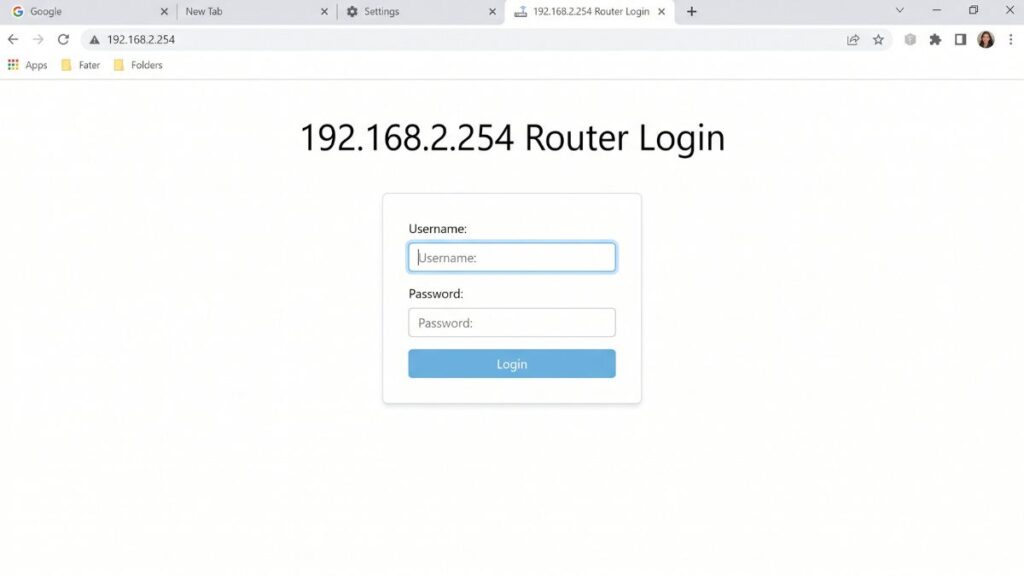
Default Login Credentials for 192.168.2.254
Before you open a browser, flip your router over and look at the sticker on the bottom or back. That label is always the most reliable source — it reflects the exact defaults for your specific unit and firmware.
Common factory defaults by brand for routers on the 192.168.2.x subnet:
| Brand | Default Username | Default Password |
|---|---|---|
| Belkin | (leave blank) | (leave blank) or admin |
| 2Wire / Pace | admin | printed on label |
| SMC Networks | admin | admin or smcadmin |
| Edimax | admin | 1234 |
| Zyxel | admin | 1234 |
| TP-Link | admin | admin |
| D-Link | admin | (leave blank) |
| Netgear | admin | password |
| Linksys | admin | admin |
| Tenda | admin | admin |
| Cisco | cisco | cisco |
Heads up:These credentials are case-sensitive. Admin with a capital A is not the same as admin. If none of these work and you haven’t changed them yourself, skip to the factory reset section below.
How to Log In — Desktop or Laptop (PC & Mac)
Works in any modern browser: Chrome, Firefox, Edge, Safari — take your pick.
- Connect to your router’s network. Either plug an Ethernet cable from the router into your computer, or connect to the router’s Wi-Fi. You must be on the same local network — 192.168.2.254 is unreachable from anywhere else.
- Open your browser.
- Click the address bar — the long bar at the top that shows the full URL of whatever page you’re on.
⚠️ Critical: Don’t type 192.168.2.254 into a search box or the Google/Bing bar. That searches the internet for a string of numbers and won’t open your router. You need the address bar — the URL field. They look similar, but they do very different things.
- Type:
http://192.168.2.254and press Enter. - A login page will appear — either a browser pop-up dialog box or a full-page login form, depending on your router brand.
- Enter your username and password.
- Click Login, Sign In, or OK.
You’re in. The admin dashboard typically loads within a few seconds.
How to Log In — Mobile Phone
iPhone (iOS)
- Open Settings → Wi-Fi and confirm you’re connected to the correct router’s network.
- Open Safari — it’s the most reliable browser for local router admin pages on iOS. Third-party browsers sometimes block or redirect local IP addresses.
- Tap the address bar and type:
192.168.2.254 - Tap Go.
- When the login page appears, enter your credentials and tap Login.
💡 iPhone tip: If Safari searches instead of loading the router page, tap the address bar, clear it completely, then type http://192.168.2.254 in full — the http:// prefix prevents iOS from interpreting it as a search term.
Android
- Go to Settings → Wi-Fi (or Connections → Wi-Fi on Samsung) and verify you’re on the right network.
- Open Chrome or your default browser.
- Tap the address bar and type:
http://192.168.2.254 - Tap Go or the enter key.
- On the login screen, enter your credentials and tap Login or Submit.
💡 Android tip: Chrome may show a “Did you mean to search for…” prompt when you type a local IP. Ignore it and tap Go — or add http:// before the address so Chrome treats it as a URL from the start.
Troubleshooting — 5 Reasons 192.168.2.254 Isn’t Working
If you’re trying to access 192.168.2.254 and the router login page won’t load, you’re not alone. Below are the most common issues and how to fix them quickly.
1. 192.168.2.254 Isn’t Your Router’s Gateway Address
Cause: Your router uses a different default gateway. This is by far the most common reason the address won’t load — and it’s not a problem with your router, it’s just the wrong address.
Fix: Find your actual gateway. On Windows, open Command Prompt and type ipconfig — look for Default Gateway under your active network adapter. Macs need System Settings → Network → Wi-Fi → Details → Router tab. iPhone users tap the ⓘ next to your Wi-Fi network name and look for Router. Android requires long-pressing your Wi-Fi network → Manage network settings → Advanced → Gateway. Use that address instead of 192.168.2.254.
2. You Typed It Into a Search Bar
Cause: Browsers default to searching when input doesn’t look like a typical website URL. Local IPs like 192.168.2.254 lack dots-and-words domain names, so browsers assume you’re searching.
Fix: Click the address bar — that bar at the very top showing the full current page URL. Clear it completely, type http://192.168.2.254, and press Enter. Adding the http:// prefix tells the browser this is a network address, not a search query.
3. Wrong or Changed Login Credentials
Cause: Factory defaults changed during initial setup — perhaps by a previous owner of the router.
Fix: Try every combination in the credentials table above, watching capitalization carefully. Still locked out? A factory reset restores defaults. Note your ISP login details (PPPoE username/password) first if needed — those get wiped too.
4. Browser Cache Is Causing Login Failures
Cause: Cached data from previous router sessions — or different routers entirely — interferes with login page loading.
Fix: Launch a private/incognito window (Ctrl+Shift+N in Chrome, Ctrl+Shift+P in Firefox) and test 192.168.2.254. Loads fine there? Clear regular browser cache: Chrome users go Settings → Privacy and Security → Clear browsing data → select Cached images/files + Cookies → Clear data. Retry in normal mode.
5. You’re on the Wrong Network or Using Cellular
Cause: Devices often switch to cellular data or different Wi-Fi networks while accessing routers.
Fix: Verify Wi-Fi connection status immediately. Local IPs only work within their specific network — cellular or other Wi-Fi makes 192.168.2.254 unreachable. Ethernet cables provide reliable access for router changes, preventing accidental Wi-Fi disconnects. Learn what a subnet mask does to understand network boundaries better.
Factory Reset Guide
Locked out with no way to recover credentials? A factory reset gets you back to square one. It’s not as scary as it sounds.
Before you reset: If you still have any access to the panel, back up your settings. Write down your ISP PPPoE credentials if applicable, your current Wi-Fi name and password, and any port forwarding rules you’ve set up. All of this gets erased.
What the reset deletes: Admin password, Wi-Fi name (SSID) and password, all port forwarding rules, guest network settings, custom DNS entries, DHCP reservations — everything returns to factory defaults.
How to do it:
- Keep the router powered on — don’t unplug it.
- Find the Reset pinhole button on the back or bottom of the router.
- Use a straightened paperclip, a SIM ejector pin, or a toothpick to press and hold the button.
- Hold for the brand-appropriate time:
- Belkin: ~10 seconds until the router restarts and power light blinks
- 2Wire / Pace: ~15 seconds; the broadband light will cycle
- SMC Networks: ~15 seconds
- Edimax / Zyxel: ~20 seconds
- Most other brands: 10–30 seconds until LED lights flash rapidly
- Release and wait for the router to fully restart — usually 1–3 minutes.
- Log back in using the factory credentials from the label on the router.
What to Do After Logging Into 192.168.2.254
You’re inside the admin panel. Here’s what actually matters — and in what order.
1. Change the Admin Password
Do this first, every single time. Default router credentials are publicly listed on every router support site on the internet. Anyone on your network who knows your router brand can log into 192.168.2.254 with the factory defaults in seconds.
- Navigate to Administration, System Tools, Management, or Advanced Settings — the label varies by brand, but it’s always in the top-level menu.
- Find Change Password, Admin Password, or Router Password.
- Enter the current password.
- Create a new one — 12+ characters with a mix of uppercase, lowercase, numbers, and symbols. Checking how to create a strong password is worth the two minutes, since this password protects your entire home network.
- Save the change. Write it somewhere safe — not on a sticky note stuck to the router.
2. Change Your Wi-Fi Password
Head to Wireless → Security or Wireless Settings → Security Mode. Find the passphrase/pre-shared key field. Update it to something strong that you can remember but that a neighbor couldn’t guess. Your Wi-Fi password and your admin panel password are completely separate — this is one of the most common points of confusion I see.
3. Enable WPA2 or WPA3 Encryption
While you’re in Wireless Settings, check the encryption protocol. If it says WEP or original WPA, change it immediately — both are old, deprecated, and crackable with freely available tools. Select WPA2-PSK (AES) at minimum. If your router and devices support it, enabling WPA3 security standard provides meaningful protection improvements, particularly against brute-force attacks on your Wi-Fi password.
4. Review Connected Devices
Look under DHCP Client List, Connected Devices, or Attached Devices. This shows every device currently on your network, along with the local IP address and MAC address assigned to each. If you see a device you don’t recognize — a name you can’t identify or a device count that doesn’t add up — someone may be using your network without permission. The quickest fix is changing your Wi-Fi password, which forces every device to re-authenticate. To learn more about identifying devices by their hardware identifiers, how to see who’s on your network walks through the whole process.
5. Set Up a Guest Network
Most modern routers let you run a separate guest Wi-Fi network alongside your main one. Guests get internet access without any visibility into your primary network — your computers, printers, NAS drives, smart home devices. Find it under Wireless → Guest Network or Guest Wi-Fi. Give it a separate password and, if your router supports it, set a bandwidth limit so a single guest doesn’t saturate your connection. Ours is just called “GuestWiFi” — nothing clever required. How to update router firmware is the next step after securing guest access, since firmware patches often close security holes that affect guest network isolation too.
6. Port Forwarding
If you host a game server, remote desktop connection, home NAS, or IP camera accessible from outside the house, port forwarding is how you make that work. Find it under NAT → Virtual Server, Port Forwarding, or Applications & Gaming depending on your router brand. You’ll need the local IP address of the device you’re forwarding to, and the specific port number(s) the service uses. Getting how DNS works right is also helpful here if you want to access your home network by name rather than by your public IP address — look for how DNS works for a plain-English overview.
7. Update Router Firmware
Router firmware updates patch known security vulnerabilities, sometimes critical ones. Look for Firmware Update or Software Update under Administration or Advanced settings. Many current routers can check for updates automatically from within the panel. Belkin and 2Wire/Pace models in particular often have outdated firmware — 2Wire gateways were common with AT&T DSL and many are running firmware that’s over a decade old. If your device is end-of-life with no updates available, that’s worth factoring into whether it’s time for a replacement.
Common Misspellings of 192.168.2.254
These are the most common typos — each one will either fail to load or take you somewhere you didn’t intend:
192 168 2 254
192.168.2.25
192.168.2.2540
192.168.2.254.
192.168.l.254
192.168.2.254/
192.168.254.2
http//192.168.2.254
www.192.168.2.254
192.168.1.254
Correct address:
192.168.2.254
— The trickiest one is 192.168.l.254 — the lowercase letter L looking identical to the number 1 in many fonts, especially on mobile keyboards. Always double-check before assuming the address isn’t responding.
Which Brands and ISPs Use 192.168.2.254?
Routers That Commonly Use 192.168.2.254 as Default Gateway
Belkin is the most prominent brand associated with the 192.168.2.x subnet. While many Belkin models use 192.168.2.1, certain models — particularly some older N-series and Play Max units — default to 192.168.2.254. If you have a Belkin router and .1 isn’t working, .254 is the next address to try.
2Wire and Pace DSL gateways (widely deployed by AT&T for DSL service, particularly before the transition to fiber) used various 192.168.x.254 patterns depending on model and provisioning. If you have an older 2Wire 3800 or Pace 5031/5268 unit, 192.168.2.254 may be your admin address — though many AT&T gateways use 192.168.1.254 instead.
SMC Networks, common in small business and managed apartment/MDU network setups, uses the 192.168.2.x range across several models, with .254 appearing on some configurations.
Some ISP-provisioned ADSL/VDSL combo units from Zyxel and Edimax also land in this subnet range, particularly those deployed by regional broadband providers.
Why .254 Instead of .1?
Here’s something most people don’t know: choosing .254 as the gateway is an intentional strategy to prevent IP address conflicts. When devices connect and get automatically assigned addresses starting from .1 (via DHCP), a gateway sitting at .254 is safely out of the way. It also mirrors the convention used by some enterprise network engineers who prefer placing gateway addresses at the top of the subnet range. So if your router uses 192.168.2.254, it’s not a mistake — it’s a design choice.
If you’re on a current AT&T fiber gateway, 192.168.1.254 is more likely your address than 192.168.2.254. But if you’re on older DSL-era equipment, 192.168.2.254 is absolutely worth trying.
Frequently Asked Questions
Why isn’t 192.168.2.254 loading in my browser?
Most likely, it’s not your router’s gateway address. Confirm your actual gateway: on Windows run ipconfig and check Default Gateway; on iPhone, tap the ⓘ next to your Wi-Fi network and look for Router; on Mac, go to System Settings → Network → Wi-Fi → Details. If the gateway shows a different address, use that instead.
What’s the difference between my Wi-Fi password and my router admin password?
These are two completely separate passwords — mixing them up is the most common cause of lockouts I see. Your Wi-Fi password is what you type on your phone or laptop to join the wireless network. Your router admin password is what you enter at 192.168.2.254 to get into the settings panel. Changing one does not affect the other. Many people have never changed their admin password and are still running the factory default.
Can I access 192.168.2.254 using my phone’s cellular data?
No. Private IPs are only reachable from within the local network. Once your phone switches to LTE or 5G, it’s on your carrier’s network — and 192.168.2.254 is completely unreachable. Connect to the router’s Wi-Fi (or use an Ethernet adapter) before trying to access the admin page.
I get a login page at 192.168.2.254 but it keeps saying my password is wrong.
Try every credential combination in the table above — pay careful attention to capitalization. If nothing works, the password was changed at some point. A factory reset (see the section above) is your way back in. Make sure to jot down your ISP PPPoE username and password before you reset if your connection requires them.