If your default gateway is 192.168.24.1, you’re in more unusual territory than most home network users. This isn’t one of the standard router IPs you see everywhere — it typically shows up when a router has been manually reconfigured, when an ISP has provisioned equipment with a custom subnet, or on certain small business and SOHO devices. I’ve worked through setups like this plenty of times, and the process is the same once you know what you’re dealing with. This guide walks you through logging in from a PC or phone, fixing the most common access problems, and what to actually configure once you’re inside.
192.168.24.1 Router Login – Admin Page
What Is 192.168.24.1?
192.168.24.1 is a private IP address functioning as a default gateway — the address you type into a browser to reach your router’s administration panel. From there you can manage everything: your Wi-Fi name and password, connected devices, security settings, firewall rules, port forwarding, and more.
It’s part of the 192.168.0.0/16 private address block defined by RFC 1918 private address ranges, which reserves specific IPv4 ranges exclusively for internal networks. That means 192.168.24.1 is only reachable from inside your local network. You can’t access it from another location, from cellular data, or from any network that isn’t directly connected to that specific router.
The “24” in the third octet is what sets this address apart. Most consumer routers default to 192.168.0.x or 192.168.1.x — the 192.168.24.x range is much less common, which is why you’re probably here trying to figure out why your router uses it. It usually means one of three things: the router was administratively reconfigured to use a custom subnet, your ISP provisioned the gateway with a non-standard address, or you’re working with business-grade equipment that ships with less predictable defaults. Understanding what is a default gateway helps clarify why this address matters and how it controls all traffic in and out of your local network.
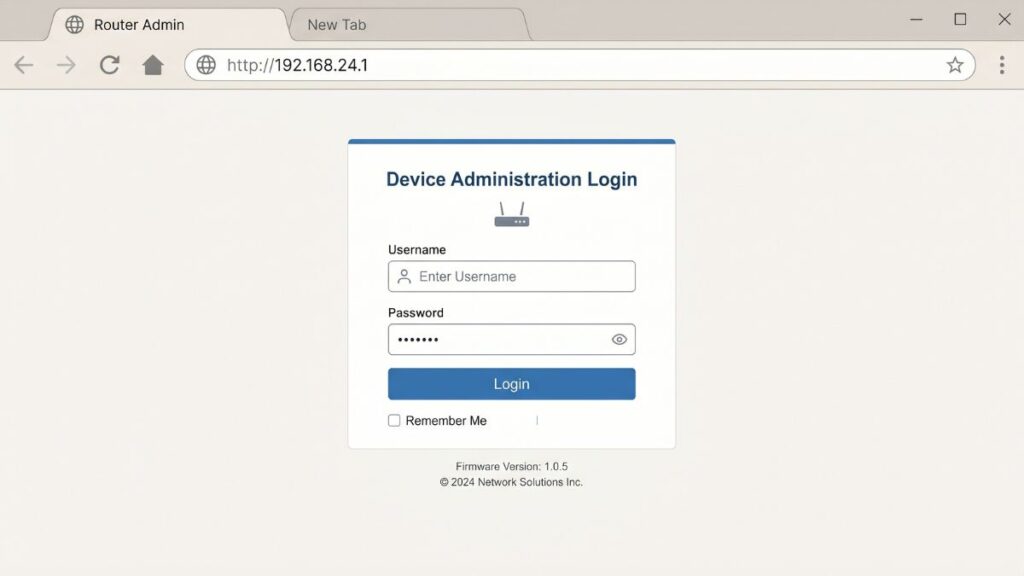
Default Username and Password for 192.168.24.1
Because 192.168.24.1 isn’t tied to a single brand or model the way 192.168.88.1 is to MikroTik or 10.0.0.1 is to Xfinity, credentials depend heavily on what hardware you’re actually using. The table below covers the most common combinations you’ll encounter.
| Brand / Device Type | Default Username | Default Password |
|---|---|---|
| TP-Link (custom subnet) | admin | admin |
| Asus (custom subnet) | admin | admin |
| Netgear | admin | password |
| D-Link | admin | (blank) |
| Linksys | admin | admin |
| Cisco (small business) | admin | admin |
| Huawei (ISP-provisioned) | admin | admin |
| Generic/OEM SOHO device | admin | admin |
| Some ISP-issued gateways | admin | (printed on label) |
Most important step before anything else:Check the sticker on the bottom or back of your physical router. It lists the exact default gateway IP, username, and password for your specific unit. On ISP-provisioned hardware especially, the password printed on the label is often unique per device — it won’t match any generic table like the one above.
One thing worth knowing: if you’re seeing 192.168.24.1 on a router that you didn’t personally configure, there’s a decent chance someone has already changed the default credentials. In that case, the table above won’t help, and a factory reset may be your only path forward.
How to Log In to 192.168.24.1 on a PC
This works on any operating system — Windows, Mac, or Linux — and in any browser.
- Connect your computer to the router. An Ethernet cable is more reliable than Wi-Fi for making configuration changes, since wireless settings you adjust can temporarily drop your connection mid-save.
- Open your web browser.
- Click the address bar at the very top of the browser window — the bar where full website URLs appear.
⚠️ Critical distinction: Typing 192.168.24.1 into a Google or Bing search bar will just run a search — it won’t open your router. The address bar at the top of the browser (where you see URLs like https://google.com) is what you need. Click there first, then type the IP.
- Type
http://192.168.24.1and press Enter. - A login screen should load. Enter your username and password.
- Click Login, Sign In, or OK.
If the admin panel opens, you’re in. If nothing loads or you get an error, the troubleshooting section below has five targeted fixes.
How to Log In to 192.168.24.1 on a Phone
Here are full steps for iPhone and Android separately — most guides skip this or give one generic set of instructions that doesn’t quite work on either platform.
On iPhone (iOS)
- Open Settings → Wi-Fi.
- Tap the ⓘ icon next to your active Wi-Fi network name.
- Scroll down to the Router field. If a different IP appears there (not 192.168.24.1), use that IP instead — that’s your device’s actual gateway.
- Open Safari or any browser.
- Tap the address bar and type
192.168.24.1, then tap Go. - The login page should load. Enter your credentials and tap Login.
On Android
- Open Settings → Network & Internet → Wi-Fi (exact menu path varies slightly by Android version and manufacturer — some devices show it under Connections or Network).
- Tap your active Wi-Fi network name and look for Gateway in the connection details.
- Open Chrome or your preferred browser.
- Tap the address bar, type
192.168.24.1, and press Go. - Enter your username and password to log in.
Quick check before you start: if your phone is showing a 4G/5G data icon instead of a Wi-Fi icon, it won’t be able to reach the router at all. Switch to Wi-Fi first, then try again.
Troubleshooting: 5 Reasons 192.168.24.1 Isn’t Loading
If the page won’t load, it’s almost always one of these five problems. Work through them in order.
If you’re trying to access 192.168.24.1 and the router login page won’t load, you’re not alone. Below are the most common issues and how to fix them quickly.
1. You’re Not Connected to the Right Network
Cause: Your device is on mobile data, a guest network, or a completely different router — not the one using 192.168.24.1 as its gateway.
Fix: Check your active connection. On Windows, look at the network icon in the system tray and confirm the network name. On mobile, check Wi-Fi settings. Make sure you’re on the same network as the router you’re trying to reach, then try again.
2. 192.168.24.1 Isn’t Actually Your Router’s IP
Cause: This is especially likely with 192.168.24.1, since it’s not a common default — your router may be using a different gateway address entirely.
Fix: Find your real gateway IP. On Windows: open Command Prompt and run ipconfig, then look for “Default Gateway” under your active network adapter. On Mac: System Settings → Network → your active connection → Details → TCP/IP. On iPhone: Wi-Fi settings → your network → ⓘ → Router field. On Android: Wi-Fi settings → your network → Gateway.
3. The Browser Cached a Failed Session
Cause: Your browser stored a previous broken or expired connection to this address and keeps serving the cached failure instead of making a fresh attempt.
Fix: Open a private or incognito window (Ctrl+Shift+N in Chrome, Ctrl+Shift+P in Firefox) and navigate to http://192.168.24.1. If that works, clear your full browser cache. Switching to a completely different browser is another reliable fix — if Chrome isn’t working, try Firefox or Edge.
4. The IP Went Into a Search Bar, Not the Address Bar
Cause: Most browsers default to treating typed input as a search query unless it clearly looks like a URL.
Fix: Specifically click the URL bar at the very top of the browser window — the one that shows the full address of the current page. Adding http:// before the IP (typing http://192.168.24.1) forces most browsers to treat it as a navigation request rather than a search.
5. The Router Is Frozen or in a Bad State
Cause: Routers can become unresponsive after extended uptime, power interruptions, or failed configuration saves.
Fix: Unplug the router from power. Wait 30 full seconds — not just a few seconds — then plug it back in. Give it 60–90 seconds to completely restart before trying the IP again. A basic power cycle resolves more access issues than almost any other fix.
How to Factory Reset a Router on 192.168.24.1
If you can’t log in because the admin password was changed and you don’t know what it is, a factory reset is the only reliable way back in. Be aware: this erases all your custom settings and returns the device to its out-of-box state.
Before resetting: If you can still reach any part of the admin interface, export your configuration first. Look for “Backup,” “Save Config,” or “Export Settings” in the Administration or System section of the menu.
Reset steps:
- Locate the Reset button on your router. It’s almost always a small pinhole on the back or bottom, labeled “Reset” or “RST.”
- With the router powered on and running, use a straightened paperclip or SIM eject tool to press into the pinhole.
- Hold the button down for 10–30 seconds. Most consumer routers respond after 10–15 seconds; some business-grade units require a longer hold. Watch for lights to flash or the device to reboot.
- Release and wait 60–90 seconds for the full restart to complete.
- Log in using the default credentials from the label on your device, or try the common defaults from the table above.
What gets wiped: Your Wi-Fi name and password, admin credentials, port forwarding rules, guest network settings, parental controls, firewall rules, DNS settings, static IP assignments, and any custom LAN IP configuration — including the gateway IP itself, which may revert to something other than 192.168.24.1 after the reset if the device doesn’t use it by factory default.
What to Do After You Log In
Being inside the admin panel is the starting line, not the finish. Here’s what deserves attention while you’re in there.
1. Change the Admin Password First
Whether you’re logging in for the first time or recovering access after a reset, the admin password is the first thing to change. The defaults are publicly documented — anyone on your local network can look them up in seconds.
- Find Administration, Management, System Tools, or Advanced Settings in the sidebar.
- Look for Admin Password, Router Password, or Change Login Password.
- Enter your current password and set a new strong one.
- Build it on NIST password guidelines — at least 12 characters, mixing uppercase, lowercase, numbers, and symbols.
- Save it in a password manager. Don’t write it on a sticky note next to the router.
2. Update Your Wi-Fi Password
Navigate to Wireless or Wi-Fi Settings. Update your network name (SSID) and password if they’re still at factory defaults. If you’ve had the same Wi-Fi password for years and shared it with everyone who’s visited, now is a good time for a refresh.
3. Set Security Mode to WPA2 or WPA3
Still in wireless settings — verify what security protocol is active. WEP is completely broken and shouldn’t be used. WPA (original) is nearly as weak. Set it to WPA2-PSK (AES) at a minimum. If your router supports WPA2 vs WPA3, choose WPA3 — it’s the current standard and provides meaningfully better protection against brute-force attacks, particularly on networks where the password has been shared widely.
4. Check Who’s on Your Network
Find Connected Devices, DHCP Client List, or Attached Devices in the admin menu. This lists every device currently connected — names, IPs, and what is a MAC address if the router surfaces it. If anything looks unfamiliar, a Wi-Fi password change removes unknown devices immediately. I’d recommend checking this list periodically even when nothing seems wrong — it’s one of those things that occasionally turns up a surprise.
5. Set Up a Guest Network
If you regularly have visitors who need Wi-Fi access, a guest network keeps them off your main network — isolating your personal devices, smart home equipment, and NAS drives from anyone you’d rather not give full network access to. Look for Guest Network or Guest Access in wireless settings. Set a separate password you can rotate independently of your main network. How to set up a guest network covers the process in detail if your router’s interface isn’t obvious about it.
6. Review the LAN IP Configuration
Since 192.168.24.1 is an uncommon gateway address, it’s worth checking the LAN settings to understand why your router is using this subnet. Look under LAN Settings, Network, or Advanced → LAN. You’ll see the router’s IP address (should show 192.168.24.1) and the DHCP range being assigned to clients. If this was set by a previous admin or ISP configuration you didn’t choose, you can change it here — or confirm it’s correct and leave it as is.
7. Configure Port Forwarding If Needed
If you’re running a game server, VoIP system, security cameras, or any service that needs to be accessible from outside your network, port forwarding is configured here. Look under Advanced, NAT, or Applications & Gaming. How port forwarding works is a worthwhile read before you start, especially given that 192.168.24.x is a less common subnet — some port forwarding guides assume standard subnets, so knowing the basics helps you adapt.
8. Update the Firmware
Router firmware updates patch security vulnerabilities and sometimes improve performance and stability. Check under Administration, System, or Maintenance for a firmware update option. How to update router firmware walks through it step by step. Doing this once after gaining access is good hygiene — and if the router has been sitting on old firmware for years, there’s a real chance important security patches have been missed.
Common Misspellings of 192.168.24.1
If the address isn’t working, check whether you’ve accidentally typed one of these:
192.168.24.l
192.168.24.10
192.168.24,1
192.168.2.41
192.168.241
192,168,24,1
www.192.168.24.1
192-168-24-1
19216824l
192168241
Correct address:
192.168.24.1
— four number groups, three periods, nothing added before/after. No “www.”, hyphens, or letters like “l”.
Which Router Brands and ISPs Use 192.168.24.1?
Why This Address Is Uncommon
Unlike 192.168.1.1 or 192.168.0.1, which are factory defaults for dozens of major brands, 192.168.24.1 is rarely a factory-set default. You’re almost always seeing it because of one of these scenarios:
Scenario 1 — Manual reconfiguration: A previous owner, IT admin, or ISP technician changed the router’s LAN IP from its factory default to something in the 192.168.24.x range — often to avoid conflicts with other network devices or subnets.
Scenario 2 — ISP custom provisioning: Some ISPs configure equipment with non-standard gateway IPs during installation, particularly for business customers or in regions where the ISP manages its own IP allocation differently.
3rd scenario — Multi-router or VLAN setups: In networks with multiple routers, switches, or VLANs, different subnets are assigned to different network segments to keep traffic organized. 192.168.24.x might be one segment in a larger network.
Scenario 4 — Certain SOHO and business routers: Some small office routers — particularly Cisco small business, Zyxel, and similar devices — either ship with less common defaults or are commonly reconfigured by IT departments to custom subnets.
If you’re seeing 192.168.24.1 with ISP-provided equipment, it’s most likely an ISP business account configuration, a technician-customized installation, or a secondary router added behind the ISP gateway.
Frequently Asked Questions
Why is my router using 192.168.24.1 instead of the usual 192.168.1.1?
Most likely because someone changed it — either an IT admin, a previous owner, or an ISP technician during setup. Less commonly, it may be a factory default for a specific device model. To see the full LAN configuration, log in to the admin panel and check under LAN Settings or Network Settings.
192.168.24.1 isn’t loading. How do I find my router’s real IP?
On Windows, open Command Prompt and type ipconfig, then look for “Default Gateway.” Mac, check System Settings → Network → your connection → Details. On iPhone, it’s Wi-Fi settings → your network → ⓘ → Router. Android, it’s Wi-Fi settings → your network → Gateway.
What’s the difference between the Wi-Fi password and the admin password?
They’re completely separate. The Wi-Fi password is what connects devices to your network. The admin password is what you use at 192.168.24.1 to access the router’s control panel and change settings. You can have a strong Wi-Fi password and still leave the admin panel unprotected with a default credential — both matter for security.
Can I access 192.168.24.1 from outside my home or office?
No. Private IPs like 192.168.24.1 are not routable on the public internet. Only devices directly connected to your local network can reach the admin panel. This is by design — it keeps your router’s management interface off the public internet unless you explicitly enable remote management, which most security practitioners recommend leaving disabled.
After a factory reset, will my router still use 192.168.24.1?
Not necessarily. If 192.168.24.1 was manually configured rather than a factory default, the reset will revert the router to its original factory gateway IP — which may be something like 192.168.1.1, 192.168.0.1, or another standard address. Check the label on your router for the factory default IP.