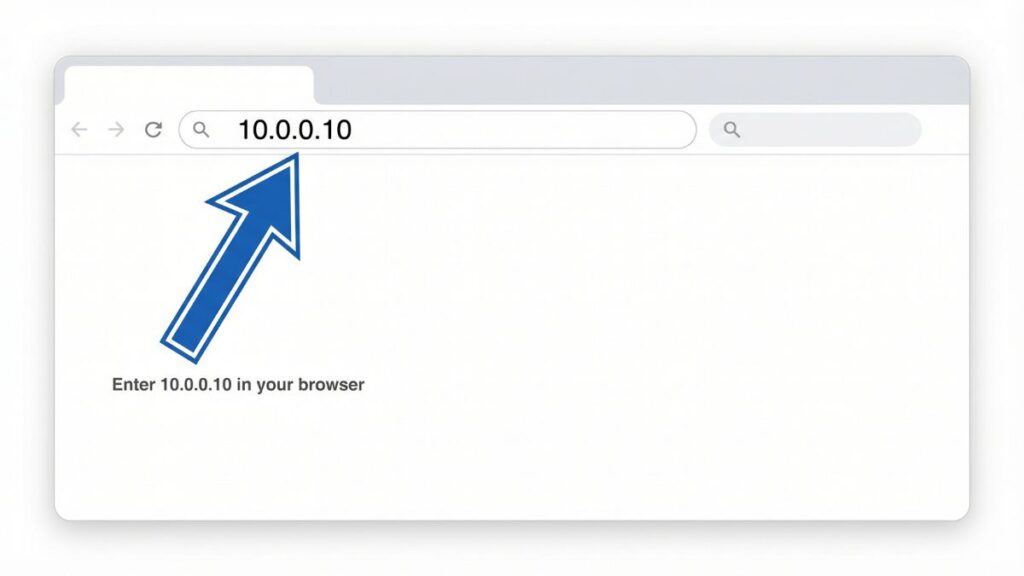
You’ve typed 10.0.0.10 into your browser and either got a login screen, a blank page, or an error. This guide handles all three. I’ll walk you through the full login process on PC, iPhone, and Android, explain five specific reasons this address won’t load and how to fix each one, cover the factory reset step by step, and show you what’s worth configuring once you’re inside the admin panel.
But first — there’s something important to check. 10.0.0.10 is a valid private IP address that some routers and network devices use as their gateway, but it’s also a common client IP address in 10.0.0.x networks. If your gateway is actually 10.0.0.1 and your device was assigned 10.0.0.10 by DHCP, typing 10.0.0.10 into a browser will get you nowhere useful. I’ll help you figure out which situation you’re in right at the start.
Router Access Panel
Type
10.0.0.10
in your browser or click the link to access the router admin page.
It works only when you’re connected to the same Wi-Fi network.
What Is 10.0.0.10? — And Are You Sure It’s Your Gateway?
10.0.0.10 is a private IP address in the 10.0.0.x subnet. When it’s used as a default gateway, typing it into a browser while connected to your local network opens your router’s or network device’s admin dashboard — the control panel for Wi-Fi settings, connected devices, security rules, port forwarding, and firmware management.
However, 10.0.0.10 is also frequently assigned as a client device IP by routers whose actual gateway is 10.0.0.1. If your home network uses the 10.0.0.x range and your device was given the address 10.0.0.10 by DHCP, that 10.0.0.10 is your device’s address — not the router’s. The router itself is almost certainly at 10.0.0.1.
Here’s how to check before going further:
On Windows, open Command Prompt and type ipconfig. Look at the Default Gateway line — that’s your router’s address. If it says 10.0.0.1, that’s where your admin page lives, not 10.0.0.10. On a Mac, go to System Preferences → Network → select your connection → Advanced → TCP/IP → the Router field shows your actual gateway.
If your Default Gateway genuinely shows 10.0.0.10 — then you have a router or network device configured to use that address, and this article is exactly what you need. Read on.
Like all private IPs, 10.0.0.10 is invisible to the public internet. It belongs to the 10.x.x.x address block reserved for private networks under RFC 1918 private address ranges — completely inaccessible from mobile data, other Wi-Fi networks, or anywhere outside your own local network.
Who uses 10.0.0.10 as a gateway:
Cisco small business routers and switches configured to use this address
Netgear business/prosumer equipment on 10.0.0.x subnets
ISP-supplied routers where the ISP configured the 10.0.0.x subnet with .10 as the gateway
Enterprise and managed network environments where an IT administrator deliberately chose 10.0.0.10 as the gateway address — perhaps to distinguish it from the .1 commonly expected by attackers, or to fit an existing IP addressing scheme
Default Credentials for 10.0.0.10
The default credentials depend entirely on what hardware is at that address. If your Default Gateway is confirmed as 10.0.0.10, here are the most likely brands and their defaults.
Brand
Default Username
Default Password
Cisco (small business)
admin
admin
Cisco (some models)
cisco
cisco
Cisco (some ISR models)
(blank)
(blank)
Netgear
admin
password
Netgear (some models)
admin
admin
TP-Link
admin
admin
Asus
admin
admin
Linksys
admin
admin
D-Link
admin
(blank)
Huawei
admin
admin
Tenda
admin
(blank)
Belkin
(blank)
(blank)
Ubiquiti / UniFi
ubnt
ubnt
Always check the label first. The sticker on the back or bottom of your router or network device has the exact factory-default credentials for your specific model printed on it. That label is always the most reliable reference — especially for ISP-supplied equipment where the ISP may have set custom credentials.
A note on enterprise gear: If you’re on a corporate or managed network and 10.0.0.10 is your gateway, the admin credentials were set by your IT department, not by the manufacturer’s factory defaults. Contact your IT team for access — don’t attempt a factory reset on equipment you don’t own outright.
How to Log Into 10.0.0.10 on a PC
The most common failure before credentials are even tried: typing the IP into the search bar instead of the address bar. The search bar sends your input to Google as a query. The address bar navigates your browser directly to the page. They sit at the top of the browser window and look similar, but do completely different things.
Confirm your device is connected to the network and that 10.0.0.10 is genuinely your Default Gateway (use ipconfig on Windows or TCP/IP settings on Mac if unsure).
Connect via Ethernet cable if possible — especially if you’re changing wireless settings, since a Wi-Fi connection can drop mid-save.
Open any browser — Chrome, Firefox, Edge, or Safari.
Click the address bar at the very top of the browser — the strip where URLs normally appear (like https://google.com).
⚠️ Address bar, not search bar. If pressing Enter takes you to a Google results page, you used the wrong field. Click the address bar at the top, clear it, and type the IP fresh.
Type 10.0.0.10 and press Enter.
A login page should load. Enter your username and password.
Click Login or Sign In.
If you’re in — skip to “What to Do After You Log In.” If you got an error or blank page, the troubleshooting section below covers the five most common causes.
How to Log Into 10.0.0.10 on a Phone
Type 10.0.0.10 in your browser to open the router login page
No competitor page for this IP provides any mobile login guidance. Here are platform-specific steps for iPhone and Android.
On iPhone (Safari)
Connect your iPhone to the Wi-Fi network managed by your router. Verify you’re on the correct network — not a guest SSID, not a neighbor’s hotspot.
Open the Safari app. Tap the URL address bar at the top — not Spotlight search, not any search field.
Type 10.0.0.10 and tap Go.
The router login page should load. Enter your credentials and tap Login.
If Safari routes your input to a Google search rather than the page, add the full prefix: http://10.0.0.10. That tells Safari this is a URL, not a search term. If you’re on a multi-VLAN network (common with Cisco or enterprise gear), make sure your phone is connected to the management-accessible SSID, not a guest or isolated network.
On Android
Connect your Android phone to your router’s Wi-Fi. Watch for Android’s background mobile data behavior — Android often keeps mobile data active even when Wi-Fi is connected, and routes traffic through mobile data instead of your local network. Local addresses like 10.0.0.10 are only reachable through your local network, so mobile data override will prevent access.
Open Chrome or your preferred browser.
Tap the address bar at the top.
Type 10.0.0.10 and tap Go.
The admin login screen should appear. Enter your credentials and tap Login.
If Chrome shows “This site can’t be reached,” pull down your notification panel and verify mobile data is off and Wi-Fi is the active connection. Disable mobile data temporarily and try again. On corporate or multi-network setups, also confirm your phone is on the right network segment.
Troubleshooting — 5 Reasons 10.0.0.10 Won’t Load
If you’re unable to access the 10.0.0.138 router login page, you’re not alone. Below are the most common issues users face and how to fix them quickly.
1. You’re not connected to the right network
Cause: 10.0.0.138 only responds to devices on the local network it manages. If your laptop is connected to a different Wi-Fi network, your phone has mobile data overriding Wi-Fi, or you’re on a guest zone from a separate router — this address will not respond no matter how many times you try.
Fix: On Windows, open Command Prompt and type ipconfig. Find the Default Gateway line under your active network adapter. It should read 10.0.0.138. If it shows something else — 192.168.1.1, 10.0.0.1, or any other address — that different address is your actual router gateway. On Mac, go to System Preferences → Network → select your active connection → Advanced → TCP/IP → check the Router field. On your phone, turn off mobile data and confirm Wi-Fi shows your home network as the active connection. Also check for an active VPN — VPNs tunnel traffic away from your local network and will prevent access to any local gateway address. Disable the VPN and try again.
2. The gateway IP was changed
Cause: On ISP-supplied equipment (A1, Belong), the default gateway IP is sometimes changed by a technician during installation. If 10.0.0.138 was changed to something else, this address points to nothing.
Fix: Use the ipconfig / Default Gateway method above to find the current gateway. If you can’t access the router at all and suspect the IP was changed, a factory reset (see below) will restore 10.0.0.138 as the default on SpeedTouch and other devices that use it.
3. You have a typo in the address
Cause: 10.0.0.138 gets mistyped in several predictable ways. People type 10.0.0.13 (dropped the 8), 10.0.0.183 (transposed last two digits), 10.0.0.138. (trailing dot), or 10.0.138 (missing an octet entirely).
Fix: Type it one segment at a time: 10 . 0 . 0 . 138. The last group is 138 — not 13, not 183, not 1380. Confirm the full address before pressing Enter. You can also run ipconfig on Windows or check TCP/IP settings on Mac to confirm your actual Default Gateway rather than guessing. The how to find your router’s IP address guide walks through this visually.
4. Your browser has cached a previous failure
Cause: Browsers store failed requests and sometimes serve the cached error even after the problem is fixed. Chrome is particularly aggressive about this with local network addresses.
Fix: Press Ctrl + Shift + R on Windows or Cmd + Shift + R on Mac to force a hard refresh that bypasses the cache. Even better — open a private or incognito window and try 10.0.0.138 fresh from there. If it loads in the private window but not your regular browser, clear your browser cache and cookies.
5. The router or modem needs a restart
Cause: Routers and DSL modems are small computers that occasionally freeze or get into a degraded state — especially after extended uptime. Your internet connection may still work fine while the admin panel becomes completely unresponsive. SpeedTouch DSL modems in particular can develop this issue after days of continuous uptime.
Fix: Unplug the router or modem from power. Wait a full 30 seconds — not five, not ten, a full thirty. Plug back in and allow 60–90 seconds for a complete boot. Then try 10.0.0.138 again. A power cycle solves this more reliably than anything else, and it costs nothing to try first.
Factory Reset Guide for 10.0.0.10 Routers
If the admin password was changed and you can’t get in, a factory reset restores everything to factory defaults — including the gateway address and original credentials.
Critical warning for enterprise/managed equipment: If this router or switch was professionally configured or is part of a corporate network, a factory reset will wipe all custom configuration — VLANs, firewall rules, routing tables, QoS policies, and port configurations — and may disrupt your entire network. Contact your IT department before resetting any professionally managed equipment.
Back up your settings first if you can still log in. Look for a Backup, Export, or Save Configuration option under Administration or System Tools. Save that file before resetting — it makes restoration far faster than rebuilding from scratch.
What gets wiped:
Admin username and password (reverted to factory defaults)
Wi-Fi name (SSID) and password
All VLAN configurations
Firewall rules and ACLs
Port forwarding rules
Static IP / DHCP reservations
Custom DNS settings
QoS policies
Any custom gateway IP (restores to the factory default, which may be 10.0.0.10 or a different address depending on the device)
How to reset:
Keep the device powered on — don’t unplug it before pressing Reset.
Find the Reset button — a small recessed pinhole on the back or bottom panel.
Insert a straightened paperclip or SIM card ejector.
Press and hold firmly. Keep holding.
Watch the LEDs — they’ll blink rapidly or cycle to signal the reset triggered.
Release and wait 60–120 seconds for a full reboot (enterprise devices may take longer than consumer routers).
Try 10.0.0.10 with factory-default credentials from your device’s label.
Hold times by brand:
Brand
Approx. Hold Time
Cisco (small business)
10–15 seconds
Netgear
7–10 seconds
TP-Link
10 seconds
Asus
10 seconds
D-Link
10 seconds
Linksys
10–15 seconds
Ubiquiti / UniFi
10 seconds
Huawei
10–15 seconds
What to Do After You Log In
Once you’re inside the admin panel, here’s what to prioritize — in order of importance.
1. Change Your Admin Password
Factory-default credentials are public knowledge. Anyone who gets onto your network and knows your router brand can look up the defaults and get in. Change the admin password immediately after first login.
Log into 10.0.0.10.
Find Administration, System Tools, Management, or Security in the navigation.
Look for Admin Password, Change Password, or User Management.
Enter your current password, then your new one twice.
Make it long and memorable — following NIST password guidelines is worthwhile: length matters more than complexity. A passphrase of three or four unrelated words is both stronger and easier to remember than a short random string.
Save and re-login with the new credentials.
2. Change Your Wi-Fi Name and Password
Navigate to Wireless Settings or WLAN Configuration. Change the SSID to something that doesn’t identify your hardware brand — “Cisco_SB_Office” tells nearby people exactly what you’re running. Set a strong, unique Passphrase. After saving, all connected devices will need to reconnect.
3. Verify Encryption — WPA2 or WPA3
In wireless settings, check the Security Mode or Encryption Type. WEP is completely broken and must be changed immediately if present. WPA2-Personal is the current minimum standard. If your device supports WPA2 vs WPA3, use WPA3 — it’s significantly more resistant to modern attacks. For business equipment, WPA2-Enterprise or WPA3-Enterprise with RADIUS authentication is the proper choice.
4. Review Connected Devices
Under DHCP Client List, Connected Devices, ARP Table, or Network Map, you’ll see every device on the network. Each entry shows a device name, assigned IP, and what is a MAC address — a unique hardware identifier. Look for anything you don’t recognize. On business networks, cross-reference against your expected device inventory. Most routers let you block unfamiliar devices by MAC address directly from this screen.
5. Set Up a Guest Network
A guest network isolates visitors from your primary network — they get internet access but can’t see your computers, servers, NAS drives, or printers. This is especially important in business environments where customers or contractors connect to Wi-Fi. Look for Guest Network or Guest SSID in wireless settings. See how to set up a guest network for a detailed walkthrough.
6. Port Forwarding and Firewall Rules
If services need to be reachable from outside your network — remote desktop, a web server, a VPN endpoint, a NAS — configure it under Port Forwarding, NAT, or Firewall Rules. Understanding how port forwarding works before making changes prevents the most common mistakes. For Cisco and enterprise equipment, also review ACLs (access control lists) — these often need to be updated alongside port forwarding rules.
7. DNS Configuration
Many admin panels for devices in the 10.0.0.x range — especially Cisco and enterprise equipment — offer custom DNS configuration. Understanding how DNS works helps you decide whether to use your ISP’s default DNS servers or switch to alternatives like Cloudflare (1.1.1.1) or Google (8.8.8.8). Custom DNS can improve privacy and sometimes reduce lookup latency.
8. Update Firmware
Check for firmware updates under Administration → Firmware Update or System → Software Upgrade. For Cisco, check the Cisco support portal for the latest firmware for your specific model. For Netgear, use the admin panel’s built-in update checker. Firmware patches fix security vulnerabilities — some of them actively exploited in the wild.
Common Misspellings of 10.0.0.10
10.0.0.10 has a deceptively simple structure — three zeros and then 10 — but that similarity to 10.0.0.1 makes it particularly prone to one specific, very common typo. Here are all the variants people search for:
10.0.0.1
10.0.0.100
10.0.0.010
10.0.0.10.
10.0.0.l0
10.0.010
10.0.0.10/admin
10.0.10
100.0.10
http//10.0.0.10
www.10.0.0.10
10.0.0.10.1
The correct address:10.0.0.10
— four number groups, three dots, three zeros in a row, then 10
Which Brands and Environments Use 10.0.0.10?
Cisco Small Business Equipment
Cisco small business routers, switches, and access points are deployed in the 10.0.0.x subnet in many office and commercial environments. When a Cisco device is configured with 10.0.0.10 as its gateway address, it’s usually because an IT administrator chose that address during installation — either to deviate from the predictable .1 default or to fit a broader IP addressing scheme.
Netgear Business and Prosumer Routers
Netgear business-grade equipment — particularly the Insight-managed and ProSafe lines — is sometimes configured with 10.0.0.10 as the gateway, especially in environments where multiple Netgear devices share the same network and need differentiated gateway addresses.
ISP-Supplied Gateways
Some ISPs configure their supplied routers with 10.0.0.x subnets using a .10 gateway address instead of the more common .1. This is less common in the US but appears in certain European and Asia-Pacific carrier deployments.
Enterprise and Managed Network Configurations
The 10.0.0.x subnet is extremely common in enterprise networking because the entire 10.x.x.x block offers a massive address space. Network admins frequently place default gateways at non-obvious host addresses — like .10, .100, .254 — to reduce the attack surface from automated tools that probe .1 addresses first.
When 10.0.0.10 Is NOT Your Gateway — The DHCP Assignment Case
As noted at the top of this article, the most common reason people search for 10.0.0.10 is because they’ve confused their own device’s DHCP-assigned IP with their router’s gateway. In networks where the gateway is 10.0.0.1, DHCP commonly assigns addresses in the 10.0.0.2 through 10.0.0.254 range to connected devices. Getting 10.0.0.10 as your device’s IP is completely normal — but your router admin page is still at 10.0.0.1, not 10.0.0.10. Understanding how DHCP assigns IP addresses helps clarify this distinction.
Note that Xfinity uses 10.0.0.1 — not 10.0.0.10. If you’re an Xfinity customer and your device was assigned 10.0.0.10 by Xfinity’s gateway, try 10.0.0.1 for the admin page instead.
Frequently Asked Questions
What is 10.0.0.10 used for?
It’s a private IP address that can serve as a default gateway for certain routers and network devices — primarily in Cisco and Netgear small business setups and enterprise networks where the 10.0.0.x subnet was chosen by an IT administrator. Typing it into a browser while connected to that network opens the admin panel.
How do I know if 10.0.0.10 is my gateway or just my device’s IP?
Run ipconfig on Windows (or check System Preferences → Network → TCP/IP on Mac). Look at the Default Gateway field — that’s your router. If Default Gateway says 10.0.0.10, then that’s the admin page address. If it says 10.0.0.1 and your device’s IP is 10.0.0.10, try 10.0.0.1 instead.
I’m an Xfinity customer — why am I seeing 10.0.0.10?
Xfinity’s gateway assigns addresses in the 10.0.0.x range. Your device may have been given 10.0.0.10 by Xfinity’s DHCP server. Your Xfinity router’s admin page is at 10.0.0.1, not 10.0.0.10.
Why does 10.0.0.10 say “This site can’t be reached”?
Most likely causes: you’re on the wrong network or 10.0.0.10 isn’t actually your gateway. Run ipconfig on Windows to check your Default Gateway. Also check for an active VPN — VPNs block local network access. And make sure mobile data isn’t overriding your Wi-Fi on a phone.
Is 10.0.0.10 a Cisco or Netgear address?
Both brands appear at this address, but it’s more often a result of manual configuration than a strict factory default. The more common factory default for both brands in the 10.x.x.x range is 10.0.0.1. If your gateway is 10.0.0.10, someone (an IT admin or the ISP) configured it that way deliberately