10.0.0.1 Login: Access Your Xfinity Gateway Admin Tool
Complete guide to logging into 10.0.0.1. Unlock the Xfinity Gateway Admin Tool, find default admin credentials, configure Bridge Mode, eliminate Double NAT, and fix login errors.
Xfinity Gateway Admin Panel
Type 10.0.0.1 into your browser or click the button below to open the Gateway Admin Tool.
⚡ Requires an active Wi-Fi or Ethernet connection to your Xfinity home network.
Quick Answer: 10.0.0.1 is a Class A private IPv4 default gateway address predominantly used by Xfinity (Comcast) Wireless Gateways (such as xFi XB6, XB7, XB8, and XB10) as well as select Cisco and ARRIS broadband equipment. Opening http://10.0.0.1 in any web browser loads the hardware-level Gateway Admin Tool.
On newer Xfinity setups, browser access must first be enabled via the Xfinity mobile app (WiFi → View WiFi Equipment → Advanced Settings → Admin Tool Online Access). Once authenticated with the default username admin and your gateway password, you can configure Bridge Mode, adjust firewall filters, check DOCSIS signal power, and manage port triggering.
| Login Gateway URL | http://10.0.0.1 |
| Primary Hardware | Xfinity Wireless Gateways (xFi XB3, XB6, XB7, XB8, XB10), Cisco DPC Series |
| Default Username | admin |
| Default Password | password (legacy units) or printed on bottom gateway sticker |
| App Prerequisite | Toggle Admin Tool Online Access to ON in Xfinity App if browser redirects |
| Key Administrative Features | Bridge Mode (Single NAT for mesh routers), Firewall Security Levels, MoCA, Port Triggering |
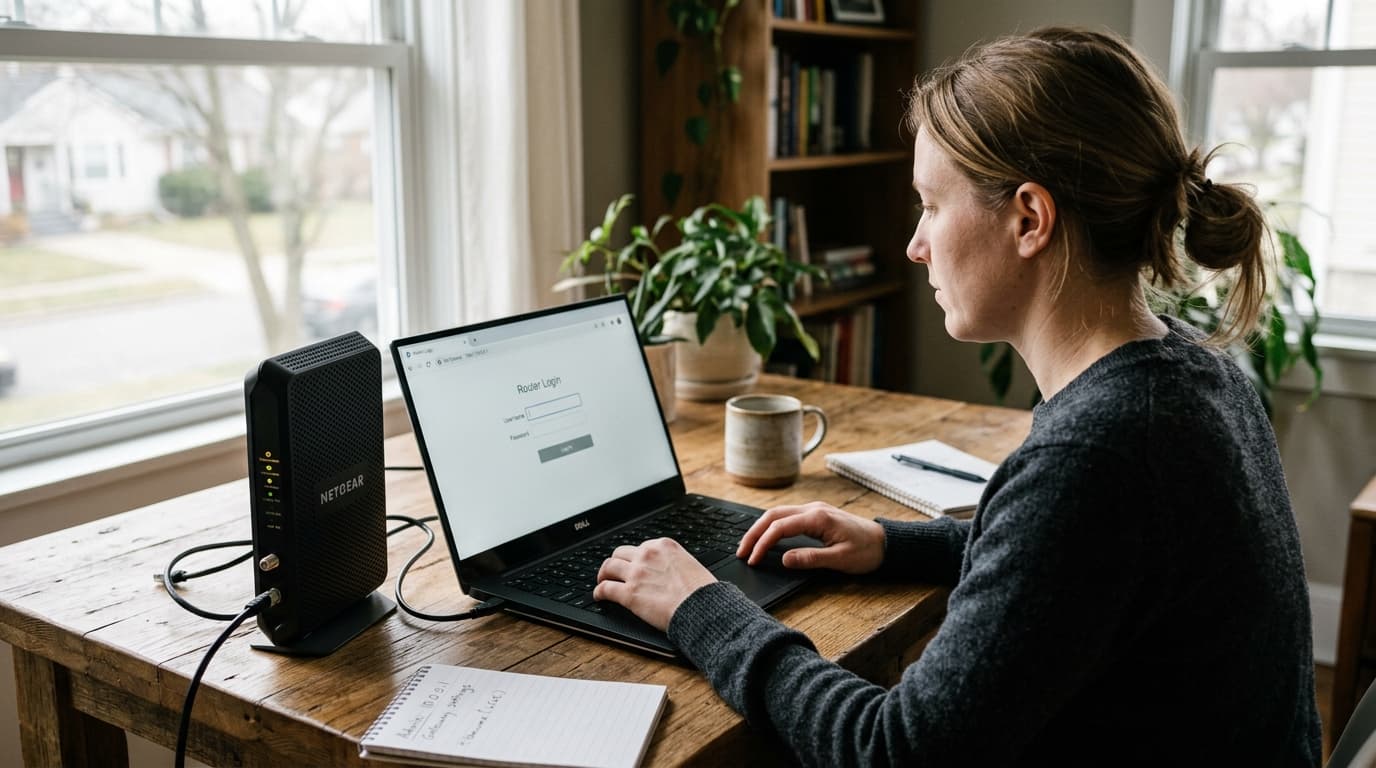
Accessing the 10.0.0.1 Gateway Admin Tool across a local home network to manage advanced cable network parameters.
Diagnostic Table: 10.0.0.1 Symptoms & Quick Targets
Use this troubleshooting matrix if 10.0.0.1 refuses to open, rejects passwords, or behaves unexpectedly:
| Symptom / Error | Potential Cause | Quick-Fix Target |
|---|---|---|
| Browser redirects to Xfinity download page | Admin Tool Online Access toggle disabled in Xfinity mobile app | Open Xfinity App → WiFi → View WiFi Equipment → Advanced Settings → Admin Tool Online Access and enable access. |
Password rejected repeatedly (even password) | Custom password previously set, or unit has unique printed default | Check barcode sticker on Gateway underside; use custom admin password or perform a 15-second WPS/Reset. |
| Wi-Fi works but Gateway Admin Tool times out | Active VPN connection routing local subnet traffic to external servers | Disconnect VPN client software temporarily and reload http://10.0.0.1 over local Wi-Fi or Ethernet. |
| Third-party router behind Gateway has Double NAT | Both Xfinity Gateway and your personal router handling DHCP/NAT | Enable Bridge Mode under Gateway → At a Glance on 10.0.0.1 to let your standalone router handle DHCP. |
| Admin Tool options missing or grayed out | Bridge Mode currently active or Gateway provisioning incomplete | Verify Gateway activation status in Xfinity app before reconfiguring; connect directly to LAN Port 1. |
| Page won't load (ERR_ADDRESS_UNREACHABLE) | Your device is connected to mobile data (LTE/5G) or wrong gateway IP | Verify default gateway using IP Checker Tool or run ipconfig in CMD. |
Step-by-Step Guide: How to Log In to 10.0.0.1
Follow this verified workflow to authenticate into the Xfinity Gateway Admin Tool from your computer:
- Connect to your Xfinity Gateway: Join your home Wi-Fi network or plug a computer directly into one of the Gateway's LAN Ethernet ports.
- Enable Admin Tool Access (If Prompted): On modern xFi Gateways, open the Xfinity app on your phone, go to WiFi → View WiFi Equipment → Advanced Settings, and switch Admin Tool Online Access to Allowed.
- Open your browser URL bar: Launch Chrome, Edge, Safari, or Firefox and click the top address bar. Type
http://10.0.0.1and press Enter. - Enter administrator credentials:
- Username:
admin - Password:
password(or the custom password set during initial setup, or the key printed on the underside sticker)
- Username:
- Access the Gateway console: Click LOGIN. Upon your first login, the system will prompt you to replace the factory password with a secure personal passphrase.
10.0.0.1 into a Google search bar. Search engines will display web search results rather than connecting to your gateway hardware. Always enter the address into the actual browser address bar at the top of your screen.How to Log In on a Mobile Phone (iOS & Android)
You can access 10.0.0.1 directly from your mobile smartphone or tablet browser without needing a desktop PC:
iPhone (iOS)
- Go to Settings → Wi-Fi and connect to your Xfinity wireless network.
- Open Safari (Safari handles private subnets cleanly without search redirects).
- Tap the address bar, type
http://10.0.0.1, and tap Go. - Sign in with username
adminand your gateway password.
Android
- Swipe down from the top to ensure Wi-Fi is active and connected to your Xfinity SSID.
- Open Google Chrome or your preferred browser.
- Type
10.0.0.1into the URL bar and tap Enter. - Enter your administrator login details to manage gateway settings.
Reference Database: Default Credentials for 10.0.0.1
Compare factory default login credentials for common hardware deployed on the 10.0.0.1 private gateway address:
| Brand & Model Series | Default Username | Default Password |
|---|---|---|
| Xfinity xFi Gateway (XB6, XB7, XB8, XB10) | admin | (printed on label) or password |
| Comcast / Cisco (DPC3941T, DPC3939) | admin | password |
| ARRIS / Technicolor (TG1682G, CGM4140COM) | admin | password or label |
| Cisco Small Business / RV Series | cisco | cisco |
| Netgear Cable Gateways | admin | password |
| Apple AirPort Extreme / Time Capsule | admin | (blank) or setup key |
| Zoom Telephonics Cable Modem | admin | admin |
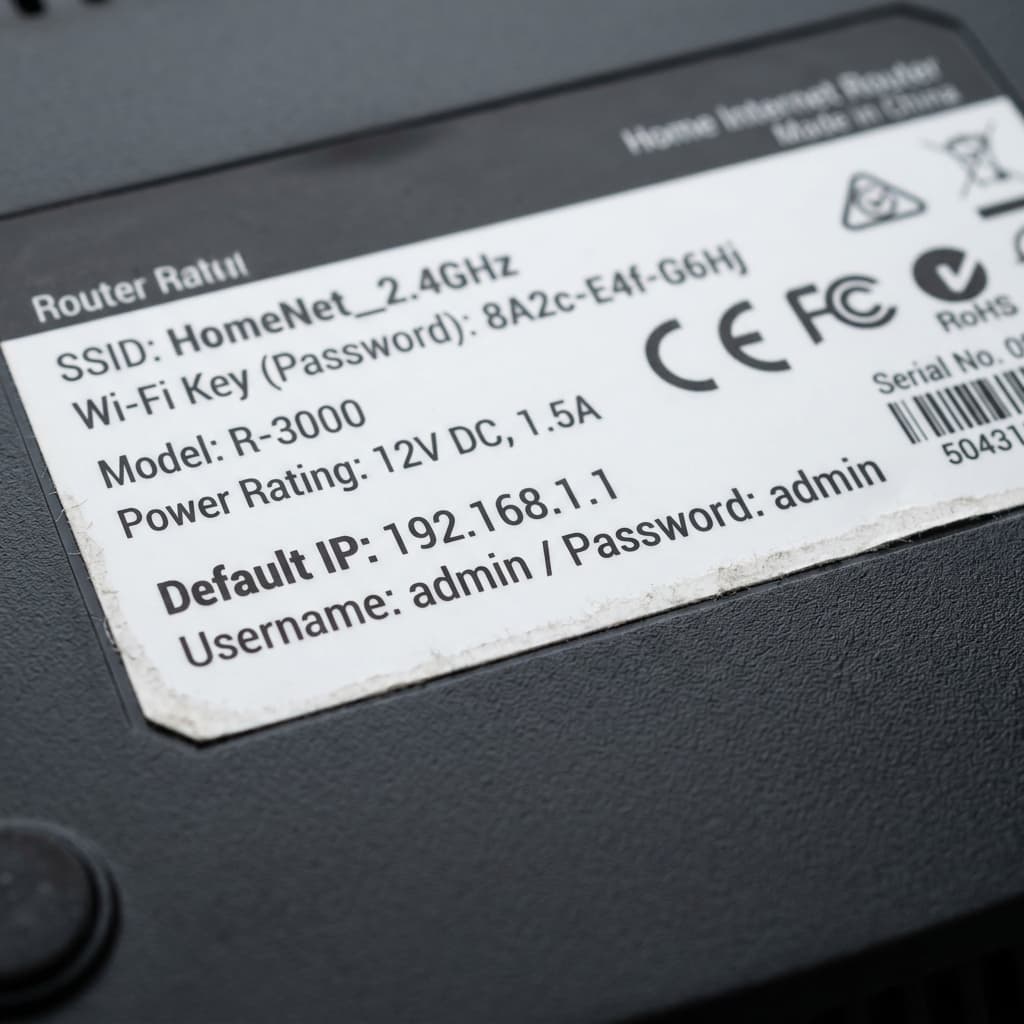
Always verify the hardware label on your gateway for unit-specific credentials and network keys.
Xfinity App vs. 10.0.0.1 Admin Tool: Which Should You Use?
Comcast distributes management functions between the cloud-based Xfinity mobile app and the local 10.0.0.1 Admin Tool. Use this reference matrix to know where each configuration resides:
| Configuration Task | Where to Manage | Description |
|---|---|---|
| Enable Admin Tool Access | Xfinity App | Required toggle to unlock browser access at 10.0.0.1 on modern xFi Gateways. |
| Enable / Disable Bridge Mode | 10.0.0.1 Admin Tool | Disables router functions so your personal router/mesh avoids Double NAT. |
| Hardware Firewall Levels | 10.0.0.1 Admin Tool | Adjust IPv4/IPv6 firewall security filters (Low, Medium, High, Custom). |
| Port Triggering & DMZ | 10.0.0.1 Admin Tool | Low-level port triggering rules and local DMZ host assignments. |
| DOCSIS Signal Telemetry & Logs | 10.0.0.1 Admin Tool | Inspect downstream/upstream power levels (dBmV), SNR, and event logs. |
| Wi-Fi Name (SSID) & Passwords | Xfinity App | Primary wireless network credentials and band steering controls. |
| Parental Controls & xFi Pods | Xfinity App | Device pausing, profiles, ActiveArmor security, and mesh pod setup. |
How to Enable Bridge Mode at 10.0.0.1 (Fix Double NAT)
If you have purchased a third-party router (such as ASUS, eero, Netgear Orbi, or TP-Link Deco) and connected it behind your Xfinity Gateway, running both routers simultaneously causes Double NAT (Network Address Translation). Double NAT causes strict gaming NAT types, broken port forwarding, and packet collisions.
Enabling Bridge Mode turns off the routing and Wi-Fi functions on the Xfinity Gateway, passing the public WAN IP directly to your standalone router.
Gateway → At a Glance → Bridge Mode → Enable
- Connect a computer to your Xfinity Gateway via Ethernet (plug into Port 1).
- Open
http://10.0.0.1in your web browser and sign in with your admin credentials. - In the left-hand navigation sidebar, click Gateway → At a Glance.
- Locate the Bridge Mode toggle and click Enable.
- Confirm the prompt. The Gateway will reboot into Bridge Mode.
- Connect an Ethernet cable from Gateway Port 1 to the WAN/Internet port of your standalone router.
⚠️ Do Not Enable Bridge Mode Without a Second Router
Bridge Mode completely disables the Xfinity Gateway's internal Wi-Fi radios. If you do not have a separate standalone router connected, you will lose wireless connectivity throughout your home.
How to Factory Reset an Xfinity Gateway
If you have completely forgotten your custom 10.0.0.1 admin password and cannot authenticate, a hardware factory reset will restore the gateway to out-of-the-box factory defaults:
- Ensure the Xfinity Gateway is powered on with the power light solid.
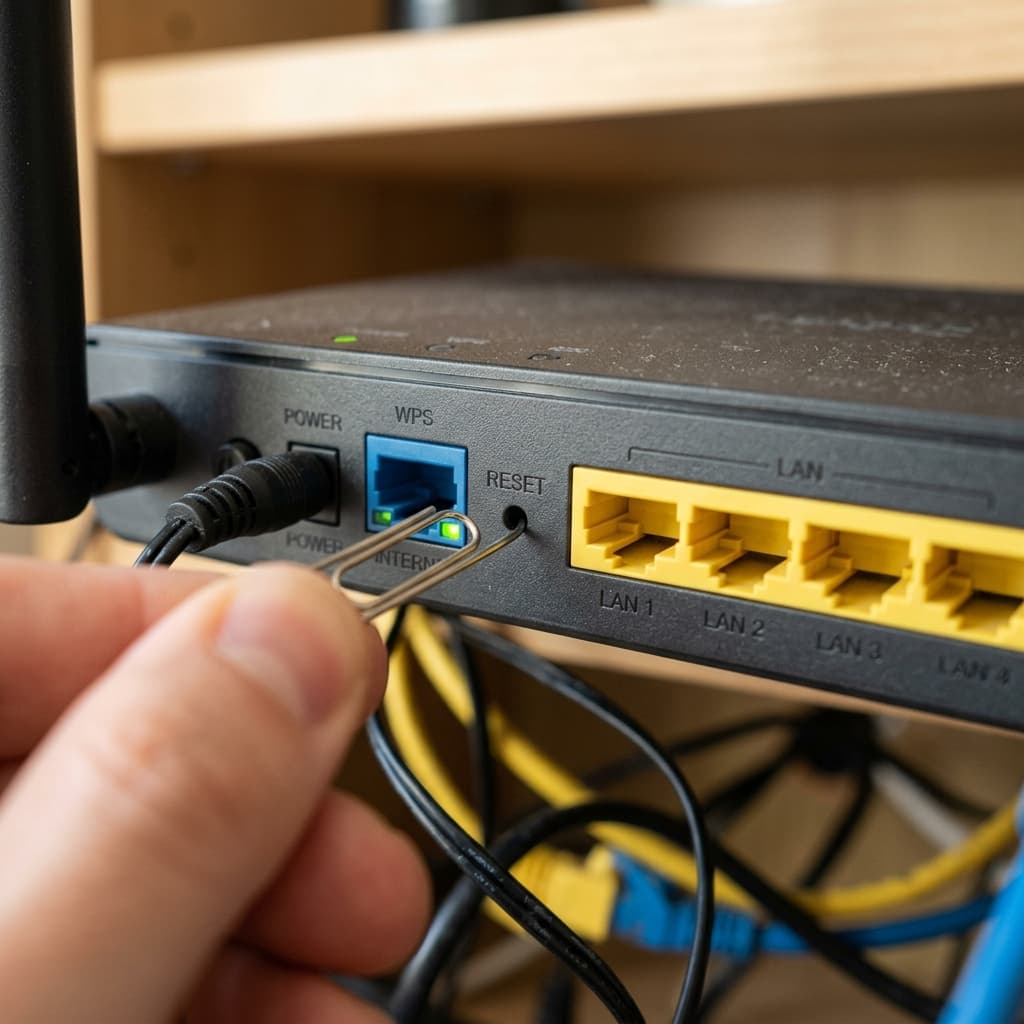
- Locate the WPS button (on newer XB6/XB7/XB8 models) or the recessed Reset pinhole on the rear panel.
- Press and hold the button continuously for 30 to 60 seconds until the front status LED flashes rapidly or turns off.
- Release the button and allow 5–10 minutes for the Gateway to complete its restart cycle and download ISP provisioning firmware.
- Re-connect and log in at
http://10.0.0.1using the factory default credentials printed on the bottom label.
Common Misspellings of 10.0.0.1
Typing errors on mobile keyboards often lead to failed connections:
✅ Correct Format: 10.0.0.1 — four numeric octets with zeroes and periods only.
Frequently Asked Questions (FAQ)
What is 10.0.0.1?
10.0.0.1 is a Class A private IPv4 gateway address used by Xfinity Wireless Gateways (xFi models) and various Cisco/ARRIS routers to host their browser-based administrative management dashboard.
Why does 10.0.0.1 tell me to download or use the Xfinity app?
On newer xFi Gateways, browser access to the Admin Tool is disabled by default for security. You must enable it in the Xfinity app by opening WiFi → View WiFi Equipment → Advanced Settings → Admin Tool Online Access and selecting Allowed.
What is the default username and password for 10.0.0.1?
The default username is admin. The factory password is either password (on legacy Cisco/ARRIS Gateways) or printed on the barcode sticker located on the bottom of modern xFi Gateways.
How do I enable Bridge Mode on an Xfinity Gateway?
Connect your computer to Gateway Port 1 via Ethernet, open http://10.0.0.1 in your browser, log in, navigate to Gateway → At a Glance, and toggle Bridge Mode to Enable.
Why won't 10.0.0.1 open in my browser?
Common causes include an active VPN routing local packets away from the subnet, mobile data bypassing local Wi-Fi, typing errors, or having Admin Tool Online Access disabled in the Xfinity mobile app.
Can I access 10.0.0.1 without an internet connection?
Yes. 10.0.0.1 runs locally on the gateway hardware. Even during an external Comcast service outage, you can connect via Ethernet or Wi-Fi to inspect DOCSIS telemetry and gateway status.
Bottom Line
The 10.0.0.1 Admin Tool provides critical administrative control for Xfinity Gateway users who require advanced network configuration beyond the everyday settings in the Xfinity mobile app. Whether enabling Bridge Mode to connect a mesh network without Double NAT, adjusting firewall security levels, or reviewing DOCSIS cable signal telemetry, 10.0.0.1 remains the authoritative hardware gateway console.
Always ensure you are connected to the local Xfinity network with VPNs temporarily disabled, verify Admin Tool Online Access inside the Xfinity app, and replace default credentials with a strong passphrase to maintain a secure home network.
Interactive Sandbox
Simulate logging into the 10.0.0.1 Xfinity Admin Tool:
Administrator Login
Access gateway configurations
Diagnostic Tools
Run automated network diagnostic checks: