Quick answer: 192.168.1.1 is a private IP address — one that a lot of home routers use as their default login page. Connect to your Wi-Fi, type it into a browser's address bar, and you'll land on a screen asking for your admin username and password. Get in, and you can rename your network, lock down security settings, see what's actually connected.
Here's the catch: it's common, not universal. If it doesn't load, your router's probably using something else, and your device can tell you exactly what.
| Login address | http://192.168.1.1 |
| Connection needed | Wi-Fi or Ethernet to the router — no internet required |
| Credentials | Router label, setup card, or a password you set earlier |
| If it doesn't load | Check your default gateway instead of guessing |
Logging In at 192.168.1.1
- Connect your phone or laptop to the router's Wi-Fi, or plug in an Ethernet cable if you'd rather.
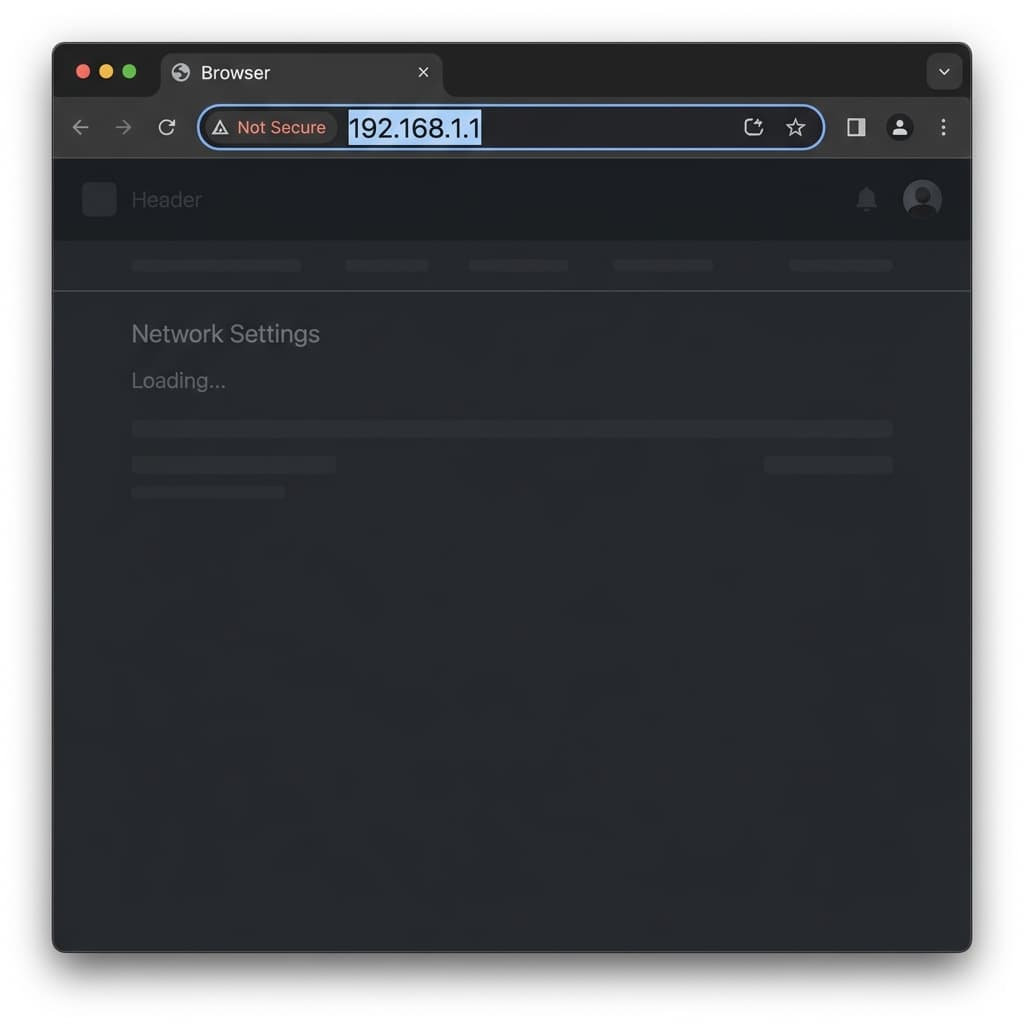
- Open a browser and type
192.168.1.1straight into the address bar. Not the search box — I know that sounds obvious, but it's the number one reason this doesn't work. - Hit Enter. A login screen should show up.
- Type your admin username and password, submit.
That's it. You're in, and from here you can rename the Wi-Fi network, change the password, or poke around the security settings. Our guide on how to access your router admin page goes deeper on what's actually available once you're logged in, if you want the full tour.
What to Do When 192.168.1.1 Won't Load
Skip the guessing game. Your device already knows your router's real address — it's called the default gateway, and checking it beats trying 192.168.0.1, then 10.0.0.1, then whatever else, one at a time.
- Windows: Command Prompt →
ipconfig→ look for "Default Gateway." - Mac: System Settings → Wi-Fi → Details → TCP/IP → the "Router" line.
- Android: Wi-Fi settings → tap your network → "Gateway" or "Router" under details.
- iPhone: Settings → Wi-Fi → tap the (i) next to your network → "Router" under IPv4.
Matches 192.168.1.1? The address is fine and something else is wrong. Different number? That's your real login page — go there instead. Our how to find your router's IP address guide walks through this with screenshots if you'd rather see it than read it.
A few other things worth checking:
Wrong network. Sounds too simple to mention, but it's the most common reason this fails. Make sure you're on that specific router's Wi-Fi, not a neighbor's, not something saved from a coffee shop last month.
Browser searches instead of navigating. This isn't really the browser being confused about numbers — it's usually the address landing in a search box by accident, or autocomplete swapping in something you didn't type. Add http:// in front and double-check you're actually in the address bar before hitting Enter.
"Not secure" warning pops up. Expected, mostly. Router login pages often run on plain HTTP, not HTTPS, so this warning shows up on your own home network too. Doesn't mean anything's broken. Just don't type your router password into a page you reached through a search result or some random link — only proceed if you typed the address yourself.
Login fails even though the page loads. Typos happen more with 0/O and 1/l than people expect. Admin logins are case-sensitive, so check that too.
Forgot the admin password entirely. A factory reset brings back the original login. It also wipes your Wi-Fi settings and anything else you've configured, so it's a real trade-off, not a free fix. Our guide on how to reset a router lays out exactly what gets erased before you commit to it.
Default Username and Password
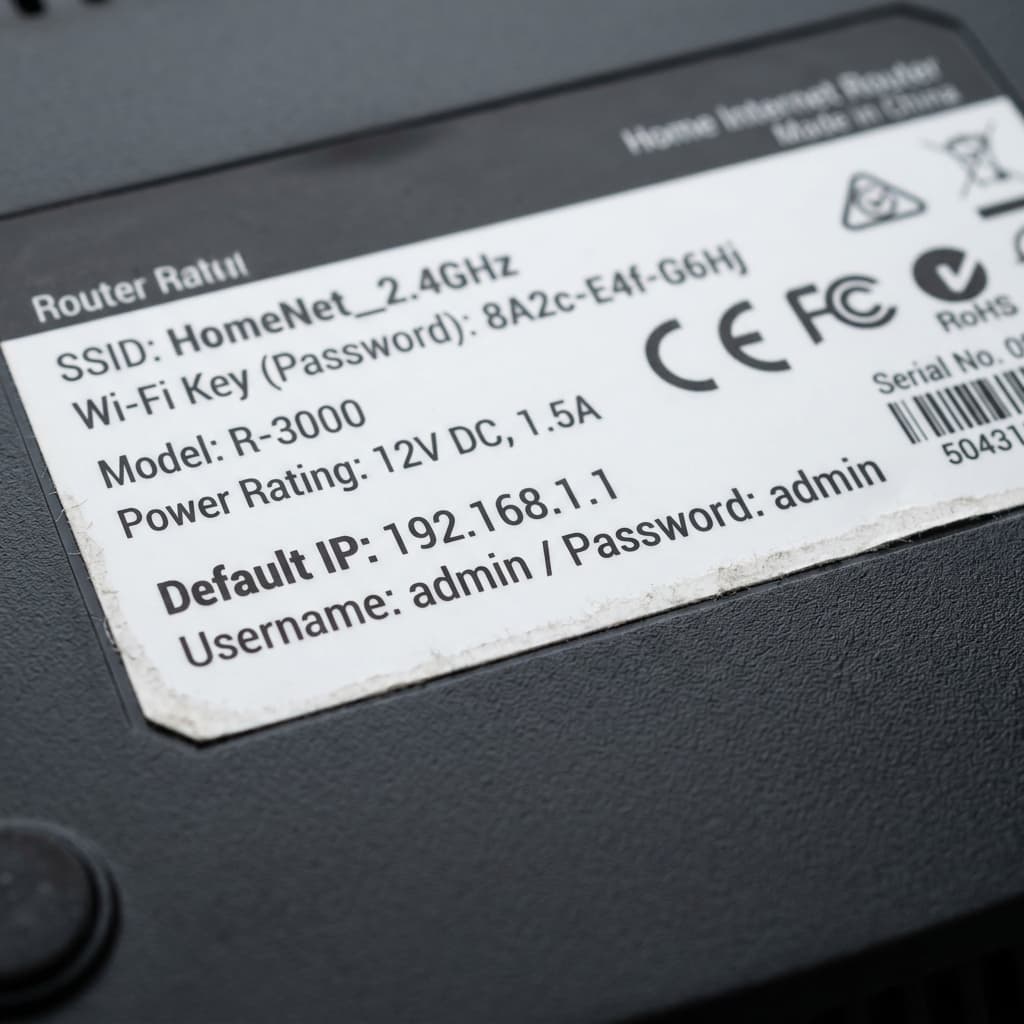
Check the label first. Or the setup card, if your router came with one. That's your actual source of truth — not a table someone built by guessing which brands do what.
A lot of newer routers don't even use a fixed factory default anymore. Some generate a unique password per unit, others make you set an admin password during initial setup. The old "admin/admin" trick still works on some older hardware, but I'd treat it as a last resort, tried only after the label's turned up nothing — not the first thing you reach for.
Already changed the login once and can't remember what you set it to? Scroll back up to the troubleshooting section. A blank guess won't get you anywhere — a factory reset will.
Router Using an App Instead of a Browser?
More and more routers skip the IP address entirely, especially ISP-provided ones and mesh systems. They're built around an app from the start.
If 192.168.1.1 loads to nothing, or something that looks off, check whether your router's brand has an official app before assuming something's broken. Search the brand name in your app store, connect to the router's Wi-Fi, sign in there instead. For a lot of current hardware, that's the front door — not a backup plan.
Why 192.168.1.1, Specifically?
192.168.1.1 sits inside a block of addresses reserved for private networks — the kind that live inside a home or office and never touch the open internet. That's the whole reason manufacturers latched onto it: safe, reusable, no risk of colliding with anything public.
The reservation comes from a real standard, RFC 1918, which sets aside three ranges for private use: 10.0.0.0 to 10.255.255.255, 172.16.0.0 to 172.31.255.255, and 192.168.0.0 to 192.168.255.255. 192.168.1.1 lives in that last one. Because none of these ever get routed across the public internet, your router and your neighbor's can both use the exact same address at the same time without stepping on each other — each one only exists inside its own private bubble.
It's not a brand thing, whatever some sites imply. Different manufacturers have used it as a default at different points, plenty still do, and plenty of current routers use something else entirely. It's a convention people fell into, not a rule anyone's enforcing.
192.168.1.1 vs. the Other Common Addresses
Checking your default gateway (see above) is the real way to confirm your address. But if you're curious what else is out there:
| Router IP address | Common use |
|---|---|
| 192.168.1.1 | Widely used across many home routers |
| 192.168.0.1 | Also common, on a range of routers and gateways |
| 10.0.0.1 | Shows up often on ISP-provided gateways and mesh systems |
None of these come with a guarantee attached to any specific brand. Your gateway value is the only number that's actually yours.
Once You're In, Do More Than Rename the Wi-Fi
- Change the admin password if it's still factory-default. Most people skip this and just change the Wi-Fi password instead. That's backwards — if someone reaches your admin interface with the factory login still active, they can touch your DNS, your firewall rules, your entire setup. Worse if remote management's switched on.
- Check your security protocol. WPA3 if your devices support it. WPA2's still fine as a fallback for older gear that doesn't.
- Scroll through connected devices. Most admin panels list everything currently on your network. Takes ten seconds, catches things that shouldn't be there.
- Turn off remote management unless you specifically need it. Some routers ship with it on by default, and it lets someone reach your admin panel from outside your house. Most people never use it and never think to check.
None of this takes long. You're already logged in — might as well.
Frequently Asked Questions
Is 192.168.1.1 the same for every router?
No. It's common, but plenty of routers default to something else. Your device's default gateway will tell you the real one.
Do I need internet access to log in at 192.168.1.1?
No. Just a local connection — Wi-Fi or Ethernet to the router itself. The admin page runs locally, so it loads even if your actual internet service is down.
Why won't 192.168.1.1 open in my browser?
Usually you're on the wrong network, or your router just doesn't default to that address. Sometimes it's simpler than that — the number got typed into a search bar by mistake instead of the address bar.
Is 192.168.1.1 public or private?
Private. It's part of a reserved range for local networks only, and it never shows up as a public-facing address anywhere on the internet.
Can I log in from my phone, or do I need a computer?
Phone works fine, as long as it's connected to the router's network and you're typing the address into the browser bar, not searching for it.