192.168.8.1 Login: Huawei Mobile WiFi & GL.iNet Router Access
Log in to 192.168.8.1, manage Huawei Mobile WiFi or GL.iNet routers, fix login problems, and check APN and Wi-Fi settings.
Quick answer: If your device uses 192.168.8.1, connect to its Wi-Fi or Ethernet network, open a browser, and type http://192.168.8.1 into the address bar. That should take you to the device's local management page, where you can sign in and change its settings.
This address is commonly associated with certain HUAWEI Mobile WiFi and CPE devices, and it's also the default LAN IP for GL.iNet routers. You don't need the internet to be working. You just need to be connected to the device itself.
| Login address | http://192.168.8.1 |
| Primary hardware | Huawei Mobile WiFi / 4G CPE & GL.iNet Travel Routers |
| Connection needed | Local Wi-Fi or Ethernet to hotspot — no internet required |
| Default credentials | admin / admin (Huawei) or Custom initial setup (GL.iNet) |
| If it doesn't load | Check device label or default gateway (carrier versions may vary) |
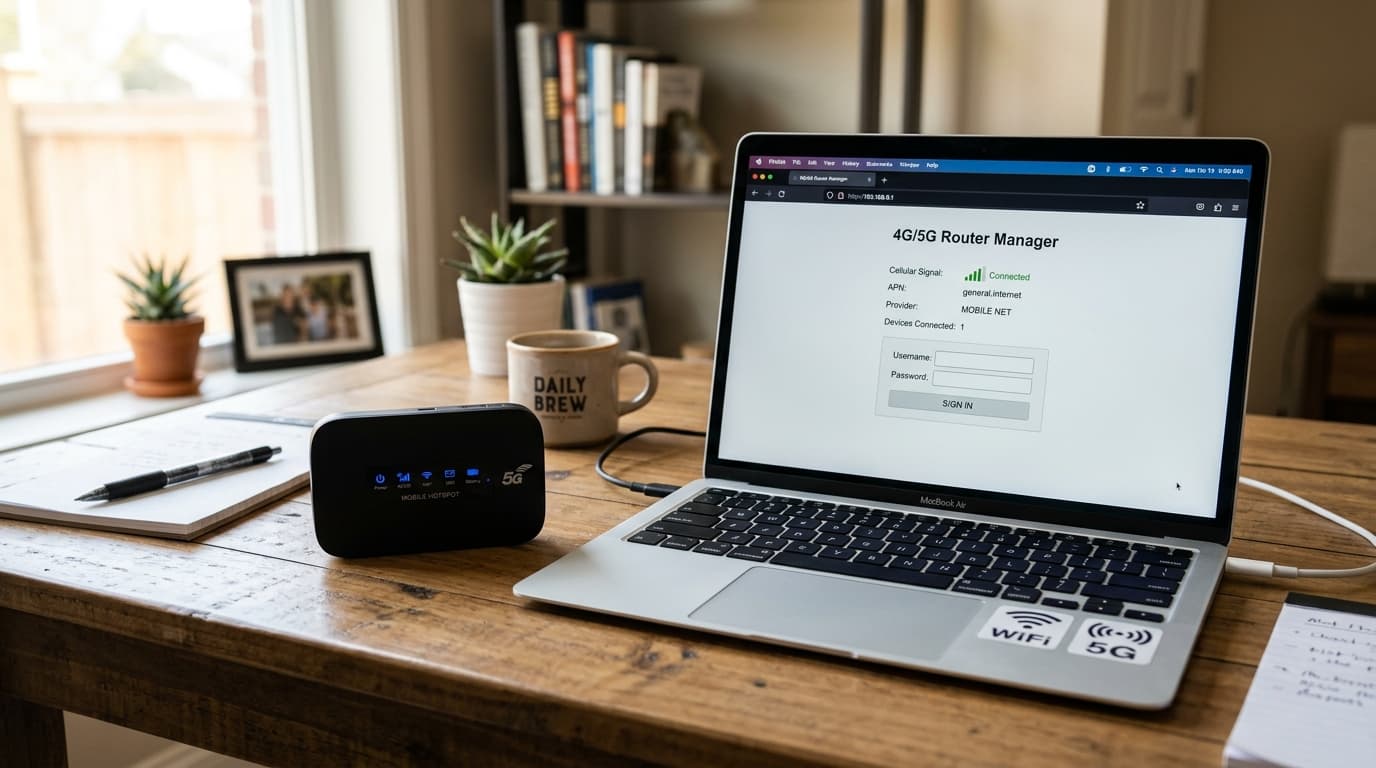
Accessing a 4G/5G Mobile WiFi hotspot or travel router at 192.168.8.1 to configure wireless settings and mobile APN parameters.
Diagnostic: 192.168.8.1 Symptoms & Quick Targets
Pinpoint why your Mobile WiFi unit or travel router admin panel isn't responding:
| Symptom | Potential Cause | Quick-Fix Target |
|---|---|---|
| Phone drops hotspot Wi-Fi and switches to mobile cellular | OS auto-switches to mobile data when hotspot has no active SIM or internet | Temporarily disable mobile data on phone; keep hotspot Wi-Fi connected |
| Browser gives "Connection Refused" or timeout | Carrier-customized gateway IP or active VPN client routing traffic | Check label on back/battery compartment for custom IP; disconnect VPN |
| Wi-Fi password accepted, but admin login rejects same password | Entering wireless SSID key instead of router management password | Check device sticker for "Admin Password" or log in with admin |
| GL.iNet router prompts for language & password setup | First boot or device was recently factory reset | Choose language and establish your permanent master admin password |
| Mobile browser renders stripped-down or blank control panel | Mobile viewport limitation in older Huawei hotspot web firmware | Enable "Desktop Site / Request Desktop Mode" in mobile browser menu |
How to Log In to 192.168.8.1
Here's the standard login process:
- Connect to the device. Join its Wi-Fi network or plug in with Ethernet if the device supports it.
- Open your browser. Chrome, Safari, Firefox, or another modern browser will usually do the job.
- Type
192.168.8.1into the address bar. Don't search for it on Google or another search engine. - Sign in. Enter the device's administrator or management password.
If you're setting up a new GL.iNet router, you may be asked to create an admin password during the initial setup. That password isn't necessarily the same as the one used for Wi-Fi.
Huawei Mobile WiFi devices can also use a separate password for their web-based management interface.
What Devices Use 192.168.8.1?
192.168.8.1 isn't one of those addresses that belongs to every router.
It's mainly associated with two different types of devices: Huawei cellular networking hardware and GL.iNet routers.
Huawei Mobile WiFi & CPE
Many Huawei Mobile WiFi and CPE devices use 192.168.8.1 to open their web-based management page.
Note: Carrier-customized versions (EE, Vodafone, Zain, Telkom) can use a different address. If yours came from a mobile carrier, check the information printed on the device's label before assuming 192.168.8.1 is correct.
GL.iNet Travel Routers
GL.iNet routers use 192.168.8.1 as their default LAN IP. When you're connected to the router's network, entering the address opens its local Admin Panel.
This subnet avoids IP conflicts when bridging public hotel or coffee-shop Wi-Fi that already occupies 192.168.1.1 or 192.168.0.1.
So don't just ask whether 192.168.8.1 works. Ask yourself: what device am I actually trying to manage? The answer affects what the login page looks like and which settings you'll find after signing in.
Your Wi-Fi Password May Not Be Your Admin Password
This is where plenty of people get stuck.
Gets your phone, laptop, or tablet onto the wireless network so packets can flow to the device.
Authenticates you into the web settings page at 192.168.8.1 to modify settings and network parameters.
They can be completely different passwords.
That means you might successfully connect to the Wi-Fi, open the admin page, enter the same password again — and get rejected. That doesn't automatically mean anything is broken. You may simply be entering the Wi-Fi password where the router expects its management password.
What Can You Manage From 192.168.8.1?
The answer depends on what you're using. A cellular hotspot doesn't have the same controls as a travel router, and neither behaves exactly like a standard home broadband router:
1. Change the Wi-Fi Name and Password
On supported Huawei Mobile WiFi and CPE devices, you can use the management page to change the Wi-Fi name, also known as the SSID, and update the Wi-Fi password. If you've forgotten the Wi-Fi password but can still log into the management interface, you may be able to view or replace the wireless credentials from there.
2. Configure Mobile Network and APN Settings
An APN, short for Access Point Name, tells a cellular device how to connect to a mobile carrier's data network. You might need to check the APN when inserting a new SIM, switching carriers, travelling, or using a network that requires manual settings.
Supported Huawei Mobile WiFi devices can provide APN configuration through the web management page or the AI Life app. The exact menus depend on the model and firmware, so don't expect every device to look identical.
3. Check Mobile Data Usage
Some Huawei Mobile WiFi devices let you monitor mobile data usage and set daily or monthly limits from the management interface. That's one of the reasons this address has a different search intent from a typical home-router login. Mobile data can cost money, especially when you're roaming or working with a limited data plan.
4. Manage Connected Devices
Depending on the hardware, you may be able to see which devices are connected and control their access to the network. Supported Huawei devices can also include options for managing connected clients and Wi-Fi filtering.
If you need a broader explanation of what router dashboards actually contain, see our guide to how to access your router admin page.
192.168.8.1 Isn't Opening? Try These Fixes
Don't reach for the reset button yet. Most login failures come down to the connection, the wrong address, or something on the device getting in the way.
Make Sure You're Connected to the Right Network
Your phone or computer needs to be connected to the exact router or hotspot you're trying to manage. This is especially easy to miss on a phone. It may switch back to mobile data, or your laptop might quietly reconnect to another saved Wi-Fi network. Check the network name. Then try again.
Check Whether Your Device Uses Another IP Address
Carrier-customized Huawei devices don't always use the same management address as the standard version. Start by checking the device label or nameplate.
You can also find your current default gateway:
- Windows: Open Command Prompt, run
ipconfig, and look for Default Gateway. - Mac: Open Wi-Fi settings → Details → TCP/IP → Router.
- iPhone: Go to Settings → Wi-Fi → tap the ⓘ beside your connected network → check Router.
- Android: Open your connected Wi-Fi network's details and look for Gateway or Router.
If you see a different address, that's probably the one you should use. Our guide to finding your router's IP address walks through this in more detail.
Turn Off Your VPN or Proxy Temporarily
A VPN or proxy can sometimes interfere with access to a local router page. Browser extensions and cached data can cause problems too. Disconnect the VPN temporarily, make sure you're still connected to the router's network, and then try 192.168.8.1 again.
Try Desktop Mode on Your Phone
Some Mobile WiFi settings are easier to access through the desktop version of a browser. If the management page looks stripped down or you're missing options, try Request Desktop Site. The wording varies between browsers, but the option is usually available in the browser menu.
You See a Browser Security Warning
Local router interfaces can trigger browser security warnings. Before proceeding, check two things: you're connected to your own router, and the address really is 192.168.8.1.
Don't treat every browser warning as harmless. A warning for your verified local router is one situation; a warning for an unfamiliar website is another.
Can You Manage a Huawei Device Without 192.168.8.1?
Sometimes.
Compatible Huawei Mobile WiFi and CPE devices can also be managed through the HUAWEI AI Life app. Depending on the supported device, the app may provide access to Wi-Fi settings, device information, mobile data controls, and APN configuration.
It's not a universal replacement for the browser interface. Support varies by device and software version.
If your device supports AI Life, connect your phone to the device's Wi-Fi first and then open the app.
What If You Forgot the 192.168.8.1 Login Password?
First, make sure you've forgotten the management password and not just the Wi-Fi password.
For some Huawei Mobile WiFi products, the original management information may be printed on the device's nameplate. Carrier versions can be different, though.
If you've changed the management password and can't recover it, a factory reset may be your only remaining option. Use that option carefully.
A factory reset can wipe your customized configuration and put the device back into its original setup state. That may mean setting up your Wi-Fi and internet connection again afterward. Before doing it, see our guide to how to reset a router so you know what you're likely to lose.
Why Does 192.168.8.1 Work Without Internet?
Because it's a private local IP address.
You're not visiting a website on the public internet when you open 192.168.8.1. You're communicating directly with a device on your local network.
So even if your mobile data connection or broadband service is down, the management page can still be available — as long as your phone or computer is connected to the router itself.
Frequently Asked Questions
What is 192.168.8.1?
192.168.8.1 is a private IP address used as a local management address by certain devices, including supported Huawei Mobile WiFi/CPE products and GL.iNet routers.
Is 192.168.8.1 my Wi-Fi password?
No. It's an IP address used to open the device's management page. The password requested after opening that page may be different from your Wi-Fi password.
Why can't I open 192.168.8.1?
You may be connected to the wrong network, using a device with another management address, or dealing with interference from a VPN, proxy, browser extension, or mobile browser setting. Check the device label and your default gateway first.
Can I use 192.168.8.1 on my phone?
Yes. Connect your phone to the router or Mobile WiFi network, then type the address into your browser. If the mobile version of the management page is limited, try switching to desktop mode.
Do I need internet access to log in to 192.168.8.1?
No. You only need a local connection to the relevant router or Mobile WiFi device. The management page may still work even when the internet connection doesn't.
Bottom Line
192.168.8.1 serves as the primary local administration gateway for specialized hardware like Huawei Mobile WiFi cellular modems and GL.iNet travel routers. Reaching the management console requires only a direct local connection (over Wi-Fi or Ethernet), meaning the interface remains accessible even during mobile broadband outages. If the gateway fails to respond, verify your active subnet via default gateway lookup, temporarily disable VPN clients, and distinguish between your local Wi-Fi passphrase and master management password. For forgotten credentials on customized carrier hardware, perform a careful factory reset to return the unit to its factory-assigned defaults.
Interactive Sandbox
Practice logging into your 192.168.8.1 mobile hotspot or GL.iNet portal:
Administrator Login
Access gateway configurations
Diagnostic Tools
Run automated checks to verify your active subnet or detect gateway conflicts: