192.168.0.1 Login: Router Admin Access Guide
If your router uses 192.168.0.1, enter http://192.168.0.1 in your browser's address bar to access the local admin dashboard, configure Wi-Fi, and manage network security.
If your router uses 192.168.0.1, type http://192.168.0.1 into your browser's address bar while connected to that router. You don't need working internet service to open the router's local admin page; the connection between your device and the router is enough.
192.168.0.1 is a private IPv4 address used inside local networks. The page you see after opening it depends on the router and whether it has already been configured.
| Login address | http://192.168.0.1 |
| Connection needed | Wi-Fi or Ethernet to the router — no internet required |
| Credentials | Router label, setup card, or custom password set during setup |
| If it doesn't load | Check your default gateway instead of guessing |
How to Log In to 192.168.0.1
The basic login takes four steps:
- Connect to the router. Join its Wi-Fi network or connect your device with an Ethernet cable.
- Enter the address. Type
http://192.168.0.1directly into the browser's address bar. Don't put it into Google or another search engine. - Enter your credentials. Use the router's administrator username and password.
- Open the dashboard. Press Enter or submit the form to reach the router's management interface or setup wizard.
The exact screen varies by router. Some devices take you to a normal login page, while a newly installed router may start its setup process instead.
Where to Find the Router Username and Password
There's no universal username and password for every router that uses 192.168.0.1.
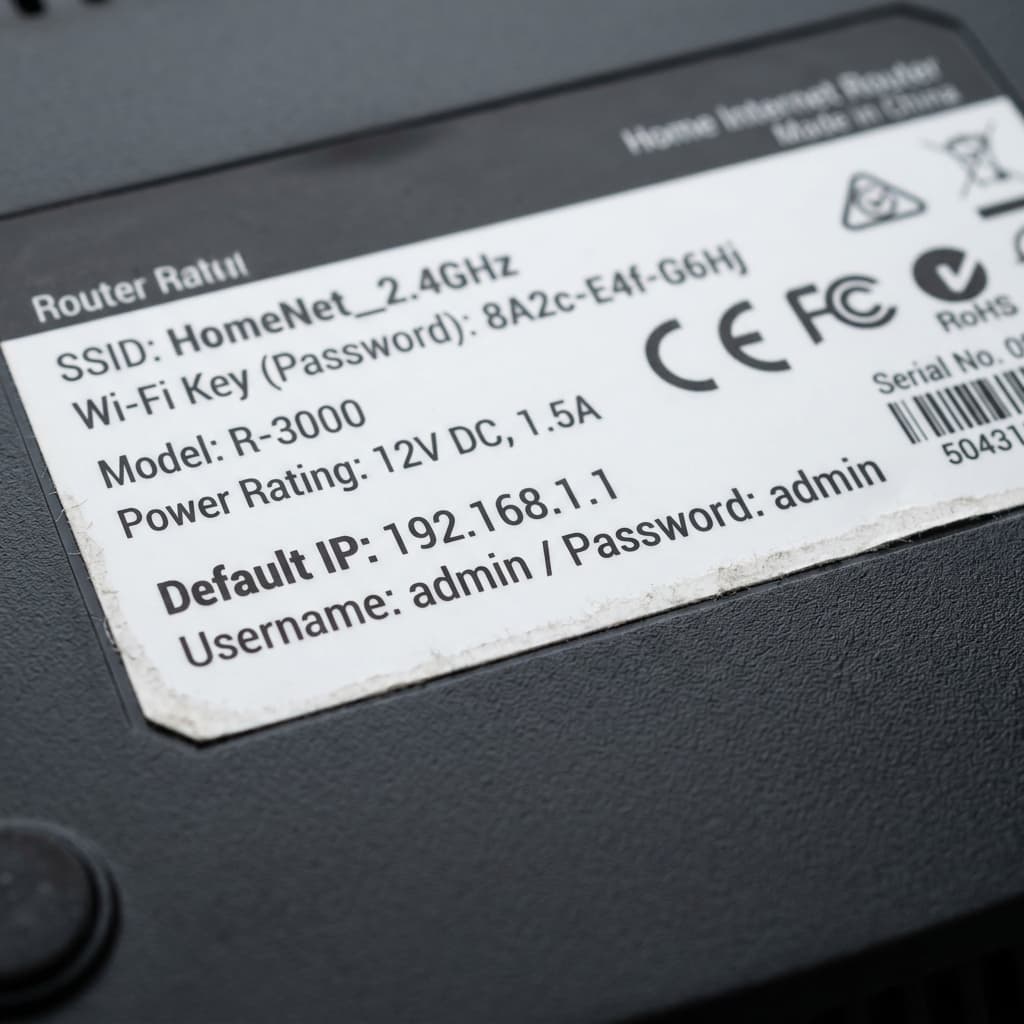
Check the label on the router first. The credentials may be printed on the bottom or back, or supplied on a setup card. That's a much better starting point than trying a random list of default passwords.
Some older routers used simple defaults such as admin, but don't assume admin/admin will work. Newer routers are increasingly likely to use a unique password for each unit or ask you to create an administrator password during setup.
If you've changed the administrator password and forgotten it, more guessing usually won't help. A factory reset may eventually be necessary, but that's a last resort because it can erase your customized router settings.
Check the Address: 192.168.0.1, Not 192.168.o.1
The third number is zero, not the letter O.
192.168.0.1 — Correct (Number 0)192.168.o.1 — Invalid (Letter O)The mistake is easy to miss because the characters can look almost identical.
Also check for missing dots or spaces. 192.168. 0.1, for example, isn't the same address.
If the browser reports that the page can't be reached, verify the address before assuming there's a problem with the router.
192.168.0.1 Isn't Opening? Start Here
If the login page doesn't appear, don't immediately start trying every common router address you can remember. Work out what's actually happening first.
You're connected to the wrong network
Your device needs to be connected to the router you're trying to manage. A phone or laptop can sometimes reconnect to another saved Wi-Fi network without making it obvious. Check the network name and reconnect to the correct router before troubleshooting anything else.
Your router uses a different IP address
192.168.0.1 is a common router address, not a mandatory one.
Your device's default gateway tells you which local address it is actually using to reach the router. If that value isn't 192.168.0.1, use the address shown there instead.
Here are the quick checks:
- Windows: Open Command Prompt, run
ipconfig, and find Default Gateway. - Mac: Wi-Fi → Details → TCP/IP → Router.
- iPhone: Settings → Wi-Fi → tap the ⓘ next to your network → Router.
- Android: Open your connected Wi-Fi network's details and look for Gateway or Router.
If you need screenshots and the longer version of these steps, see our guide to finding your router's IP address.
The login page appears, but the password fails
Check the credentials carefully before assuming they're invalid.
Usernames and passwords can be case-sensitive, and characters such as 0 and O or 1 and lowercase l are easy to confuse.
If you changed the administrator password after setting up the router, the credentials printed on its label may no longer work.
The browser says "Not secure"
Some router admin pages still use ordinary HTTP rather than HTTPS. Your browser may therefore show a Not secure message or a certificate warning.
That warning doesn't automatically mean something is wrong with your router. If you typed http://192.168.0.1 yourself and you're connected to your own network, you're dealing with the router's local web interface.
If your browser offers an Advanced option followed by a way to continue to the local page, only proceed when you've verified that the address is exactly your router's address.
Why Does 192.168.0.1 Work as a Router Address?
192.168.0.1 belongs to the 192.168.0.0/16 private IPv4 address block reserved under RFC 1918.
On a typical home network using a /24 subnet, 192.168.0.0 is the network address and 192.168.0.1 is the first usable host address. A router can use that first address as the local gateway.
That's a convention, though—not a rule.
A router isn't required to use .1, which is why other home networks may use 192.168.1.1, 192.168.1.254, or another private address altogether.
Can a Static IP Break Access to 192.168.0.1?
Yes, if another device has been manually assigned the same address.
For example, suppose the router uses 192.168.0.1 and you give a printer or smart-home hub that exact address as a static IP. Two devices are then competing for one address, creating an IP conflict.
It's not the first thing to check when the login page won't open, but it matters if you've recently been assigning static addresses manually. Check the router's DHCP settings before choosing an address for another device.
What If the Router Uses an App?
Not every modern router expects you to manage it through a browser.
Some ISP-provided routers and mesh systems use a companion mobile app for setup and administration. If 192.168.0.1 doesn't load and your router came with an app, check the manufacturer's documentation before assuming the router is malfunctioning.
What Should You Do After Logging In?
Once you're in, there are a few settings worth checking rather than simply closing the browser:
- Change the administrator password if it's still using a factory default. Anyone who can reach the router's admin interface and knows the original credentials may be able to change network settings.
- Check the Wi-Fi security setting. If the router supports WPA3 and your devices are compatible, it's worth considering.
- Review the connected-device list to see all devices currently active on your network.
- Disable remote management if you don't actually use it, preventing unwanted external access attempts.
If you want a fuller explanation of the router dashboard and its settings, see our guide to how to access your router admin page.
Frequently Asked Questions
Do I need internet access to log in to 192.168.0.1?
No. You only need a local Wi-Fi or Ethernet connection to the router. The router's admin page can remain available even when its internet connection is down.
Is 192.168.0.1 the same as 192.168.1.1?
No. They're different private IP addresses, although both are commonly used as router gateways. Your device's default gateway tells you which one your current network actually uses.
What if 192.168.0.1 isn't my router's address?
Check the Default Gateway on Windows or the Router field on macOS and iPhone. Android devices may label the same value Gateway or Router. If your device shows another address, use that one instead.
Why does 192.168.0.1 show as 192.168.o.1?
That's a typo. The address contains the number zero (0), not the letter o.
Will a factory reset fix a forgotten router password?
It can, but it should be a last resort. A factory reset removes the router's customized configuration, which can include your Wi-Fi name and password and other network settings. You'll need to set the router up again afterward. If you're at that point, read our guide to how to reset a router before pressing the reset button.
Interactive Sandbox
Practice accessing the admin dashboard in our simulation sandbox below:
Administrator Login
Access gateway configurations
Diagnostic Tools
Run automated checks to verify your active subnet or detect gateway conflicts: