192.168.100.1 – Router Admin Login Page
Log into your router at 192.168.100.1 from PC or phone. Covers default passwords, Motorola, Arris, Huawei & TP-Link, troubleshooting.
I've helped a lot of people get into their router settings for the first time — and honestly, 192.168.100.1 trips up more folks than most IPs. Not because it's hard to use, but because it looks a little unusual. Three digits in that third spot? Feels wrong. But it's completely legit, and this guide walks you through everything: logging in on your computer, logging in on your phone, fixing common problems, and making your network actually secure once you're in.
Table of Contents
- What Is 192.168.100.1?
- Default Credentials for 192.168.100.1
- How to Log In on a PC or Mac
- How to Log In on a Mobile Phone
- Troubleshooting: 5 Problems and How to Fix Them
- How to Factory Reset a Router Using 192.168.100.1
- What to Do After You Log In
- Which Brands and ISPs Use 192.168.100.1?
- Frequently Asked Questions
What Is 192.168.100.1?
192.168.100.1 is a private IP address — specifically, the default gateway address used by certain routers and modem-router combos to host their admin panel. When you type it into a browser, you're not going to a website. You're talking directly to the device sitting in your home.
This address falls inside the private IP ranges defined by RFC 1918 private address ranges — a set of address blocks reserved exclusively for local networks. That means 192.168.100.1 is invisible to the public internet. It only works if your device is connected to the same network as the router.
Think of it like an internal office extension number. It works on the building's phone system, but you can't dial it from outside.
What makes 192.168.100.1 a little different from more common addresses like 192.168.1.1 or 192.168.0.1 is the “100” in the third segment. This is typical of ISP-provisioned equipment — particularly cable modems, DSL gateways, and fiber ONUs used by providers like Xfinity (Comcast), Cox, and certain Spectrum deployments. Brands like Motorola, Arris, ZyXel, Huawei, and TP-Link frequently use this IP on their gateway hardware. You'll also see it on some Netgear and DIGI devices.
Here's something most people don't realize: your router sits between your devices and your ISP. When you access 192.168.100.1, you're not touching the internet at all — you're configuring the device that manages your local traffic. That's why this address is only reachable from inside your network.
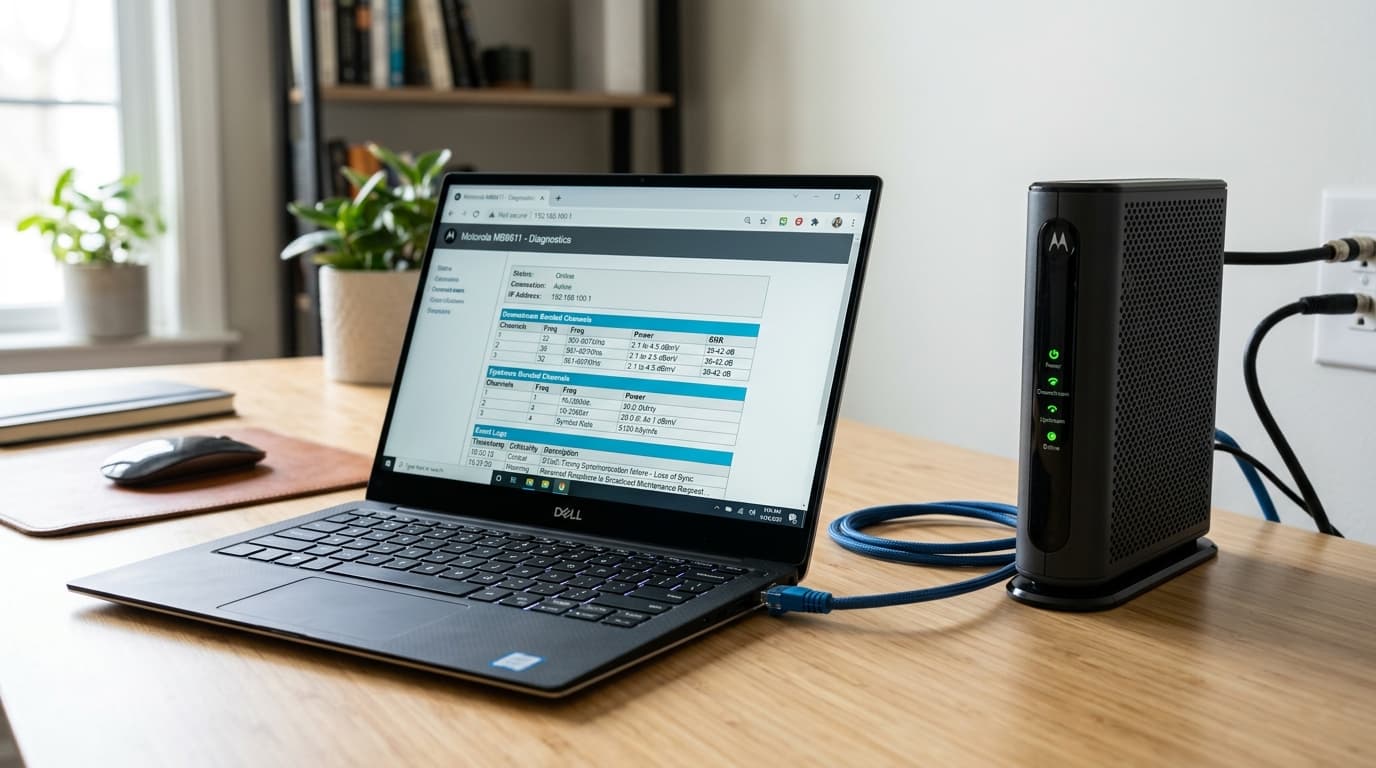
192.168.100.1 router login showing “Not Secure” browser warning
Default Credentials for 192.168.100.1
Before you log in, you'll need a username and password. Here are the default credentials for major brands that use 192.168.100.1. That said, always check the label on the back or bottom of your router first — manufacturers sometimes print device-specific credentials there, which override the general defaults.
| Brand | Default Username | Default Password |
|---|---|---|
| TP-Link | admin | admin |
| Netgear | admin | password |
| Huawei | admin | admin |
| Arris | admin | password (or blank) |
| Motorola | admin | motorola or blank |
| ZyXel | admin | 1234 or admin |
| Tenda | admin | admin |
| D-Link | admin | (blank) |
| Linksys | admin | admin |
| Cisco | cisco | cisco |
| Belkin | admin | (blank) |
Pro tip: If none of these work, your ISP might have set a custom password. Check any documentation or paperwork left by the technician when your service was installed.
How to Log In on a PC or Mac
This process works in Chrome, Firefox, Safari, Edge — any modern browser.
- Make sure your computer is connected to the router, either via Wi-Fi or an Ethernet cable.
- Open your browser and click the address bar at the top — the long bar where URLs go.
- Type
192.168.100.1exactly as written and press Enter. - You should see your router's login page load. Enter your username and password.
- Click Login or OK to access the admin dashboard.
If the page doesn't load, skip to the troubleshooting section below.
How to Log In on a Mobile Phone
Most guides skip this entirely or give you one vague set of steps. Here's how it actually works on both iPhone and Android.
iPhone (iOS)
- Open Settings → tap Wi-Fi → make sure you're connected to your home network.
- Open Safari (not Chrome — Safari handles local IPs more reliably on iOS).
- In the address bar at the top, type
192.168.100.1and tap Go. - The router login page should appear. Enter your credentials.
- If Safari redirects you or gives an error, try typing
http://192.168.100.1with the fullhttp://prefix.
Android
- Pull down from the top and make sure Wi-Fi is enabled and connected to your home network.
- Open Chrome or any browser.
- Tap the address bar and type
192.168.100.1, then tap Enter or Go. - Log in with your username and password.
Troubleshooting: 5 Problems and How to Fix Them
If you're unable to access the 192.168.100.1 router login page, you're not alone. Below are the most common issues users face and how to fix them quickly.
1. “This site can't be reached” / Page won't load
Cause: You're either not connected to the right network, typed the wrong IP, or accidentally used the search bar instead of the address bar.
Fix: Double-check that your device is connected to your home Wi-Fi (not a neighbor's). Verify your router's actual IP — on Windows, open Command Prompt and type ipconfig, then look for “Default Gateway.” On Mac, go to System Settings → Network → your connection → Details. Make sure the IP matches 192.168.100.1.
2. Login page loads, but credentials don't work
Cause: The password was changed previously (by you or someone else), or the device uses ISP-custom credentials.
Fix: Try all the defaults in the table above. Still no luck? The only real option is a factory reset (see the section below). Before you do that, check if your ISP has a support article — Xfinity and Cox, for example, sometimes set gateway passwords tied to your account.
3. Page loads but looks broken or blank
Cause: Your browser might be blocking the admin UI, or it's cached an old session.
Fix: Try a different browser. Open an incognito/private tab. Clear your cache. If you're using a VPN, disable it — VPNs can interfere with local IP routing.
4. The IP address goes to a weird ISP page instead of my router
Cause: Some ISPs (especially those using cable modem gateways) have a separate ISP management layer running on the same IP. This is actually fairly common with Xfinity and Cox equipment using the 192.168.100.x subnet.
Fix: Don't panic — this is normal for ISP-issued hardware. You may need to log into the ISP's interface first, or look for a “Gateway” or “Advanced” section within it. Contact your ISP if you need admin-level access beyond what's shown.
5. Can log in but changes won't save
Cause: Multiple browser tabs are open on the same router page, causing a session conflict. Or your router is older and has a bug in the firmware.
Fix: Close all browser tabs, log out fully, and log back in fresh with a single tab. If it still won't save, consider a firmware update (more on that below). This is annoying but rarely a sign of anything serious.
How to Factory Reset a Router Using 192.168.100.1
Before you reset: Back up your settings if your router supports it. Most Netgear, Arris, and TP-Link admin panels have a Backup/Restore option under Administration or Advanced. Use it. A factory reset wipes everything — Wi-Fi name, password, port forwarding rules, all of it.
To reset:
- Locate the small Reset button on the back or bottom of the router. It's usually recessed so you don't hit it accidentally — use a paperclip or pin.
- With the router powered on, press and hold the Reset button.
- • TP-Link: Hold for 10 seconds
- • Netgear: Hold for 7–10 seconds
- • Arris/Motorola: Hold for 15–30 seconds
- • Huawei: Hold for 10–15 seconds until indicator lights change
- Release the button. The router will reboot — give it 2–3 minutes to fully restart.
- Navigate back to
192.168.100.1and log in with factory default credentials (from the table above or the sticker on the device).
What to Do After You Log In
Logging in is just the beginning. Here's what actually matters once you're inside.
1. Change the Admin Password
This is the single most important thing you can do. If someone else gets on your network, the first thing they'll try is your admin panel with default credentials.
- Find Administration, System, or Management in the menu (varies by brand).
- Look for Admin Password, Account Settings, or Change Password.
- Enter a new password — use something unique, at least 12 characters. Following NIST password guidelines means favoring length over complexity; a passphrase like
BlueCoffeeTable22!is more secure thanX#4p!and far easier to remember. - Save and log back in with the new password.
2. Change Your Wi-Fi Password
Go to Wireless or Wi-Fi Settings → find your network SSID → look for Password, Passphrase, or WPA Pre-Shared Key. Update it and save. If you have both 2.4GHz and 5GHz bands, update each one.
3. Set WPA2 or WPA3 Security Mode
Older routers default to WEP or WPA, which are crackable. Find your Wireless Security settings and select WPA2-PSK (AES) at minimum. If your router and devices support it, WPA3 security standard is significantly stronger and worth enabling. For most home networks in 2026, WPA2 is still solid — WPA3 is the upgrade, not a requirement.
4. Check Connected Devices
Under DHCP Client List, Connected Devices, or LAN settings, you'll see every device on your network. If something looks unfamiliar, you can learn what a MAC address is to help identify unknown entries — every device has a unique hardware identifier. Suspicious device? Change your Wi-Fi password and that device won't reconnect.
5. Set Up a Guest Network
If you have guests visit regularly, a guest network is worth the 5-minute setup. It puts visitors on a separate, isolated network — they get internet access, but can't reach your printer, smart home devices, or NAS. Our guest network is literally called “GuestWiFi” — simple works. Find Guest Network or Guest SSID in your Wireless settings.
6. Update Your Router Firmware
Firmware updates patch security vulnerabilities. Under Administration or Advanced, look for Firmware Update or Software Update. Many newer routers check automatically — but if yours doesn't, doing it manually once or twice a year is good practice. Always have a stable connection before updating, and don't unplug the router mid-update.
Common Misspellings of 192.168.100.1
These typos will all land you in the wrong place:
Correct address: 192.168.100.1 — no spaces, no slashes, no letters substituted for numbers.
Which Brands and ISPs Use 192.168.100.1?
Brands that commonly use this IP as default:
- • Motorola (especially MG7550, MB8611, and similar cable modem-routers)
- • Arris (SURFboard series and ISP-issued gateway devices)
- • Huawei (fiber gateway devices, common outside the US but used by some carriers)
- • ZyXel (DSL and fiber gateway models)
- • TP-Link (select modem-router combo models, not standalone routers)
- • Netgear (some older and ISP-specific models)
- • DIGI (carrier-specific hardware)
ISPs that may deploy hardware using 192.168.100.1:
- • Xfinity (Comcast) — some Xfinity gateway models use 192.168.100.1, although the standard Xfinity admin IP is 10.0.0.1
- • Cox — some Cox-issued Panoramic WiFi gateways
- • Spectrum — rare; Spectrum usually uses 192.168.0.1
- • AT&T — rare; AT&T standard is 192.168.1.254
- • Verizon Fios — rare; Fios default is typically 192.168.1.1
The short version: if your ISP gave you a combo modem-router (one device that handles both your cable/fiber connection and your Wi-Fi), there's a decent chance 192.168.100.1 is the login IP. If you have a separate modem and router, the router's IP is more likely to be 192.168.1.1 or 192.168.0.1.
Frequently Asked Questions
What's the difference between my Wi-Fi password and my admin password?
These are two completely different things, and confusing them is one of the most common router mistakes. Your Wi-Fi password (also called a network key or WPA passphrase) is what your phone or laptop enters to join the wireless network. Your admin password is what you enter at 192.168.100.1 to access the router's settings. You can have one without the other. Changing one does not change the other.
Why does 192.168.100.1 take me to my ISP's page instead of a router settings panel?
ISP-issued gateway devices (especially from Xfinity and Cox) sometimes run a simplified management interface that's controlled by the ISP. You might see limited options compared to a standalone router. Some ISPs lock out certain settings to protect their network configuration. For full access, you may need to call your ISP or put the gateway into “bridge mode” and add your own router.
Is it safe to access 192.168.100.1?
Yes, completely. This is a private IP address that only your own devices can reach. You're not exposing yourself to the internet by accessing it — you're just managing your local network.
I don't see 192.168.100.1 in my browser. What do I type?
Type it directly into the address bar (not the search bar) like this: http://192.168.100.1 — hit Enter. If the page still doesn't load, verify the IP by running ipconfig (Windows) or checking System Settings → Network (Mac/iPhone).
Do I need the internet to access 192.168.100.1?
No. Your internet connection can be completely down and you can still access 192.168.100.1 from a device on the local network. The admin panel runs locally on the router itself.
Interactive Sandbox
Practice logging into 192.168.100.1 with standard credentials:
Administrator Login
Access gateway configurations
Diagnostic Tools
Verify network ports, check subnets, or inspect your gateway IP: