To configure your router settings, change your Wi-Fi name or password, or set up port forwarding, you must first log into the router's administration page. But to do that, you need to know its private IP address. This is also called the "default gateway".
Quick answer: Your router's IP address — also called the default gateway — is the number you type into a browser to reach its admin page. On Windows, open Command Prompt and run ipconfig, then look for "Default Gateway." On a Mac, go to System Settings > Wi-Fi > Details > TCP/IP and check "Router." On iPhone or Android, tap your connected Wi-Fi network's info screen. It's usually a private address like 192.168.1.1 or 192.168.0.1, but yours might be different — every network is set up a little differently.
Router IP vs. Default Gateway vs. Public IP
These three terms get mixed up constantly, and mixing them up is why people end up typing the wrong number into their browser.
| Term | What it is | Where you'd use it |
|---|---|---|
| Router IP address | The router's private address on your home network | Logging into the router's admin panel |
| Default gateway | What your computer calls the router's address — same number, different name | Shown in Windows/Mac network settings |
| Public IP address | The address your ISP assigns to your whole network, visible to the internet | Checking what websites see when you visit them |
For almost every home setup, your router's IP address and your default gateway are the same number. Your public IP is a completely different address — it's not something you'd type into a browser to reach your router's settings.
Diagnostic: Router IP Access Symptoms & Quick Fixes
| Symptom | Potential Cause | Quick-Fix Target |
|---|---|---|
| Browser times out or shows error when accessing router IP | You're behind a second router (double NAT) or VPN is active | Put ISP modem in Bridge Mode, use AP mode, or disconnect VPN |
| IP address displays mesh node settings or status instead of main admin panel | Connected to a mesh Wi-Fi system node | Open the mesh system's mobile app (Eero, Google Nest, Orbi) for network admin settings |
| Gateway IP displays public-facing DNS server (like 8.8.8.8) | DNS is manually set on the device | Confirm "Default Gateway" or "Router" field instead of DNS Server field |
| No Default Gateway number shown in network settings | Device not fully connected to the network or DHCP failed | Confirm Wi-Fi connection, check physical Ethernet cable, or assign static IP manually |
How to Find It on Windows
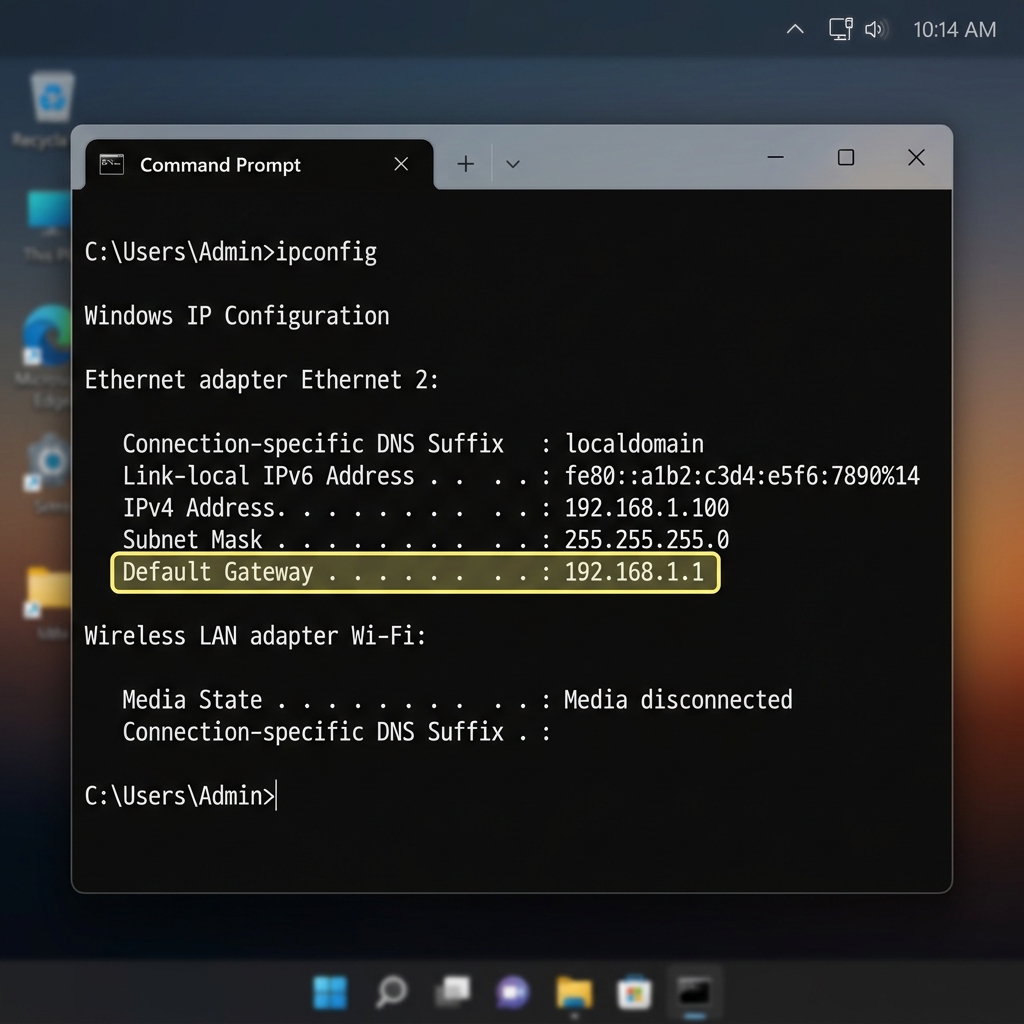
- Press Windows key + R, type
cmd, and hit Enter. - In the Command Prompt window, type
ipconfigand press Enter. - Look for the network adapter you're currently using — "Wireless LAN adapter Wi-Fi" if you're on wireless, or "Ethernet adapter" if you're plugged in.
- Find the line labeled Default Gateway. That number is your router's IP address.
If you'd rather skip the command line, you can also open Settings > Network & Internet, click your active connection, and scroll down to the "Properties" section — the gateway address is listed there too.
How to Find It on Mac
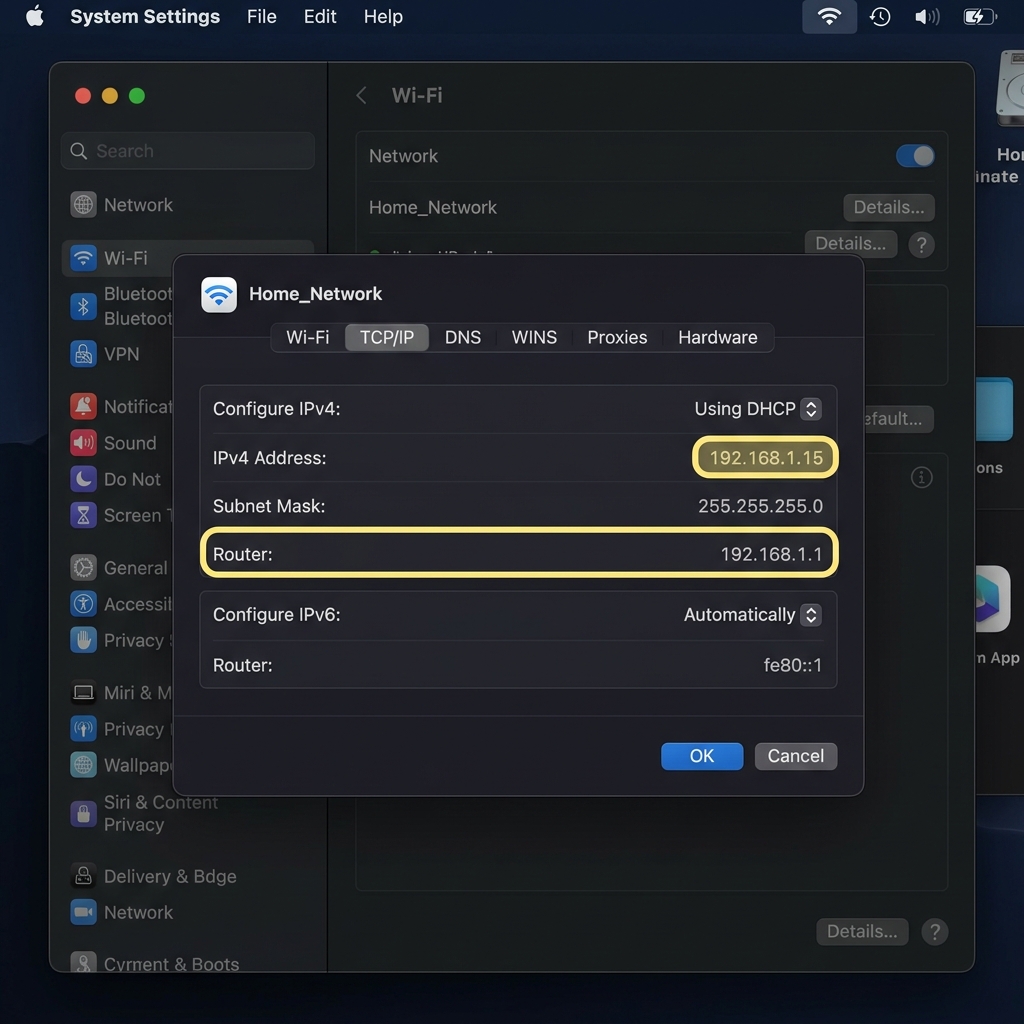
- Click the Apple menu and open System Settings.
- Select Wi-Fi (or Network on older macOS versions) from the sidebar.
- Click your active network connection, then click Details.
- Open the TCP/IP tab. The address next to Router is your router's IP.
You can also get this from Terminal if you're comfortable with it: open Terminal and type netstat -nr | grep default. The address next to "default" is your gateway.
How to Find It on Linux
Most Linux distributions make this a one-line job. Open a terminal and run:
ip route | grep defaultThe number right after "default via" is your router's IP address. If your system doesn't have the ip command, route -n works as a fallback — look for the line where the destination is 0.0.0.0.
How to Find It on iPhone or iPad
- Open Settings and tap Wi-Fi.
- Tap the (i) icon next to your connected network.
- Scroll to the IPv4 Address section. The address labeled Router is what you're looking for.
How to Find It on Android
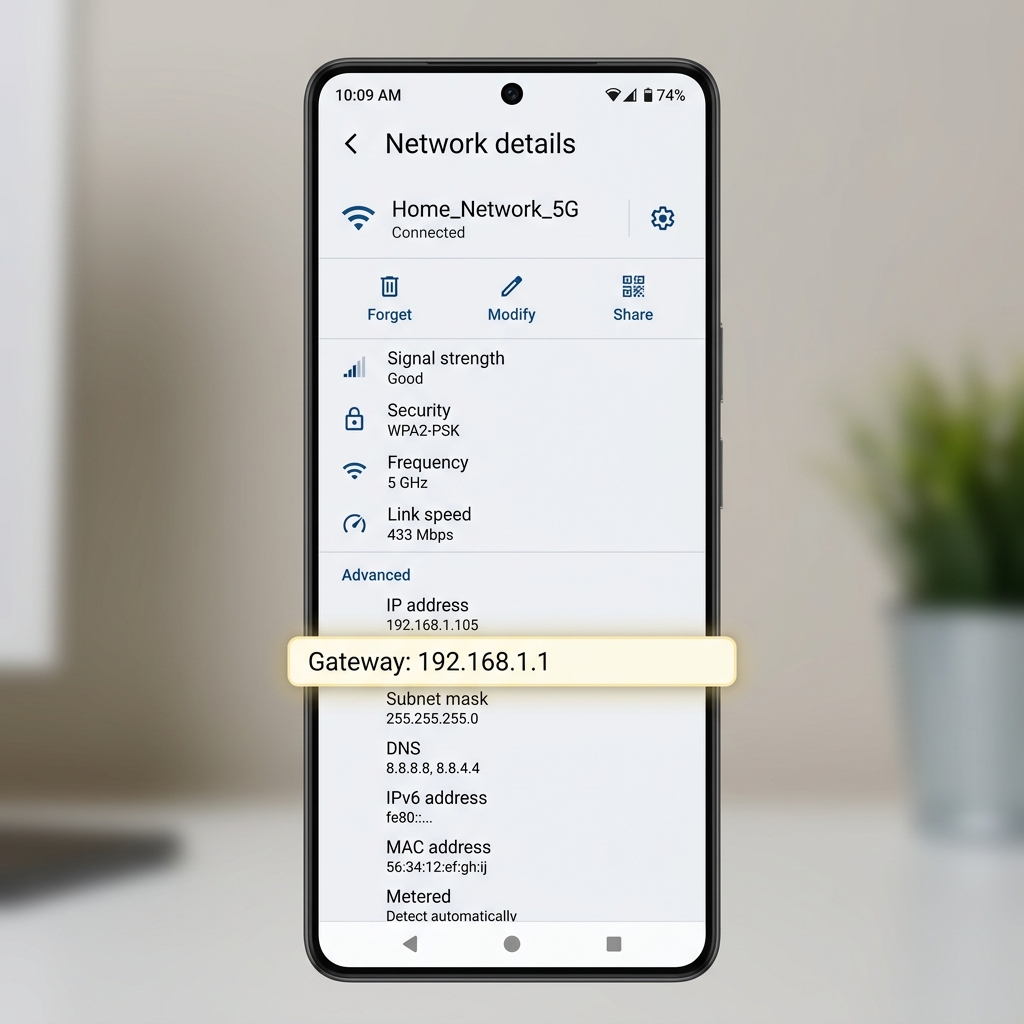
- Open Settings and go to Network & Internet > Internet.
- Tap the gear icon next to the Wi-Fi network you're connected to.
- Scroll down to Network details or Advanced. The address next to Gateway is your router's IP.
Menu names shift a bit between Android versions and phone brands, so if you don't see "Gateway" right away, look for "Router" or "IP settings" instead.
How to Find It on a Chromebook
- Click the status area in the bottom-right corner, then click the network icon.
- Select your connected Wi-Fi network.
- Click the gear icon to open network details, then go to the Network tab.
- Scroll down to Gateway — that's your router's IP address.
Check the Router Label
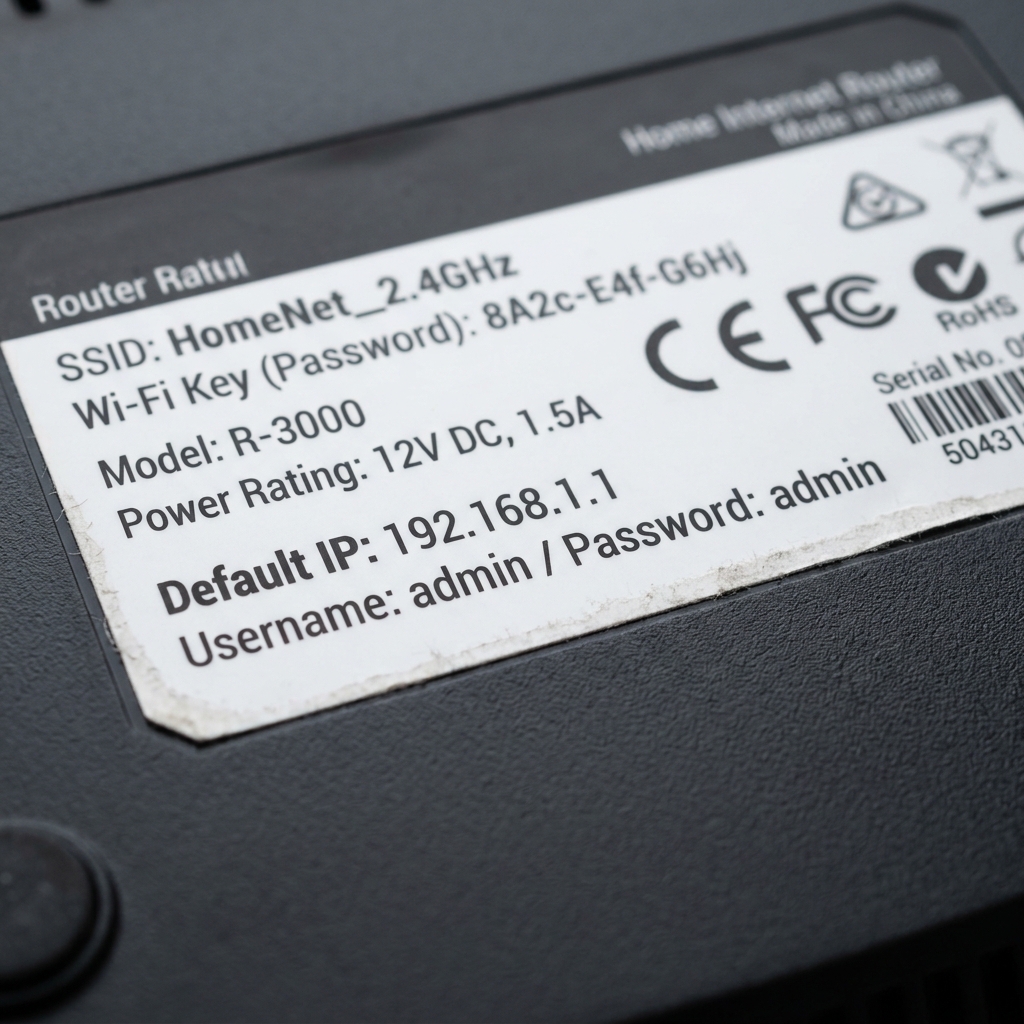
Every router ships with a sticker on the back or bottom listing a default IP address, admin username, and password. It's the fastest option if you haven't touched your router's settings before.
The catch: that sticker only shows the factory default. If you or your ISP changed the router's IP at some point, the sticker will be wrong. Use one of the device methods above to confirm what's actually active right now.
What to Do If the IP Address Doesn't Work
Sometimes you find an address, type it into your browser, and get nothing. A few things cause this:
You're behind a second router (double NAT). If your ISP's modem/router combo is also connected to your own router, your device might be showing you the IP of the wrong one. Check whether you have two networking devices chained together.
You're on a mesh Wi-Fi system. With mesh setups (Eero, Google Nest Wifi, Orbi), the gateway address your device shows might belong to a satellite node, not the main router. Open the mesh system's app instead — it usually has a direct link to network settings.
A VPN is active. VPNs can replace your default gateway with a virtual one while connected. Disconnect the VPN, then check again.
Your DNS is set manually. If your device is using custom DNS servers (like 8.8.8.8 for Google's DNS), don't rely on the DNS field to find your router's IP — that field only reflects your DNS setting, not necessarily your gateway. As Microsoft's networking documentation explains, the default gateway is a separate role: it's the device that routes traffic between your network and everything outside it. That's the field you want, not DNS.
If none of that applies and you're still stuck, our IP Address Checker tool will detect it automatically from your current connection.
Frequently Asked Questions
Is my router's IP address the same as my Wi-Fi password?
No. Your router's IP address is a network location you type into a browser's address bar to reach the login page. Your Wi-Fi password is what you enter to connect a device to the network in the first place. They're unrelated numbers serving different purposes.
Why do I see different router IP addresses on different devices?
You shouldn't, on a single-router network — every device should report the same gateway address. If they differ, you're likely dealing with multiple routers on the network, a mesh system, or a VPN active on one of the devices.
What if my router's IP address is 192.168.1.1 but it won't load?
Double-check you're typing it into the browser's address bar, not a search engine. If it still won't load, try clearing your browser cache, confirming you're connected to the right network, or restarting the router.
Can I change my router's IP address?
Yes, most routers let you change the LAN IP address from inside the admin panel, usually under LAN or Network Settings. It's rarely necessary unless you're dealing with a network conflict or setting up something advanced like a static route.
Bottom Line
Finding your router's IP address is the essential first step to managing your home network. Whether you are on Windows, macOS, Linux, or mobile, looking up the default gateway will give you the number you need. If the standard numeric addresses still won't load, make sure to check for common blockers like active VPNs or double NAT configurations. If all else fails, a physical factory reset of the router will restore its default settings, but note that this will wipe any custom Wi-Fi names or passwords you've configured. If you still can't connect, it may be time to contact your ISP or the router manufacturer's support line.