Quick answer: Open Command Prompt, type ipconfig, and look for "Default Gateway" under your active network adapter. That's the fastest method and it doesn't need admin rights. PowerShell and the Settings app work too, if you'd rather skip the command line. Whichever method you use, watch for two things: an IPv6 gateway line sitting right next to the IPv4 one you actually want, and the possibility of seeing two gateways at once if a VPN is running.
What the Default Gateway Actually Does
Your default gateway is the device — almost always your router — that your computer sends traffic through whenever it's headed outside your home network. Every time you load a website, that request passes through the gateway first before it ever reaches the internet.
Inside your own network, devices can usually talk to each other directly. The moment traffic needs to leave — reaching a website, a streaming service, anything not on your Wi-Fi — it routes through the gateway. That's also why the gateway address doubles as your router's login address: it's the one device positioned to see everything coming and going.
Which Method Should You Use
There isn't one "correct" way to do this. It depends on what you're comfortable with and what you're trying to do next:
| Method | Speed | Best For | Requires Admin? |
|---|---|---|---|
| Command Prompt (cmd) | ⚡ Fastest (under 5 sec) | Quickest number lookup, works on all Windows versions | No |
| PowerShell | ⚡ Fast (structured output) | Scripting, viewing multiple network adapter details at once | No |
| Windows Settings | 🖱️ Moderate (point & click) | Visual interface, avoiding the command line entirely | No |
| Control Panel | 🖱️ Classic (deep menu) | Longtime Windows 10/11 users accustomed to classic dialogs | No |
If you just want the gateway address and nothing else, Command Prompt wins. Everything below works reliably, so pick whichever fits your workflow.
1. Find It With Command Prompt
- Press Windows key + R, type
cmd, and hit Enter. - Type
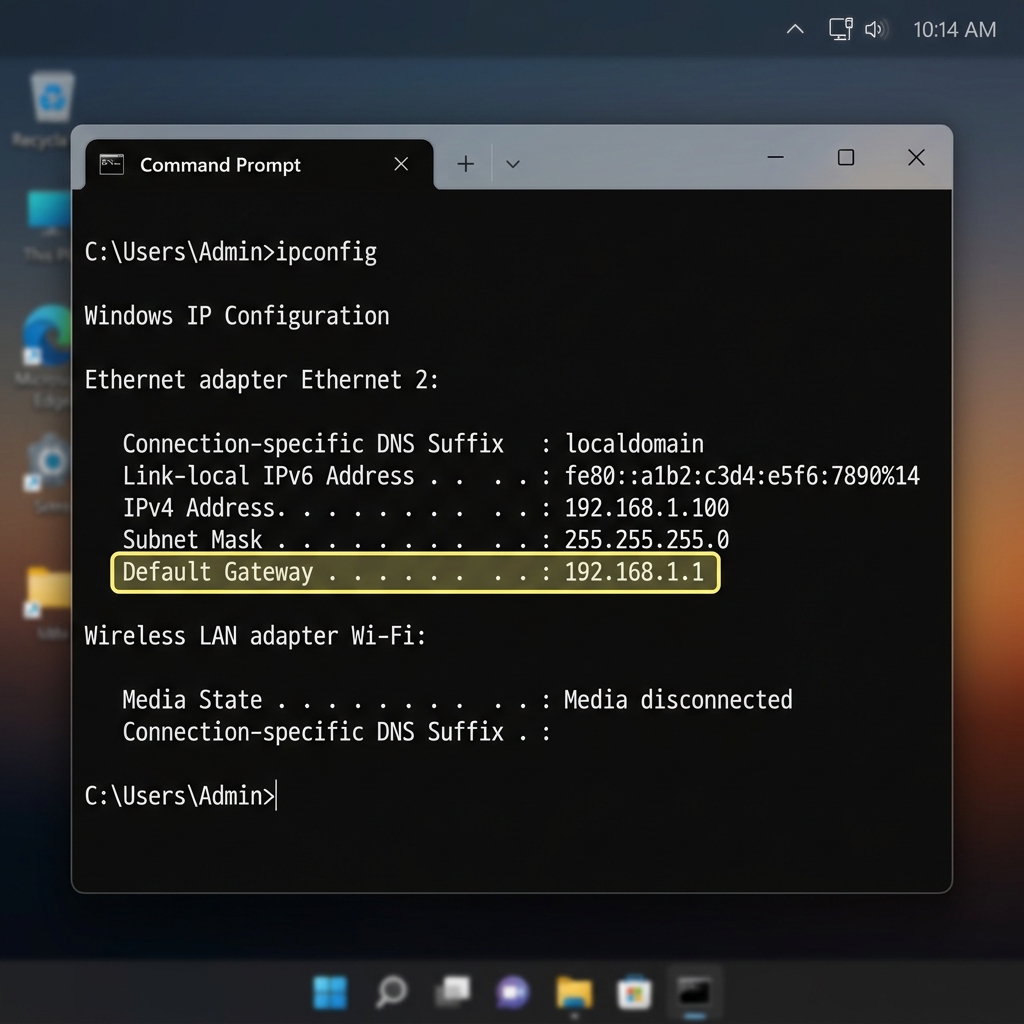
ipconfigand press Enter. - Find your active adapter in the output — "Wireless LAN adapter Wi-Fi" if you're on Wi-Fi, or "Ethernet adapter" if you're plugged in.
- Look for Default Gateway. The number next to it (such as
192.168.1.1or192.168.0.1) is what you want.
Want to skip scrolling through the whole output? Run this filter trick instead:
ipconfig | findstr /i "Gateway"That filters everything down to just the gateway lines, saving you from hunting through adapter after adapter.
2. Find It With PowerShell
- Press the Windows key, type
powershell, and open it. - Type
Get-NetIPConfigurationand press Enter. - Look for IPv4DefaultGateway under your active adapter.
PowerShell's output is more structured than Command Prompt's, which makes it easier to read at a glance if you're checking multiple adapters at once. If you'd rather stick with something familiar, ipconfig works fine inside PowerShell too.
3. Find It Through Windows Settings
- Open Settings (press Windows key + I) and go to Network & Internet.
- Click your active connection — Wi-Fi or Ethernet.
- Scroll down to the Properties section.
- Find Default gateway listed under your IP settings.
No command line, no typing. Just a bit more clicking to get there.
4. Find It With Control Panel (Older Method)
Still on an older Windows build, or just prefer the classic interface? This works on Windows 10 and 11 too, it's just buried a layer deeper than Settings.
- Type
control panelinto the Windows search box and open it. - Go to Network and Internet > Network and Sharing Center.
- Click your active connection next to "Connections" (e.g., Wi-Fi or Ethernet).
- Click Details in the status dialog that opens.
- Look for IPv4 Default Gateway in the property list.
It's more clicks than any other method here, but it's the one longtime Windows users tend to already know by muscle memory.
IPv4 vs. IPv6: Which One You Actually Want
Windows often shows two default gateway entries: one IPv4, one IPv6. For logging into your router, configuring network settings, or troubleshooting connections, you want the IPv4 one.
| Protocol | Example Format | Use Case |
|---|---|---|
| IPv4 Gateway (Target) | 192.168.1.1 or 10.0.0.1 |
Opening router admin web GUI, local port forwarding, ping diagnostics |
| IPv6 Gateway | fe80::1%12 or 2001:db8::1 |
Next-generation routing (won't open standard router web portal in most browsers) |
The IPv6 gateway is a long string with colons and percentages. It's real, it does something, but it's not what you're after here. If you type an IPv6 link-local gateway into your browser expecting a router login page, it won't work the way you expect.
Troubleshooting Common Gateway Issues
Two default gateways show up. This usually means a VPN is running. VPNs create a virtual network adapter with its own gateway, sitting alongside your regular one. Disconnect the VPN and check again — you should see just one.
No Default Gateway line at all. Your adapter isn't connected properly, or it's using a static IP configuration that never had a gateway set. Check that you're actually connected to Wi-Fi or Ethernet, and if you're on a static IP setup, confirm the gateway field wasn't left blank.
Gateway shows up, but the address won't load in a browser. You've probably got the right number but you're not on the right network — double-check you're connected to the network you think you are, not a neighboring one or a guest network.
Not sure if the gateway is even reachable. Ping it before assuming something's broken. Open Command Prompt and run ping followed by the gateway address — for example, ping 192.168.1.1. Replies coming back mean your device can reach the router just fine, and the problem is somewhere else (browser cache, wrong URL). No replies, or "Request timed out," points to a real connection issue between your device and the router.
Frequently Asked Questions
Is the default gateway the same as my router's IP address?
Yes, on nearly every home network. The default gateway address and the router's IP address are the same number — "default gateway" is just what Windows calls it.
Why does ipconfig show more than one adapter?
Windows lists every network adapter your device has, active or not — Wi-Fi, Ethernet, virtual adapters from VPNs, and sometimes Bluetooth. Only the one you're actively connected through will show a real Default Gateway value.
Can I find the default gateway without opening Command Prompt?
Yes. The Settings app shows it under Network & Internet without any typing at all. PowerShell also works if you're comfortable with a command line but prefer its cleaner output.
What if the default gateway address doesn't match what's printed on my router?
That can happen if the router's IP was changed at some point, or if you've got more than one router on the network (a modem/router combo plus your own router, for example). Trust what Windows shows you over an old sticker.
I set up a static IP and there's no gateway listed. Is that normal?
No — if you're using a static IP configuration, you need to enter the gateway address manually as part of that setup. If it's blank, go back into your adapter's IPv4 properties and fill it in with your router's actual address, or your device won't be able to reach the internet at all.
Bottom Line
Finding your default gateway on Windows takes just a few seconds. For the fastest route, run ipconfig in Command Prompt and grab the IPv4 address. If you prefer a visual menu, the Windows Settings app provides the exact same information without touching the command line. Remember to always focus on the dotted IPv4 address (like 192.168.1.1), disconnect any active VPNs if you see duplicate gateways, and test connectivity with a simple ping command whenever a gateway page fails to load.