Quick answer: To update router firmware safely, confirm your router's exact model, hardware version (revision), and purchase region. Back up your current router settings to a local file, connect your computer via a wired Ethernet cable, and install firmware exclusively from the manufacturer's official support page. Never turn off the router, disconnect Ethernet, or press the Reset button until the update finishes flashing and the unit has fully rebooted.
Router firmware is the embedded low-level operating system that orchestrates your device's Wi-Fi radios, routing tables, network security protocols, firewall policies, and web administration panel. Keeping firmware updated patches zero-day security vulnerabilities (CVEs), improves device compatibility with newer wireless clients, and resolves persistent connection dropouts.
However, firmware upgrades carry inherent operational risk: flashing an incompatible binary or experiencing a sudden power outage during the EEPROM/flash write cycle is one of the rare events that can permanently brick a consumer router. Taking the proper precautionary steps before initiating an upgrade ensures a seamless, safe transition.
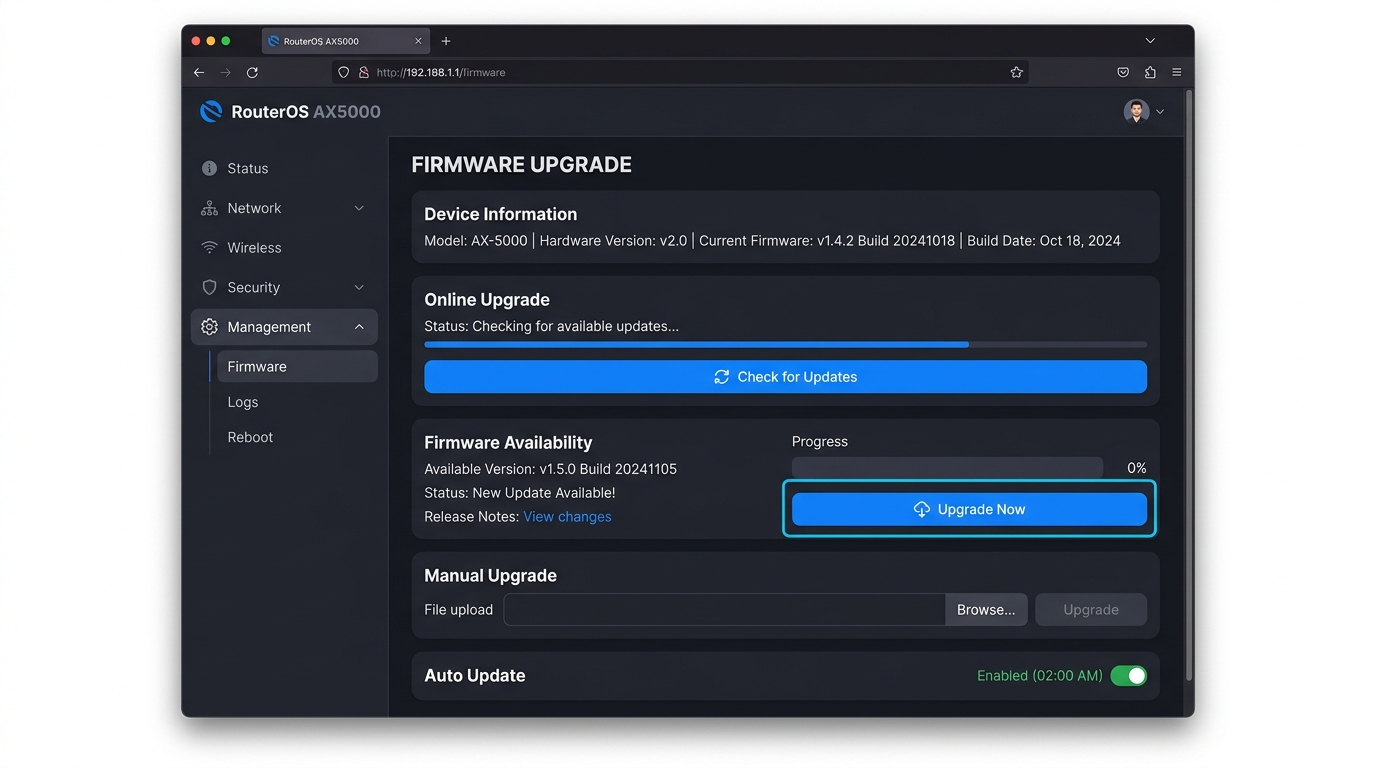
Firmware Diagnostic: Common Failure Symptoms & Quick Targets
If you encounter an issue during or after upgrading router firmware, use this diagnostic matrix to identify root causes and immediate recovery procedures:
| Observed Symptom | Probable Technical Cause | Immediate Recovery Target |
|---|---|---|
| "Invalid Firmware File" or Error 18005 | Hardware revision mismatch, regional build conflict, or uploaded compressed .zip instead of .bin |
Confirm "Ver" on rear sticker; extract .zip archive and re-upload raw binary |
| Router Stuck / LEDs Blinking Simultaneously | Flash write interrupted by premature reboot or NVRAM parameter corruption | Wait full 15 minutes; power-cycle once; if unresponsive, engage manufacturer TFTP Rescue Mode |
| No Internet Access / Amber WAN LED | ISP authentication settings (PPPoE / VLAN IDs) or MAC address clone wiped during flash | Access admin portal via Ethernet, re-enter ISP credentials, or restore pre-update .bin config backup |
| Admin Dashboard Unreachable at Gateway IP | Default gateway subnet reverted to factory default or self-assigned IP conflict | Run ipconfig or use our Gateway IP Checker to find new gateway IP |
| Wi-Fi Network Name (SSID) Missing | Radios disabled by default on clean firmware flash or DFS radar channel scanning | Connect via wired Ethernet, navigate to Wireless settings, and toggle 2.4 GHz and 5 GHz radios ON |
Before You Start: Critical Pre-Update Preparation
1. Confirm Your Router Model and Hardware Revision
Check the physical serial sticker affixed to the underside or rear panel of your router. Document the following parameters:
- Exact Model Number: E.g., Archer AX55, Nighthawk R7000, RT-AX88U.
- Hardware Version / Revision: Often abbreviated as "Ver: 1.0", "V2", or "Rev B". Router manufacturers frequently revise internal chipsets without changing consumer marketing names. Installing a Version 2.0 image onto Version 1.0 hardware can irreparably damage the device.
- Current Installed Firmware: Note the existing build number in your router dashboard.
- Purchase Region: (e.g., US, EU, CA, JP). Wireless regulatory limits, DFS frequency allocations, and maximum transmission powers vary internationally.
2. Download Region-Specific Firmware Exclusively from Official Portals
Obtain firmware binaries solely from the official manufacturer support page for your country. For example, a European (EU) firmware file enforces CE power regulations and EU 5 GHz channel restrictions; flashing it onto a North American (US) unit is explicitly unsupported by manufacturers like TP-Link, Asus, and Netgear, and may invalidate warranty coverage or cause Wi-Fi radio failure.
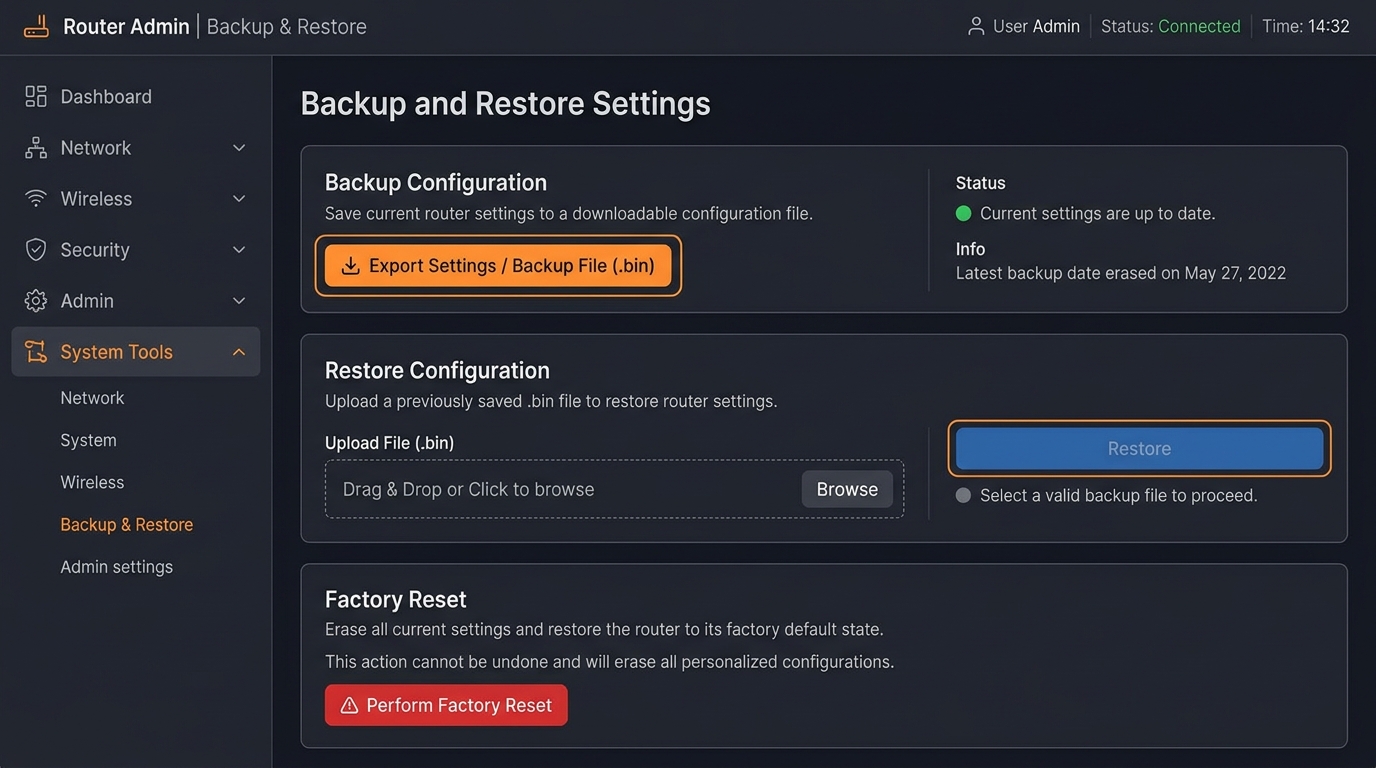
3. Back Up Current Router Settings
Before modifying firmware, open your router's administration interface and look for Backup & Restore, Save Configuration, Export Settings, or System Tools. Save the configuration file (usually a .bin or .cfg file) to your local hard drive.
Backing up preserves your custom network configuration, including:
- DHCP Reservations: Static local IP assignments for network storage (NAS), IP security cameras, and media servers.
- DNS Configuration: Custom encrypted DNS providers (e.g., Cloudflare 1.1.1.1 or Pi-hole ad-blocking resolvers).
- Port Forwarding Rules: Inbound routing rules directing traffic to internal game servers or self-hosted services.
- Wi-Fi Passwords & Guest Networks: Custom SSIDs and security keys, eliminating the need to manually reconnect every household device.
4. Use a Wired Ethernet Connection
While modern routers often permit updating over Wi-Fi, using an Ethernet cable connected to a local LAN port is strongly recommended for manual upgrades. If the Wi-Fi driver on your laptop encounters a momentary packet drop or reconnects to a mesh satellite during a raw binary payload upload, the transfer can truncate, resulting in a corrupted write sequence.
5. Ensure Uninterrupted Electrical Power
Never initiate a firmware flash during lightning storms, grid maintenance windows, or when operating on low laptop battery. If available, plug both the router and your management computer into an Uninterruptible Power Supply (UPS).
Critical Warning: Never upload firmware compiled for another model, hardware revision, or foreign region. Once the flash progress bar begins, do NOT power down the router, remove the Ethernet cable, press the physical Reset pinhole, or refresh the browser window until the router has finished flashing and restarted completely.
Find the Router Admin Panel
To view firmware status or flash files, access your router's administrative gateway. Most consumer routers operate on standard private IP gateways:
- 192.168.1.1 (Linksys, Netgear, Asus)
- 192.168.0.1 (TP-Link, D-Link)
- 10.0.0.1 (Xfinity, Comcast gateways)
- 192.168.100.1 (Cable modems & fiber ONTs)
If your router uses a custom local address, run our automated Default Gateway Lookup Tool or retrieve it via your operating system:
- Windows: Press Win + R, enter
cmd, typeipconfig, and read the address beside Default Gateway. - macOS: Open System Settings > Network > Details > TCP/IP and find the address listed under Router.
- Android: Go to Settings > Wi-Fi, tap the connected gear icon, select Advanced, and locate Gateway.
- iOS (iPhone/iPad): Navigate to Settings > Wi-Fi, tap the (i) information icon beside your network, and check Router.
For in-depth operating system walkthroughs with visual diagrams, consult our guide on how to find your router's IP address.
How to Update Router Firmware Safely (Step-by-Step)
Step 1: Log In to the Router Admin Panel
- Open a web browser on your Ethernet-connected computer.
- Enter your router's Gateway IP (e.g.
http://192.168.1.1) or manufacturer portal domain (such astplinkwifi.netorrouterlogin.net). - Sign in with your administrative username and password (distinct from your Wi-Fi pre-shared key).
Step 2: Check the Current Firmware Version
- Navigate to System Tools, Administration, Maintenance, or Firmware Upgrade.
- Record your active firmware build string.
- Review the vendor's official release notes. Note whether intermediate updates are required (e.g., upgrading to version 1.2 before moving to version 2.0) or if the update enforces a mandatory factory reset.
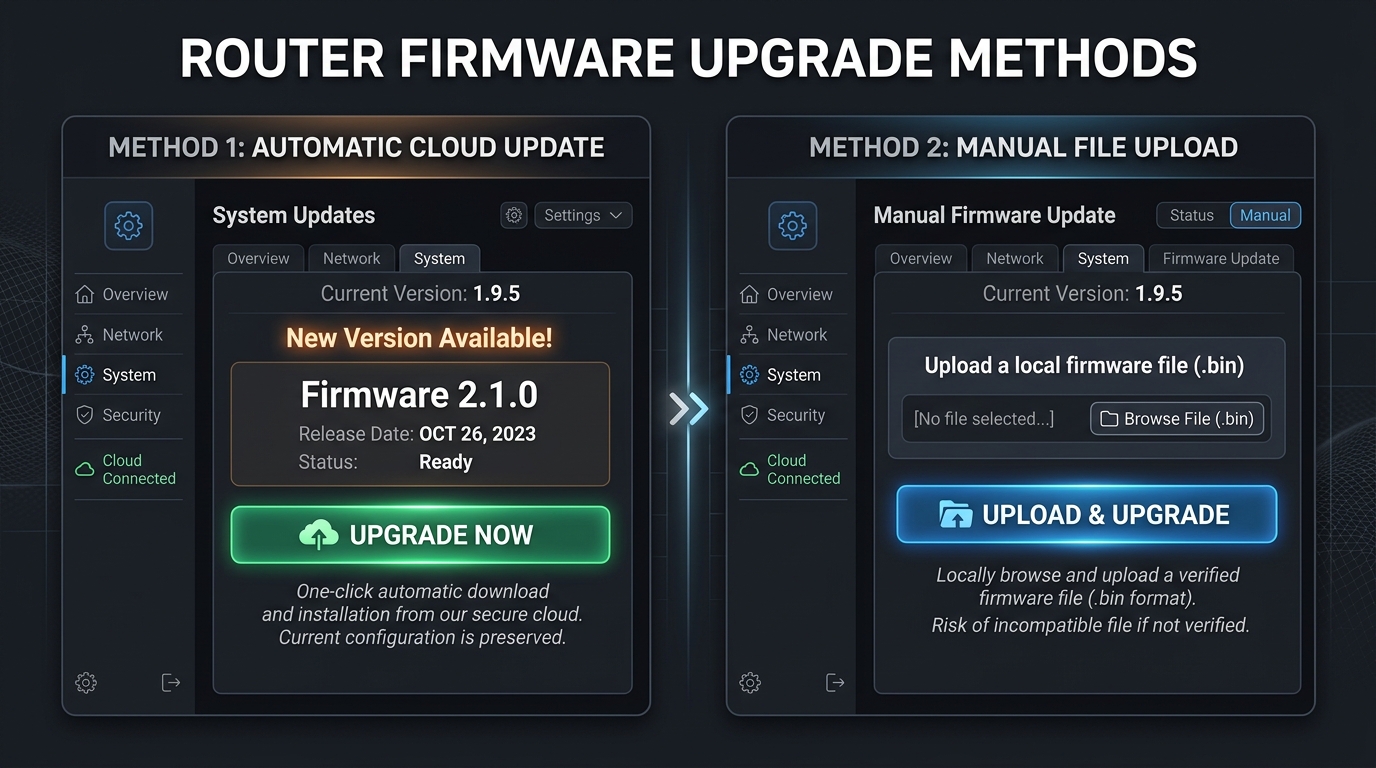
Step 3: Select Automatic Cloud or Manual File Upgrade
Modern routers offer different update mechanisms depending on platform architecture:
| Upgrade Method | Recommended Use Case | Operational Flow |
|---|---|---|
| Automatic Cloud Update | Modern cloud-connected routers (TP-Link Cloud, Netgear Anywhere, AsusWRT) | Router directly fetches verified package over HTTPS and validates checksums internally |
| Manual Binary Upload | Offline routers, legacy hardware, or installing specific hotfix builds | Administrator downloads official .bin archive, unzips locally, and pushes via browser |
| Manufacturer Companion App | Mesh Wi-Fi networks (Deco, Orbi, Eero, Nest Wifi) | Official mobile app orchestrates synchronized rollouts across all mesh nodes |
Step 4: Download and Extract the Firmware File (Manual Path)
- Visit the official manufacturer download portal (e.g., tp-link.com, netgear.com, asus.com).
- Filter strictly by exact model, hardware version (e.g., V1 vs V2), and geographical region.
- Download the latest stable release package.
- Decompress the archive: Router firmware downloads almost always arrive in compressed
.zipformat. Unpack the archive to extract the raw binary payload (typically ending in.bin,.trx,.chk, or.img). Attempting to upload the raw.zipfile directly will trigger an "Invalid File" error.
Step 5: Upload and Flash the Firmware
- Return to the router's Firmware Upgrade dashboard.
- Click Choose File, Browse, or Select File.
- Select the extracted
.binpayload on your local drive. - Double-check that the file string matches your hardware revision.
- Click Upgrade, Upload, or Apply.
- Click OK when prompted to confirm the procedure.
Step 6: Allow the Router to Flash and Reboot
During the flash sequence, the router writes code blocks directly into its non-volatile flash memory and triggers an automated system reboot.
- Expected timeline: Flashing and restarting typically takes between 3 and 7 minutes.
- LED Activity: Front-panel LEDs will blink in sequence, turn amber/red temporarily, and eventually stabilize to solid green or white.
- Network Drop: Wi-Fi signals and wired routing will drop during the reboot sequence. Do not attempt to force-reboot the hardware.
Step 7: Verify Firmware Version and Network Connectivity
- Once the router's power and internet LEDs return to solid green, reconnect your management PC.
- Log back into the administrative gateway.
- Confirm that the displayed firmware version matches the new build number.
- Verify internet connectivity across multiple devices.
- Confirm both 2.4 GHz and 5 GHz wireless bands are broadcasting properly.
- Inspect port forwards, DHCP leases, and DNS settings. If any custom routing rules were reset to factory defaults, restore your saved pre-update configuration file.
TP-Link Firmware Update Workflow
TP-Link routers represent a large portion of consumer home gateways. Below are the verified paths for both cloud-managed and standalone TP-Link units:
Manual TP-Link Firmware Upgrade via Web Interface
- Download the firmware package matching your hardware revision from TP-Link Official Support (referencing official guidance such as TP-Link Support FAQ 2139).
- Extract the downloaded
.zipfolder to reveal the raw.binfile. - Navigate to
http://tplinkwifi.netor192.168.0.1in your browser. - Sign in with your router administrative password (see our TP-Link router setup hub for default login credentials).
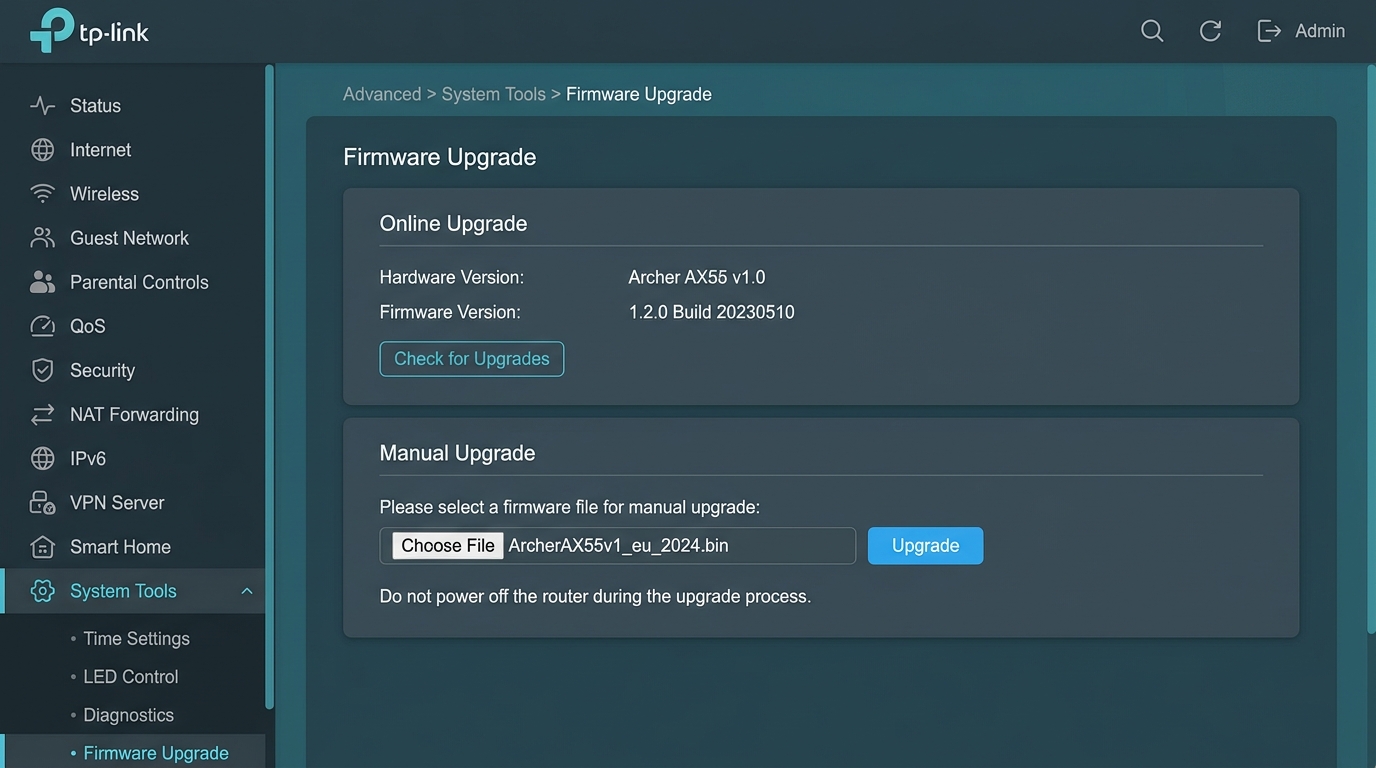
- Click the Advanced tab at the top of the interface.
- In the left sidebar, expand System Tools and select Firmware Upgrade.
- Under the Manual Upgrade section, click Choose File and select your extracted
.binfile. - Click Upgrade and confirm. Allow the system progress bar to hit 100% and reboot automatically.
Automatic Cloud Upgrade via TP-Link Tether App or Web
On TP-Link Cloud routers linked with a TP-Link ID, the web interface will display an orange "Update" notification icon in the header when new releases drop. You can also open the official TP-Link Tether smartphone app, select your router card, go to Tools > System > Firmware Update, and tap Upgrade to initiate an automated over-the-air installation.
Troubleshooting Firmware Update Problems
1. "Invalid Firmware File" or Checksum Error
- Did you extract the ZIP archive? Routers reject
.zippackages. Extract the folder and select the enclosed.binfile. - Hardware version mismatch: A "Version 1.2" router will reject a "Version 2.0" firmware image. Cross-check your device sticker.
- Regional lock: US-region routers reject EU/AP builds. Download strictly from your domestic regional support site.
- Corrupt download: Delete the file, clear your browser cache, and re-download directly from the vendor.
2. Router Unresponsive / Stuck in Update Loop
- Give it 15 full minutes: Some firmware flashes reformat internal partitions and require extended reboots. Intervening too early is the #1 cause of unrecoverable bricks.
- Check status LEDs: If lights are cycling rhythmically, the bootloader is actively unpacking the kernel.
- Engage Hardware Rescue Mode: If the power LED continuously flashes rapidly after 20 minutes, search the manufacturer's knowledgebase for "Rescue Mode" or "TFTP Recovery" (supported natively by Asus and Netgear utilities).
3. No Internet Connection After Upgrade
- Power-cycle your separate broadband modem or fiber ONT, then reboot the router once.
- Verify that the Ethernet cable from the modem is firmly seated in the router's colored WAN port.
- Log into the admin portal and check the Internet / WAN status. If IP shows
0.0.0.0, re-enter your ISP credentials or restore your configuration backup.
4. Cannot Log In After Upgrading
- Try default administrative credentials (such as
admin / adminoradmin / password). Some major version upgrades perform a security reset. - Clear your web browser cache or open an Incognito window to discard cached legacy management scripts.
- Connect with a wired Ethernet cable to eliminate Wi-Fi handshake issues.
- As a final recourse, perform a 10-second physical reset using a straightened paperclip in the rear reset pinhole to restore default factory settings.
Post-Update Security Hardening Checklist
Once your router has successfully rebooted on the new firmware version, complete these baseline security adjustments:
- Change Default Admin Credentials: If your router still uses default or generic administrator credentials, update them immediately with a strong, randomized passphrase.
- Enable Modern Wi-Fi Encryption: Select WPA3-Personal (or WPA2/WPA3 Mixed mode for backward device compatibility). Learn the technical security advantages in our Wi-Fi security & band guide.
- Disable Remote Web Management: Ensure remote WAN access (administration over the public internet) is disabled unless required.
- Disable Wi-Fi Protected Setup (WPS): PIN-based WPS protocol has documented brute-force security weaknesses and should remain disabled.
- Verify Client List: Inspect the active DHCP client list and disconnect unrecognized devices.
- Generate a Fresh Configuration Backup: Export an updated
.binconfiguration backup reflecting your current firmware build and settings.
Frequently Asked Questions
How do I tell if my router needs a firmware update?
Log in to your router's administrative dashboard and locate the Firmware Upgrade, Maintenance, or System Information screen. Compare the installed version number against the newest version published on the manufacturer's official support page for your exact model, hardware revision, and country region.
Do routers automatically update firmware?
Some do, but many do not. Newer cloud-managed routers, mesh systems (such as Eero, Nest Wifi, Deco, or Orbi), and ISP gateways routinely download and install updates in the background. Traditional standalone consumer routers usually require the owner to manually trigger an update or upload the firmware binary.
Can I update router firmware over Wi-Fi?
Yes, modern automatic and app-based updates handle this safely. However, for manual firmware uploads via a web browser, a wired Ethernet cable is strongly recommended. If your computer's Wi-Fi drops momentarily while transmitting raw binary payloads to the router, incomplete transfers can disrupt the flash process.
How long does a router firmware update take?
Most firmware upgrades take between 3 and 7 minutes to write to flash memory and reboot. Automatic cloud updates may take a few additional minutes depending on your internet download speed. Never disconnect power while status LEDs are flashing.
Will a router firmware update erase my settings?
In most standard incremental upgrades, your network name (SSID), passwords, port forwarding rules, and DHCP assignments remain intact. However, major architectural version leaps occasionally require a clean factory reset. Always export a configuration backup before initiating an upgrade.
Can I update router firmware from my phone?
Yes, if your router manufacturer provides an official companion mobile application (such as TP-Link Tether, Netgear Nighthawk, or Asus Router App). Keep your phone powered, connected to the local Wi-Fi, and do not close or minimize the application while the update is transmitting.
What happens if the power goes out during the update?
A sudden power failure during an active write cycle can corrupt the router's operating system in flash memory, rendering the device incapable of booting normally. If the router fails to recover after waiting 15 minutes, check the manufacturer's website for emergency TFTP recovery or rescue utilities.
Can firmware improve Wi-Fi speed?
Firmware updates can optimize driver efficiency, patch memory leaks, improve beamforming algorithms, and fix device compatibility glitches. However, firmware cannot bypass physical limitations such as internet bandwidth caps, radio interference, or signal attenuation caused by thick walls.
Bottom Line
Updating your router's firmware is an essential maintenance task that protects your local network against emerging cyber threats and resolves connection instabilities. Always prioritize safety: double-check your hardware revision, download exclusively from official manufacturer portals, maintain stable power, and export a configuration backup beforehand. If an update fails, allow a full 15 minutes for bootloader operations before intervening, and leverage official rescue utilities or contact manufacturer support before considering hardware replacement.