I’ve helped a lot of people sort out their home network problems, and a surprising number of them boil down to one thing: they’ve never actually logged into their router. Once you know how to get in at 10.0.0.2, you can fix Wi-Fi slowdowns, lock out uninvited guests, and stop using the factory password that every hacker on the planet already knows. This guide walks you through everything — logging in on a PC, on your phone, fixing it when it doesn’t work, and the smart moves to make once you’re inside.
10.0.0.2 – Router Login Admin Page
What Is 10.0.0.2?
10.0.0.2 is a private IP address — your router’s home address on your local network. When you type it into a browser, you’re not going out to the internet; you’re sending a message a few feet to the box sitting on your shelf. That’s why it only works when you’re connected to your own network (via Wi-Fi or an Ethernet cable). If you’re at a coffee shop or on your phone’s data plan, it won’t load — that’s not a bug, that’s by design.
The address falls inside the 10.0.0.0 to 10.255.255.255 range, which is one of three private IP blocks defined by RFC 1918. These addresses are reserved for internal network use only and are never routed across the public internet, which makes them safe to reuse across millions of home networks worldwide.
Most people don’t know this: 10.0.0.2 is slightly less common as a router default than addresses like 192.168.1.1 or 10.0.0.1, but a specific set of DSL modem/router brands relies on it as their factory default gateway. If your router’s label says 10.0.0.2, you’re in the right place.
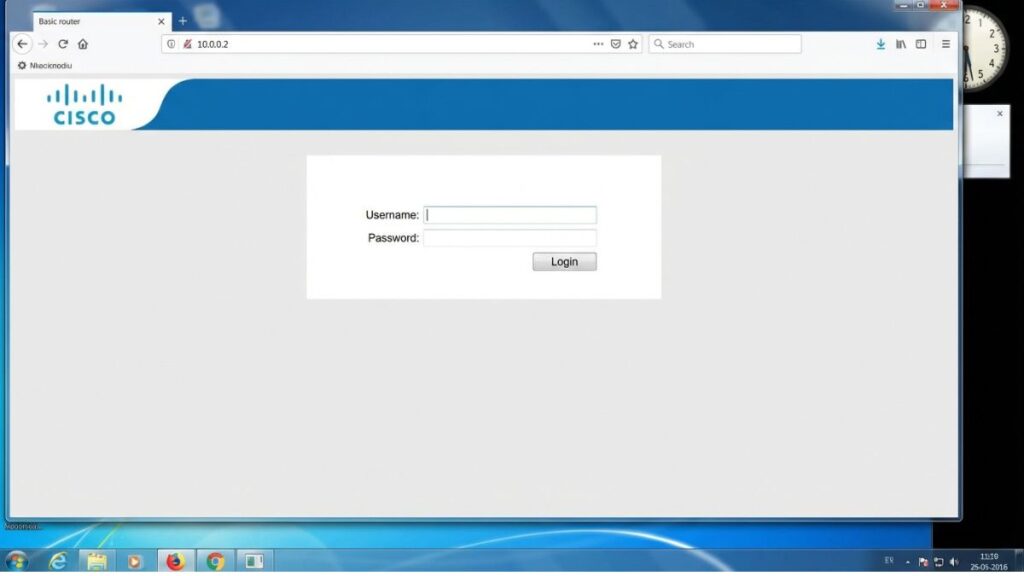
Default Login Credentials for 10.0.0.2 Routers
Before you try to log in, you’ll need a username and password. The sticker on the back or bottom of your router is always the most reliable source — manufacturers occasionally change defaults between firmware versions. That said, here are the most common defaults for brands associated with 10.0.0.2:
| Brand / Model | Default Username | Default Password |
|---|---|---|
| JAHT WAM-4054P | admin | epicrouter |
| Edimax AR-7024WG | admin | epicrouter |
| Encore ENDSL series | admin | conexant |
| Dynamode R-ADSL-C4W-G1 | admin | password |
| Prolink H5201 | admin | password |
| Hamlet HNW150APBR | admin | hamlet |
| Advantek Networks ADR-18CU | admin | conexant |
| Gemtek / Zoom / BEC Technologies | admin | admin |
| Telkom (South Africa ISP models) | admin | admin |
| Generic fallback | admin | (blank / no password) |
If none of these work and you haven’t changed the password yourself, the reset process covered later in this guide is your next step.
How to Log In on a PC or Laptop
- Make sure your computer is connected to the router — either via Wi-Fi or an Ethernet cable plugged directly into one of the router’s LAN ports.
- Open any web browser: Chrome, Firefox, Edge, Safari — they all work.
- Click into the address bar at the very top of the browser window. This is critical: do not type 10.0.0.2 into a Google search box or the Bing bar. Type it directly into the address bar where URLs go.
- Type
http://10.0.0.2and press Enter. - A login screen should appear. Enter your username and password.
- Click Login, OK, or Submit — the button label varies by router brand.
⚠️ Common mistake: Typing the IP into a search bar sends you to a Google results page, not your router. The address bar is where the current website URL is shown — not the search field that may appear on a new tab page.
If the page loads but looks broken or just shows a spinning icon for 30+ seconds, try a different browser or clear your current browser’s cache (Ctrl+Shift+Delete on Windows, Cmd+Shift+Delete on Mac).
How to Log In on Your Phone
Competitors rarely cover this separately — and they should, because mobile login has its own quirks.
iPhone (Safari)
- Go to Settings → Wi-Fi and make sure you’re connected to your home network (not cellular data).
- Open Safari.
- Tap the address bar at the top of the screen.
- Type
10.0.0.2and tap Go. - If the login screen appears, enter your username and password and tap Login.
💡 iPhone tip: Safari sometimes tries to treat IP addresses as search queries. If that happens, type http://10.0.0.2 with the full http:// prefix — that forces Safari to treat it as a web address.
Android
- Pull down the notification shade and confirm Wi-Fi is on and connected to your home network.
- Open Chrome (or your default browser).
- Tap the address bar at the top.
- Type
http://10.0.0.2and tap the arrow or Go. - The router login page should load. Enter your credentials.
Android tip: On some Android versions, Chrome will strip the http:// and treat the IP as a search. If that happens, add a trailing slash: http://10.0.0.2/ — this usually forces the browser to treat it as a URL.
Troubleshooting: 5 Problems and How to Fix Them
1. The Page Just Won’t Load
Cause: You’re probably not connected to the right network, or 10.0.0.2 isn’t actually your router’s IP.
Fix: First, verify your connection — on Windows, open Command Prompt and type ipconfig. Look for “Default Gateway” under your active network adapter. On Mac, go to System Preferences → Network → Advanced → TCP/IP tab. If your Default Gateway shows something other than 10.0.0.2 (like 192.168.1.1), use that address instead. Don’t panic — it just means your router uses a different default.
2. Login Page Loads But Credentials Are Rejected
Cause: Either the default password has been changed (possibly by a family member or a previous owner), or you’re looking at the wrong row in the credentials table above.
Fix: Check the label on the router itself first — some models print the unique admin password there. If you’ve genuinely been locked out, the factory reset section below is your path forward. Resetting erases all custom settings, but it restores the original credentials so you can get back in.
3. The Page Loads But Looks Blank or Broken
Cause: Your browser is running a cached or outdated version of the router’s admin interface. Some older router UIs don’t play nicely with modern browsers.
Fix: Try a hard refresh (Ctrl+F5 on Windows / Cmd+Shift+R on Mac). If that doesn’t work, switch browsers — Internet Explorer or an older Edge version sometimes works better with legacy DSL router interfaces. Disabling browser extensions (especially ad blockers) can also help, since some blockers interfere with local network pages.
4. You Can Log In But Can’t Connect to the Internet
Cause: This is a router/modem configuration issue, not a login problem. The admin panel being accessible just means your local network is working. The internet connection depends on your WAN/ISP settings.
Fix: Check the WAN or Internet Status page in your router’s admin panel. Look for a status indicator that says “Connected” or shows an external IP. If it shows “Disconnected” or no IP, restart both your modem and router (power off, wait 30 seconds, power the modem back on first, then the router). If the problem persists, contact your ISP — the issue may be on their end.
5. You’re Stuck in a Login Loop
Cause: The browser is holding onto an old session cookie that’s confusing the router’s authentication system.
Fix: Clear your browser cookies specifically for 10.0.0.2. In Chrome: Settings → Privacy → Clear browsing data → Cookies. Then close the tab completely and navigate to http://10.0.0.2 fresh. Alternatively, open a private/incognito window — these don’t carry over existing cookies.
Factory Reset Guide
If you’re locked out or your router is misbehaving badly, a factory reset wipes everything back to day one. Here’s what you need to know before you press that button:
Backup first. If you can still access the admin panel, go to Administration → Backup or System → Save Configuration and export your current settings. This won’t save your ISP login credentials separately, so note those down too (your ISP can provide them if you’ve lost them).
What gets erased: Your custom Wi-Fi name (SSID), Wi-Fi password, admin password, port forwarding rules, parental controls, any static IP assignments, and guest network settings. Essentially everything you’ve ever changed.
How to do the physical reset:
- Make sure the router is powered on.
- Find the reset pinhole — it’s usually on the back or bottom, labeled “Reset.”
- Use a straightened paperclip, a SIM ejector pin, or a toothpick.
- Press and hold for 10–30 seconds depending on the brand:
- JAHT / Edimax / Encore models: hold for 15 seconds
- Gemtek / BEC models: hold for 10 seconds
- Generic DSL routers: hold for 20–30 seconds until LEDs flash
- Release and wait 2–3 minutes for the router to fully reboot.
After the reset, your router is back to factory defaults. Log in using the credentials from the table above (or the sticker on the device) and start reconfiguring.
What to Do After You Log In
Getting in is only the beginning. Here’s what actually matters once you’re inside.
Change Your Admin Password
The factory admin password is the same for every router of that model — meaning it’s essentially public knowledge. Changing it is the single most important thing you can do.
- Look for Administration, System, or Management in the main menu.
- Find Admin Password, Router Password, or Login Password.
- Enter the old password once.
- Type a new password — aim for something at least 12 characters long with a mix of letters, numbers, and symbols. Use a password manager so you don’t forget it.
- Save or Apply. You’ll likely be logged out immediately — log back in with the new password to confirm it worked.
Change Your Wi-Fi Password
Go to Wireless Settings or Wi-Fi Settings in the menu. Look for the Password, Passphrase, or PSK field. Pick something strong and memorable — our guest network password is literally “GuestWifi2026!” and that’s plenty fine. The goal is not sharing it with people you don’t trust, not making it unguessable by quantum computers.
Set Your Security Mode to WPA2 or WPA3
In the same Wireless Settings menu, look for Security Mode or Authentication Type. Set it to WPA2-PSK (AES) at minimum. If your router offers WPA3, use that — it’s meaningfully more resistant to offline password cracking attacks. Avoid WEP and WPA (original) entirely; those are broken and shouldn’t be used.
For a deeper look at why WPA3 matters, the Wi-Fi Alliance WPA3 overview is worth five minutes of your time.
Check Connected Devices
Under DHCP Client List, Connected Devices, or LAN Status, you’ll see every device currently on your network. Go through the list. If you see something you don’t recognize, it could be a neighbor freeloading on your Wi-Fi. You can usually block individual devices by MAC address from this same screen.
Set Up a Guest Network
If your router supports it (check under Wireless or Advanced Wireless), a guest network is worth enabling. It lets visitors connect to the internet without giving them access to your main network — and therefore your printers, NAS drives, smart home devices, and other connected gear. I keep ours on all the time.
Consider Port Forwarding
If you run a home server, use a gaming console that needs open NAT, or use remote desktop software, you may need to configure port forwarding. This tells the router to send incoming traffic on specific ports directly to a specific device. Look for Port Forwarding, Virtual Server, or NAT in the Advanced menu. Understanding how port forwarding works is worth the read before you dive in.
Update Your Firmware
Router manufacturers release firmware updates to patch security holes and add features. Check under Administration → Firmware Update or System → Software Update. Some newer routers do this automatically, but older DSL models typically require a manual download from the manufacturer’s support page and an upload through the admin panel.
Common Misspellings of 10.0.0.2
Search engines get a lot of traffic from people who typed the IP wrong. Here are the most common variants — if you typed one of these, you meant 10.0.0.2:
10.0.0.2
10.0.02
10.00.0.2
10.0.0.2/
http//10.0.0.2
10.0.0.l
10.o.0.2
www.10.0.0.2
Which Brands and ISPs Use 10.0.0.2?
Brands that commonly use 10.0.0.2 as their default:
- JAHT (DSL wireless routers)
- Edimax (AR-series DSL models)
- Encore (ENDSL series)
- Gemtek
- BEC Technologies
- Dynamode (R-ADSL-C4W-G1 and similar)
- Prolink (H5201 and related DSL models)
- Hamlet (HNW150APBR travel router)
- Advantek Networks (ADR-18CU)
Sometimes use 10.0.0.2 (varies by model or ISP provisioning):
- Telkom (South African ISP — some provisioned models)
- Zoom Telephonics
FAQ
What’s the difference between my Wi-Fi password and my router admin password?
These are two completely separate things and a lot of people mix them up. Your Wi-Fi password is what you type on a phone or laptop to connect to your wireless network. Your router admin password is what you type at 10.0.0.2 to get into the settings panel. You could have an extremely strong Wi-Fi password and a totally default admin password — and vice versa. Both matter. Change both.
Can I access 10.0.0.2 from outside my house?
No. That’s intentional. 10.0.0.2 is a private IP address that only exists on your local network. Nobody outside your home can reach it — not from the internet, not from a different Wi-Fi network. If you need remote access to your router, you’d have to use a VPN or your router’s remote management feature (if it has one), but that’s a separate topic.
I typed 10.0.0.2 and got a Google search results page. What happened?
You typed it into the search bar instead of the address bar. The address bar is the long bar at the very top of the browser window that shows the current website URL. The search bar might look identical, but anything you type there gets sent to a search engine, not to your router. Click into the address bar specifically, clear it, type http://10.0.0.2, and press Enter.
My router’s IP is 10.0.0.1, not 10.0.0.2. Is something wrong?
Not at all. 10.0.0.1 and 10.0.0.2 are both common private IPs for different router models. If your Default Gateway shows 10.0.0.1, use that. The guides are nearly identical — the only difference is the last digit.
What if I forget my new admin password after changing it?
There’s no “forgot password” option for router admin accounts — that would be a security nightmare. Your only option is a factory reset (see the Factory Reset section above). After resetting, the router returns to its default credentials printed on the label.
Is it safe to access 10.0.0.2 over Wi-Fi, or should I use a cable?
Either works for basic access. That said, when you’re changing important settings (admin password, security mode, firmware update), a wired Ethernet connection is smarter. If your Wi-Fi drops mid-firmware-update, you can brick the router. A cable eliminates that risk.
The login page appeared, but it looks really old/ugly. Is this normal?
Yes. Routers at this IP address tend to be older DSL-era hardware, and their admin interfaces were built in the early 2000s. Expect a plain HTML page, small text, and no mobile optimization. That’s normal — the interface is functional, just not pretty.
Conclusion
Getting into 10.0.0.2 is straightforward once you know where to type the address — and once you’re in, spending five minutes changing your admin password and checking your security settings is genuinely worth it. Most home networks run for years on factory defaults, and that’s an easy, avoidable risk. If this guide helped, drop a comment below with what you were trying to fix — I’d love to hear what brought you here.