Open a browser and go to 192.168.1.1 or type myrouter.local in the address bar. For older Linksys models, leave the username blank and enter admin as the password. For Smart Wi-Fi routers, sign in with your Linksys cloud account email and password.
Your Linksys router’s admin panel is where you change your WiFi name, update your password, check which devices are connected, and push firmware updates. Getting there takes about 30 seconds — but Linksys has three different login addresses depending on your model, and confusing them is the most common reason people end up staring at a blank screen.
This guide covers every login method: browser-based login on PC, Mac, iPhone, and Android, plus the Linksys app. It also covers the six most common login problems and how to fix them fast.
Which Linksys Login Address Do You Need?
Before you type anything into a browser, it helps to know which address your router actually responds to. Linksys uses three different login URLs across its product line, and they’re not interchangeable.
← Scroll to see full table →
| Login Address | Works On | Notes |
|---|---|---|
| 192.168.1.1 | All Linksys models | Most reliable fallback — always try this first. |
| myrouter.local | E-series, MR/MX mesh | macOS: use https://myrouter.local, Windows: https://myrouter.local |
| linksyssmartwifi.com | Smart Wi-Fi routers | Cloud-based — requires internet connection and Linksys account. |
| 10.0.0.1 | E8450 on upstream connection | Secondary fallback for E8450 only. |
| 192.168.10.1 | E7350 on upstream connection | Secondary fallback for E7350 only. |
| Login Address | Works on | Notes |
|---|---|---|
| 192.168.1.1 | All Linksys models | Most reliable fallback — always try this first |
| myrouter.local | E-series, MR/MX mesh | macOS: use https://myrouter.local, Windows: https://myrouter |
| linksyssmartwifi.com | Smart Wi-Fi routers | Cloud-based — requires internet connection + Linksys account |
| 10.0.0.1 | E8450 on upstream connection | Secondary fallback for E8450 only |
| 192.168.10.1 | E7350 on upstream connection | Secondary fallback for E7350 only |
One thing most guides don’t mention: if you have a Linksys E7350 or E8450 with recent firmware, the browser will block plain http:// connections to the admin panel. You have to type https:// at the start (the lock icon may show a warning — that’s normal and safe to proceed through on your own network).
Default Login Credentials by Model
← Scroll to see full table →
| Model / Series | Default Username | Default Password |
|---|---|---|
| WRT Classic series WRT54G, WRT1900AC, WRT3200ACM, WRT32X | admin | admin |
| E-series older E1200, E2500, E3200 | (leave blank) | admin |
| E-series newer E5600, E7350, E8450 | admin | admin |
| Smart Wi-Fi routers EA6350, EA7500, EA8300, EA9500 | Linksys cloud email | Linksys account password |
| Velop mesh / MX series | Linksys cloud email | Linksys account password |
| Hydra Pro / Atlas series | Linksys cloud email | Linksys account password |
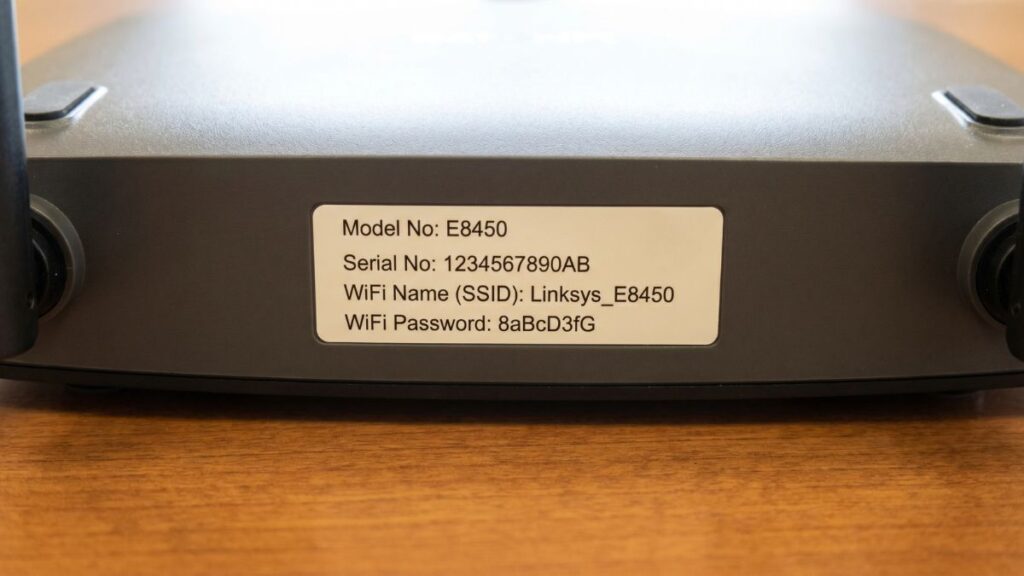
Tip: The sticker on the bottom of your router shows the model number. Look it up in the table above to confirm your login type before you try credentials.
The single biggest source of Linksys login confusion: Smart Wi-Fi and Velop users enter “admin” and get a password error — because their router doesn’t use local credentials at all. It wants your cloud account email. If you set up the router years ago and haven’t logged in since, check your email inbox for the Linksys setup confirmation to find that account.
Logging In from a PC or Mac
This works the same on Chrome, Firefox, Edge, and Safari. The one thing that trips people up: typing the IP address into the search bar instead of the address bar. The search bar sends your entry to Google. The address bar — the bar at the very top of the browser that usually shows a URL — is what you need.
Windows (any browser)
- Make sure your PC is connected to the Linksys network — via WiFi or Ethernet cable.
- Open Chrome, Edge, or Firefox.
- Click the address bar at the top of the browser. Type
192.168.1.1and press Enter. - The Linksys login page loads. Enter your credentials (see the table above for your model).
- Click Login or Sign In.
If 192.168.1.1 doesn’t load: try http://myrouter (without “local” — Windows resolves it differently than macOS). Still nothing? Skip to the troubleshooting section.
macOS (Safari or Chrome)
- Connect to your Linksys router via WiFi or Ethernet.
- Open Safari or Chrome.
- Type
https://myrouter.localin the address bar and press Return. - Safari may show a “This connection is not private” warning. Click Show Details, then visit this website. That warning is expected — your router uses a self-signed certificate, not a commercial SSL cert. It’s safe on your own network.
- Enter your username and password and log in.
If myrouter.local fails on macOS, try https://192.168.1.1 instead — same result, different path.
Logging In from an iPhone
Competitors almost universally skip this section, so let’s do it properly. The most common iPhone-specific issue: iOS automatically routes traffic to cellular data when your WiFi doesn’t have an internet connection. Since the router’s admin panel runs locally — no internet required — iOS can kick you off WiFi mid-session.
Fix this before you start: go to Settings > Cellular and temporarily turn off Cellular Data. This forces your iPhone to stay on your local WiFi network.
- Open Settings > WiFi and confirm you’re connected to your Linksys network. Don’t skip this — the admin panel only works from within your network.
- Temporarily disable Cellular Data under Settings > Cellular.
- Open Safari. (Safari handles self-signed certificates better than Chrome on iOS.)
- Tap the address bar at the top. Type
192.168.1.1and tap Go. - The Linksys login page appears. Enter your credentials and tap Login or Sign In.
- Turn Cellular Data back on when you’re done.
If you hit a “Connection Not Private” warning in Safari, tap Show Details → Visit Website. That warning is about the certificate, not about your network’s safety.
Logging In from an Android Phone
Android handles local network routing better than iOS but still has one quirk worth knowing: some Android versions show a “Sign in to network” notification when your WiFi has no internet path. Tapping that notification can route your browser away from the admin page. Ignore it.
- Open Settings > WiFi and confirm you’re connected to your Linksys network.
- Open Chrome.
- Tap the address bar. Type
192.168.1.1and tap Go on the keyboard. - Enter your Linksys admin username and password.
- Tap Login.
If Chrome shows “Your connection is not private,” tap Advanced → Proceed to 192.168.1.1 (unsafe). That label is misleading — “unsafe” refers to the lack of a commercial SSL certificate, not actual danger on your own local network.
Using the Linksys App
The Linksys app (available on iOS and Android) is Linksys’s dedicated mobile management tool for Smart Wi-Fi and Velop/MX routers. It uses your Linksys cloud account — the same email and password you’d use at linksyssmartwifi.com.
The app is the right choice when you want to check connected devices, run a speed test, set up parental controls, or adjust your WiFi name and password quickly. It’s more polished than the browser admin panel for these tasks.
What it doesn’t do: give you access to advanced settings like DHCP reservation, port forwarding, or detailed firewall rules. For those, use the browser-based admin panel at 192.168.1.1.
To log in via app:
- Download the Linksys app (App Store or Google Play — search “Linksys”).
- Open the app and tap Log In.
- Enter your Linksys cloud account email and password.
- Tap Sign In.
Note: The Linksys app only works with Smart Wi-Fi, Velop, and MX-series routers. Classic WRT-series and older E-series routers without cloud support don’t connect to the app.
What to Do After You Log In
Once you’re in the admin panel, a few things are worth doing immediately — especially on a new or factory-reset router.
1. Change the Admin Password
This one matters more than most people realize. The default password “admin” is publicly documented and any device on your network can access the router’s admin panel if the password stays default.
- Classic/E-series panel: Go to Administration > Management. Enter a new password in the Router Password and Re-enter to confirm fields. Click Save Settings.
- Smart Wi-Fi panel: Go to Router Settings > Administration. Update the password there.
Pick something over 12 characters. The admin panel won’t enforce complexity — that’s your responsibility.
2. Change Your WiFi Name and Password
- Classic panel: Go to Wireless > Basic Wireless Settings. Change the Network Name (SSID). Go to Wireless > Wireless Security to change the WiFi password.
- Smart Wi-Fi panel: Go to WiFi Settings > Basic. Edit both the 2.4 GHz and 5 GHz networks separately if your router is dual-band.
For security mode, choose WPA2-AES or WPA3 if your router supports it. WPA3 appears on newer E8450, MR9600, and MX-series models. Older routers max out at WPA2 — that’s fine and still secure.
Learn more about the difference between WPA2 and WPA3.
3. Update the Firmware
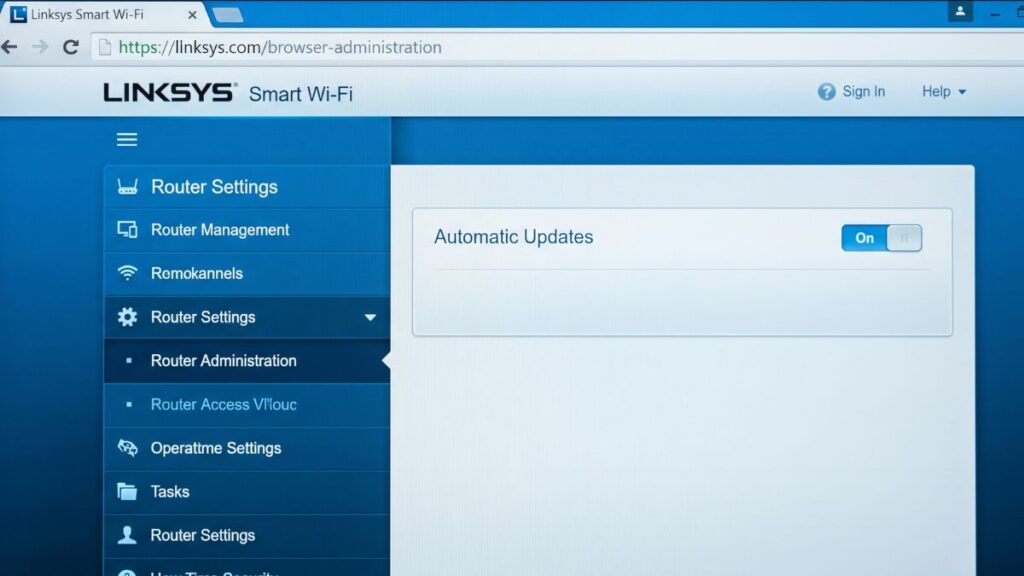
Linksys routers don’t auto-update firmware by default on classic models. Smart Wi-Fi and Velop routers can be set to auto-update, but it’s worth verifying.
- Classic panel: Go to Administration > Firmware Upgrade. Click Check to see if an update is available. If it is, download and apply it — takes about 3 minutes and reboots the router automatically. Don’t power off the router during this.
- Smart Wi-Fi panel: Go to Router Settings > Router Administration. Look for Automatic Updates. Turn it on if it isn’t already.
Running old firmware is the single most overlooked security risk on home networks. If your router shipped more than a year ago and you’ve never updated it, do this now.
4. Set Up a Guest Network
A guest network gives visitors internet access without letting them reach devices on your main network — your NAS, smart home gear, printers, or anything else you’d rather keep private.
- Classic panel: Go to Wireless > Guest Access.
- Smart Wi-Fi panel: Go to WiFi Settings > Guest Access.
Enable it, give it a different name from your main network, and set a password. More on the security benefits: setting up a guest network for IoT devices and visitors.
Troubleshooting Linksys Login Problems
1. The Login Page Won’t Load at All
This is almost always a connection issue, not a router issue.
- Confirm your device is connected to the Linksys network — not your neighbor’s, not your phone’s hotspot.
- Try the IP address
192.168.1.1directly instead ofmyrouter.local. The hostname sometimes fails if your DNS resolver isn’t routing the.localdomain correctly. - Disable any VPN on your device. VPNs route your traffic through external servers, which breaks access to your local 192.168.x.x addresses entirely.
- Clear your browser cache: in Chrome, press Ctrl+Shift+Delete (Windows) or Cmd+Shift+Delete (Mac), check Cached images and files, and clear. Then try again.
- Reboot the router: unplug power for 30 seconds, plug back in, wait 90 seconds for it to fully restart.
2. “admin” Password Not Working
Check which type of router you have.
- Classic E-series and WRT models: The default username is blank (or “admin” on WRT) and password is admin. If neither works, someone changed it — or a firmware update may have reset credential behavior. Do a factory reset (see below).
- Smart Wi-Fi, Velop, MX-series: These use your Linksys cloud account email and password. “admin” won’t work here — these routers don’t have local credentials. If you’ve forgotten your cloud account password, go to linksyssmartwifi.com and use the Forgot Password link.
3. myrouter.local Not Loading
This hostname works when your device’s DNS can resolve .local domains correctly. When it fails:
- Switch to 192.168.1.1 — same admin panel, no DNS lookup needed.
- On Windows, try http://myrouter (without “.local”) — Windows resolves it differently.
- If you’re on a corporate VPN or using a custom DNS server like 1.1.1.1,
.localresolution may be blocked. Use the IP address instead.
4. Browser Shows “Connection Not Private” or HTTPS Error
This comes up on newer E-series routers that require HTTPS. The router’s SSL certificate is self-signed, which means browsers flag it — not because anything is wrong, but because it wasn’t issued by a public certificate authority.
- In Chrome: click Advanced → Proceed to 192.168.1.1 (unsafe).
- In Safari: click Show Details → Visit Website.
- In Firefox: click Advanced → Accept the Risk and Continue.
If you’re on a Linksys E7350 or E8450 and the page won’t load at all, make sure you’re typing https://192.168.1.1 — these models require HTTPS and won’t respond to plain http:// requests on recent firmware.
5. VPN Blocking the Admin Panel
If you have a VPN active on your device — whether it’s a corporate VPN, NordVPN, ExpressVPN, or anything else — turn it off before trying to reach 192.168.1.1. VPNs intercept all network traffic, including local traffic, and prevent your browser from reaching RFC 1918 private IP ranges. This is by design, not a bug. Turn the VPN off, log in, make your changes, then turn it back on.
6. Locked Out After Too Many Attempts
Most Linksys models don’t have a lockout timer — you can try credentials as many times as needed. But if you’re certain the password is wrong and you can’t remember what it was changed to, a factory reset is the only option.
Factory reset steps:
- Find the small Reset button on the back or bottom of the router (it’s recessed, so you’ll need a pin or paperclip).
- With the router powered on, press and hold the Reset button for 10 seconds (classic E-series) or 15 seconds (WRT-series, Smart Wi-Fi models).
- The router’s lights will blink or flash — that’s the reset happening.
- Release, wait 60-90 seconds for the router to fully reboot.
- Log in with the default credentials from the table above.
Heads up: A factory reset wipes everything — your WiFi name, password, port forwarding rules, DHCP reservations, and any custom DNS settings. You’ll need to reconfigure from scratch.
Linksys Login Frequently Asked Questions
They both take you to the same Linksys admin panel — one uses your router’s IP address directly, the other uses a hostname that your network resolves to that same IP. The IP address is more reliable because it doesn’t depend on DNS. If myrouter.local isn’t loading, 192.168.1.1 almost always works as a substitute.
It depends on your model. Classic E-series routers use a blank username and “admin” as the password. WRT-series models use “admin” for both username and password. Smart Wi-Fi, Velop, and MX-series routers use your Linksys cloud account email and password — not “admin.” Check the sticker on the bottom of your router for the model number, then match it to the credentials table in this article.
Yes, but only through the Linksys Smart Wi-Fi account. Classic E-series and WRT routers are local-only — you need to be on the same network. Smart Wi-Fi models (EA-series, Velop, MX-series) let you log in via linksyssmartwifi.com from anywhere, as long as your router has an internet connection.
If you’re being prompted for an email address, you have a Smart Wi-Fi or Velop router. Linksys moved these models to cloud authentication to enable remote access and better firmware delivery. The email it’s asking for is the one you used when you first set up the router. If you don’t remember it, check your inbox for a welcome email from Linksys — typically sent during initial setup.
First, don’t power off the router. A failed firmware update mid-process can sometimes leave the router in a recovery mode, but powering off makes it worse. Wait 5 full minutes. If the router reboots on its own, check whether it’s responsive. If it’s completely unresponsive and the power light is blinking oddly, Linksys has a TFTP recovery process for WRT routers — contact Linksys support for your specific model.