Open a browser and go to routerlogin.net. Enter username admin and password password (or the unique password on your router’s label for newer models). Click Login. If the page won’t load, use 192.168.1.1 as the fallback IP address.
Your phone keeps switching to mobile data mid-login. Safari says the site isn’t secure. You typed the password correctly three times and it’s still not working. Netgear router login problems are common — and almost always fixable in under two minutes.
This guide covers every device: Windows PC, Mac, iPhone, Android, and the Nighthawk app. You’ll also find the full default credentials table by model series, every common login error with its fix, and a factory reset walkthrough if it comes to that.
What Netgear’s Admin Panel Actually Is
The Netgear admin panel is a local web interface built into your router. You access it at routerlogin.net — a hostname that only works from inside your own network. Type it into the browser on your phone or laptop, and your router intercepts the request and serves its own login page.
That’s also why it won’t load on cellular or from outside your home. It’s not a website hosted on the internet — it’s hosted on the router itself. The fallback address 192.168.1.1 works the same way and is sometimes more reliable if routerlogin.net gives you trouble.
From the admin panel, you can change your WiFi name and password, update firmware, check connected devices, set up a guest network, and control port forwarding and parental controls.
Default Login Credentials by Netgear Model
Most Netgear routers share the same username. The password varies depending on how old your model is and whether you bought it directly or through an ISP.
← Scroll to see full table →
| Model / Series | Login URL | Default IP | Username | Password |
|---|---|---|---|---|
| Nighthawk R6700, R7000, R8000, AX series | routerlogin.net |
192.168.1.1 |
admin | Unique (on label) |
| Orbi Mesh RBR750, RBK860s | orbilogin.com |
192.168.1.1 |
admin | password |
| Classic / Budget WNR2000, R6120, R6230 | routerlogin.net |
192.168.1.1 |
admin | password |
| ReadyNAS / ReadyDATA | routerlogin.net |
192.168.1.1 |
admin | password |
| RAIDiator firmware | routerlogin.net |
192.168.1.1 |
admin | netgear1 |
| ISP-supplied Virgin Media | routerlogin.net |
192.168.1.1 |
admin | virgin |
| ISP-supplied Sky | routerlogin.net |
192.168.1.1 |
admin | sky |
| Older models Pre-2015 | routerlogin.net |
192.168.0.1 |
admin | 1234 or password |
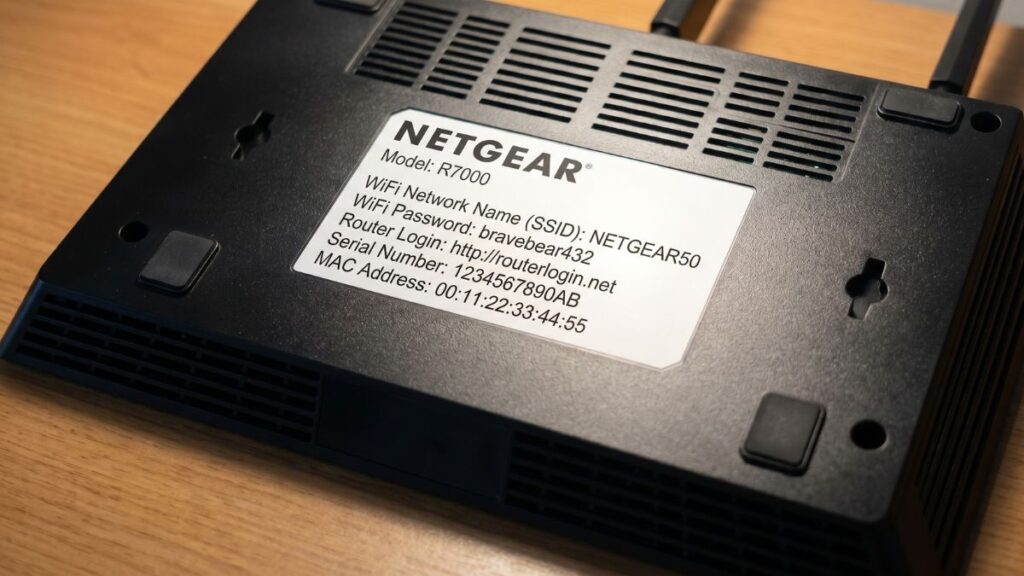
Important: Newer Nighthawk models no longer use “password” as the default. They ship with a unique admin password printed on the label on the bottom of the router — usually a randomized string. Always check the label first before trying generic defaults.
Logging In on iPhone
This is where most people run into the iOS WiFi Assist problem. Apple’s iPhone has a feature that silently switches to mobile data when it thinks WiFi is weak — and it does this even when you’re connected. If routerlogin.net times out on iPhone, that’s usually why.
Step 1. Go to Settings → WiFi and connect to your Netgear network. Look for the blue checkmark.
Step 2. Disable WiFi Assist: go to Settings → Cellular, scroll all the way down, and turn off WiFi Assist. This stops iOS from overriding your WiFi connection with mobile data.
Step 3. Open Safari (not Chrome — Chrome on iOS has additional HTTPS enforcement that can block router pages).
Step 4. Tap the address bar and type routerlogin.net. Don’t search for it — type it directly in the URL bar and tap Go.
Step 5. If you see a “not secure” or certificate warning, tap Show Details → Visit Website to proceed. This is a self-signed cert from your router, not a real security threat.
Step 6. Enter admin and your password, then tap Login.
If routerlogin.net still won’t load, try 192.168.1.1 directly. That IP doesn’t rely on DNS resolution and loads faster on mobile.
Logging In on Android
Android handles WiFi-only connections differently across manufacturers, but the most common issue is the same as iPhone: your phone drops to mobile data when the router’s local network doesn’t have internet during setup.
Step 1. Open Settings → WiFi and connect to your Netgear WiFi network.
Step 2. You may see a notification saying “WiFi has no internet access — stay connected?” Tap Yes or Keep Connection. If you skip this step, Android will reroute traffic through mobile data and routerlogin.net won’t load.
Step 3. Open Chrome or any browser, tap the address bar, and type routerlogin.net. Hit Enter.
Step 4. At the login screen, enter your username and password. Tap Login.
If the page doesn’t load, try typing http://192.168.1.1 with the http:// prefix. Some Android versions block the redirect from a plain hostname.
Logging In from a PC or Mac
This is the most reliable way to access the admin panel. A wired Ethernet connection to the router is even better — it eliminates all WiFi variables.
Step 1. Connect your computer to the Netgear router — either via WiFi or an Ethernet cable plugged into a LAN port.
Step 2. Open any browser. Chrome, Firefox, or Edge all work well. Safari on Mac works too, but may show a certificate warning.
Step 3. Click the address bar at the very top of the browser. Don’t use the search box if your browser has one — they look similar but behave differently. Type routerlogin.net and press Enter.
Step 4. At the login page, enter:
- Username: admin
- Password: password (or the unique password on your router label for newer Nighthawk models)
Both fields are case-sensitive.
Step 5. Click Sign In or Login. The Basic Home screen loads within a few seconds.
Mac users: If Safari shows “This connection is not private,” click Show Details → visit this website and enter your Mac password if prompted. This is expected behavior for router interfaces — they use self-signed certificates that browsers don’t automatically trust.
Using the Nighthawk App
The Nighthawk app is Netgear’s mobile management tool and it’s genuinely easier to use than the browser admin panel for everyday tasks. You can change WiFi settings, run a speed test, update firmware, and pause internet access for specific devices — all without typing routerlogin.net.
- Download: nighthawk-app.com or search “Nighthawk” in the App Store or Google Play
- Compatible with: Most Nighthawk router series (AC, AX, WiFi 6, WiFi 7) and Orbi mesh systems
- Requires: A free Netgear account
Where the app falls short: advanced settings like port forwarding, VLAN configuration, and custom DHCP rules still need the browser admin panel. Think of the app as the shortcut and routerlogin.net as the full toolbox.
The older Netgear Genie app is discontinued as of 2024 — switch to Nighthawk if you’re still running it.
What to Do After You Log In
Getting into the admin panel is just step one. Here’s what to check on a fresh login or after a router reset.
Change the Admin Password First
If you’re still using the default admin password, change it before doing anything else. Go to Advanced → Administration → Set Password. Use something unique — not your WiFi password. Enable Password Recovery while you’re there so you can reset it if you forget.
For guidance on picking a strong credential, the NIST password guidelines are a solid reference — no complexity theater, just practical advice.
Update Your Firmware
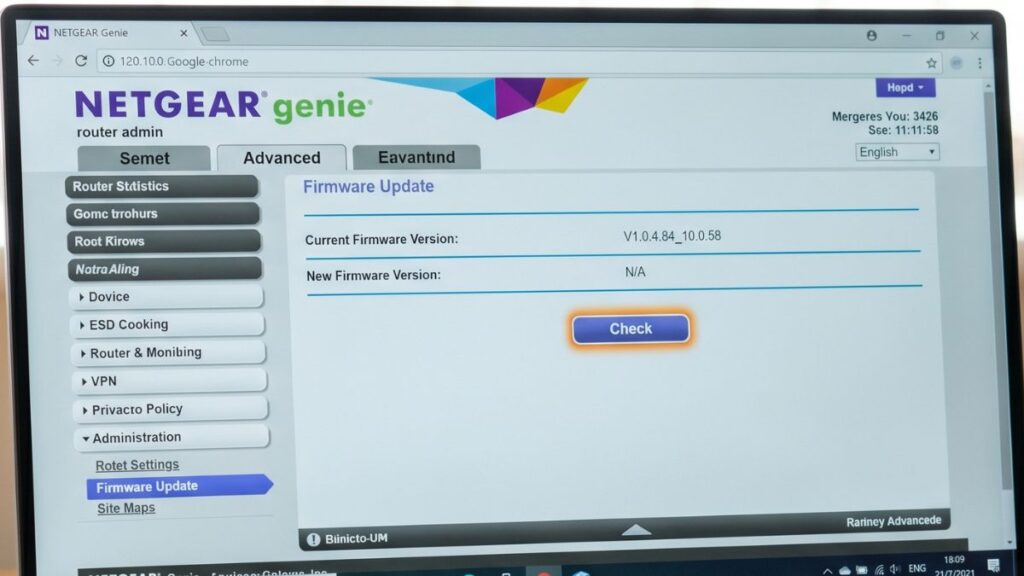
Outdated firmware is the most common cause of unexplained login issues and security gaps. In the admin panel, go to Advanced → Administration → Firmware Update. The router checks for updates automatically — if one’s available, install it. The process takes about two minutes. Don’t power off the router during the update.
Check Your WiFi Security Settings
Go to Basic → Wireless and look at the security mode. If your router supports WPA3, switch to it. If it only offers WPA2, choose WPA2-AES — not WPA-TKIP or the mixed mode. Older routers (pre-2018) won’t show WPA3 as an option; that’s expected. If you want to understand the difference between WPA2 and WPA3, the tradeoffs are worth knowing before you switch.
Set Up a Guest Network
Advanced → Advanced Setup → Wireless Settings → Guest Network. A separate SSID for visitors keeps them off your main network and away from shared drives and devices. Smart home and IoT gadgets benefit from this too — it’s a practical way to limit what those devices can reach on your local network.
Troubleshooting Netgear Router Login Problems
1. routerlogin.net Won’t Load
Most likely cause: You’re not connected to the Netgear network, or a VPN is active.
Fix: Confirm you’re on Netgear WiFi (or wired to the router). Disconnect any VPN — they reroute traffic through external servers, which breaks local IP resolution entirely. Then try http://192.168.1.1 directly instead of the hostname.
2. Browser Says “Connection Not Private” or “Not Secure”
Cause: Netgear uses a self-signed SSL certificate. Browsers flag these by design.
Fix: This is safe to proceed through. In Chrome, click Advanced → Proceed to routerlogin.net (unsafe). In Safari, tap Show Details → Visit Website. The connection is local — nobody outside your network can intercept it.
3. Password Not Accepted
Cause 1: You’re using “password” on a newer Nighthawk model that shipped with a unique label password.
Fix: Check the sticker on the bottom of the router. The admin password is there.
Cause 2: The password was changed during setup and you don’t remember it.
Fix: Use Netgear’s Password Recovery feature — open routerlogin.net, click Cancel when the login prompt appears, and follow the serial number recovery flow. If Password Recovery wasn’t enabled, a factory reset is your only option.
4. routerlogin.net Redirects to an ISP Page or Google
Cause: You typed routerlogin.net into the search bar instead of the address bar.
Fix: Click the address/URL bar at the top of the browser window — not the search box in the middle of a new tab page. Type routerlogin.net there and press Enter.
5. Page Loads Slowly or Freezes on Login
Cause: Browser cache conflict. Routers update their interface with firmware and old cached versions of the page cause display errors.
Fix: Clear your browser cache (Chrome: Settings → Privacy → Clear Browsing Data) or try an incognito window. Incognito doesn’t load cached data and usually fixes this immediately.
6. VPN Is Blocking the Login Page
A VPN replaces your local IP routing with a tunnel to an external server. While connected, your device can’t reach the router’s local IP at all. You can’t log into the admin panel with an active VPN — it’s not a Netgear bug.
Fix: Disconnect the VPN, log in and make your changes, then reconnect the VPN. Some VPN clients have a “split tunnel” option that excludes local network traffic — check your VPN settings if you need both running simultaneously.
7. “Too Many Login Attempts” Error
Netgear firmware locks the admin panel after repeated failed logins as a brute-force protection.
Fix: Wait 5 minutes without any login attempts, then try again. If you don’t remember the correct password, use the Password Recovery flow or proceed to a factory reset.
Factory Reset: When and How
A factory reset wipes everything — your custom WiFi name, WiFi password, admin password, port forwarding rules, and all other settings. It’s the nuclear option. Use it only when:
- You’ve forgotten the admin password and Password Recovery wasn’t set up
- The router is stuck in a login loop and rebooting doesn’t fix it
- You’re giving the router to someone else and want to clear your settings
Before you reset: Write down your ISP connection settings (PPPoE username/password if your ISP uses one, any static IP info). You’ll need these after the reset.
How to factory reset a Netgear router:
- Make sure the router is powered on. The power LED should be solid white or green.
- Find the Reset button on the back of the router — it’s a small recessed button, not the WPS button.
- Use a straightened paperclip to press and hold the Reset button for 7 to 10 seconds.
- Release when the power LED blinks or changes color.
- Wait 60–90 seconds for the router to fully restart.
- Connect to the default Netgear WiFi network (SSID and password are on the label).
- Open a browser and go to routerlogin.net. Log in with admin and the password on the label.
After the reset, run through the setup wizard — change your WiFi name, set a new admin password, and update firmware before connecting everything back.
Frequently Asked Questions
The username is always admin. For older and budget models, the default password is password (all lowercase). Newer Nighthawk models use a unique password printed on the label on the router’s underside — it’s typically a randomized string, not a generic word. Always check the label before trying “password.”
Your WiFi password (sometimes called the network key or passphrase) is what you type when connecting devices to your wireless network. The admin password logs you into the router settings panel at routerlogin.net. They’re completely separate credentials — changing your WiFi password has no effect on the admin password, and vice versa.
Netgear’s admin panel uses a self-signed SSL certificate that browsers don’t automatically trust. This is standard for router interfaces — it doesn’t mean anything is wrong with your router or that your login is exposed. Click through the warning (Advanced → Proceed) to reach the login page normally.
On Windows: open Command Prompt and type ipconfig. Look for Default Gateway — that’s your router’s IP. On Mac: go to System Settings → Network → [your connection] → Details and look at the Router field. Typically it’s 192.168.1.1, but ISP-supplied routers sometimes use 192.168.0.1 or another address. You can also use a router IP finder tool to detect it automatically.
Not by default. routerlogin.net and 192.168.1.1 only work on your local network. Netgear does have a Remote Management feature (under Advanced → Advanced Setup → Remote Management) that enables external access, but it’s disabled by default for security. Leave it off unless you have a specific need — enabling it exposes the admin panel to the internet.