Open a browser and go to router.asus.com. Enter username admin and password admin. Click Sign In. If the page won’t load, try 192.168.50.1 (Wi-Fi 6 models) or 192.168.1.1 (older models) instead.
Your ASUS router login is the front door to your entire home network. Whether you’re setting up for the first time, changing your WiFi password, or trying to pin down a connection issue, you need to get into the admin panel — and that starts at router.asus.com.
This guide covers the ASUS router login process from every angle: browser on PC or Mac, iPhone, Android, and the ASUS Router app. You’ll also find the full default credentials table, a troubleshooting section for the most common login failures, and a walkthrough of the things worth doing once you’re inside.
What Is the ASUS Router Login Page?
The ASUS router login page — also called the Web GUI — is a local web interface built into your router. It’s only accessible from devices connected to your ASUS network, which means you can’t reach it from a coffee shop or from cellular data. It doesn’t load from the internet; it loads from the router itself.
From the admin panel you can change your WiFi name and password, update firmware, set up a guest network, configure parental controls, manage connected devices, and a lot more. ASUS routers tend to pack more features into their admin panel than most consumer brands — the interface can look busy at first, but it’s well organized once you know where things are.
The login URL is router.asus.com. The fallback IP depends on your model:
- 192.168.50.1 — Wi-Fi 6 (802.11ax) routers and ZenWiFi mesh systems
- 192.168.1.1 — older Wi-Fi 5 and earlier models
Default Login Credentials
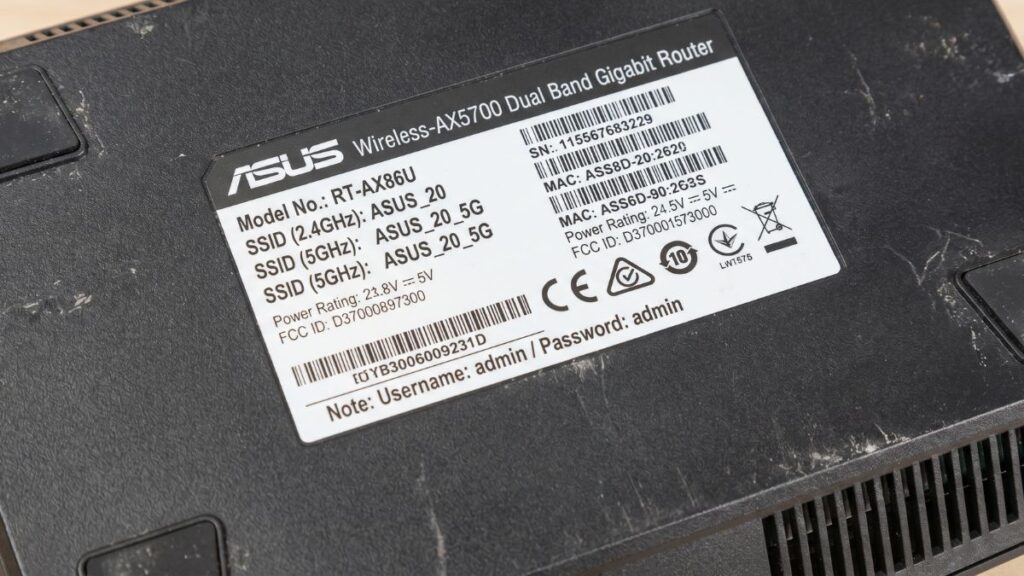
Most ASUS routers ship with the same default username and password. A subset of newer models print unique credentials on the router label — always check the sticker on the bottom or back before assuming admin/admin.
← Scroll to see full table →
| Model / Series | Default Login URL | Default IP | Username | Password |
|---|---|---|---|---|
| RT-AX88U, RT-AX86U, RT-AX82U | router.asus.com |
192.168.1.1 |
admin | admin |
| RT-AX55, RT-AX58U | router.asus.com |
192.168.1.1 |
admin | admin |
| RT-AX3000, RT-AX68U | router.asus.com |
192.168.1.1 |
admin | admin |
| ZenWiFi AX (XT8, XT9) | router.asus.com |
192.168.50.1 |
admin | admin |
| ZenWiFi Pro (ET12, ET8) | router.asus.com |
192.168.50.1 |
admin | admin |
| ROG Rapture GT-AX11000 | router.asus.com |
192.168.1.1 |
admin | admin |
| RT-AC68U, RT-AC86U | router.asus.com |
192.168.1.1 |
admin | admin |
| RT-AC5300, RT-AC88U | router.asus.com |
192.168.1.1 |
admin | admin |
| Models with label credentials | router.asus.com |
192.168.1.1 / 192.168.50.1 |
See label | See label |
Tip: Some newer ASUS models require you to set your own admin username and password during first-time setup. If you’ve done that and forgotten it, the only way back in is a factory reset.
How to Log In on a PC or Mac
This is the most reliable method — a wired Ethernet connection removes any WiFi-related variables.
- Connect your computer to the ASUS router. Ethernet is best; WiFi works too.
- Open a browser — Chrome, Firefox, or Edge all work.
- Click in the address bar (the URL bar at the top), not the search bar. Type
router.asus.comand press Enter. - If the page loads, you’ll see the ASUS login screen. Enter admin for both username and password.
- Click Sign In.
macOS note: Safari may show a “This connection is not private” warning when you first access router.asus.com. That’s expected — the router uses a self-signed certificate. Click Show Details, then visit this website to proceed. It’s not a security risk on your local network.
Chrome HTTPS issue: If Chrome redirects router.asus.com to HTTPS and blocks it, type http://192.168.50.1 or http://192.168.1.1 directly. Chrome’s HTTPS-first mode sometimes battles with router admin pages — using the IP bypasses this entirely.
Logging In on an iPhone
iPhone users run into one specific problem constantly: iOS reroutes traffic through cellular data even when you’re connected to WiFi, especially if the WiFi doesn’t have internet access. That kills any attempt to load a local router address.
Here’s how to fix it before you start:
- Go to Settings → Cellular and temporarily toggle Cellular Data off. This forces your iPhone to use WiFi only.
- Connect to your ASUS router’s WiFi network.
- Open Safari (recommended over Chrome on iOS for local addresses).
- Tap the address bar and type
router.asus.com. Press Go. - On the login screen, enter admin / admin and tap Sign In.
- Once you’re done, re-enable Cellular Data.
If router.asus.com still won’t load in Safari, try http://192.168.50.1 or http://192.168.1.1 depending on your model. Make sure you type the full http:// prefix — iOS sometimes assumes HTTPS and blocks local addresses.
Logging In on Android
Android has its own version of the iPhone problem: if your ASUS router isn’t connected to the internet yet, Android will automatically switch your traffic back to mobile data. The fix is the same — turn mobile data off before you try to load the login page.
- Pull down the notification shade and turn off Mobile Data.
- Connect to your ASUS router’s WiFi.
- Open Chrome or any browser.
- Type
http://router.asus.comin the address bar and hit Enter. - Enter admin for username and admin for password.
- Tap Sign In.
Samsung Galaxy users on Android 11 or newer have an extra option: go to Settings → Connections → Wi-Fi, tap your ASUS network name, and look for the gateway IP shown in the connection details. Tap it and it’ll open the login page directly.
Using the ASUS Router App
The ASUS Router app (available on both App Store and Google Play) is a solid alternative to the browser interface, especially for day-to-day tasks like checking connected devices, running a speed test, or rebooting the router.
What the app does well:
- Quick view of all connected devices
- Easy guest network toggle
- AiMesh node management (huge time-saver if you have multiple ASUS routers)
- Firmware update notifications
What the browser admin panel still does better:
- Full firewall and port forwarding configuration
- Advanced wireless settings (beamforming, MU-MIMO, band steering)
- Parental controls with detailed scheduling
To log in via the app: install it, make sure you’re on your ASUS WiFi, open the app and enter your router’s admin username and password. If you’ve never set a custom password, try admin / admin.
One thing most people don’t realize: if you set up AiMesh nodes, you manage them all from the main router’s login — you can’t log into a node’s admin page separately. All node settings sync through the primary router.
After You Log In: What to Do First
1. change your admin password
Go to Administration → System → Router Login Name and Password. Change both the username and password from the default admin/admin. ASUS’s panel won’t flag a weak password, so pick something over 12 characters with a mix of letters, numbers, and symbols. Write it down somewhere physical — if you forget it, you’re looking at a factory reset.
2. Update your WiFi name and password
Go to Wireless → General. You’ll see separate tabs for 2.4GHz and 5GHz bands. Change the SSID (network name) and set a WPA2-Personal or WPA3-Personal password. If your devices are relatively modern (made after 2020), WPA3 is the better pick — WPA3 offers significantly stronger protection against brute-force attacks compared to WPA2.
3. Check for firmware updates
Go to Administration → Firmware Upgrade. Click Check to see if a newer version is available. ASUS is reasonably active with firmware releases — security patches, Wi-Fi 6 improvements, and AiMesh fixes all come through here. It takes about 3 minutes and is worth doing before you touch anything else. For a full walkthrough on the process, see how to update router firmware safely.
4. Set up a guest network
Go to Guest Network. ASUS makes this easy — toggle it on, name it, set a password, and optionally set an access time limit. Putting IoT devices (smart TVs, bulbs, thermostats) on the guest network keeps them isolated from your main devices. It’s one of the most practical security moves you can make on a home network.
5. Disable remote management
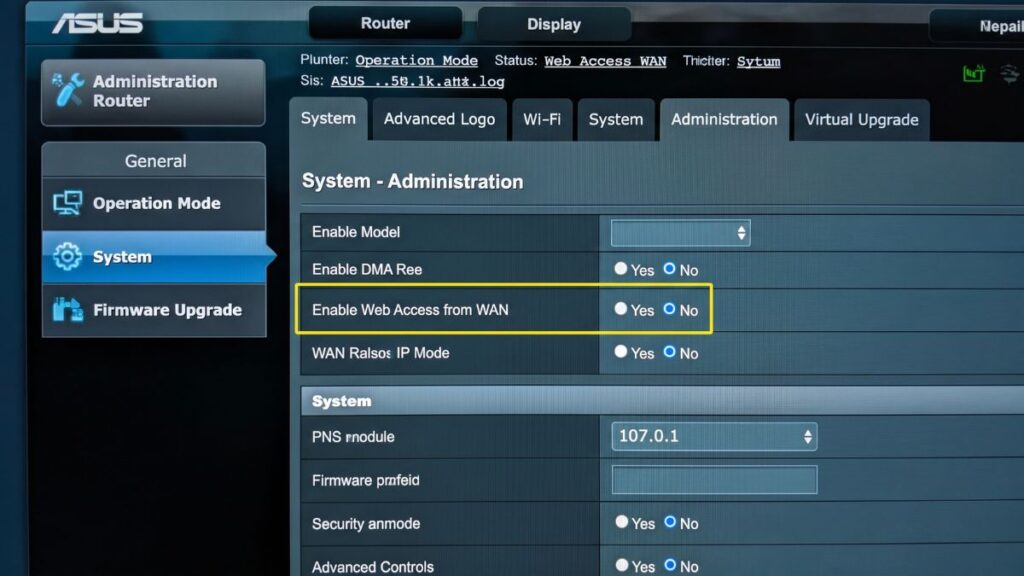
Under Administration → System, make sure Enable Web Access from WAN is turned off. This setting lets people outside your home reach the router admin panel over the internet. There’s almost no reason to leave it on, and it’s a common attack vector.
Troubleshooting: ASUS Router Login Problems
1. router.asus.com says “site can’t be reached”
This is the most common ASUS-specific complaint, and it usually comes down to one of three things:
- Chrome’s HTTPS-first mode is blocking the HTTP address. Fix: type
http://192.168.50.1orhttp://192.168.1.1directly in the address bar. - Your browser has cached a broken redirect. Fix: open an incognito/private window and try again, or clear cookies and cache for router.asus.com specifically.
- You’re not actually connected to the ASUS router. Fix: check your WiFi connection, or connect via Ethernet and try the IP address.
If the IP address loads fine but router.asus.com never does, stick with the IP. They reach the same place.
2. Password not accepted
If admin/admin doesn’t work, someone changed the credentials — possibly you, during initial setup. ASUS’s quick setup wizard prompts you to create a custom password, and it’s easy to forget what you entered. Your only option is a factory reset. See the reset section below.
3. “Connection is not private” in the browser
Don’t panic — this is standard behavior for local router admin pages. The router’s SSL certificate is self-signed, which triggers the browser warning. Click through the warning (usually under Advanced → Proceed). You’re on your own local network; there’s no real risk here.
4. VPN blocking the login page
If you have a VPN running on your device, it masks your IP and routes traffic outside your local network. The router login page won’t load because it’s only reachable from inside the network. Disable the VPN, load the login page, then re-enable it. This catches people off guard more than almost anything else.
5. Login page loads but keeps redirecting to setup wizard
This happens on first login or after a factory reset. ASUS routes you through Quick Internet Setup (QIS) before you can access the full admin panel. Complete the setup wizard first — you can skip some options, but you do need to set a new admin password to proceed.
6. The login page was working, now it’s not (repeated GUI crash)
This is a known issue on several ROG and RT-AC series models — the router’s HTTP service crashes after extended uptime, and the only fix is rebooting the router. If it happens regularly, check for a firmware update under Administration → Firmware Upgrade. ASUS has addressed this in firmware patches for affected models. If you’re on the latest firmware and it keeps happening, a factory reset followed by fresh configuration often resolves it.
Factory Reset
A factory reset wipes everything — custom WiFi names, passwords, port forwarding rules, all of it. Don’t do this unless you’re locked out or troubleshooting a persistent problem.
When to use it:
- You forgot your admin username and/or password
- The router is behaving strangely after a firmware update
- You’re giving the router to someone else
What it wipes:
- Admin username and password (reverts to admin/admin or label credentials)
- WiFi name(s) and password(s)
- All custom settings
How to do it:
- Make sure the router is powered on.
- Find the Reset button on the back of the router (it’s recessed — you’ll need a paperclip or pin).
- Press and hold for 5–10 seconds until the power LED starts flashing.
- Release and wait about 2 minutes for the router to restart.
- Connect to the default WiFi SSID (shown on the bottom label) and log in at router.asus.com with admin / admin.
Before you reset: If you set up the router with your ISP’s specific settings (PPPoE username and password, for example), have those handy — you’ll need to re-enter them during setup.
FAQ
Most ASUS routers use admin for both the username and password. Some newer models have unique credentials printed on the label on the bottom of the router. If you set a custom password during first-time setup and forgot it, a factory reset is the only way to recover access.
They’re two separate things. Your WiFi password is what your phone or laptop uses to connect to the network. The admin password (username: admin, password: admin by default) is what you enter at router.asus.com to access the router’s settings. Changing one doesn’t change the other.
Chrome’s HTTPS-first setting frequently causes this. Chrome tries to load router.asus.com over HTTPS, the router doesn’t support it, and the page fails. Try typing http://router.asus.com with the explicit http://, or use the router’s IP address directly. Firefox and Safari tend to handle local addresses more reliably.
On Windows, open Command Prompt and run ipconfig. Look for Default Gateway under your network adapter — that’s your router’s IP. On Mac, go to System Settings → Network → your connection → Details and look for the Router field. You can also use the gateway IP finder tool if you want a faster answer.
Not by default, and that’s intentional. The admin panel is only accessible from inside your local network. If you need remote access, ASUS offers a feature called AiCloud that lets you manage the router remotely through the ASUS Router app — but it requires you to enable it first under AiCloud 2.0 in the admin panel.