Most Tenda routers use 192.168.0.1 as the default login address — but the Nova MW6 mesh system doesn’t, older DSL models often don’t, and access points in AP mode shift IP automatically. If you’ve been staring at a connection error, that mismatch is almost certainly why.
Type the right address into your browser’s address bar (not the search bar), enter your credentials, and you’re in the admin panel. This guide shows you exactly which IP matches your Tenda model, what username and password to use, how to log in from any device, and how to fix it when something goes wrong.
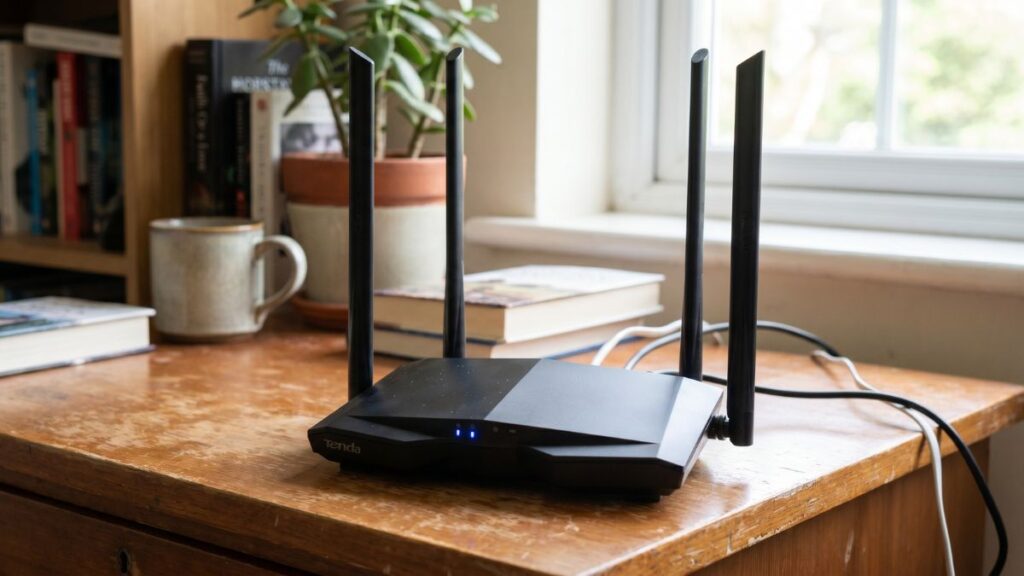
Tenda Router Default IP Address by Model
Tenda doesn’t publish a single universal login address, and that’s where most guides fail. The right IP depends on your model family — not just the brand.
Which IP Does Your Tenda Router Use?
Flip the router over and read the sticker on the bottom. The login address is printed there alongside the default WiFi password. If the label is worn, use this table:
← Scroll to see full table →
| Model / Series | Default IP Address | Notes |
|---|---|---|
| F3, F9, N301, N300 | 192.168.0.1 |
Budget N-Series — Most Widely Sold |
| AC6, AC10, AC10U, AC15 | 192.168.0.1 |
Dual-Band AC Routers |
| AC18, AC23, W15E | 192.168.0.1 |
Higher-End AC and Wi-Fi 5 Models |
| Nova MW6 (Mesh3), MW3 | 192.168.10.1 |
Mesh Systems — Different from Every Other Tenda |
| A18, A9 (Access Points) | 192.168.1.1 |
AP-Only Units; IP Shifts in AP Mode |
| FH303, FH330, FH1206 | 192.168.0.1 |
FH-Series Home Routers |
| D301, D302 (DSL/ADSL) | 192.168.1.1 |
Modem-Router Combos |
The Nova MW6 is the one that catches most people off guard. It ships with 192.168.10.1 — not 192.168.0.1 — and no amount of retrying 192.168.0.1 will get you in. Check the model name on the label if you’re not sure which series you have.
Access points in AP mode are a different case entirely. When an A18 or A9 runs in AP mode, it drops its own IP and inherits an address from the upstream router’s DHCP range. The label IP stops working. In that situation, use the tendawifi.com method below — it works regardless of what IP the device has been assigned.
The tendawifi.com URL Method
Every modern Tenda router responds to a hostname you can type directly into the browser’s address bar:
http://tendawifi.com
This is Tenda’s official alternative to typing the IP — it’s built into the firmware and works as long as your device is connected to the Tenda network. It’s the fastest fallback when you don’t know the IP, when the IP has changed, or when you’re on an access point in AP mode.
A few things to know: use http:// not https://, and type it in the address bar, not a search engine. Browsers increasingly try to convert plain domain entries into HTTPS or search queries — manually adding the http:// prefix stops that.
How to Confirm Your Router’s IP Address
If tendawifi.com doesn’t load and the model table didn’t give you a clear match, your device knows the answer. Every computer and phone stores the gateway IP of whatever network it’s connected to — that gateway is your router.
Windows: Hit Win + R, type cmd, press Enter. Run ipconfig. Find “Default Gateway” under your active connection.
Mac: Apple menu → System Settings → Network → select your connection → Details → TCP/IP. The Router field shows the IP.
Phone: Our Find My Gateway IP tool reads it automatically — no digging through network settings required.
Whatever that gateway IP is, that’s the address to type into your browser.
Tenda Router Default Username and Password
Tenda standardized on admin/admin for most of its lineup — but there are genuine exceptions across model generations and regions.
← Scroll to see full table →
| Username | Password | Applies To |
|---|---|---|
admin |
admin |
Most Tenda Routers Manufactured 2015–Present |
admin |
leave blank | Some Pre-2015 Models — Submit with Password Field Empty |
admin |
password |
EU and UK Regional Variants |
admin |
admin123 |
Certain Legacy FH-Series Models |
admin |
Printed on Label | ISP-Supplied Units with Carrier-Set Credentials |
Two things worth knowing before you start trying combinations:
First-time setup on F3 and N301: These budget models skip the factory default entirely. When you log in for the first time on a brand-new unit, Tenda prompts you to create an admin password before granting access. If you bought one of these new and it’s never been set up, “admin/admin” won’t work — the router is waiting for you to set a password.
ISP-configured routers: If your Tenda came bundled with an internet plan or was pre-configured by a provider, the admin password was likely changed during provisioning. The label reflects the factory state, not the ISP state. Call the provider or check their support docs.
How to Log Into Your Tenda Router
Your device must be connected to the Tenda router before any of this works — WiFi or Ethernet cable into a LAN port. The admin panel is only reachable on the local network. Mobile data won’t get you there.
On a PC or Mac
- Open a web browser — Chrome, Firefox, Edge, or Safari all work.
- Click into the address bar at the top of the browser window — the long bar that shows the current URL, not a search box.
- Type
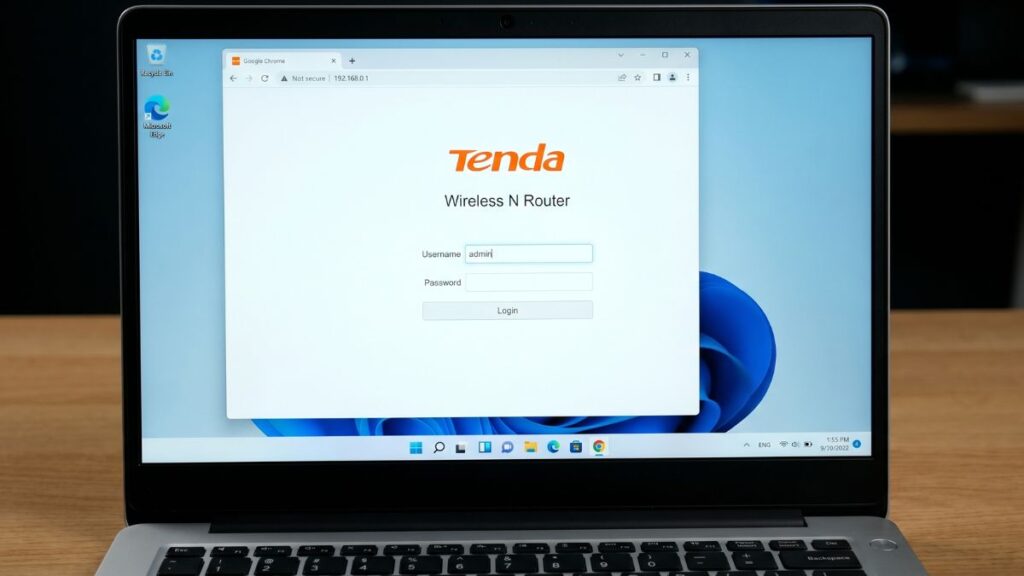
192.168.0.1and press Enter. Or typehttp://tendawifi.comif you prefer the hostname. - The Tenda login page appears. Enter your username and password.
- Click Login.
If your browser shows a “site can’t be reached” error, type http://192.168.0.1 with the protocol prefix. Newer versions of Chrome and Edge default to HTTPS for unrecognized addresses, and Tenda’s admin interface runs on HTTP only on most models.
On iPhone
- Connect to the Tenda router’s WiFi network.
- Open Safari — not Chrome. Chrome on iOS sometimes interprets IP addresses as search queries and redirects to Google instead of loading the page.
- Tap the address bar at the top and type
192.168.0.1orhttp://tendawifi.com. - The Tenda login screen loads. Enter your credentials and tap Login.
If Safari opens a search results page, you’ve tapped into the search field below the address bar rather than the URL field at the top. The address bar in Safari is at the very top of the screen.
On Android
- Connect to the Tenda router’s WiFi.
- Open Chrome or whichever browser you use.
- Tap the address bar and enter
192.168.0.1. - Log in with your username and password.
Android-specific issue: if the router has no active internet connection (common during initial setup or after an ISP outage), Android may automatically drop the WiFi and route traffic through mobile data instead. The admin page will stop loading. Turn mobile data off in Settings before trying again — your device will stay on the Tenda network and the login page will come up.
Using the Tenda WiFi App
The Tenda WiFi app (available on the App Store and Google Play) is the easier option on mobile, and for Nova mesh systems it’s essentially required — the MW6 and MW3 need the app to complete initial setup before the web interface opens up.
- Download the Tenda WiFi app and open it.
- Make sure your phone is connected to the Tenda router’s WiFi.
- The app detects the router automatically and walks you through setup.
- For an already-configured router, tap into the settings directly from the home screen.
The app handles everything the browser interface does — WiFi name and password, connected devices, parental controls, guest network, QoS, and firmware updates. For day-to-day management it’s faster than opening a browser.
What Changes Between Tenda Models in the Admin Panel
Log into a Tenda F3 and then into a Tenda AC23 — they don’t look the same. The interface layout and available settings shift across model families, and knowing what to expect saves time if you’re following a specific guide.
← Scroll to see full table →
| Model Series | Interface Style | What’s Different |
|---|---|---|
| F3, N301, N300 | Minimal two-section layout | Only basic WiFi and internet settings — no QoS or bandwidth control. |
| AC6, AC10, AC15 | Standard Tenda dashboard | Full feature set including parental controls, bandwidth control, QoS, and guest network. |
| AC18, AC23 | Expanded AC dashboard | MU-MIMO settings and more granular QoS controls are available. |
| Nova MW6, MW3 | Simplified web UI | Web interface covers basic settings only — mobile app required for full control. |
| FH303, FH330 | Older blue-grey layout | Advanced settings are tucked under a secondary “More” tab. |
| D301, D302 (ADSL) | DSL-specific interface | Includes PPPoE settings, WAN type selector, and DSL line status — different from standard WiFi routers. |
If you’re on a Nova MW6 and the web interface looks stripped compared to what a guide shows, that’s intentional. Tenda designed the Nova series around the app. The browser UI is a secondary access point — not the primary control surface.
First Things to Do After Logging In
Set a real admin password. Go to System Settings → Administrator Password. The factory default is widely known — automated scripts probe for admin/admin on home routers constantly. Pick something at least 12 characters long and write it down. Tenda has no password recovery mechanism. If you forget the admin password, a factory reset is the only option.
Change your WiFi name and password. Go to WiFi Settings → WiFi Name & Password. Rename the SSID to something that doesn’t identify your router brand or home location. Set a WPA2 or WPA3 password — if you’re on a newer AC or Wi-Fi 6 Tenda model, WPA3 is available and worth enabling. Our WPA2 vs WPA3 guide covers what the actual security difference is.
Run a firmware update. Go to System Settings → Firmware Update. Tenda has a history of firmware vulnerabilities in older builds — running an outdated version is a real risk, not a theoretical one. The update takes a few minutes and the router restarts automatically. Our firmware update guide walks through what to expect if you haven’t done it before.
When Tenda Router Login Isn’t Working
Page Won’t Load at All
Work through this in order — don’t skip steps:
- Try
http://tendawifi.comin the address bar if you haven’t already - Try
192.168.1.1if 192.168.0.1 didn’t work, then192.168.10.1for Nova models - Confirm your device is on the Tenda WiFi — check the WiFi indicator in your system tray or status bar
- On Android, turn off mobile data so the phone stays on the local network
- Add
http://in front of the IP address to prevent the browser defaulting to HTTPS - Open an incognito/private window — sometimes a cached redirect blocks the page from loading in a regular window
- Switch browsers entirely
Still nothing? Run ipconfig on Windows (or check the Router field in Mac network settings) to get the exact gateway IP your device is using right now. Type that IP directly into your browser. Our Find My Gateway IP tool does this automatically if you want to skip the manual lookup.
Password Rejected
If the credentials don’t work:
- Try submitting with the password field blank — some older Tenda models have no factory password
- Try
password,admin123, or1234for legacy variants - Check the label again — some units print a unique admin password rather than using a generic default
- For a router that came from an ISP, the default may have been overwritten during provisioning
You Changed the Password and Forgot It
Tenda has no account recovery, no reset-via-email, no secret question. A forgotten custom password has one solution: factory reset.
Before you go there, check your browser’s saved passwords. In Chrome, go to Settings → Passwords and search for 192.168.0.1 or tendawifi.com. In Safari on Mac, go to Settings → Passwords. If you were logged in through a browser that offered to save the password, it may be stored there.
If it’s not saved anywhere, proceed with the factory reset below.
Factory Reset
A reset wipes everything — WiFi credentials, admin password, port forwarding rules, parental controls, static leases. You’re back to factory defaults and will need to reconfigure from scratch.
- Keep the router powered on.
- Find the Reset pinhole — on the back panel or underside depending on model.
- Press and hold with a paperclip or pin:
- 8–10 seconds for most Tenda routers
- 15 seconds for Nova MW6 and MW3 — they need the longer hold to clear the cloud account binding, not just reset settings
- Release when the power LED blinks rapidly or all LEDs flash at once.
- Wait 2–3 minutes for the router to fully reboot. Don’t cut power during this.
- Connect to the default WiFi shown on the bottom label.
- Log in with factory default credentials and reconfigure your settings.
Conclusion
For nearly every Tenda router, 192.168.0.1 is where you start. The exception that catches most people is the Nova MW6 and MW3 mesh systems — those use 192.168.10.1. When you’re not sure of the IP or it’s changed, http://tendawifi.com works across the board. Default credentials are admin/admin on most models, though the F3 and N301 will ask you to set a password yourself the first time.
After logging in, the three things that actually matter: set a new admin password, update your WiFi security settings, and run a firmware check. Those steps take five minutes and close the gaps that leave most home routers exposed.
If your router’s IP is still a mystery, our Find My Gateway IP tool figures it out without any manual digging. And if you want to understand how your router manages addresses for every device on your network, our guide on how DHCP assigns IP addresses explains it in plain terms.