Huawei Router Login – 192.168.3.1 Default IP & Password
If you're trying to log into your Huawei router and hitting a wall, you're probably dealing with one of the most common frustrations: Huawei doesn't use a single default IP. Depending on your model, it could be 192.168.3.1, 192.168.1.1, or 192.168.8.1 — and trying the wrong one just gives you a blank page.
Quick Answer: How to Log Into Your Huawei Router
To access your Huawei router admin page, connect to its Wi-Fi network and open http://192.168.3.1 in your browser (for home WS/AX series) or http://192.168.8.1 (for 4G/5G mobile CPEs). You can also type http://mediarouter.home. Enter default username admin with password admin (or the custom password you set during initial Wi-Fi setup).
⚡ Direct Login: Jump to Your Huawei Gateway
Select the IP address or hostname that matches your Huawei hardware:
Huawei Router Default IP Address by Model
Here's the thing most guides get wrong: they list one IP and tell you to try it. Huawei uses at least four different default IPs across its product lineup, and using the wrong one wastes your time.
Which IP Does Your Huawei Router Use?
Check your router's bottom label first — the correct IP is printed there. If the label is worn or missing, use this reference table:
| Model / Series | Default IP Address | Router Type |
|---|---|---|
| WS5200, WS7200, AX2, AX3, AX6 | 192.168.3.1 | Home WiFi & Mesh Router |
| EchoLife HG532, HG655b, HG630 | 192.168.1.1 | DSL Gateway / Modem-Router |
| HG232f | 192.168.3.1 | Home Broadband Router |
| E5576, E5577, E5787, E5372 | 192.168.8.1 | 4G Mobile WiFi / Pocket Router |
| B525, B618, B535, B310, B315, 5G CPE Pro | 192.168.8.1 | 4G/5G CPE Home Router |
| EchoLife HG8245, HG8145V, HG8247H | 192.168.100.1 | Fiber GPON ONT Terminal |
| HG256s, HG253s | 192.168.0.1 | Legacy DSL Models |
Quick rule of thumb: If you have a standard home WiFi router (WS or AX series), start with 192.168.3.1. If it's a 4G or mobile WiFi device, try 192.168.8.1. Older DSL modem-routers usually land on 192.168.1.1.
The mediarouter.home URL Method
Most people don't know this: Huawei routers also respond to a local hostname address in the browser. Instead of memorizing numbers, you can type:
This works on most modern Huawei home routers when you're connected to the router's Wi-Fi. It's easier to remember than an IP address and pulls up the exact same admin login page. If the IP address method isn't loading for you, try this first before anything else.
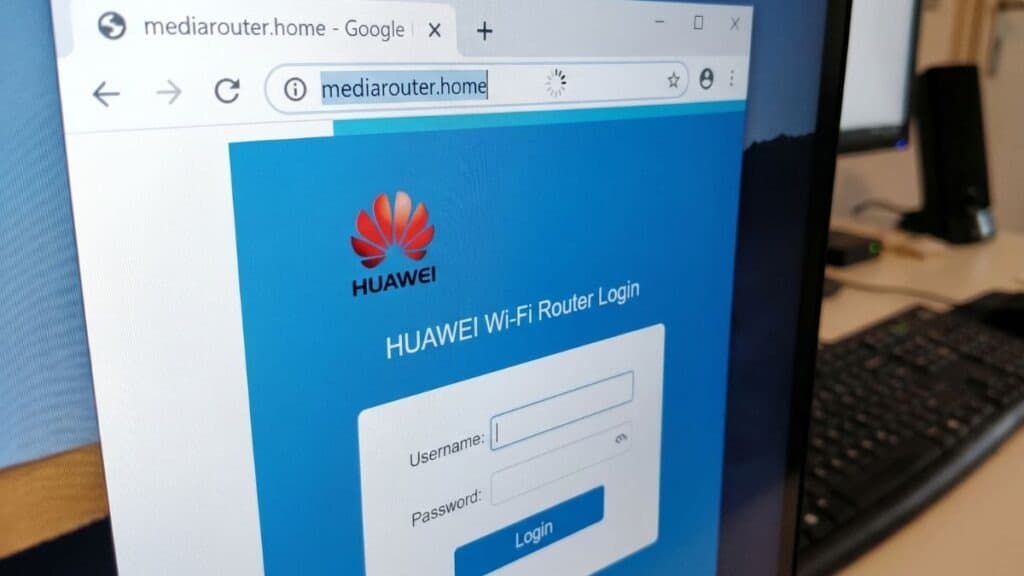
Huawei Wi-Fi router login portal loaded via http://mediarouter.home in Google Chrome.
How to Find Your IP If You're Not Sure
If neither the physical router label nor the table gives you a clear answer, you can use our IP Checker Tool — it detects your local network configuration automatically without any manual searching.
You can also check it directly from your computer operating system:
On Windows:
Press Win + R → type cmd → type ipconfig → look for Default Gateway.
On Mac:
Go to System Settings → Network → select connection → Details → TCP/IP tab → check Router field.
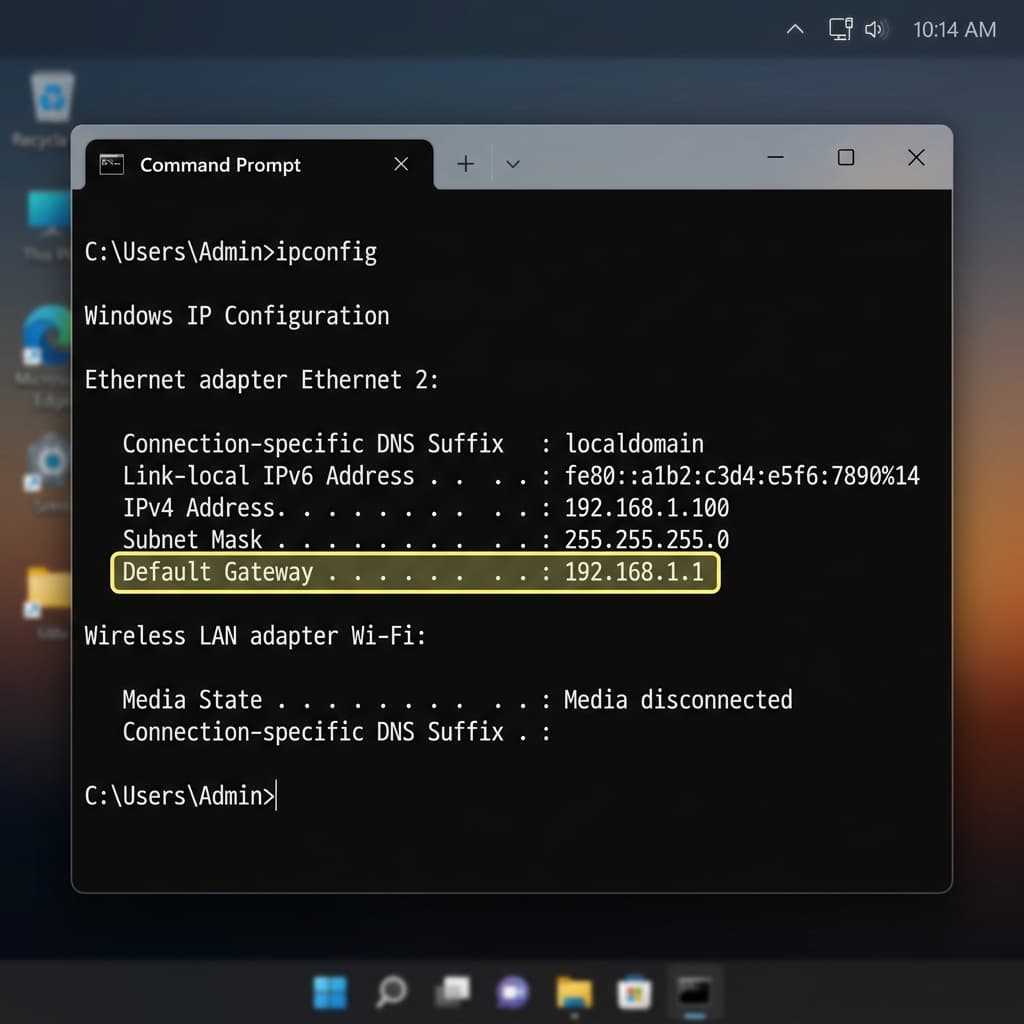
Windows Command Prompt displaying ipconfig output with the router Default Gateway IP address.
Huawei Router Default Username and Password
Most Huawei routers ship with standard factory credentials, but there are notable exceptions — especially if your router was supplied by an Internet Service Provider (ISP):
| Default Username | Default Password | When It Applies |
|---|---|---|
admin | admin | Most factory-default Huawei routers & 4G/5G CPE units |
admin | Set during initial setup | Newer AX-series & WS-series (often matches your Wi-Fi password) |
admin | @Huawei123 / @HuaweiHgw | Some newer AX-series models & custom regional firmware |
admin | admin123 | Certain regional carrier variants |
telecomadmin | admintelecom | Superadmin for EchoLife GPON Fiber ONTs (Full Bridge Mode / VLAN access) |
admin | Printed on label | ISP-supplied routers (BT, Vodafone, Airtel, Globe, PLDT) |
user | user | Some older EchoLife modem models |
Important Note on ISP-Supplied Routers
If your Huawei router was supplied by an internet provider (BT, Vodafone, Airtel, Globe, PLDT, or a regional ISP), the password is almost never the factory default. Check the sticker on the bottom or back of the router. ISPs frequently flash customized firmware with unique admin keys per serial number.
How to Log Into Your Huawei Router (Step-by-Step)
Before you start, make sure your device is connected to the Huawei router — either by Wi-Fi or with an Ethernet cable plugged into one of the LAN ports. You cannot access the admin page over mobile cellular data.
On a PC or Mac
- Connect: Open your web browser (Chrome, Firefox, Edge, or Safari).
- Address Bar: Click in the URL address bar at the top — not the Google search box.
- Enter IP: Type
192.168.3.1(or192.168.8.1) and press Enter. - Authenticate: The Huawei admin login page appears. Enter your username and password.
- Log In: Click Login or press Enter to load your dashboard.
On iPhone (iOS)
- Connect Wi-Fi: Join your iPhone to the Huawei router's Wi-Fi network.
- Open Safari: Launch Safari (recommended over Chrome on iOS to prevent search engine redirects).
- Enter URL: Tap the address bar and type
192.168.3.1orhttp://mediarouter.home. - Sign In: Enter your admin username and password, then tap Login.
On Android
- Connect Wi-Fi: Connect to the Huawei router Wi-Fi.
- Mobile Data Tip: Turn off Mobile Data temporarily if Android auto-switches away from unconfigured Wi-Fi.
- Open Browser: Open Chrome and enter
192.168.3.1(or model IP). - Sign In: Enter admin credentials on the login screen and tap Login.
Alternative: Using the HUAWEI AI Life App
Newer Huawei routers — including WS5200, WS7200, and AX series — support the HUAWEI AI Life app as an intuitive mobile alternative to typing IP addresses into a browser:
- Download HUAWEI AI Life from the App Store, Google Play, or Huawei AppGallery.
- Ensure your phone is connected to the router's Wi-Fi.
- Open the app — it will automatically discover your router.
- Manage parental controls, signal heatmaps, guest networks, and firmware upgrades directly from your phone.
Huawei Admin Panel: What's Different by Model
Huawei's admin interface isn't identical across models. If you log in and the layout looks different from what a guide shows, that's normal:
| Model Series | Admin UI Style | Notable Difference |
|---|---|---|
| AX3, AX6, WS7200 (WiFi 6) | Modern Dashboard, Dark mode option | “More” tab for advanced settings, one-touch Mesh pairing, AI Life sync |
| WS5200 | Clean tile layout | Parental controls located under “Home Network”, guest network timer |
| B525, B618, B535 (4G/5G CPE) | Simplified tabs (Status, Settings, SMS) | Includes built-in SMS inbox & signal antenna strength meter for SIM cards |
| E5576, E5787 (Mobile WiFi) | Minimal Mobile-first UI | WiFi-focused controls, battery conservation settings, no physical LAN options |
| EchoLife HG532 / HG8245 | Enterprise blue/grey interface | Advanced WAN/VLAN settings require telecomadmin superadmin login |
Note for 4G/5G CPE users: If you are on a B525 or B618 4G router, the admin panel includes a dedicated SMS inbox tab used for managing text messages and balance notifications received over your SIM card.
What to Do After You're In (3 Essential Steps)
1. Change the Default Admin Password
The default admin / admin login is universally known. Go to Settings → System → Account Management (or More → System Settings) and create a strong unique password.
2. Update Your Wi-Fi Name (SSID) & Security Key
Navigate to Wi-Fi Settings → Basic Settings. Change the network SSID to something that doesn't broadcast your router model or location, and choose WPA2-PSK / WPA3-SAE with a strong password.
3. Check for Router Firmware Updates
Huawei regularly issues firmware patches that improve Wi-Fi stability and patch zero-day vulnerabilities. Go to Settings → System → Firmware Update and check for available updates.
Huawei Router Login Problems — Diagnostic & Fix Guide
| Symptom | Probable Cause | Target Quick Fix |
|---|---|---|
| Page Won't Load (Blank / Timeout) | Using wrong subnet IP or mobile data is active | Try alternate IPs (192.168.3.1 → 192.168.8.1 → mediarouter.home) or check gateway via IP Checker. |
| Password Not Accepted | Custom password set or ISP label required | Check physical underside sticker; try Wi-Fi password (for AX models) or @Huawei123. |
| Forgot Admin Password | Custom credentials lost | Perform a 10-15 second physical pinhole reset to restore factory defaults. |
| Redirects to Search Engine | Typed IP into search box instead of URL bar | Type http://192.168.3.1 directly in the browser top address bar. |
Factory Reset (Step-by-Step)
A factory reset wipes all custom configurations — Wi-Fi name, password, admin credentials, and port forwarding rules — and restores factory settings:
- Power Check: Ensure the Huawei router is plugged in and powered ON.
- Locate Reset Pin: Find the small pinhole labeled Reset on the back or bottom.
- Hold Button: Insert a paperclip or SIM ejector tool and press down for 10–15 seconds.
- Observe LEDs: Release once all front LED lights flash and turn off.
- Reboot: Wait 60–90 seconds for the router to complete rebooting.
- Reconnect: Connect to the default Wi-Fi network printed on the bottom label and log in with default credentials.
Frequently Asked Questions (FAQ)
What is the default IP address for Huawei routers?
Huawei uses multiple IP addresses depending on the hardware class: 192.168.3.1 for home Wi-Fi routers (AX3, WS5200), 192.168.8.1 for 4G/5G mobile CPEs (B310, B535, E5577), 192.168.1.1 for DSL modem gateways (HG532), and 192.168.100.1 for EchoLife GPON fiber ONTs. You can also use hostname http://mediarouter.home.
What is the default username and password for Huawei router login?
The factory default username is admin and password is admin on most models. On newer AX-series models, the admin password is configured during initial setup (often identical to your Wi-Fi password). For ISP-provided routers, check the sticker on the router base.
What is mediarouter.home?
http://mediarouter.home is Huawei's local DNS hostname URL. When connected to a Huawei router via Wi-Fi or Ethernet, typing this address into your browser automatically resolves to your router's local IP without requiring you to know the exact numerical gateway.
Why won't 192.168.3.1 open in my browser?
This usually occurs if your device is connected to mobile data instead of Wi-Fi, if your router operates on a different subnet (such as 192.168.8.1 or 192.168.1.1), or if your browser is forcing HTTPS. Make sure you are on router Wi-Fi and type http://192.168.3.1 in an incognito window.
Can I set up my Huawei router from a smartphone?
Yes. You can either open your mobile browser to http://192.168.3.1 / http://mediarouter.home or download the official HUAWEI AI Life app from the iOS App Store or Google Play Store.
The Bottom Line
Getting into a Huawei router admin panel comes down to using the right IP for your model: start with 192.168.3.1 for home Wi-Fi routers, 192.168.8.1 for 4G and mobile Wi-Fi devices, and http://mediarouter.home as a universal fallback. Default credentials are admin / admin on most units, but always check the physical label if you got your router from an ISP. Once logged in, change your default admin password, update your Wi-Fi name and password, and check for the latest firmware update to ensure network security.