Tenda Router Login — 192.168.0.1 / tendawifi.com Setup & Fixes
If you're trying to log into a Tenda router, there are two things that catch people off guard almost immediately: the login page usually doesn't ask for a username at all, and the address you use to get there can quietly stop working later if the router is set up as a repeater or extender. Neither of these is a malfunction — they're just how Tenda's firmware actually works.
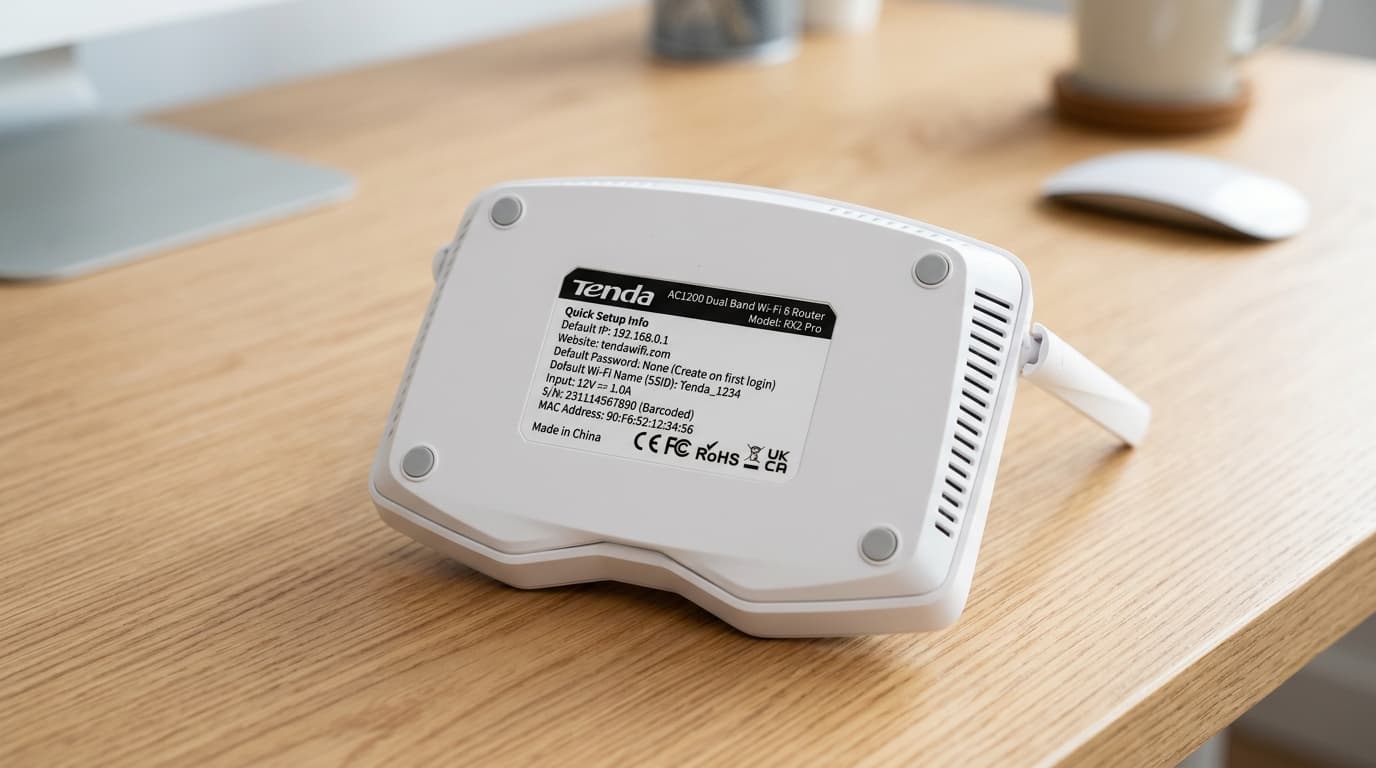
Tenda router underside sticker displaying default gateway (192.168.0.1), local access domain (tendawifi.com), and password policy.
Quick Answer: How to Log Into Your Tenda Router
Tenda routers default to 192.168.0.1 (some models use 192.168.1.1), and newer firmware also answers to the local alias tendawifi.com. Unlike most brands, Tenda's login screen typically asks for a password only, with no username field — and on newer units, there is no factory default password at all; you create one the first time you log in. If tendawifi.com won't load, use the IP address directly — it's the same page, just a different way to reach it.
⚡ Direct Login: Jump to Your Tenda Gateway
Click the IP address or hostname that matches your Tenda router model:
First: What's Actually Going Wrong?
Before troubleshooting cables or performing factory resets, identify your exact login symptom below:
Where to Find Default Credentials on Your Tenda Hardware
Look at the physical manufacturer sticker located on the underside of your Tenda router or mesh node:
Why There's No Username Field (And Why the Password Might Not Exist Yet)
This is the single most common point of confusion with Tenda routers, and it's specific to this brand — most other manufacturers (like Netgear, Asus, or D-Link) use a standard username/password pair such as admin / admin or admin / password.
Tenda's admin panel is built around a password-only login. There is no username to enter at all. On units that ship with a factory default, that password is typically admin. But on newer Tenda routers, there often isn't a default password set at the factory — instead, the first time you open 192.168.0.1 or tendawifi.com, the router prompts you to create your own admin password on the spot, rather than asking you to enter one that already exists.
If you're staring at a login screen expecting a username field, or trying admin/admin and getting nowhere, check whether the page is actually asking you to set a new password instead of enter one. That's the router's normal first-boot behavior, not a fault.
Why tendawifi.com or 192.168.0.1 Stops Working in Repeater Mode
This is the second most common reason people land on this guide, and like the first issue, it's expected behavior rather than something broken.
If you've configured your Tenda unit as a repeater, Wi-Fi extender, or WISP client — rather than using it as your primary gateway router — it gives up its own 192.168.0.1 address once it successfully joins your main network. Instead, it takes on a new IP address assigned dynamically by your main router's DHCP server, because it is now operating as a client device on that network rather than its own standalone gateway.
That means tendawifi.com and 192.168.0.1 will both stop responding after this kind of setup completes — not because anything failed, but because the device is no longer listening at that static address.
Repeater Mode DHCP Address Handoff Architecture
Step-by-Step Fix (In the Order That Actually Works)
Follow these structured diagnostic steps sequentially to connect to your Tenda router administration console:
1Confirm You're Connected to the Right Network
Make sure your smartphone or computer is connected directly to the Tenda router's Wi-Fi network (typically named Tenda_XXXXXX) or plugged into one of the yellow LAN ports using an Ethernet cable. Ensure mobile data is toggled OFF on phones to prevent cellular DNS bypassing.
2Try tendawifi.com First
- Open any web browser (Chrome, Edge, Safari, Firefox).
- Type http://tendawifi.com in the URL bar and press Enter.
Note: tendawifi.com is a local-only hardware alias that only resolves when connected to the Tenda router — it is not a public internet domain.
3If That Fails, Use the IP Address Directly
If the domain alias fails to resolve due to DNS caching, input the numeric IP address:
- Navigate directly to http://192.168.0.1.
- If that doesn't load, try http://192.168.1.1 — used by LTE routers and cascaded units. (You can also run our Local IP Checker to detect your gateway).
4Enter Your Credentials — Or Set Them for the First Time
- If prompted for a password only (no username field), test
adminfirst. - If the page displays a prompt to Create Login Password, this is an unconfigured or reset router — set a strong password and write it down.
5Try a Different Browser or Incognito Window
Browsers often force HTTPS on local domains, causing an SSL_ERROR or timeout on HTTP router gateways. Open a new Incognito / Private Window, or try a secondary browser without active browser extensions.
6Turn Off Any Active VPN or Proxy
Active VPN software (such as NordVPN, ExpressVPN, or corporate tunnels) re-routes all local network packets through an external server, making 192.168.0.1 unreachable. Disconnect VPN clients completely before attempting login.
7Still Nothing? Power Cycle, Then Factory Reset
- Power cycle: Unplug the power adapter from the wall, wait 30 seconds, and plug it back in.
- Hardware Reset: Locate the recessed
RST / WPSpinhole button on the rear panel. - Press and hold the button for 8 to 10 seconds while the unit is powered on.
- Release the button when the SYS / Wi-Fi LEDs flash rapidly. The router will restore factory default settings, allowing you to set a fresh administrative password.
What to Do Once You're Logged In
After reaching the Tenda management console, complete these critical administrative configurations:
Set a Strong Admin Password
Because Tenda lacks an administrative username layer, your password is the only protection against unauthorized network changes. Avoid simple words or birthdays.
Update Wi-Fi SSID & Security
Under Wireless Settings, rename your 2.4 GHz and 5 GHz networks and configure WPA2-PSK / WPA3-SAE encryption with a robust passphrase.
Audit Connected Devices
Check the Attached Devices / Client Management menu to identify all active laptops, smartphones, and IoT hardware on your network band.
Check Firmware Updates
Navigate to System Settings > Firmware Upgrade to patch known security vulnerabilities and optimize wireless transmission stability.
Tenda Router Models: Gateway IP & Password Matrix
Quick reference table comparing default IP addresses, local URL hostnames, and password behaviors across Tenda hardware series:
Frequently Asked Questions
Why doesn't my Tenda router login ask for a username?
This is completely normal. Tenda's modern administrative panel uses a password-only authentication screen with no username field, unlike most other router brands (such as Netgear or TP-Link) that require an admin username.
What's the default password for a Tenda router?
Some older units (like the F3 or N301) ship with 'admin' as a factory default. However, many newer Tenda routers have no default password at all — upon first navigating to 192.168.0.1 or tendawifi.com, the setup wizard prompts you to create a brand-new administrative password on the spot.
Why did tendawifi.com and 192.168.0.1 both stop working?
If your Tenda router is configured in Repeater Mode, Range Extender, or WISP Client mode, it disables its internal DHCP server and surrenders its 192.168.0.1 address once connected to the upstream network. It receives a new IP address from your main router (e.g., 192.168.1.45). You can log into your main router's client list to find the Tenda unit's new IP.
Is tendawifi.com a real website?
No. tendawifi.com is a local internal DNS alias intercepted and resolved only by the Tenda router's onboard firmware when your computer or phone is directly connected to its Wi-Fi or LAN ports. It cannot be accessed over mobile data or through an external internet connection.
What do I do if I forgot my Tenda admin password?
A physical hardware factory reset is the only way back in. Locate the recessed RST/WPS button on the back of the Tenda unit, press and hold it with a pin for 8–10 seconds while powered on until all LEDs flash, then release. Once rebooted, reconnect to the default Wi-Fi and create a fresh password.
Why does my Tenda router use 192.168.1.1 instead of 192.168.0.1?
A small number of Tenda models (especially 4G LTE gateways and units operating in secondary cascaded setups) default to 192.168.1.1 to avoid IP address collisions with an upstream modem. If 192.168.0.1 fails to load, test http://192.168.1.1.
The Bottom Line
Tenda's login page is genuinely a little different from most routers — no username field, and often no default password to begin with. And if you've set your unit up as a repeater or extender, don't be surprised when tendawifi.com and 192.168.0.1 both go quiet afterward — that's the device doing exactly what it's supposed to once it joins your main network.