Quick answer: There are three ways into your router's admin page: type its IP address into a browser (like 192.168.1.1), type a custom web address the manufacturer set up (like routerlogin.net), or open the router's companion app. Which one actually works depends on your router. If it came with an app, start there — most current routers, especially ones from your ISP or mesh systems, are built around the app first and treat the browser page as an afterthought, if they offer one at all.
Three Ways In, and Your Router Only Uses One or Two of Them
A router's admin page is the settings screen where you change your Wi-Fi name, password, connected devices, and security options. There's no single way to get there. It depends entirely on what router you actually have.
IP address. Every router has a private IP address on your home network — commonly 192.168.1.1 or 192.168.0.1, though yours might be different. Type that into a browser and the login screen opens directly.
Custom URL. Some manufacturers set up a friendlier web address instead. Netgear uses routerlogin.net, TP-Link uses tplinkwifi.net. Same destination, easier to remember than a string of numbers.
Companion app. Most routers sold in the last few years, and nearly all ISP-provided routers and mesh systems (Eero, Google Nest Wifi, Orbi), lean on a mobile app instead of a browser page. For these, the app isn't a nice-to-have shortcut. It's often the only door in.
Not sure which one is yours? Search your router's brand name in the app store first. If nothing comes up, the browser method is your fallback and it works more often than people expect.
Access Method by Router Type
| Router Type | Primary Access Method | Notes |
|---|---|---|
| Standalone router (TP-Link, Netgear, Asus, D-Link) | Browser (IP or custom URL) | App usually available too, but not required |
| ISP-provided gateway (Xfinity, AT&T, Spectrum) | App or ISP account login | Browser access may be limited or disabled |
| Mesh Wi-Fi system (Eero, Orbi, Nest Wifi) | App | Browser access often unavailable entirely |
| Older or budget routers | Browser (IP address) | Rarely have a companion app |
How to Access It Through a Browser
- Connect your device to the router's network. Wi-Fi or Ethernet, doesn't matter which.
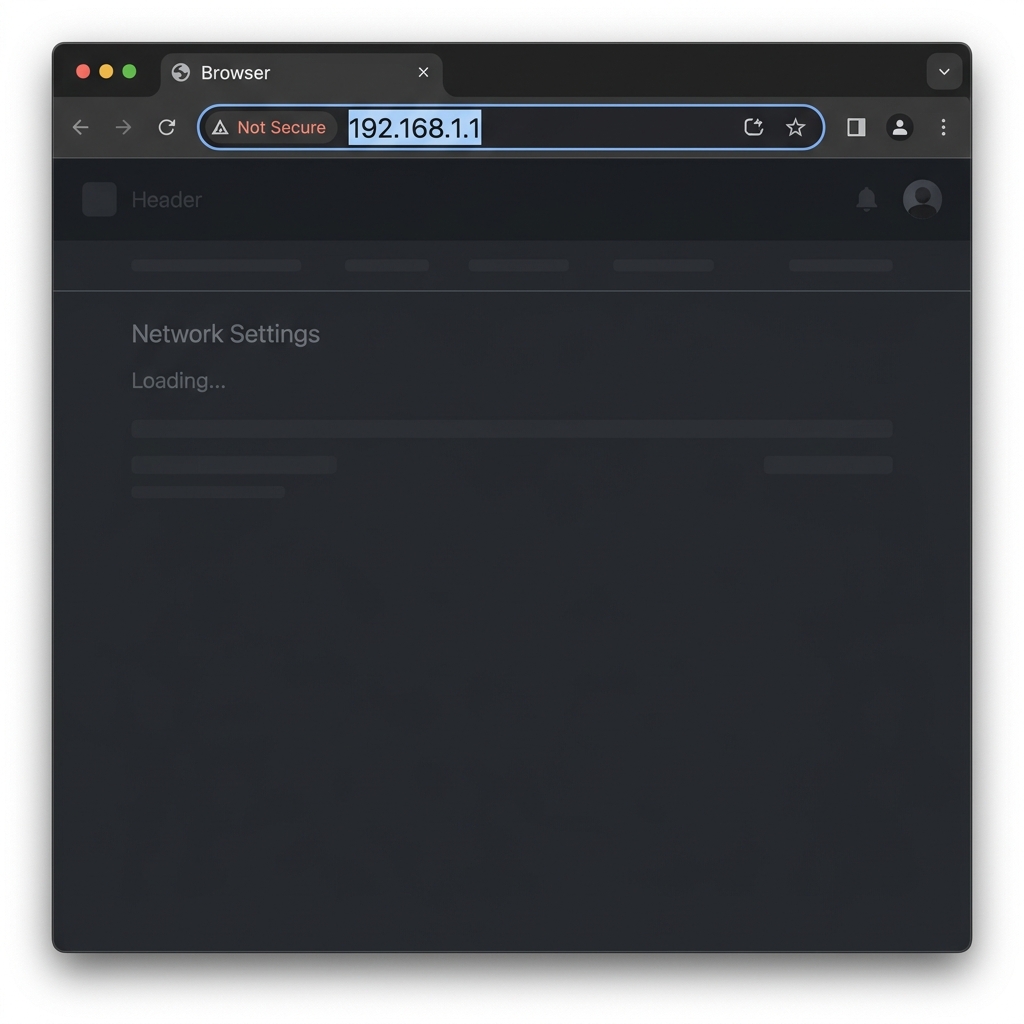
- Open a browser and type the router's IP address straight into the address bar, not the search bar. Common ones are
192.168.1.1,192.168.0.1, or10.0.0.1, but confirm yours instead of guessing. - Got a custom URL? Type that instead (such as
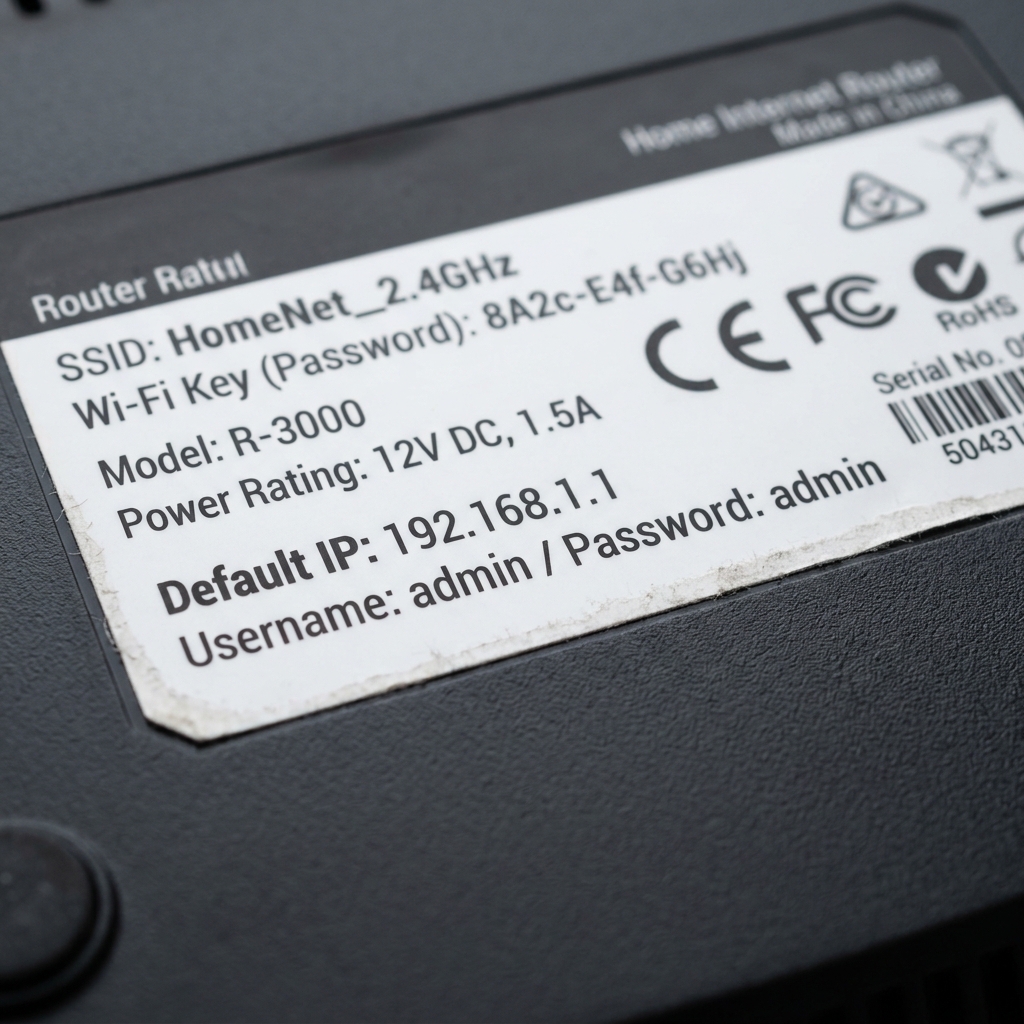
routerlogin.netortplinkwifi.net). Same place. - Enter your admin credentials (username and password). Never changed them? Check the label on the router.
- You're in. Wi-Fi, security, and device settings all live here.
Page won't load at all? You've either got the wrong IP or you're not connected to that router's network in the first place. Our guide to finding your router's IP address walks through confirming the right one on any device.
How to Access It Through an App
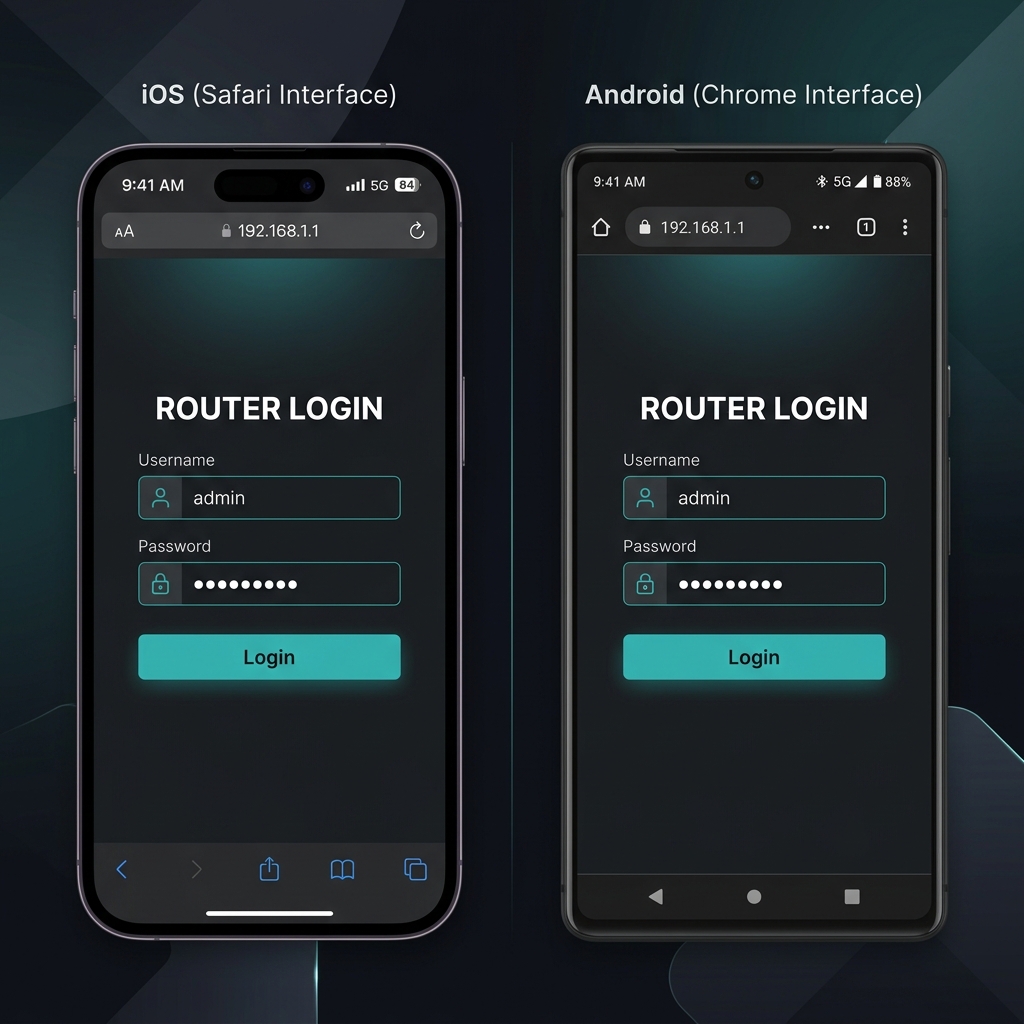
- Download your router's official app. Search the actual brand name in the App Store or Google Play — skip anything calling itself a generic "router admin" app, since those have nothing to do with your hardware.
- Connect your phone to the router's Wi-Fi network first, not mobile data.
- Open the app and sign in. Depending on your router, that's either a local admin login or an account tied to the manufacturer, like a Netgear or Eero account.
- Once you're signed in, the app finds your router on its own and pulls up the settings dashboard.
Apps tend to cover what most people actually need: Wi-Fi name, password, parental controls, connected devices. Things like manual port forwarding or scheduled firmware updates are usually buried in the full browser admin page instead, assuming your router even has one.
If Your ISP Provided the Router
ISP routers play by different rules. Plenty of providers lock down full admin access and push you toward an ISP account login instead, which means your Wi-Fi password and your admin login might not be the same thing at all, and a plain IP-address login may not exist for your device.
If your provider gave you the router, check their app or support site before assuming the standard IP method applies. The label on the unit itself usually tells you whether you're dealing with a normal admin login or an account-based one.
What You Can Actually Do Once You're In
Once you're in, whether that's the app or the browser page, here's what's usually on the table:
- Change your Wi-Fi network name and password
- Update the router's own admin password
- Set up a guest network
- View and manage connected devices
- Adjust security settings like WPA2/WPA3
- Turn on parental controls
- Set up port forwarding and other advanced settings — usually browser-only
Not every router offers every item on that list. Advanced settings especially tend to live in the full browser admin page and skip the app entirely.
Troubleshooting Common Access Issues
Browser page won't load. Make sure you're on the right router's network, not a neighbor's or a guest network. Check the IP address carefully. A single wrong digit is by far the most common cause of this. If autofill keeps suggesting the wrong address, clear your cache or try incognito mode.
App can't find your router. Your phone has to be on the router's own Wi-Fi, not cellular data. If you're already on the right network and it still won't detect anything, restart your phone's Wi-Fi and the router itself.
Login credentials don't work. Never changed them? Check the physical label. Did change them and forgot? Most routers need a factory reset to get back in, and that also wipes your custom Wi-Fi settings, so check your manual before you go that route.
Nothing's working. No IP loads, no app detects it. You're probably dealing with an ISP-locked router that only allows account-based login. Your provider's support line can confirm the actual access method for your device.
Frequently Asked Questions
Can I access my router's admin page without knowing its IP address?
Yes. A companion app or a custom web address like routerlogin.net both get you there without ever typing the IP.
Why does my router only have an app, no browser login?
That's normal for ISP-provided routers and mesh Wi-Fi systems. Manufacturers build these around the app, and some skip the browser admin page entirely.
Is the admin page the same as the Wi-Fi login?
No, and this trips people up constantly. Your Wi-Fi password gets a device onto the network. Your admin login gets you into the router's settings once you're already connected. Often two completely different sets of credentials.
What if I forgot my router's admin password?
Start with the physical label — it usually still has the factory default printed on it unless someone changed it. If it was changed and nobody remembers the new one, a factory reset brings back the original credentials, but wipes any custom settings along with it.