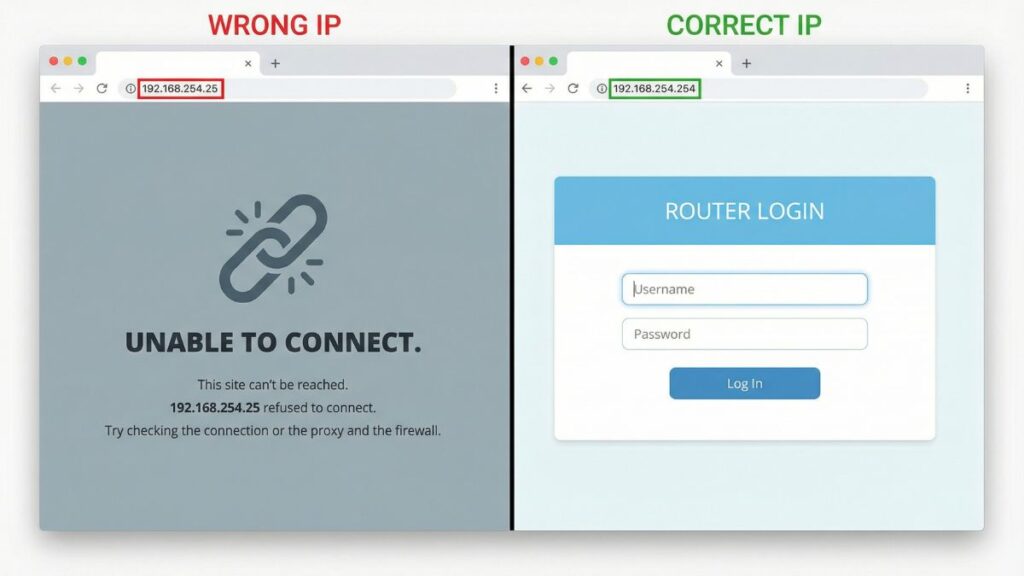
You typed 192.168.254.254 into your browser and either got a login screen, an error, or a blank page. This guide handles all three. I’ll walk you through logging in on a PC, iPhone, and Android phone, explain five specific reasons this address won’t load and how to fix each one, cover the factory reset process step by step, and show you what to configure inside the admin panel once you’re in.
This is one of the less common gateway IPs — it’s primarily a Globe Telecom address if you’re in the Philippines, and a Siemens, Sagemcom, or Actiontec address elsewhere. I’ll cover all of them, including Globe’s multi-tier login system that trips people up constantly.
Router Access Panel
Type
192.168.254.254
in your browser or click the link to access the router admin page.
It works only when you’re connected to the same Wi-Fi network.
192.168.254.254 is a private IP address that serves as the default gateway for certain routers and DSL modems — the internal management address that opens your router’s admin dashboard when you type it into a browser. From that dashboard, you control your Wi-Fi name and password, see every device on your network, manage security settings, configure parental controls, set up port forwarding, and handle firmware updates.
What makes this address stand out visually is the double-254 — both the third and fourth octets are 254, which is the highest possible value for any octet. It sits at the very top end of the 192.168.254.x subnet, which itself is near the upper boundary of the entire 192.168.x.x private range.
Like all private addresses, 192.168.254.254 exists only on local networks. It’s part of the reserved private IP blocks defined in the what is an IP address standard that separates local network addresses from public internet addresses. You can’t reach it from mobile data, from a different Wi-Fi network, or from anywhere outside your own home or office. That’s by design.
Who uses this address:
Globe Telecom (Philippines) — this is Globe At Home’s standard default gateway. If you’re a Globe subscriber with a Sagemcom, Huawei, Sercomm, or ZTE-supplied modem-router, 192.168.254.254 is almost certainly your admin page address
Siemens — several Siemens residential and DSL gateway models use this IP
Sagemcom — particularly older Sagemcom DSL units deployed by European ISPs
Actiontec — certain Actiontec DSL gateway and fiber equipment models
Default Credentials for 192.168.254.254
This is where this IP gets interesting — and where every other guide completely falls short. 192.168.254.254 isn’t a one-credential-fits-all situation, especially for Globe subscribers. Here’s the full breakdown.
Globe Telecom Multi-Tier Login System
Globe At Home routers have three access tiers, each with different credentials and different levels of access:
Access Level
Username
Password
What You Can Do
User
user
@l03e1t3
Basic: change Wi-Fi name and password only
Admin
admin
(model-specific — see table below)
Full settings: security, DHCP, port forwarding
Superadmin
superadmin
(model-specific — check router label)
Advanced/ISP-level settings
Most Globe subscribers only need the User login (user / @l03e1t3) to change their Wi-Fi password. For anything deeper — port forwarding, DNS, parental controls — you’ll need the Admin credentials.
Globe Admin Credentials by Router Model
Router Brand/Model
Admin Username
Admin Password
Sagemcom F@ST 3253
admin
admin
Sagemcom (other models)
admin
admin
Huawei HG8145V / HG8245H
admin
See note below
Sercomm (various Globe models)
admin
admin
ZTE (Globe-supplied)
admin
admin
Asus (Globe-supplied)
admin
admin
Huawei HG8245H special case: The admin password for this specific model follows the format globe@XXXXXX where XXXXXX is the last 6 characters of your router’s MAC address. You’ll find the MAC address printed on the sticker on the back of the unit. For example, if your MAC ends in A1B2C3, your password would be globe@A1B2C3.
Non-Globe Brands at 192.168.254.254
Brand
Default Username
Default Password
Siemens
admin
admin
Sagemcom (non-Globe)
admin
admin
Actiontec
admin
password
Actiontec (some models)
admin
admin
TP-Link
admin
admin
D-Link
admin
(blank)
Netgear
admin
password
Linksys
admin
admin
Belkin
(blank)
(blank)
Always check the label. The sticker on the bottom or back of your router has the exact factory defaults for your specific model. The tables above are a strong starting point, but your router’s physical label is always the authoritative source.
How to Log Into 192.168.254.254 on a PC
Using the correct IP address is essential to access your router admin login page
The single most common login failure — before credentials, before troubleshooting — is typing the IP into the search bar instead of the address bar. The search bar sends your input to Google. The address bar navigates directly to the page. They’re at the top of the browser but do completely different things.
Make sure your PC is connected to your router — via Wi-Fi or Ethernet cable. Using Ethernet while making changes is safer, since Wi-Fi connections can drop mid-save.
Open any browser: Chrome, Firefox, Edge, or Safari all work.
Click the address bar at the very top of the browser window — the strip where a URL normally appears (like https://google.com).
⚠️ Not the search bar. If pressing Enter takes you to a Google results page, you used the wrong field. Click the address bar at the top, clear it, and type the IP fresh.
Type 192.168.254.254 and press Enter. If the page loads with a security warning, click Advanced → Proceed to 192.168.254.254 (unsafe). This is normal for router admin pages and not a sign anything is wrong.
A login screen should appear. Enter your username and password.
Click Login or Sign In.
Globe subscribers: Try user / @l03e1t3 first for basic access. If you need full settings control, use the admin credentials for your specific router model from the table above.
How to Log Into 192.168.254.254 on a Phone
No competitor page for this IP gives any mobile login guidance. Here are separate, platform-specific steps for iPhone and Android.
On iPhone (Safari)
Connect your iPhone to the Wi-Fi network your router manages. Make sure you’re on this router’s network, not a guest zone or a neighbor’s network.
Open the Safari app — specifically the URL address bar at the top, not Spotlight search or any search box.
Type 192.168.254.254 and tap Go.
The router login screen should load. If you see a “Not Secure” or “Your connection is not private” warning, tap Show Details → Visit This Website. This is expected behavior for local router pages.
Enter your username and password and tap Login.
💡 iPhone tip: If Safari routes your input to a Google search, prefix it: http://192.168.254.254. That forces Safari to treat it as a URL. If you’re a Globe subscriber and get a connection error, double-check that you’re on Globe’s Wi-Fi, not mobile data.
On Android
Connect your Android phone to your router’s Wi-Fi. Here’s a critical catch: Android sometimes keeps mobile data active in the background even when Wi-Fi shows as connected, routing your traffic through mobile data instead of Wi-Fi. Local addresses like 192.168.254.254 are invisible to mobile data — they only work on your local network.
Open Chrome or your preferred browser.
Tap the address bar at the top.
Type 192.168.254.254 and tap Go.
If a privacy warning appears, tap Advanced → Proceed to 192.168.254.254 (unsafe). Completely normal for router admin pages.
Enter your credentials and tap Login.
💡 Android tip: If Chrome says “This site can’t be reached,” pull down your notification panel and verify that mobile data is off and Wi-Fi is your active connection. Disable mobile data temporarily and try again.
Cause: 192.168.254.254 only responds to devices on the local network it manages. If your laptop is on a different Wi-Fi network, your phone has mobile data active, or you’re connected to a guest zone — this address won’t respond.
Fix: On Windows, open Command Prompt and type ipconfig. Look at the Default Gateway line under your active network connection — it should say 192.168.254.254. When it shows a different address — 192.168.1.1, 192.168.0.1, or anything else — that different address is your actual router gateway, not this one. On Mac, go to System Preferences → Network → select your connection → Advanced → TCP/IP → check the Router field. On your phone, turn off mobile data and confirm Wi-Fi shows your router’s network as the active connection.Understanding what is a default gateway helps make sense of why this check matters.
2. The browser is showing a security warning and you’re not proceeding past it
Cause: Router admin panels often serve their pages over HTTP rather than HTTPS, and some use self-signed HTTPS certificates. Modern browsers — Chrome and Safari in particular — show privacy warnings when this happens. Many people see the warning and stop there, assuming something is wrong with the connection.
Fix: The warning is expected and safe to bypass for your own router. In Chrome, click Advanced → Proceed to 192.168.254.254 (unsafe). In Safari, click Show Details → Visit This Website. In Firefox, click Advanced → Accept the Risk and Continue. This is standard behavior for local router admin pages and doesn’t indicate anything malicious.
3. You have a typo in the address
Cause: 192.168.254.254 has a distinctive double-254 pattern, which makes it easy to miscount digits or accidentally type 192.168.254.25 (missing the final 4), 192.168.25.254 (wrong third octet), or 192.168.254.254. (trailing dot).
Fix: Type it one segment at a time: 192 . 168 . 254 . 254. Both the third and fourth segments are 254 — not 25, not 2540, not 245. Confirm before pressing Enter. If you’re not sure which IP your router actually uses, run ipconfig on Windows or check the Default Gateway in Network settings on Mac.
4. The gateway IP was changed
Cause: Especially in ISP-deployed setups, the router’s default gateway may have been changed by a technician or by you during a previous configuration session. If the gateway IP was changed from 192.168.254.254 to something else, typing this address won’t open anything.
Fix: Use the Default Gateway method above to find the current gateway IP. If you can’t access the router at all and suspect the IP was changed, a factory reset (covered below) will restore 192.168.254.254 as the default gateway on supported models.
5. The router needs a restart
Cause: Routers are computers. After days or weeks of continuous uptime, the admin panel can become unresponsive even while internet access still works fine. This happens more often with DSL modem-routers — the type Globe, Sagemcom, and Actiontec typically deploy — than with standalone routers.
Fix: Unplug the router/modem from power. Wait a full 30 seconds. Plug it back in and wait 60–90 seconds for it to fully boot. Then try 192.168.254.254 again. A power cycle solves this more reliably than any other single step, and it costs nothing to try.
Factory Reset Guide for 192.168.254.254 Routers
If you’ve lost the admin password and can’t get in, a factory reset restores all credentials and settings to factory defaults — including the gateway IP and all login credentials.
What a factory reset erases:
Admin username and password (returned to factory defaults)
Wi-Fi name (SSID) and Wi-Fi password
Port forwarding rules
Parental controls and content filters
Static IP / DHCP reservations
Custom DNS settings
Any ISP-specific configuration made during installation
How to reset — step by step:
Keep the router powered on — don’t unplug it before resetting.
Find the Reset button — typically a small recessed pinhole on the back or bottom. On some Globe Sagemcom models it may be labeled. On Huawei units it’s usually on the back panel near the ports.
Use a straightened paperclip, SIM card ejector, or thin pen tip.
Press and hold firmly. Keep holding.
Watch the LED indicators — they’ll blink rapidly, change color, or all go out at once to confirm the reset triggered. On Globe routers, the Power LED typically flashes during the reset process.
Release and wait 60–90 seconds for the router to fully reboot.
Try 192.168.254.254 with the factory-default credentials from your router’s label.
Reset hold times by brand:
Brand
Approx. Hold Time
Globe / Sagemcom
10–15 seconds
Globe / Huawei
10–15 seconds
Globe / Sercomm
10 seconds
Globe / ZTE
10 seconds
Actiontec
10–15 seconds
Siemens
10 seconds
TP-Link
10 seconds
Netgear
7–10 seconds
D-Link
10 seconds
What to Do After You Log In
Getting in is just the start. Here’s what to actually configure inside the admin panel, in order of importance.
1. Change Your Admin Password
Default credentials are publicly documented — they’re listed in brand manuals, ISP support pages, and guides exactly like this one. Anyone on your network who knows your ISP or router brand can try admin/admin and get in. Change the admin password as the first thing you do.
Log into 192.168.254.254 with admin credentials.
Look for Administration, System Tools, Management, or Security in the navigation. On Globe Sagemcom panels, check under Maintenance → Account. On Actiontec devices, look under Utilities → Set Password.
Find Admin Password or Change Password.
Enter your current password, then your new one twice to confirm.
Make it long and unpredictable — a passphrase of three or four random words is both easier to remember and harder to crack than a short random string. Following NIST password guidelines is a solid framework: length matters more than complexity.
Save and re-login with your new credentials.
2. Change Your Wi-Fi Name and Password
Go to Wireless Settings or WLAN Settings. Change the SSID (the network name visible to nearby devices) to something that doesn’t reveal your ISP, router brand, or model — “Globe_HG8245H_3BD2” tells anyone nearby exactly what hardware you’re running. Set a strong, unique Passphrase or Key. After saving, all connected devices will need to reconnect.
Globe user-level access note: If you logged in with the user credentials, you may only be able to change the Wi-Fi password — not the SSID or security mode. For full wireless settings control, use the admin login.
3. Set Your Wi-Fi Encryption to WPA2 or WPA3
In wireless settings, find the Security Mode or Encryption Type field. If it shows WEP — change it immediately. WEP is a long-obsolete standard that can be broken in seconds with freely available software. The current minimum is WPA2-Personal. Many newer Globe-supplied routers, including Huawei AX models, support WPA3 security standard — use it if your devices support it. WPA3 is significantly more resistant to modern brute-force and dictionary attacks.
4. Review Connected Devices
Navigate to DHCP Client List, LAN Hosts, or Connected Devices. You’ll see every device currently on your network, along with each device’s name, local IP, and what is a MAC address — a unique hardware identifier burned into each network adapter. Look for anything unfamiliar. Unauthorized devices on your network use your bandwidth and could potentially monitor your traffic. Most routers let you block unknown devices by MAC address directly from this screen.
5. Set Up a Guest Network
A guest network gives visitors internet access without exposing your main network to them. They’re on a walled-off segment — they can browse the internet but can’t see your computers, smart home devices, NAS drives, or printers. Look for Guest Network or Guest Zone in your wireless settings. Globe Sagemcom and Huawei devices generally support this. See how to set up a guest network for a detailed walkthrough if your router’s interface isn’t obvious about it.
6. Port Forwarding
If you need a service to be reachable from outside your network — a game server, a CCTV system, remote desktop access, a home NAS — set it up under Port Forwarding, Virtual Server, or NAT in your router’s menu. Understanding how port forwarding works before you start prevents the most common setup mistakes. For Globe subscribers, note that some ISP configurations use Carrier-Grade NAT (CGNAT), which can make port forwarding complex or impossible without calling Globe support to request a public IP.
Update Your Firmware
Go to Administration → Firmware Update or Maintenance → Software Upgrade. Check for available updates and install them. Globe-supplied routers sometimes push firmware updates automatically, but a manual check is always worth doing. Firmware patches security vulnerabilities — some of them serious — and occasionally improves performance and stability.
Common Misspellings of 192.168.254.254
The repeated 254 pattern in this address causes more typos than almost any other gateway IP. Here are the most common mistakes:
192.168.254.25
192.168.254.245
192.168.25.254
192.168.254.
192.168.254.2544
192.168.254254
192.168.254.254.
192.168.l54.254
http//192.168.254.254
www.192.168.254.254
192.168 254.254
192.168.254.254/admin
The correct address: 192.168.254.254 — four number groups, three dots, the third and fourth groups are both 254.
Which Brands and ISPs Use 192.168.254.254?
Primary ISP: Globe Telecom (Philippines)
Globe At Home uses 192.168.254.254 as the standard default gateway for all their broadband subscribers — ADSL, VDSL, and fiber connections. The routers Globe supplies include models from Sagemcom, Huawei, Sercomm, ZTE, and Asus, but they all share the same gateway IP and the same basic user-tier credentials (user / @l03e1t3).
If you’re a Globe subscriber, this is almost certainly your admin page address. The main ISP alternative in the Philippines — PLDT — uses 192.168.1.1 instead.
Hardware Brands That Use 192.168.254.254
Siemens — several Siemens residential DSL gateway and SpeedStream modem models default to this IP
Sagemcom — particularly older Sagemcom DSL units. When deployed by Globe, the gateway is always 192.168.254.254. Non-Globe Sagemcom units may use different addresses
Actiontec — certain Actiontec DSL and fiber gateway models from various ISP deployments use this subnet
Frequently Asked Questions
What is 192.168.254.254 used for?
It’s a private IP address that serves as the default gateway for Globe Telecom routers in the Philippines, as well as certain Siemens, Sagemcom, and Actiontec hardware. Typing it into a browser while connected to your local network opens the router’s admin panel.
Why does 192.168.254.254 say “Your connection is not private”?
This is a browser security warning triggered because router admin pages typically use HTTP or a self-signed HTTPS certificate. It doesn’t indicate anything malicious about your router. Click Advanced → Proceed to 192.168.254.254 (unsafe) to continue. This is completely normal behavior for local router admin pages.
Can I access 192.168.254.254 from outside my home?
No. Private IP addresses in the 192.168.x.x range are not accessible from the public internet. You must be connected to that router’s local network — via Wi-Fi or Ethernet — to reach the admin panel.
What’s the difference between my Wi-Fi password and my admin password?
Two completely separate things. Your Wi-Fi password is what your phone or laptop enters to join the network. Your admin password is what you enter at 192.168.254.254 to get into the router settings. Changing one has no effect on the other.
What’s the default login for Globe At Home at 192.168.254.254?
For basic access (Wi-Fi password changes only): username user, password @l03e1t3. For full admin access: username admin, password varies by router model — check the label on the back of your router. Huawei HG8245H specifically, the admin password is globe@ followed by the last 6 characters of your MAC address.