Open a browser and go to 192.168.2.1 or type http://router in the address bar. Leave both the username and password fields blank, then click Submit. You’re in. If the page won’t load, try 10.1.1.1 as a fallback — some F9J-series models use it instead.
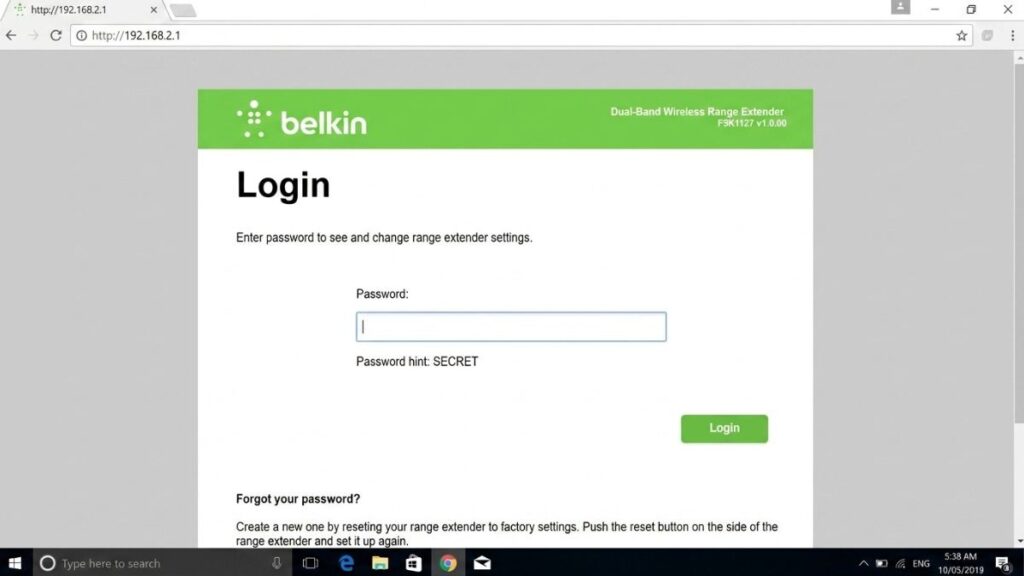
You typed 192.168.2.1 into your browser and nothing happened. Or the page loaded, but your password isn’t working. Maybe you’ve never logged into your Belkin router before and you’re not sure where to start.
Whatever brought you here, this guide covers the full process: the correct IP address, default credentials for every Belkin model series, login steps for PC, Mac, iPhone, and Android, and a complete troubleshooting section for when things don’t go as expected. I’ll also walk you through what to actually do once you’re inside — changing your Wi-Fi password, enabling WPA3, setting up a guest network, and keeping firmware updated.
Let’s get into it.
What Is the Belkin Router Login Page?
The Belkin router login page is a browser-based admin panel hosted on the router itself — not on the internet. It’s only accessible from a device that’s already connected to your network, either by Wi-Fi or an Ethernet cable. You can’t reach it from outside your home.
Once you’re in, you can change your Wi-Fi name and password, view every device connected to your network, set up a guest network, manage parental controls, configure port forwarding, and update your router’s firmware.
Most Belkin routers use 192.168.2.1 as the default gateway address. Some models also respond to http://router as a shortcut — type it directly into the address bar like you would an IP. Certain F9J-series models use 10.1.1.1 instead. The sticker on the bottom of your router will confirm which one applies to yours.
Belkin Default Login Credentials — All Model Series
Use the label on the back of your router first. It takes priority over this table. If the label is missing or unreadable, use the defaults below.
← Scroll to see full table →
| Model / Series | Default IP | Username | Password |
|---|---|---|---|
| N300 (F9K1002) | 192.168.2.1 | (blank) | (blank) |
| N450 (F9K1003) | 192.168.2.1 | (blank) | (blank) |
| N600 (F9K1102) | 192.168.2.1 | (blank) | (blank) |
| N750 (F9K1103) | 192.168.2.1 | admin | password |
| N900 (F9K1104) | 192.168.2.1 | (blank) | (blank) |
| AC1200 (F9K1123) | 192.168.2.1 | (blank) | (blank) |
| AC1750 (F9K1115) | 192.168.2.1 | (blank) | (blank) |
| AC1800 (F9K1119) | 192.168.2.1 | (blank) | (blank) |
| Older F5D Series | 192.168.2.1 | (blank) | (blank) |
| F9J Series | 10.1.1.1 | (blank) | (blank) |
Tip: The label on the back of your router shows the real credentials for your specific model. Use the table above only if the label is missing or unreadable.
Why is the password blank? Most Belkin routers ship with no admin password set at all. You just leave the field empty and click Submit. It’s not broken — that’s intentional. It does mean you should set a strong admin password the moment you first log in. Anyone on your Wi-Fi network can reach 192.168.2.1 without a password until you change it.
If your Belkin router’s IP address is unclear, our Find My Gateway IP tool detects it automatically from your connected device.
How to Log Into Your Belkin Router — PC
Windows
- Connect your PC to the Belkin router by Ethernet cable or Wi-Fi
- Open Chrome, Firefox, or Edge
- Click the address bar at the top of the browser — not the Google search box
- Type 192.168.2.1 and press Enter
- If nothing loads, try typing http://router instead
- On the login screen, leave the username field blank and leave the password field blank
- Click Submit
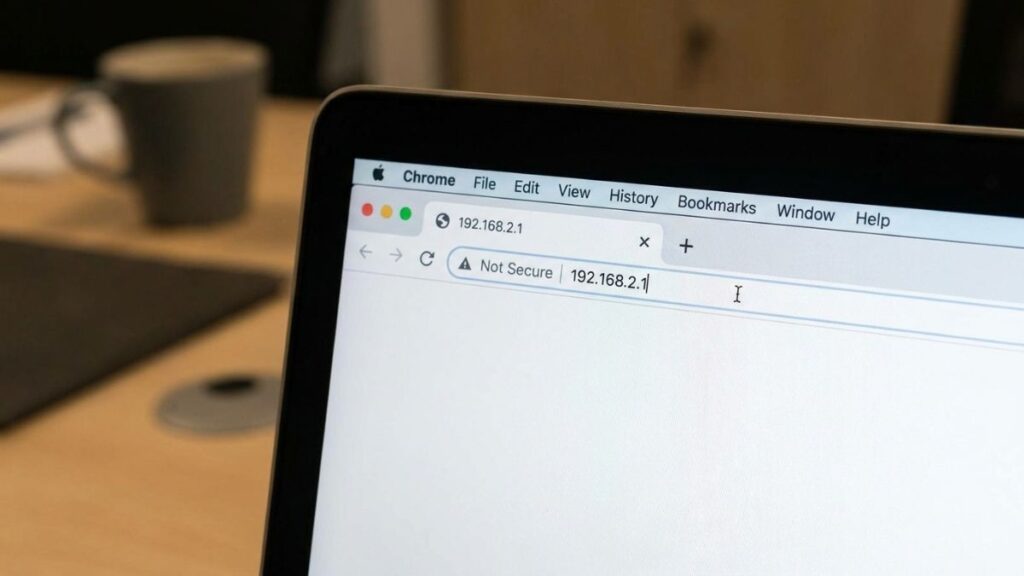
⚠️ Make sure you’re typing in the address bar at the top, not the Google or Bing search box. Searching for the IP takes you to third-party sites. The address bar takes you directly to your router.
macOS
The steps are exactly the same in Safari. One thing to expect: Safari may show a “Not Secure” or “This connection is not private” warning. That’s normal. Belkin’s admin panel uses HTTP, not HTTPS — your browser flags it automatically. Since this page is only reachable on your local network, the warning doesn’t mean anything is wrong. Click Visit Website to continue past it.
How to Log Into Your Belkin Router — iPhone
This is the section most guides skip, and it’s also where most phone-based login attempts fail. Here’s the full process.
- Connect your iPhone to the Belkin Wi-Fi network — not mobile data
- Open Safari — it handles local IP addresses more reliably than Chrome on iOS
- Tap the address bar at the top
- Type 192.168.2.1 and tap Go
- If Safari shows “This connection is not private”, tap Show Details → Visit Website
- Leave both fields blank and tap Login
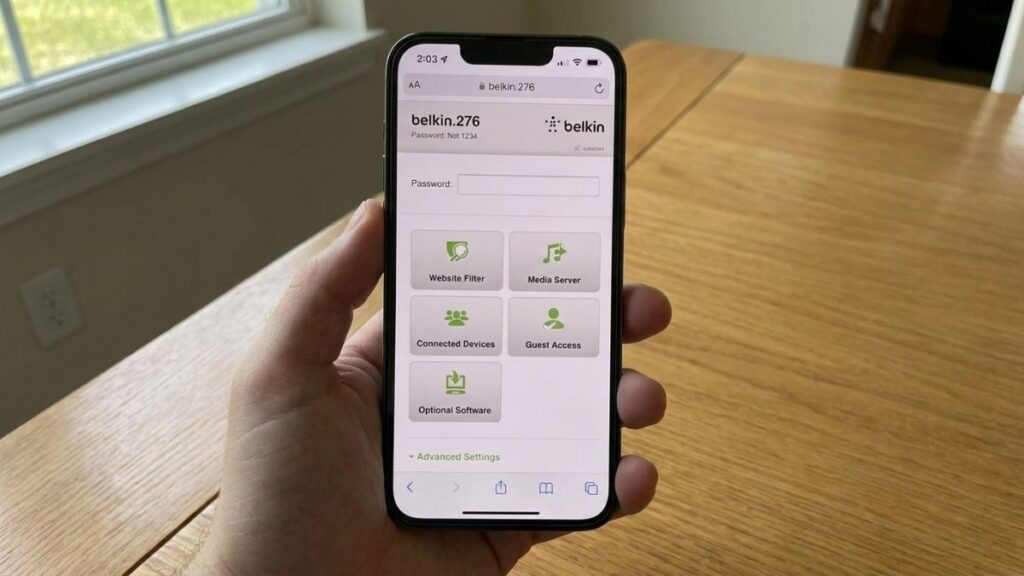
The most common reason it fails on iPhone: iOS sometimes routes traffic through cellular even when your phone is on Wi-Fi — especially if the Wi-Fi network has no internet access yet (like during initial router setup). Fix it by going to Settings → Wi-Fi → tap your Belkin network name → toggle off “Use Mobile Data for this Wi-Fi”. Then try the IP again.
How to Log Into Your Belkin Router — Android
- Connect your Android phone to the Belkin Wi-Fi network
- Open Chrome
- Tap the address bar
- Type 192.168.2.1 and tap Go
- If Chrome shows “Connection is not private”, tap Advanced → Proceed to 192.168.2.1 (unsafe)
- Leave both fields blank and tap Login
Android auto-switch issue: Some Android devices detect that the router’s Wi-Fi has no internet and automatically switch your traffic to mobile data. When that happens, 192.168.2.1 won’t load because the request goes out through cellular instead of your local network. Fix it by going to Settings → Network → Wi-Fi → long-press your network name → Manage network settings → uncheck “Auto-switch to mobile data”.
Does Belkin Have a Router Management App?
Short answer: no — not the way TP-Link or Netgear do.
Unlike TP-Link’s Tether app or Netgear’s Nighthawk app, Belkin doesn’t have an official first-party router management app. Everything is handled through the browser-based admin panel at 192.168.2.1. You’ll find third-party “Belkin Router Guide” apps on Google Play and the App Store, but these are made by independent developers, not Belkin, and they’re essentially just step-by-step guides — not actual control panels.
This is worth knowing because it affects how you manage your router from a phone. You’re always going through Safari or Chrome to 192.168.2.1, not a dedicated app. The browser-based panel works fine on mobile once you know the steps above — it’s just not as polished as app-based alternatives.
If you’re comparing routers and app-based management matters to you, our TP-Link router login guide and Netgear router login guide cover brands with full first-party app support.
What to Do After You Log In
Getting through the login page is the start, not the finish. Here’s what to do the moment you’re in — especially if it’s your first time.
Change Your Admin Password
The default admin password is blank. That means anyone connected to your Wi-Fi right now could open a browser, go to 192.168.2.1, and get into your router settings without any password at all. Change it immediately.
Go to: Utilities → System Settings → Administrator Password
Enter and confirm your new password, then click Save. According to NIST password guidelines, length beats complexity — a 14-character passphrase is harder to crack than an 8-character mix of symbols and numbers.
Change Your Wi-Fi Name (SSID) and Password
Go to: Wireless → Channel and SSID to change the network name, and Wireless → Security to change the Wi-Fi password.
Don’t include your name, address, or apartment number in the network name. A generic name like “HomeNetwork” gives away nothing about who you are or where you live. While you’re there, make sure the Wi-Fi password is at least 12 characters and something you’ve never used elsewhere.
Switch to WPA3 or WPA2-AES Encryption
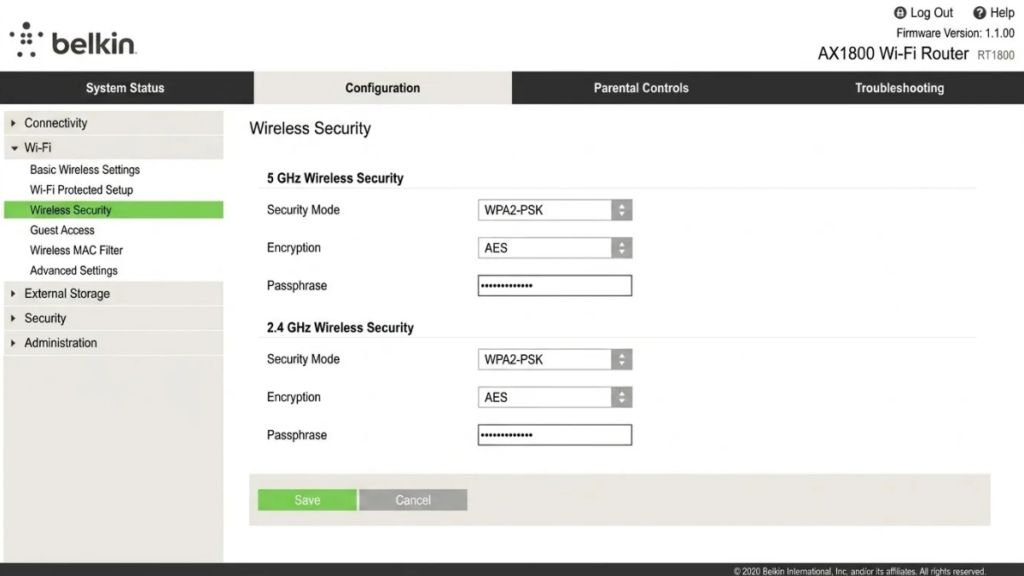
Go to: Wireless → Security → Authentication
Look for WPA3-Personal in the dropdown. If it’s not there, your router doesn’t support it — select WPA2-PSK with AES instead. Never use TKIP or WEP. Both are outdated and have publicly known weaknesses. The Wi-Fi Alliance’s WPA3 specification explains what changed between generations if you want the technical details.
WPA3 typically appears on AC-series Belkin routers. Older N-series models top out at WPA2. That’s fine — WPA2 with AES is still solid for home use.
Set Up a Guest Network
Go to: Wireless → Guest Access
A guest network is a separate Wi-Fi network that lets visitors get online without touching your main network. Anyone on the guest network can’t see your other connected devices — your NAS, smart home devices, work laptop. It takes two minutes to set up and it’s genuinely worth doing.
For a detailed walkthrough, see our guide on setting up a guest network.
Update Your Firmware
Go to: Utilities → System Settings → Firmware Update → Check for Updates
If an update is available, click Update. Don’t close the browser or unplug the router while it’s running — that can corrupt the firmware. The whole process usually takes 2–3 minutes.
Turn on auto-update if the option is available. It checks for updates automatically and installs them in the background. One thing to know: Belkin stopped releasing firmware for many older models several years ago. If your router is 5–6 years old and hasn’t received an update recently, check the Belkin support site to confirm whether your model is still supported.
Belkin Router Login Troubleshooting
Don’t panic if the login page won’t load on the first try. Most issues come down to one of a handful of causes, and they’re all fixable.
The Login Page Won’t Load
Work through this list in order. Most issues fix themselves by step 2 or 3.
- Confirm you’re on the Belkin network. If your device is connected to a different Wi-Fi or switched to mobile data, 192.168.2.1 won’t be reachable. Check your Wi-Fi settings first.
- Verify the IP address. Not all Belkin routers use 192.168.2.1. Some F9J models use 10.1.1.1. Our Find My Gateway IP tool will detect the correct address automatically. Alternatively, on Windows open Command Prompt and type
ipconfig— look for Default Gateway. On Mac, go to System Settings → Network → your connection → Details → TCP/IP → Router. - Try the alternate URL. Type http://router in the address bar. Some Belkin models accept this shortcut even when the IP doesn’t respond.
- Try a different browser or incognito window. Some browser extensions block local network access. An incognito window disables extensions by default — if it loads there, an extension is the culprit.
- Clear your browser cache. In Chrome: press Ctrl+Shift+Delete, select Cached Images and Files, and click Clear Data. Then try again.
- Connect by Ethernet. Plug a cable directly from your PC to a LAN port on the router. Wired connections are always more reliable for admin panel access than Wi-Fi.
ISP IP conflict (CenturyLink / Lumen users): Some ISPs assign modems on the 192.168.2.x range, which clashes with Belkin’s default gateway. If you’re on CenturyLink/Lumen and can’t reach 192.168.2.1 even when connected, try 192.168.2.254 instead. That’s an alternate gateway some Belkin models use to avoid the conflict. If that loads, log in and change the router’s LAN IP to something like 192.168.3.1 under LAN Settings to permanently resolve the clash.
Wrong Password Error
- Try leaving the password field completely blank and clicking Submit — this is the factory default on most Belkin models. Many people type something in the field out of habit.
- Don’t confuse your Wi-Fi password with your admin password. The Wi-Fi password connects your devices to the internet. The admin password unlocks the settings panel at 192.168.2.1. They’re separate credentials, and changing one doesn’t affect the other.
- If you’ve set a custom password and forgotten it, there’s no recovery option. You’ll need a factory reset — see below.
Browser Blocking the Page
Modern browsers sometimes block HTTP admin pages with a hard stop, not just a warning. If Chrome shows a full error page rather than a warning you can click through:
- Chrome: Type the IP, then click anywhere on the page and type
thisisunsafe(no spaces). Chrome will load it. - Firefox: Click Advanced → Accept the Risk and Continue
- Edge: Click Details → Go on to the webpage
- Safari: Click Show Details → Visit Website
If the page still won’t load after trying all of the above, power cycle the router — unplug it, wait 30 seconds, plug it back in, and wait a full 60 seconds before trying again.
How to Factory Reset Your Belkin Router
Factory reset is the last resort. Use it only when you’ve forgotten your admin password and troubleshooting hasn’t worked. It wipes everything — custom Wi-Fi name, Wi-Fi password, admin password, port forwarding rules, guest network settings.
Before you reset: If you can still get into the admin panel, go to Utilities → Save/Backup Settings and export your configuration file. That saves you from reconfiguring everything from scratch.
Reset steps:
- Make sure the router is powered on
- Find the Reset button on the back of the router — it’s recessed in a small hole, so you need a straightened paperclip or a pin
- Press and hold for 10–15 seconds
- The router’s lights will flash and the device will reboot
- Wait a full 60 seconds for it to come back up
- Log in using the default credentials from the table above (blank username, blank password for most models)
After the reset, go through the full setup: new Wi-Fi name, new Wi-Fi password, a strong admin password, and WPA2 or WPA3 encryption. If your ISP gave you custom WAN settings, you may need to call them to get those details — check the how to find your router’s IP address guide for how to locate any saved config before resetting.
Wrapping Up
Getting into your Belkin router takes under a minute once you have the right IP and know that the default password is blank. Most login problems come down to the wrong IP, a browser routing through cellular instead of local Wi-Fi, or a forgotten custom password that needs a reset to clear.
If something on your router isn’t behaving the way it should and the steps here didn’t cover it, drop a question in the comments and I’ll help you figure it out.