You typed something into your browser and nothing happened. Or maybe the login page loaded but the password you tried didn’t work. Either way, getting into a Fritz!Box admin panel can feel confusing — especially because Fritz!Box routers work a little differently from most brands.
Here’s the short answer: your Fritz!Box has two login addresses. You can use http://fritz.box (a special hostname built into the router) or the IP address 192.168.178.1. Both open the same admin page. The password is not “admin” — it’s a unique code printed on a sticker on the back of your router, labeled “FRITZ!Box Password.”
This guide walks you through both login methods, covers every common Fritz!Box model, includes steps for iPhone and Android, and shows you what to do if the page won’t load or the password gets rejected. You’ll also find instructions for the MyFRITZ! remote access service, which lets you log in from outside your home network.
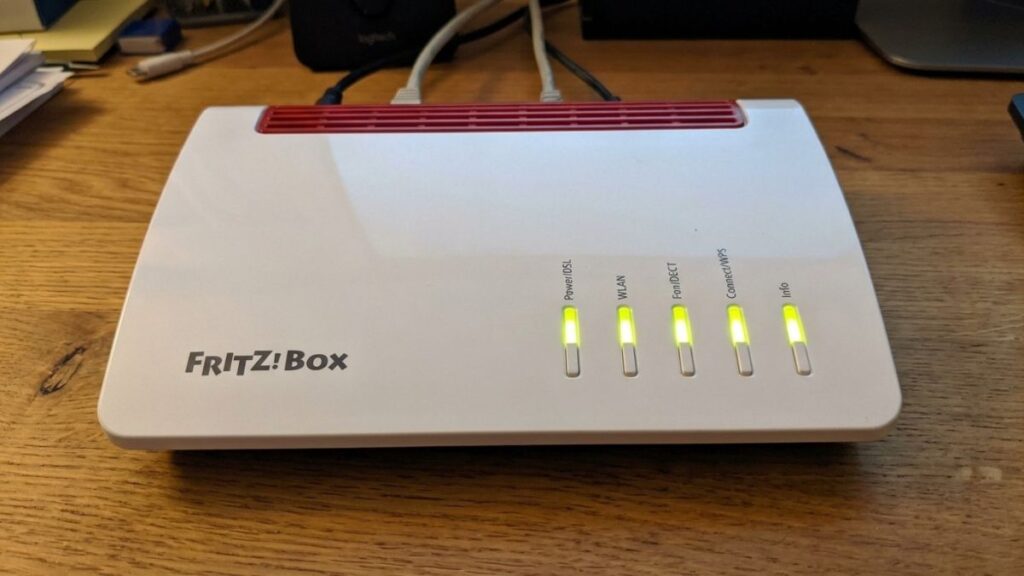
How to Log Into Your Fritz!Box Router
There are two ways to reach the Fritz!Box login page. Use whichever one works for you — they lead to the exact same place.
Method 1 – Use fritz.box (The Hostname)
This is the method AVM recommends and the one most Fritz!Box owners use. The router has its own built-in DNS entry, so you don’t need to know any IP address.
- Make sure your device is connected to your Fritz!Box network — either via Wi-Fi or an Ethernet cable.
- Open any browser (Chrome, Safari, Firefox, Edge).
- Type http://fritz.box into the address bar at the top — not the search bar.
- Press Enter. The Fritz!Box login screen should appear.
- Enter your Fritz!Box password. Leave the username field blank on most models.
- Click Log In.
That’s it. If the page loads, you’re in.
One thing trips people up constantly: typing www.fritz.box or fritz.box.com instead of just http://fritz.box. Neither of those will work. The address has to be exact.
 typed into the URL bar.](https://routeripguide.com/wp-content/uploads/2026/06/fritz-box-router-login-browser-interface-1024x576.jpg)
Method 2 – Use the IP Address 192.168.178.1
If fritz.box doesn’t load, fall back to the IP address. This works even when the hostname DNS resolution fails.
- Connect your device to the Fritz!Box via Wi-Fi or cable.
- Open your browser and type 192.168.178.1 into the address bar.
- Press Enter. The Fritz!Box login page should appear.
- Enter your password and click Log In.
If neither address works, check out the troubleshooting section below. And if you’re not sure which IP your specific router uses, you can use our gateway IP finder to detect it automatically.
For a full breakdown of everything you can do at that address, see our dedicated guide to 192.168.178.1 login.
Where to Find Your Fritz!Box Password
This is the part most guides get wrong. Fritz!Box routers don’t use a generic default password like “admin” or “1234.” Every device ships with a unique password assigned at the factory.
Flip your Fritz!Box over. On the back or bottom label, you’ll see a field labeled “FRITZ!Box Password” — that’s your admin password. It looks something like etappe 2535 or a short word-number combination.
That password is only for the admin panel. It’s completely separate from your Wi-Fi password.
, SSID FRITZ!Box 7590 GR, and the FRITZ!Box-Kennwort admin password.](https://routeripguide.com/wp-content/uploads/2026/06/fritzbox-7590-default-router-login-password-sticker-1024x576.jpg)
Fritz!Box Default Login Credentials by Model
Most Fritz!Box models share the same login method, but the default IP and FRITZ!OS version vary. Here’s a quick reference table:
| Model | Default Login Address | Username | Password | FRITZ!OS |
|---|---|---|---|---|
| Fritz!Box 7590 AX | http://fritz.box or 192.168.178.1 | None (leave blank) | On back label | FRITZ!OS 8.x |
| Fritz!Box 7590 | http://fritz.box or 192.168.178.1 | None | On back label | FRITZ!OS 7.x / 8.x |
| Fritz!Box 7530 | http://fritz.box or 192.168.178.1 | None | On back label | FRITZ!OS 7.x |
| Fritz!Box 7490 | http://fritz.box or 192.168.178.1 | None | On back label | FRITZ!OS 6.x / 7.x |
| Fritz!Box 6660 Cable | http://fritz.box or 192.168.178.1 | None | On back label | FRITZ!OS 7.x |
| Fritz!Box 4060 | http://fritz.box or 192.168.178.1 | None | On back label | FRITZ!OS 7.x |
FRITZ!OS is the operating system built into every Fritz!Box router. When you see version numbers on your admin panel or in update notifications, that’s what they’re referring to. It’s not an error — it’s just AVM’s name for the router firmware.
If your model isn’t listed here, the login method is almost certainly the same. Check the back label for the password.
How to Log In From Your Phone (iPhone & Android)
The Fritz!Box admin page works on mobile browsers just as well as on desktop. But there’s one thing you must do first: turn off mobile data before you try.
If your phone is connected to Wi-Fi but mobile data is still active, your browser may route through the cellular network and never reach the local admin page. The fritz.box address only works from inside your local network.
iPhone (Safari)
- Go to Settings → Wi-Fi and confirm you’re connected to your Fritz!Box network.
- Swipe down and turn off Mobile Data (or enable Airplane Mode and turn Wi-Fi back on).
- Open Safari.
- Type http://fritz.box in the address bar and tap Go.
- Enter your Fritz!Box password when prompted.
- Tap Log In.
, showing a red German error message and a 9-second login timeout countdown.](https://routeripguide.com/wp-content/uploads/2026/06/fritzbox-router-login-failed-error-1024x576.jpg)
Android (Chrome)
- Go to Settings → Network & Internet → Wi-Fi and connect to your Fritz!Box network.
- Turn off Mobile data from the quick settings panel (swipe down from the top).
- Open Chrome.
- Type http://fritz.box or 192.168.178.1 in the address bar.
- Tap Go and enter your password when the login page loads.
If the hostname doesn’t resolve on Android, go straight to the IP address — it’s more reliable on Android Chrome than the fritz.box shortcut.
Fritz!Box Login Not Working – Fixes That Actually Help
Page Not Loading
If the login page isn’t coming up at all, work through these checks in order:
- Confirm your device is on the Fritz!Box network. Open Wi-Fi settings and check which network you’re connected to. If you’re on a neighbor’s network or a different router, you won’t reach the Fritz!Box admin page.
- Try the IP address instead. If
http://fritz.boxfails, go directly to192.168.178.1in your browser. The hostname relies on local DNS resolution — the IP address doesn’t. - Use http://, not https://. Some browsers auto-add
https://and Fritz!Box routers don’t always support it on the local admin page. Typehttp://fritz.boxexplicitly. - Open an incognito/private window. Browser extensions or cached DNS entries can block the page. A private window skips both.
- Try a different browser. Chrome, Firefox, and Safari all behave slightly differently with local network addresses.
- Check your cable connection. If you’re on Ethernet, unplug and replug the cable. Try a different port on the router.
Still stuck? Use our gateway IP finder tool to confirm what IP your router is actually using — some older Fritz!Box models or ISP-configured setups use a different default gateway.
Password Rejected
The most common reason is a simple one: you’re entering your Wi-Fi password instead of the Fritz!Box admin password. They’re different.
- Your Wi-Fi password connects devices to the network.
- Your Fritz!Box password (on the back label) logs you into the admin panel.
If you’ve changed the password in the past and forgotten it, there’s no recovery option — you’ll need to do a factory reset (see below).
If the label password doesn’t work on a brand-new router, it may have been pre-configured by your ISP. Check any paperwork that came with the router or contact your internet provider.
fritz.box URL Not Resolving
The fritz.box address uses local DNS, which your Fritz!Box normally handles. If it’s not working:
- Make sure you’re typing
http://fritz.box— notwww.fritz.boxor justfritz.boxin a search engine box. - Disable VPNs or proxy extensions on your browser. These can reroute DNS requests outside your local network.
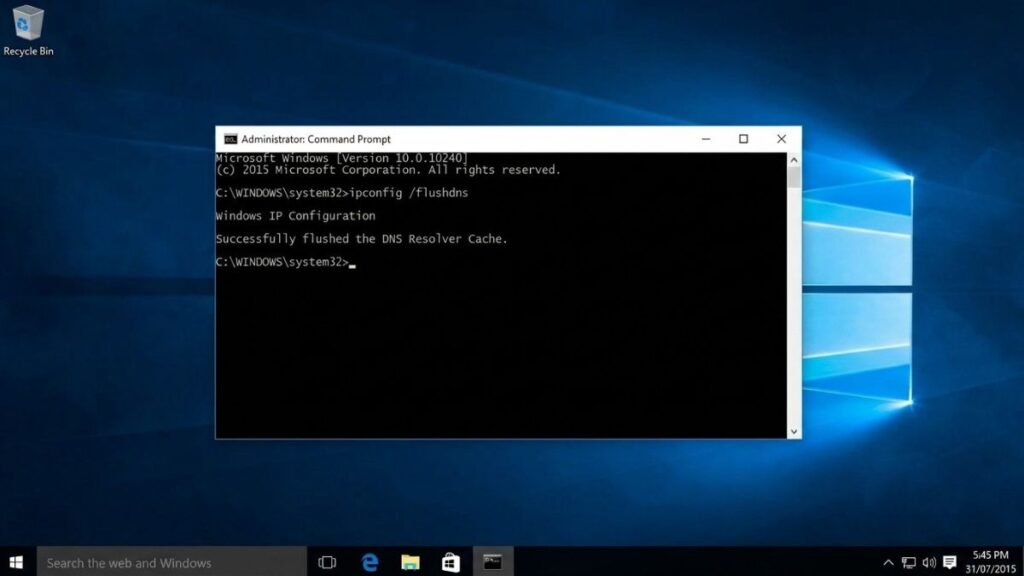
- Flush your DNS cache. On Windows: open Command Prompt and run
ipconfig /flushdns. On Mac: open Terminal and runsudo dscacheutil -flushcache. - After flushing, try again. If it still fails, use the IP address
192.168.178.1— it’s always more reliable than the hostname.
How to Access Fritz!Box Remotely via MyFRITZ!
The fritz.box address only works when you’re on the same local network as your router. If you need to access your Fritz!Box settings from work, while traveling, or from any other network, AVM’s MyFRITZ! service is the way to do it.
MyFRITZ! gives your router a fixed external address (something like ab1cde23.myfritz.net) and lets you log into the admin panel from anywhere in the world.
Setting up MyFRITZ!:
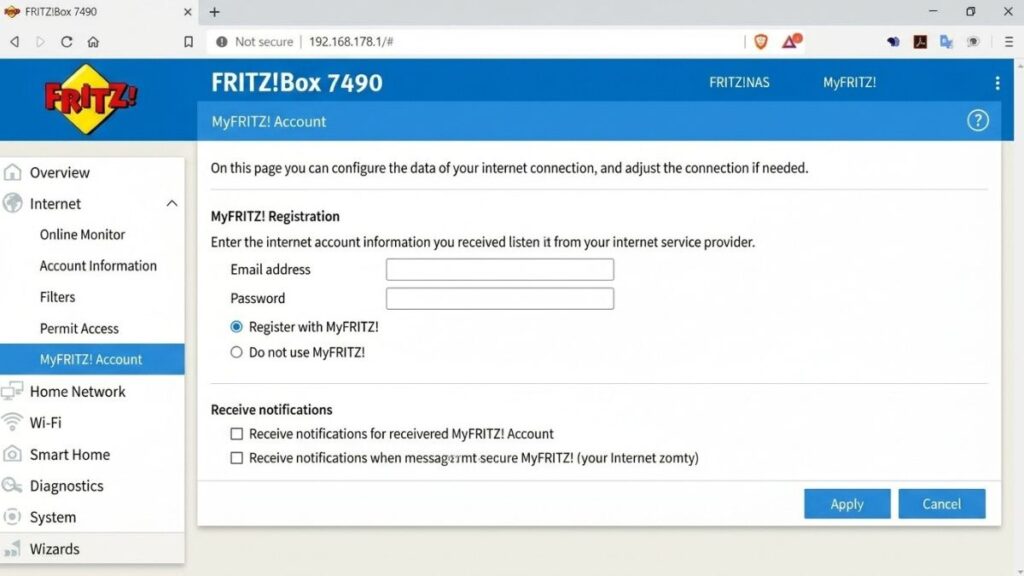
- Log into your Fritz!Box admin panel using
http://fritz.box. - Go to Internet → MyFRITZ! Account.
- Create a free MyFRITZ! account using your email address.
- Follow the verification steps — AVM sends a confirmation email.
- Once verified, your router gets a unique MyFRITZ! address.
Logging in remotely:
- Open any browser on any device, anywhere.
- Go to https://myfritz.net or use your unique
youraddress.myfritz.netlink. - Log in with your MyFRITZ! credentials.
- You’ll be connected to your home Fritz!Box admin panel remotely.
This is also the foundation for setting up a Fritz!Box VPN, which lets connected devices access your home network as if they were physically there.
How to Factory Reset Your Fritz!Box
If you’re locked out and can’t get in with any password, a factory reset wipes everything back to defaults — including the admin password, which reverts to the one on the back label.
Method 1 – Hardware Reset Button (Recommended if locked out)
- Find the small Reset button on the back of your Fritz!Box. It’s recessed — you’ll need a paperclip or pen tip.
- With the router powered on, press and hold the Reset button for 10–15 seconds.
- Release when the Power LED starts flashing rapidly.
- Wait 2–3 minutes for the router to fully reboot.
- Log in using
http://fritz.boxand the password on the back label.
Method 2 – Via the Admin Panel (If you can still log in)
- Log into
http://fritz.box. - Go to System → Backup.
- Click Factory Settings.
- Confirm the reset. The router reboots automatically.
AVM also has an official factory reset guide for each Fritz!Box model if you want model-specific steps.
Important: A factory reset deletes all your custom settings — WiFi name, password, port forwarding rules, everything. You’ll need to reconfigure the router from scratch.
What You Can Do in the Fritz!Box Admin Panel
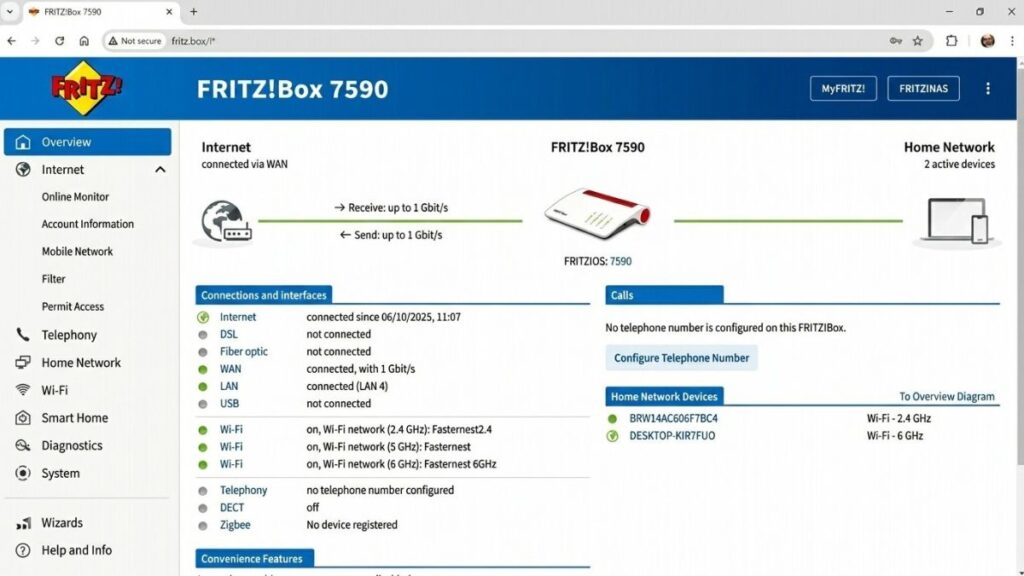
Once you’re logged in, the Fritz!Box admin panel (running on FRITZ!OS) gives you full control over your home network. Here are the most useful things you can do:
Change your WiFi name and password — Go to Wi-Fi → Radio Network to rename your SSID or update the password. The Fritz!Box supports both 2.4 GHz and 5 GHz bands separately.
Update your firmware — AVM regularly releases FRITZ!OS updates with security patches and new features. Go to System → Update to check for and install them. Staying current is one of the simplest ways to keep your network secure. Read more about keeping your router firmware up to date.
Set up a guest network — The Fritz!Box makes this easy. Go to Wi-Fi → Guest Access to create a separate network for visitors that keeps them off your main network. See our guide on setting up a guest network for the full process.
Check connected devices — Go to Home Network → Network to see every device currently connected, with IP addresses and connection type.
Improve Wi-Fi security — The Fritz!Box supports WPA3 on newer models (7590 AX, 4060). If you’re not sure which protocol your network uses, check Wi-Fi → Security. Our WPA2 vs WPA3 comparison explains what each one means and which you should be using.
Wrapping Up
Getting into your Fritz!Box comes down to three things: the right address (http://fritz.box or 192.168.178.1), the password from the back label (not your Wi-Fi password), and making sure your device is actually connected to the Fritz!Box network before you try.
If the page won’t load, start with the IP address and rule out a VPN or mobile data issue. If the password isn’t working, double-check you’re using the router’s admin password, not the Wi-Fi one. And if you’re completely locked out, the hardware reset button on the back will always get you back in.
Once you’re in, take a few minutes to update your router firmware and check your Wi-Fi security settings — it’s worth doing while you’re already there.