Xiaomi routers don’t ship with a factory admin password — and that’s the detail that trips up almost everyone trying to log in for the first time. When you set up a Xiaomi router, you create the admin password yourself during initial configuration. If you didn’t set a separate one, your admin password is whatever WiFi password you chose. Neither “admin” nor any printed default will get you in.
That’s the core thing competitors don’t explain. This guide covers it fully — the correct login IP for your Xiaomi model, how the password system actually works, step-by-step login instructions for PC, Mac, iPhone, and Android, and what to do when the login page won’t load or you’ve forgotten a password you set yourself.
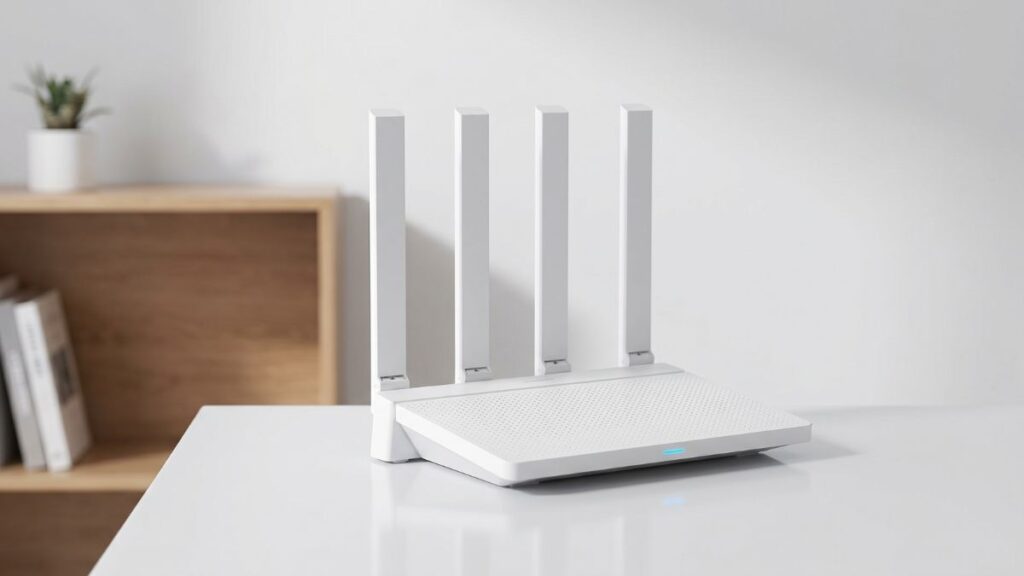
Xiaomi Router Default IP Address by Model
Xiaomi sells routers under two naming conventions: the MiWiFi line (older, sold primarily in China) and the Mi Router / Xiaomi Router line (global market). The IP address is consistent across most models — but there are exceptions worth knowing.
Which IP Does Your Xiaomi Router Use?
Check the sticker on the bottom of the router. The IP address is printed there along with the default WiFi name. If that’s not visible, use this table:
← Scroll to see full table →
| Model / Series | Default IP Address | Notes |
|---|---|---|
| Mi Router 4A, 4C, 4Q | 192.168.31.1 |
Standard Home Routers — Most Common |
| Mi Router AX3000, AX6000 | 192.168.31.1 |
Wi-Fi 6 Series |
| Mi Router BE7000 | 192.168.31.1 |
Wi-Fi 7 Flagship Model |
| MiWiFi R1D, R2D (NAS Router) | 192.168.31.1 |
Hard Drive NAS Router Line |
| MiWiFi 3, 3C, 3G, Pro | 192.168.31.1 |
Classic MiWiFi Series |
| Xiaomi Mesh System AX3000 | 192.168.31.1 |
Mesh Node — Same IP as Standard |
| Mi Router 3 (AC1200) | 192.168.31.1 |
Budget AC Model |
192.168.31.1 is Xiaomi’s universal default across its entire router lineup. Unlike Huawei or Tenda, Xiaomi doesn’t split IPs by model family — almost every unit in the catalog uses the same address. This actually makes things simpler, but it does mean the hostname method below is your best fallback when that IP doesn’t respond.
The miwifi.com URL Method
Every Xiaomi MiWiFi router also responds to a direct hostname in your browser’s address bar:
http://miwifi.com
This is Xiaomi’s official alternative to typing the IP. It works on any device connected to the Xiaomi WiFi network and loads the same admin login page. It’s especially useful on iPhones where browsers sometimes mishandle IP addresses entered into the address bar.
Type it exactly as shown — http://miwifi.com, not https://, and not into a search engine. The admin interface runs on HTTP only.
How to Confirm Your Router’s IP Address
Your device stores the gateway IP of every network it connects to. That gateway address is your Xiaomi router’s IP — and you can pull it in seconds.
Windows: Right-click the Start button → select Windows Terminal or Command Prompt → type ipconfig → look for “Default Gateway” under your active network adapter.
Mac: Open System Settings → Network → click your active connection → Details → TCP/IP tab → the Router field shows the IP.
Phones: Skip the settings dig and use our Find My Gateway IP tool — it reads your gateway automatically without requiring you to navigate through system menus.
Xiaomi Router Admin Password — How It Actually Works
This is where Xiaomi differs from every other consumer router brand, and it’s the reason most “default password” guides fail you.
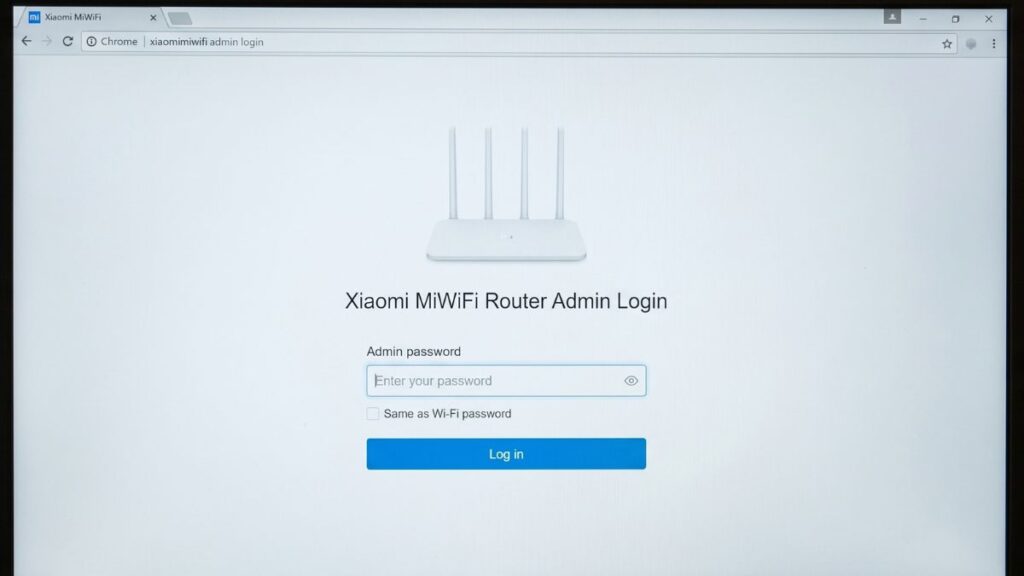
Xiaomi routers have no factory-set admin password. When you first set up the router, the setup wizard asks you to create an admin password. You have two choices at that screen:
- Set a separate admin password — different from your WiFi password
- Use the same password as WiFi — the admin password becomes identical to your WiFi password
This means what serves as your “default” admin password is something you personally created, not something printed on the router.
← Scroll to see full table →
| Situation | What to Try |
|---|---|
| Never completed initial setup |
Setup Wizard Go to 192.168.31.1 — the setup wizard should still run and no password is required yet. |
| Completed setup, chose “same as WiFi” |
WiFi Password Your admin password is the same as your current WiFi password. |
| Completed setup, set a separate admin password |
Custom Password Only the dedicated admin password works. Try your WiFi password as a fallback. |
| Router was pre-owned or reset by someone else |
Factory Reset Performing a factory reset is usually the only option. |
| Some older MiWiFi models (R1D, MiWiFi HD) |
Legacy Default Try admin / admin — some older models used factory default credentials. |
The official Xiaomi support guidance confirms this: if you haven’t set a specific admin password, try your WiFi password first. If that doesn’t work, a factory reset is required.
One important note: there’s no username field on most Xiaomi routers. The login page only asks for a password. Don’t look for a username box — it’s not there on current models.
How to Log Into Your Xiaomi Router
Your device must be connected to the Xiaomi router’s network before any of this works. Use WiFi or plug an Ethernet cable into one of the LAN ports. Mobile data won’t reach the admin panel.
On a PC or Mac
- Open a web browser — Chrome, Firefox, Edge, or Safari.
- Click into the address bar at the top of the browser window — the bar that shows the current URL, not a search field.
- Type
192.168.31.1and press Enter. Or typehttp://miwifi.comif you prefer the hostname. - The Xiaomi login page loads. Enter your admin password (your WiFi password if you chose “same as WiFi” during setup).
- Click Login.
- The MiWiFi dashboard opens.
If the browser shows a connection error, prefix the IP with http:// — type http://192.168.31.1. Chrome and Edge now attempt HTTPS by default for numeric addresses, and Xiaomi’s admin page runs on HTTP only.
On iPhone
- Connect to the Xiaomi router’s WiFi.
- Open Safari — this matters on iPhone. Chrome on iOS can redirect IP addresses to search results when the address looks ambiguous.
- Tap the address bar and type
192.168.31.1orhttp://miwifi.com. - The login page loads. Enter your admin password.
- Tap Login.
If the page doesn’t load on the first try, add http:// before the IP. Safari on iOS 17 and later sometimes defaults to HTTPS for entered addresses.
On Android
- Connect to the Xiaomi router’s WiFi.
- Open Chrome or your default browser.
- Tap the address bar and type
192.168.31.1. - Enter your password and tap Login.
Android-specific watch-out: if the Xiaomi router has no active internet connection (during initial setup, or after an ISP outage), Android may auto-switch your traffic to mobile data. The admin page won’t load over mobile data. Go to Settings → Network → turn off mobile data temporarily, then retry.
Using the Mi Wi-Fi App
The Mi Wi-Fi app (available on the App Store and Google Play) is the most convenient way to manage a Xiaomi router from a phone. It’s fully capable — in some cases it exposes settings the browser interface doesn’t show.
- Download the Mi Wi-Fi app from the App Store or Google Play.
- Make sure your phone is connected to the Xiaomi router’s WiFi.
- Open the app. It detects the router automatically.
- Log in with your admin password if prompted.
The app supports device management, QoS bandwidth controls, guest network setup, unauthorized access alerts, parental controls (Healthy Mode — schedules WiFi cutoffs), firmware updates, and router performance monitoring. For households with multiple Xiaomi devices, it’s the more practical management tool over the long run.
One caveat: the Mi Wi-Fi app has had reliability complaints in reviews — particularly issues syncing with the router after the v4.0 update. If the app fails to connect while the browser interface works fine, use the browser. The browser interface is always the more stable option.
What Changes Between Xiaomi Models in the Admin Panel
Xiaomi’s admin interface (the MiWiFi dashboard) follows a consistent design across most models, but feature depth varies significantly by hardware generation.
← Scroll to see full table →
| Model / Series | Interface Generation | Key Differences |
|---|---|---|
| MiWiFi 3, 3C, 3G | Legacy MiWiFi UI | Older flat design, limited QoS options, basic parental controls |
| Mi Router 4A, 4C | Standard MiWiFi Dashboard | Full standard feature set — WiFi, device management, port forwarding |
| AX3000, AX6000 (Wi-Fi 6) | Modern MiWiFi UI | Adds OFDMA settings, BSS coloring toggle, enhanced QoS |
| BE7000 (Wi-Fi 7) | Latest MiWiFi UI | MLO (Multi-Link Operation) settings, most advanced interface |
| MiWiFi R1D / R2D (NAS) | NAS-Extended UI | Includes storage management, file sharing, and Mi Cloud panels |
| Xiaomi Mesh AX3000 | App-First Mesh UI | Mesh topology view in app; browser UI covers basic settings only |
The NAS router models (R1D, R2D) deserve a specific mention: their admin panel includes a full storage management section for the built-in hard drive. If you log in expecting a standard router dashboard and see file-sharing options, you’re not in the wrong place — that’s just how the NAS line works.
First Things to Do After Logging In
Verify your admin password setup. If you chose “same as WiFi” during initial setup, your admin password changes automatically every time you update your WiFi password. That can lock you out unexpectedly. Consider setting a separate, fixed admin password now — go to Settings → Router Password and create one that won’t change with your WiFi.
Update the WiFi name and password. Xiaomi’s default SSID follows the format Xiaomi_XXXX. Changing it makes your network easier to identify and removes the brand fingerprint. Go to WiFi Settings → WiFi Name & Password and set a WPA2 or WPA3 password. WPA3 is available on AX-series and BE-series models. Our WPA2 vs WPA3 guide explains what the security difference actually means day-to-day.
Run a firmware update. Go to Settings → System → Firmware Update. Xiaomi pushes updates frequently — especially for newer Wi-Fi 6 and Wi-Fi 7 hardware. Running the current firmware closes known vulnerabilities and often improves performance. Our router firmware update guide walks through what to expect.
When Xiaomi Router Login Isn’t Working
Login Page Won’t Load
The most common cause on Xiaomi isn’t a wrong IP — it’s the browser defaulting to HTTPS. Work through this before anything else:
- Type
http://192.168.31.1with thehttp://prefix explicitly — this forces HTTP and bypasses the HTTPS default - Try
http://miwifi.comas an alternative - Confirm you’re connected to the Xiaomi WiFi (not mobile data, not a different network)
- On Android, temporarily disable mobile data so your phone doesn’t reroute traffic away from the local network
- Open an incognito or private window — a cached redirect can block the page in a regular tab
- Try a different browser entirely — Firefox is often more reliable than Chrome for local IP addresses
If none of those work, run ipconfig on Windows (or check the Router field in Mac network settings) to confirm the exact gateway IP your device sees. It should be 192.168.31.1, but a DHCP conflict or network reconfiguration could have shifted it.
Password Not Accepted
Work through these in sequence:
- Try your current WiFi password — if you chose “same as WiFi” during setup, that’s your admin password
- Try your old WiFi password — if you changed your WiFi password recently, the admin password may not have updated correctly
- Check if the router is still in setup mode: go to 192.168.31.1 and see if the setup wizard runs instead of a login screen — if so, no password is set yet
- For older MiWiFi models (R1D, MiWiFi HD, early 3G): try admin / admin — these legacy units shipped with factory defaults
You Set a Password and Forgot It
Unlike most brands, Xiaomi gives you one additional option before going to a factory reset: try your WiFi password. Because “same as WiFi” is the default setup choice, many users forget they linked the two. Open your phone’s WiFi settings, find the Xiaomi network, and check the saved password — that’s likely what you need.
If the WiFi password doesn’t work either, a factory reset is unavoidable.
Factory Reset
A factory reset returns the router to its out-of-box state — no admin password, no custom WiFi settings, no port forwarding rules. You’ll go through the initial setup wizard again.
- Keep the router powered on.
- Find the Reset button — a small pinhole on the back or underside of the router.
- Press and hold it with a paperclip or pin for 10 seconds. Some models require up to 15 seconds — hold until the LED blinks rapidly.
- Release. The router restarts automatically.
- Wait 2–3 minutes for the full reboot to complete.
- Connect to the default WiFi (the SSID format is
Xiaomi_XXXX— shown on the bottom label). - Go to 192.168.31.1 or miwifi.com. The setup wizard runs. Create your new admin password.
During the setup wizard, decide intentionally whether to link your admin password to your WiFi password or set a separate one. Separate is safer — it won’t change unexpectedly.
Conclusion
Xiaomi router login comes down to one IP — 192.168.31.1 — and one unusual password reality: there’s no factory default. The admin password is something you created during first setup, and if you chose the default option at that screen, it’s the same as your WiFi password. Try that first before anything else.
Once you’re in, take five minutes to set a standalone admin password that won’t change with your WiFi, update your SSID and WiFi security settings, and run a firmware update. Those steps put your router in a better state than most people leave theirs.