The internet works fine — for a few minutes. Then it drops. Wi-Fi either disappears entirely or shows "connected" while nothing loads, and a few seconds to a minute later it's back on its own. No cable was unplugged, nothing was restarted, and it just keeps happening on a loop. This is a different problem from a router that's fully dead or stuck rebooting — this one is intermittent, which actually narrows down the cause faster than you'd expect.
Quick answer: A router disconnecting every few minutes is almost always caused by overheating, Wi-Fi interference from nearby appliances or neighboring networks, outdated firmware, a loose or damaged cable, or an unstable signal from your ISP. Start by checking whether it's one device or all devices, then power cycle both modem and router, check cable connections, move the router away from heat sources and interference, and update firmware. If a device connected directly to the modem via Ethernet still drops, the problem is upstream with your ISP, not your equipment.
The pattern matters here more than with a full outage. A router that's completely dead points at power or hardware. A router that drops every 10–15 minutes like clockwork almost always points at heat, interference, or a specific misbehaving device — and the fix is usually a five-minute change, not a replacement.
First: Narrow Down What's Actually Dropping
| Symptom | Likely cause |
|---|---|
| Only one device disconnects repeatedly, others stay connected | Device driver, weak signal to that specific device, or a Wi-Fi power-saving setting on that device. |
| All Wi-Fi devices drop together, but a wired Ethernet device stays connected | Router's Wi-Fi radio — overheating, interference, or a firmware bug. |
| Every device drops, including wired ones | Modem, ISP line, or router's WAN connection. |
| Drops happen at consistent intervals (e.g., every 15–20 minutes) | Often a lease renewal, thermal cycling, or a scheduled router feature — check DHCP lease time and any auto-reboot/QoS schedules. |
| Drops happen randomly, no pattern | Usually interference or an unstable ISP signal. |
Diagnostic Decision Tree
Trace your symptoms through this decision path to isolate the most likely source of your connection drops:
Step-by-Step Fix (In the Order That Actually Works)
1. Power Cycle the Modem and Router Properly
Even for an intermittent issue, this resets the connection state and clears whatever the modem and router were doing when the drops started. (For a detailed layout of steps, see our modem/router power cycle guide).
- Unplug both modem and router from power.
- Wait a full 60 seconds.
- Plug the modem in first, wait until its lights stabilize (1–2 minutes).
- Plug the router in next, wait another 1–2 minutes.
- Watch for the next 15–20 minutes to see if the pattern repeats.
2. Check Physical Cables and Connections
A loose or partially damaged cable can cause a connection to drop and re-establish repeatedly rather than staying fully down — which produces exactly this "on-off-on" pattern.
- Reseat the Ethernet cable between modem and router, making sure it clicks fully into place. Check if it is connected to the router's WAN/Internet port rather than a standard LAN port.
- If you're on coax or DSL, check that the line into the modem is screwed in tightly and isn't visibly frayed or kinked.
- Try a different Ethernet cable between modem and router if you have a spare — cheap or damaged cables are a common, overlooked cause of intermittent (not total) drops.
3. Clear Heat and Fix Placement
Routers throttle or briefly reset their radio when they overheat, which shows up as exactly this kind of periodic disconnect.
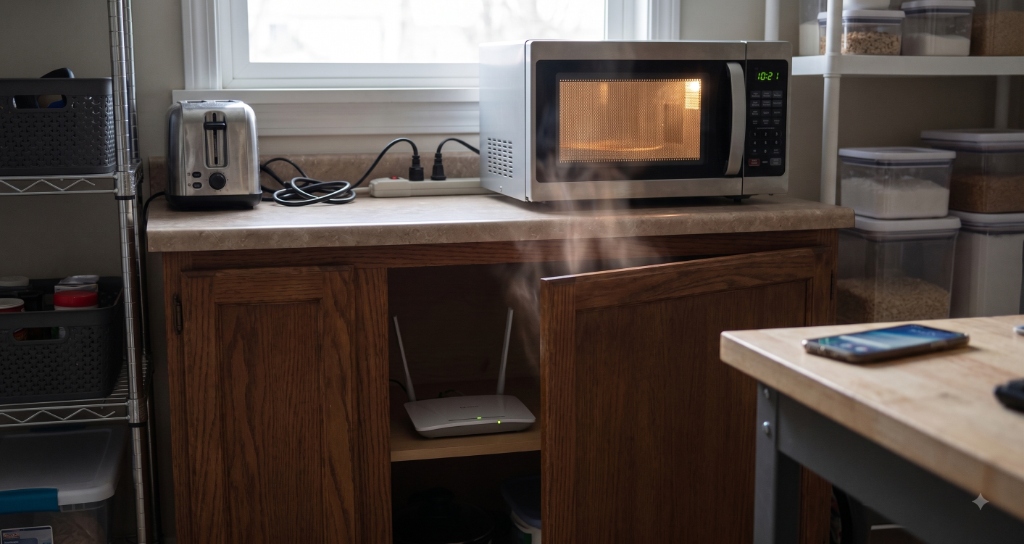
- Move the router away from direct sunlight, heating vents, and enclosed cabinets.
- Keep it away from microwaves, cordless phone base stations, and baby monitors — these operate on frequencies that directly interfere with 2.4GHz Wi-Fi.
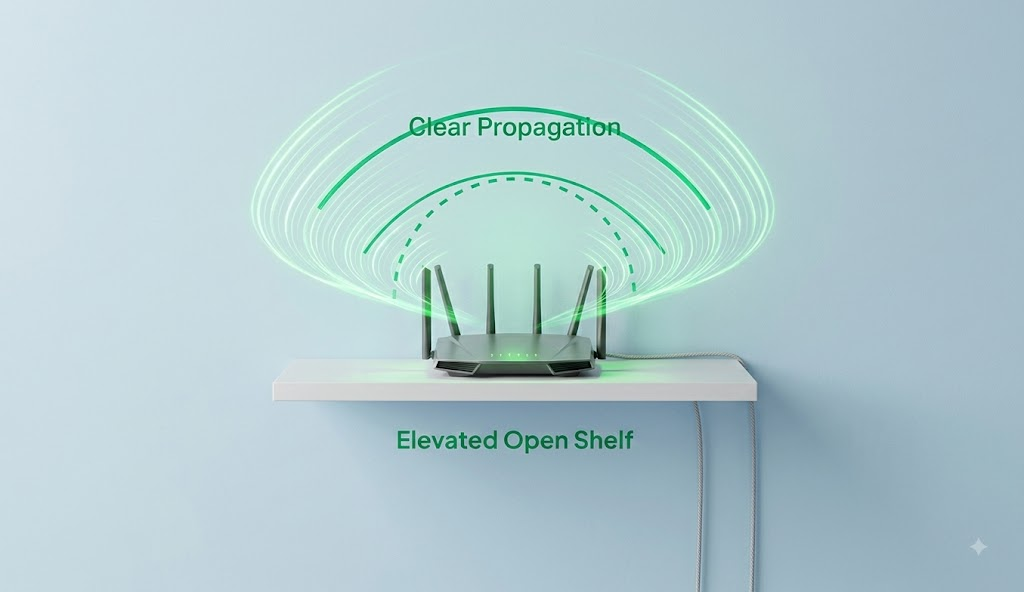
- Give it open space on all sides rather than stacking it with a modem, switch, or game console in a tight shelf.
- If the router feels noticeably hot to the touch during a drop, overheating is very likely your primary cause.
✕ Bad Placement (High Drops)
Enclosed structures trap heat, while proximity to kitchen appliances disrupts wireless signal stability.
✓ Good Placement (Stable Wi-Fi)
Open air allows heat dissipation, and elevation expands coverage radius cleanly.
4. Reduce Wi-Fi Interference
Interference doesn't always come from your own equipment — in dense apartment buildings especially, neighboring routers on the same channel are a common cause of periodic drops.
- If your router lets you choose a Wi-Fi channel manually, switch to a less crowded one — most routers default to auto-select, but auto-select doesn't always pick well in congested areas.
- Try switching the affected device to the 5GHz band instead of 2.4GHz (see our 2.4 GHz vs 5 GHz comparison). 5GHz has more non-overlapping channels and far less interference from household appliances.
- Physical obstructions matter too — thick walls, mirrors, and metal furniture between the router and the device can cause the connection to hover right at the edge of reliable, dropping intermittently rather than failing outright.
Wi-Fi Channel Overlap (2.4 GHz vs. 5 GHz)
The 2.4 GHz band is crowded with overlapping channels causing signal collisions. The 5 GHz band has wider, non-overlapping channels for optimal throughput:
2.4 GHz Band: Severe Overlapping
Only channels 1, 6, and 11 do not overlap. Using channels like 3 or 8 causes collision and packet loss with neighboring networks.
5 GHz Band: Isolated Channels (Zero Overlap)
5 GHz channels are widely separated, allowing high-speed, interference-free transmission.
5. Update Router Firmware
Outdated firmware is a frequent, under-checked cause of periodic disconnects, especially after a new device (phone, smart TV, IoT gadget) has been added to the network that the older firmware doesn't handle cleanly.
- Log into your router's admin dashboard (usually via its local IP address or a branded address like
routerlogin.netfor Netgear ortplinkwifi.netfor TP-Link). - Look for a Firmware or Software Update section, usually under Administration or Advanced settings.
- Install any available update, then reboot the router once more after the update completes.
6. Isolate Whether It's Your Equipment or Your ISP
If none of the above changes the pattern, test whether the drops are happening upstream of your router entirely.
- Connect a laptop or desktop directly to the modem with an Ethernet cable, bypassing the router.
- Leave it connected and run a Ping Latency Test to watch for the same drop pattern.
- If the direct modem connection also drops on the same interval, the issue is with your modem or your ISP's line — not your router. Contact your provider; this pattern is often a sign of line noise or a degraded connection that they can test remotely.
7. Check for a Specific Misbehaving Device
Sometimes one device on the network — often an older smart home gadget or a laptop with a flaky Wi-Fi driver — is the actual source, repeatedly causing brief network-wide hiccups rather than a clean isolated drop.
- Temporarily disconnect smart home devices, older laptops, or anything recently added to the network.
- Watch whether the disconnects stop.
- If they do, reconnect devices one at a time to identify the culprit, then update its drivers/firmware or move it closer to the router.
Common Causes at a Glance
| Cause | Typical pattern | Fix |
|---|---|---|
| Overheating | Drops worsen over time, router feels hot. | Improve ventilation, relocate router. |
| Interference (appliances, neighboring Wi-Fi) | Random timing, worse at certain times of day. | Change Wi-Fi channel, switch to 5GHz. |
| Outdated firmware | Started after adding a new device or ISP change. | Update firmware. |
| Loose/damaged cable | Consistent, but stops when cable is reseated or replaced. | Reseat or replace cable. |
| ISP line instability | Also happens on a device wired directly into the modem. | Contact ISP. |
| DHCP lease expiring on a schedule | Very consistent interval (e.g., every 15–20 min). | Increase DHCP lease time in router settings. |
Frequently Asked Questions
Why does my router disconnect every few minutes instead of staying fully offline?
Intermittent drops usually point to a specific, identifiable cause — overheating, interference, or a loose cable — rather than a total failure. The connection briefly fails and re-establishes itself, producing the on-off pattern, which is different from a router that's fully down or stuck in a boot loop.
Can overheating really cause a router to disconnect repeatedly?
Yes. Many routers throttle or briefly reset their Wi-Fi radio when internal temperature gets too high, and this can happen repeatedly if the router is in an enclosed space or stacked with other warm equipment.
How do I know if it's my router or my ISP causing the drops?
Connect a device directly to the modem with an Ethernet cable, bypassing the router entirely. If the same drop pattern continues, the issue is with your modem or your ISP's line, not your router.
Does switching to 5GHz Wi-Fi help with disconnects?
Often, yes. The 5GHz band has more available channels and is far less affected by interference from microwaves, cordless phones, and neighboring 2.4GHz networks, which are common causes of periodic drops.
Will updating firmware fix random disconnects?
It can, particularly if the disconnects started after adding a new device to your network or after your ISP made a change on their end. Firmware updates often include fixes for exactly this kind of device-compatibility instability.
Why does only one device keep disconnecting while others stay connected?
That points to a device-specific issue — a Wi-Fi power-saving setting, an outdated network driver, or a weak signal at that device's location — rather than a network-wide problem.
What does it mean if disconnects happen at a very consistent interval, like every 15 minutes?
Very regular intervals often point to a scheduled cause, such as a short DHCP lease time renewing repeatedly, rather than random interference. Checking and increasing the DHCP lease time in your router's settings can resolve this.
The Bottom Line
Unlike a router that's fully offline or stuck in a boot loop, one that drops every few minutes is usually telling you something specific — heat, interference, a cable, or your ISP's line — if you pay attention to the pattern. Work through power cycling, cables, placement, firmware, and the direct-to-modem test in that order, and the cause is almost always identifiable well before you need to replace anything.