A router that keeps turning on, restarting, and repeating the same cycle is usually dealing with a boot loop. The device begins its startup process but fails before it can finish, so it automatically restarts and tries again.
The cause can be something relatively simple, such as a failing power adapter or overheating. In other cases, the problem may involve corrupted firmware or failing internal hardware.
The important thing is not to factory reset the router immediately.
Start by figuring out whether you're dealing with a true boot loop, then work through the simplest checks before attempting firmware recovery or replacing the device.
Quick Answer
To fix a router stuck in a boot loop: Disconnect everything except power, check the power adapter and wall outlet, let the router cool down, and restart it. If it keeps rebooting, try the manufacturer's recommended reset procedure. If the problem started after a firmware update, use the official recovery instructions for your exact router model.
If the router still cannot complete startup after testing a known-good power supply and attempting the correct recovery procedure, the hardware may be failing.
In This Guide
- Is It Really a Boot Loop?
- How to Fix a Router That Keeps Restarting
- Router Keeps Restarting After a Firmware Update
- How Router Firmware Recovery Usually Works
- Recovery Methods by Router Brand
- Manufacturer's Recommended Factory Reset
- Check Whether the Router Can Reach Its Admin Page
- Watch the Router's LED Pattern
- What Causes a Router Boot Loop?
- Don't Confuse a Boot Loop With an Internet Problem
- When You Should Stop Troubleshooting and Replace the Router
- What Not to Do When Your Router Keeps Restarting
- Frequently Asked Questions
First: Is It Actually a Router Boot Loop?
People often describe any router problem as a "boot loop," but several different issues can look similar.
A true boot loop usually looks like this:
Router powers on → lights begin startup → router restarts → same process repeats
The router never reaches a stable, fully operational state.
| What you see | What it may actually be |
|---|---|
| Router restarts every few seconds or minutes during startup | True boot loop |
| Router works for hours and then restarts | Power, overheating, or hardware instability |
| Wi-Fi stays on but the internet disconnects | Internet/WAN problem |
| Router starts normally but devices cannot browse | Connection or ISP problem |
| Router shows an unusual blinking light but remains running | LED status or warning |
This distinction matters.
For example, if your router is working normally but your devices show Connected to Wi-Fi with no internet, you probably don't have a boot loop at all. In that situation, our WiFi Connected But No Internet? Full Fix Guide is the better place to start.
Likewise, if the router remains powered on but displays an amber status light, see our guide on Why Is My Router Blinking Orange?
How to Fix a Router That Keeps Restarting
Work through these steps in order. Don't jump straight to a factory reset.
1. Disconnect Everything Except the Power Cable
Before blaming the router's firmware, simplify the setup.
Disconnect:
- Ethernet devices
- Network switches
- Access points
- Mesh Wi-Fi nodes
- USB devices
- Other LAN equipment
Leave only:
Wall outlet → Power adapter → Router
Then turn the router on.
Why this helps
A faulty connected device or network problem can sometimes make a router unstable.
If the router suddenly completes startup normally after everything else is disconnected, reconnect your equipment one device at a time. Start with the modem connection, then add other devices gradually.
If the router still boot loops with nothing connected except power, the problem is more likely related to the power supply, overheating, firmware, or internal hardware.
2. Check the Power Outlet
Try the router in a different wall outlet. If possible, plug it directly into the wall temporarily.
Remove:
- Extension boards
- Damaged power strips
- Questionable surge protectors
A poor power connection can cause the router to lose power briefly and restart. If the boot loop stops after changing the outlet, the router itself may not have been the problem.
3. Check the Power Adapter Carefully
This is one of the most overlooked causes of a router that keeps restarting. Don't assume the power adapter is working simply because the router's lights turn on.
A weak adapter can provide enough power for the router to begin booting but become unstable when the processor, memory, and Wi-Fi radios start drawing more power.
The result can look like this:
Router starts → power demand increases → power becomes unstable → router resets → startup begins again
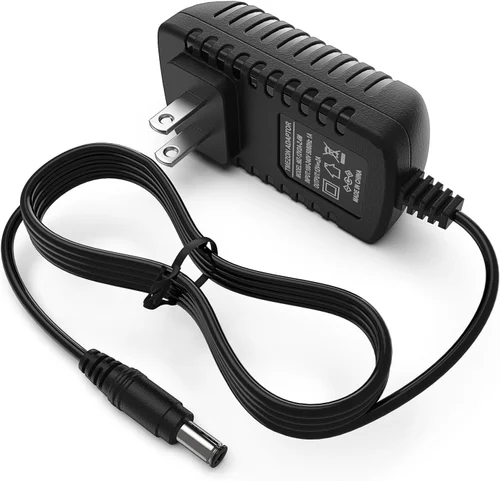
Adapter Specification Breakdown
Check the specifications
Look at the label on the router and its original power adapter.
Check:
- Voltage (V)
- Polarity
- Connector type
- Amperage/current rating (A)
The voltage and polarity must match the router's requirements. A replacement adapter should also provide enough current for the router. For example, if a router requires 12V 2.0A, don't use a random adapter simply because the connector fits.
A useful test
If you have access to a known-good compatible adapter with the correct specifications, testing it can help identify whether the original adapter is causing the boot loop. A failing adapter is often cheaper and easier to replace than the router itself.
4. Check Whether the Router Is Overheating
Feel the router carefully. If it feels unusually hot, turn it off and let it cool down before trying again.
Check where it is located. Avoid placing it:
- Inside a closed cabinet
- Under other electronics
- Near a heat source
- In direct sunlight
- On a soft surface that blocks ventilation
Make sure the router's ventilation openings aren't blocked by dust.
Why overheating can cause repeated restarts
Routers generate heat during normal operation. If internal temperatures become too high, the device may become unstable or shut down and restart.
However, overheating is more commonly associated with a router that works for some time before restarting. If your router begins rebooting immediately from a cold start, the power adapter or firmware may be more likely suspects.
5. Perform a Proper Power Cycle
If the router is still restarting, disconnect its power. Leave it unplugged for about a minute.
Then reconnect the power and watch what happens. Don't repeatedly unplug and reconnect the router every few seconds. Give it enough time to complete its startup process.
If you have a separate modem and router
For troubleshooting, you can temporarily leave the modem disconnected and test whether the router itself can finish booting. If the router cannot remain powered on even without the modem connected, the issue is probably inside the router or its power system.
Router Keeps Restarting After a Firmware Update
If the boot loop started immediately after:
- A firmware update
- A power outage during an update
- Installing the wrong firmware
- An interrupted upgrade
corrupted firmware becomes a more likely explanation. A router can fail to complete startup if its operating system or firmware installation was damaged.
Don't download random firmware files
This is where many people make the situation worse. Before attempting firmware recovery, identify:
- The exact router model
- The hardware version or revision
- The correct firmware file
- The official recovery instructions for that specific device
Two routers that look almost identical can use different firmware. Installing firmware intended for another model or hardware revision can cause additional problems.
How Router Firmware Recovery Usually Works
Firmware recovery is not universal.
Depending on the manufacturer and router model, recovery may involve:
- An emergency web recovery page
- TFTP firmware recovery
- A manufacturer-provided restoration utility
- A special recovery startup mode
- A specific reset or button sequence
TFTP Recovery Mode Recovery Mode Button Sequence
Follow the numbered indicators showing the sequence to hold buttons while powering on the unit to enter TFTP/firmware recovery mode:
Some routers may temporarily use a local recovery address during startup. Others use completely different recovery systems.
The important rule
Do not assume your router uses 192.168.1.1, TFTP, or the same recovery procedure as another brand.
For general router management access, you may find our 192.168.1.1 Router Login Guide or 192.168.0.1 Login Guide useful. But recovery mode addresses can be different from the router's normal login address.
Always follow the official recovery instructions for your exact model.
Recovery Methods Can Differ by Router Brand
Different manufacturers use different recovery systems.
| Router brand | Recovery options may include |
|---|---|
| TP-Link | Model-specific emergency recovery procedures |
| NETGEAR | TFTP recovery on supported models |
| ASUS | Rescue Mode or Firmware Restoration tools |
| Linksys | Model-specific recovery procedures |
| MikroTik | RouterBOOT or Netinstall recovery |
The table above is only a starting point. Your exact model determines the correct recovery method. Before uploading firmware, confirm the model number printed on the router's label.
Try the Manufacturer's Recommended Factory Reset
If the router can stay powered on long enough, you can try a factory reset. But don't use random reset methods copied from old forums.
Reset procedures vary
Different routers may require:
- Holding the Reset button while powered on
- Holding it for a specific number of seconds
- Waiting for a particular LED pattern
- Using a recovery mode instead of a normal reset
Follow the instructions provided for your exact router model.
Avoid repeatedly resetting the router
Repeated resets usually don't solve a hardware failure or corrupted firmware. One proper reset is enough. After resetting, give the router time to complete startup.
If you need help understanding the normal reset process, see our How to Reset a Router guide before continuing.
Check Whether the Router Can Reach Its Admin Page
Sometimes a router appears to be boot looping when it has actually completed startup but isn't connecting properly to the internet.
If the router remains powered on long enough, connect a computer directly using an Ethernet cable. Then try accessing the router's management interface.
Common router addresses include:
- 192.168.1.1
- 192.168.0.1
- Other manufacturer-specific gateway addresses
If you're unsure how to find the correct address, check your device's default gateway. Being able to access the admin panel can tell you whether the router is actually completing its startup process.
Watch the Router's LED Pattern
The lights can provide useful clues. Pay attention to:
- Power light behavior
- Internet/WAN light
- Whether all lights turn off before the restart
- Whether the same LED pattern repeats every time
Lights progress sequentially from power-on, then stay solid and steady.
Router powers on, lights start blinking, then everything goes dark and restarts.
For example:
Power light → startup lights → sudden shutdown → power light again
suggests the router is repeatedly restarting.
But a continuously blinking orange or amber light doesn't automatically mean a boot loop. Different brands assign different meanings to their LEDs. If your router stays powered on but shows an orange light, check our Router Blinking Orange: What It Means and How to Fix It guide instead.
What Causes a Router Boot Loop?
A router stuck in a continuous reboot cycle is usually caused by one of a few problems.
Failing Power Adapter
A weak adapter can become unstable under load. This is one of the first things worth testing because it is relatively easy to rule out.
Overheating
Poor ventilation or excessive internal heat can cause instability and restarts. This is especially likely if the router works for a while before rebooting.
Corrupted Firmware
An interrupted or failed firmware update can prevent the router from completing startup. This may require model-specific recovery.
Failing Internal Hardware
Older routers can eventually develop hardware problems. Possible failures can involve:
- Flash memory
- Internal power components
- Capacitors
- Processor-related hardware
- Wi-Fi components
Internal repair is usually not practical for most home users.
Don't Confuse a Boot Loop With an Internet Problem
A router can have several problems that look similar from the outside.
True boot loop
The router:
- Powers on
- Begins startup
- Restarts
- Repeats continuously
Internet connection problem
The router:
- Starts normally
- Keeps Wi-Fi running
- Cannot reach the internet
Wi-Fi problem
The router:
- Has internet access
- But devices can't connect reliably through Wi-Fi
These require different troubleshooting steps. If your devices connect successfully to Wi-Fi but websites won't load, start with our WiFi Connected But No Internet? Full Fix Guide rather than performing a factory reset.
When You Should Stop Troubleshooting and Replace the Router
There comes a point where more troubleshooting isn't useful. Consider replacing the router if:
- It still boot loops with a known-good compatible power adapter
- It continues restarting with nothing connected except power
- It is properly ventilated and not overheating
- A proper factory reset doesn't help
- The official firmware recovery process fails
- The router cannot stay powered on long enough to enter recovery mode
At that point, internal hardware failure becomes increasingly likely. For an older consumer router, professional board-level repair can cost more than replacing the device.
What Not to Do When Your Router Keeps Restarting
Avoid these common mistakes.
Don't factory reset first
You may erase your settings without fixing the underlying problem.
Don't keep unplugging the router repeatedly
Give the device time to complete its startup process.
Don't use random power adapters
A connector that fits doesn't mean the adapter is electrically compatible.
Don't install firmware for a similar-looking router
The exact model and hardware revision matter.
Don't follow random "universal" recovery instructions
Firmware recovery procedures vary significantly between devices.
Frequently Asked Questions
What is a router boot loop?
A router boot loop happens when the router repeatedly starts and restarts without successfully completing its startup process.
Why does my router keep restarting?
Common causes include a failing power adapter, overheating, corrupted firmware, connected equipment causing instability, or failing internal hardware.
Can a bad power adapter cause a router boot loop?
Yes. A failing adapter may provide enough power for the router to start but become unstable when the device requires more power during startup.
How long should a router take to boot?
Most home routers should complete a normal startup within a few minutes. The exact time depends on the model and whether the device is reconnecting to an internet service.
Should I factory reset a router stuck in a boot loop?
Not as your first step. First check the power supply, disconnect connected equipment, and rule out overheating. Use the manufacturer's recommended reset procedure only after the simpler checks fail.
Can a firmware update cause a router boot loop?
Yes. If a firmware update is interrupted, corrupted, or incompatible with the router, the device may fail to complete its startup process.
Can I fix a router boot loop with TFTP?
Some router models support TFTP firmware recovery, but the procedure, recovery address, firmware format, and timing vary by manufacturer and model. Check the official instructions for your exact router before attempting it.
How do I know if my router needs to be replaced?
Replacement is usually the practical option when the router continues boot looping after testing a known-good compatible power adapter, checking ventilation, disconnecting all other equipment, and attempting the official recovery procedure.
The Bottom Line
A router that keeps restarting can look like a serious failure, but the first cause isn't always corrupted firmware or a dead router.
Start by stripping the setup down to the basics: power only.
If the router still loops, test the power supply and check for overheating. If the problem began after a firmware update, move carefully into the manufacturer's official recovery process for your exact model.
Once you've ruled out the power supply, environment, connected equipment, reset procedure, and supported firmware recovery options, continued boot looping usually points toward failing hardware—and replacement may be the more practical solution.