Quick answer: Restarting your router (a power cycle) reboots the operating system and clears temporary runtime issues without touching your saved configuration, Wi-Fi passwords, or network names — unplug it for 30–60 seconds, plug it back in, and give it 2–3 minutes. A factory reset wipes everything back to factory defaults: Wi-Fi names, admin passwords, port forwarding rules, and ISP/PPPoE credentials. Hold the recessed Reset button with a paperclip for 10–15 seconds while powered on until the lights change pattern. Try a restart first; only factory reset if you're locked out or restarting fails.
Two very different fixes get called "resetting a router," and mixing them up costs you time or, worse, your entire network config. A restart is a power cycle — unplug it, wait, plug it back in — and it fixes most everyday connection headaches without touching a single saved setting. A factory reset wipes the router back to day one: gone are your Wi-Fi name, your password, your port forwarding rules, all of it. If you're not sure which one you need, you almost certainly want the first one.
Restart vs. Factory Reset: Symptom & Action Matrix
Here's the test to run before touching anything on your network hardware:
| Problem / Symptom | Recommended Action | What Gets Touched | Estimated Time |
|---|---|---|---|
| Slow Wi-Fi speeds or sluggish browsing | Restart (Power Cycle) | Clears temporary RAM & runtime cache | 2–3 minutes |
| Single device won't connect or IP lease stuck | Restart (Power Cycle) | Refreshes DHCP table and active leases | 2–3 minutes |
| Connection drops every hour or periodically | Restart (Power Cycle) | Restarts wireless radios and buffer states | 2–3 minutes |
| Locked out & forgot router admin password | Factory Reset (Hard Reset) | Restores factory default admin login | 10–15 minutes |
| Router misconfigured / severe routing loop | Factory Reset (Hard Reset) | Wipes all custom routing & firewall rules | 10–15 minutes |
| Selling, returning, or giving away router | Factory Reset (Hard Reset) | Total data & credential wipe | 5 minutes |
Restart or Factory Reset — Which Do You Actually Need?
Here's the test I'd run before touching anything. Slow Wi-Fi, a device that won't join the network, a connection that drops every hour on the hour — that's a restart problem. You're locked out and forgot the admin password, or the router's misconfigured in a way you can't untangle, or you're handing the thing off to someone else — now you're in factory-reset territory.
A restart reboots the router's operating system and clears whatever temporary runtime mess built up. It doesn't touch your saved configuration at all. Try it first. It costs you three minutes and nothing else.
A factory reset is the opposite: total erasure, fresh start, back to exactly what shipped in the box. Only reach for it once a restart has genuinely failed to fix the problem.
How to Restart a Router (Soft Reset)
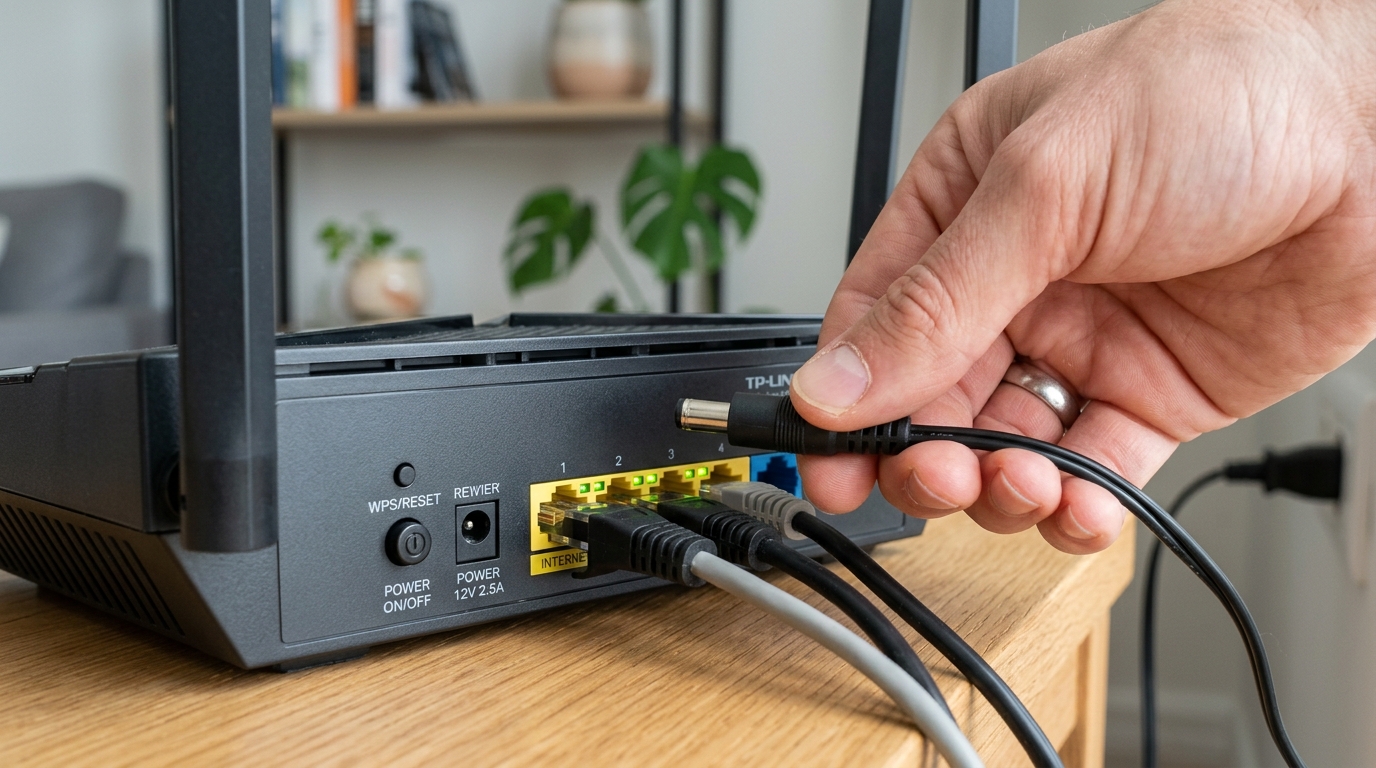
- Unplug the power cable: Disconnect the power cord from the back of the router. Got a dedicated power switch on the back instead? Use that — less wear on the port than yanking the cord every time.
- Wait 30 to 60 seconds: Don't rush this. The router needs the full window to power down completely, not just flicker off and back on.
- Plug it back in: Reconnect the power cable or switch the power button back on.
- Give it two or three minutes: You'll see the lights cycle through a startup pattern before they settle into normal operation.
That's the whole thing. Nothing to reconfigure once it's back up.
How to Factory Reset a Router (Hard Reset)
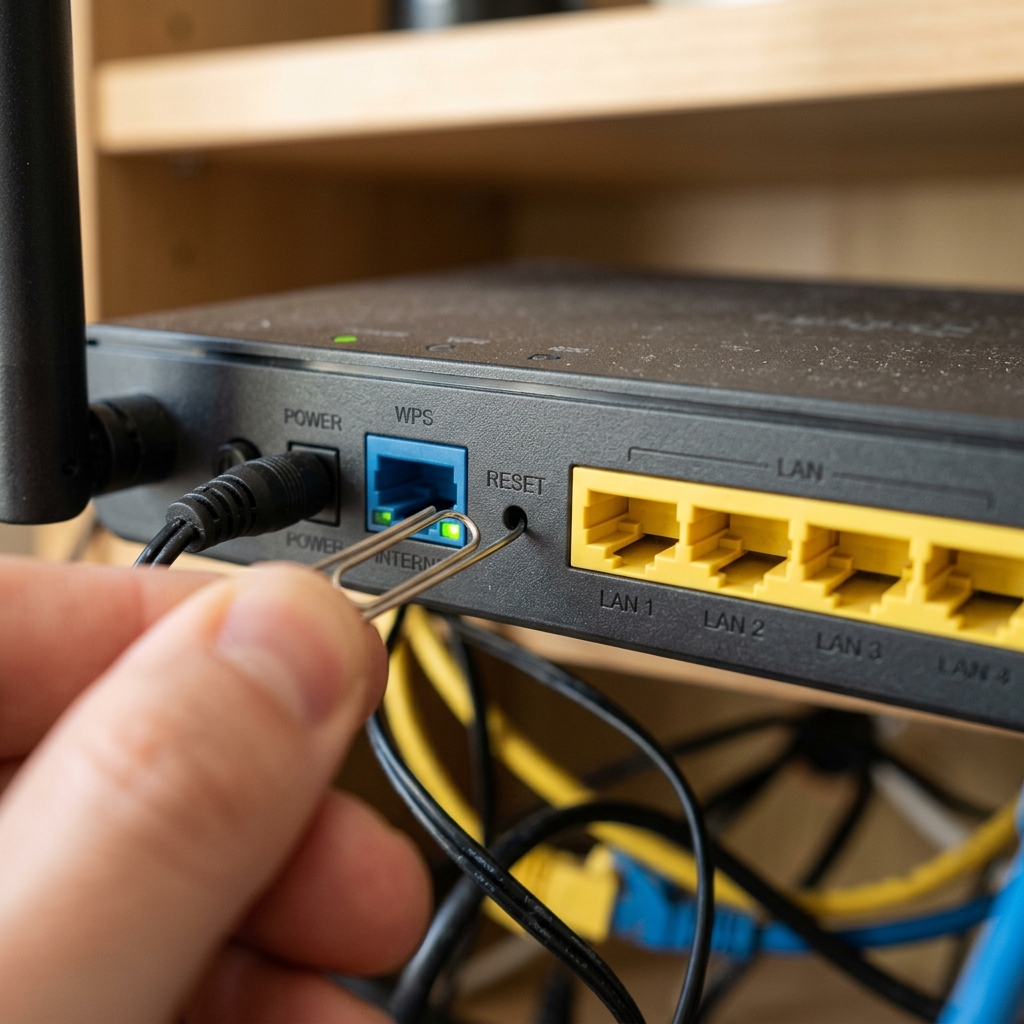
- Leave it plugged in and powered on: This method needs power the whole way through.
- Find the small recessed hole: Look on the back or underside labeled Reset. It's tucked in deliberately so you don't hit it by accident.
- Straighten a paperclip and press it in: Insert the pin until you feel the microswitch click.
- Hold it down: Manufacturers don't agree on timing here — check your documentation if you have it — but 10 to 15 seconds is a range you'll see often. Watch the lights instead of counting Mississippis. A pattern change is your real signal that the reset took.
- Release once the lights shift: Give the router a few minutes to finish rebooting.
- It's back to factory configuration now: A lot of routers print the default Wi-Fi name and admin login on a label, a card in the box, or the packaging — but not all of them do, so check your documentation if there's nothing obvious on the unit itself.
Read the next section before you do this one. It erases more than people expect.
Can You Restart or Reset a Router From an App?
Plenty of current routers — and nearly every mesh system, Eero and Google Nest Wifi included — let you restart from their companion app. No cables involved.
- Open the app, sign in.
- Find Restart Router or Reboot, usually tucked in device settings or an advanced menu.
- Tap it, confirm. Same effect as pulling the plug, minus the plug-pulling.
Factory reset from the app is hit or miss — some brands allow it, some insist on the physical button so a stray tap can't nuke your whole setup. And if the router's genuinely locked up or stuck in some routing loop, the app might not even be able to find it. That's when the button earns its keep.
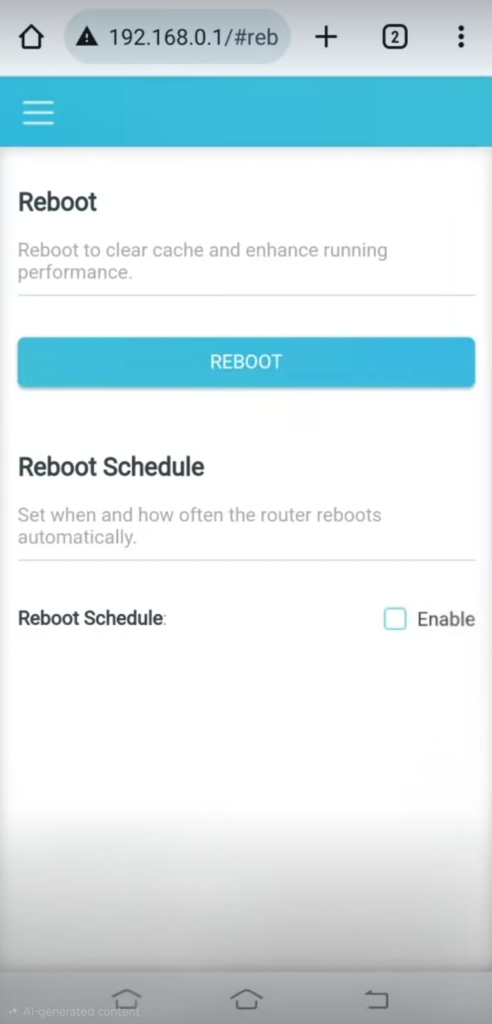
Mobile browser interface showing the software Reboot button
What Actually Gets Erased in a Factory Reset
People remember to expect a new Wi-Fi password. They forget almost everything else:
| Setting Category | What Gets Erased / Reset | Impact on Your Network |
|---|---|---|
| Wi-Fi Credentials | Wi-Fi network name (SSID) and security password | All wireless devices disconnect immediately |
| Admin Access | Custom admin username & password | Reverts to factory default or setup prompt |
| IP Configuration | Static IP reservations, custom subnets, DHCP range | Devices assigned default dynamic addresses |
| Port Forwarding | Port forwarding rules, triggers, UPnP, and DMZ | Self-hosted servers and game port rules drop |
| Security & Filters | Parental controls, device schedules, VPN configs | All access restrictions and encrypted tunnels reset |
| ISP Credentials | PPPoE or ISP login credentials (DSL/Fiber) | Internet connection will not establish until re-entered |
That last one is the sneaky one. If your ISP requires a username and password just to establish the connection — common on DSL, some fiber setups too — a factory reset takes those with it. You won't have internet again until you type them back in. Track that information down before you reset, not after you're staring at a dead connection wondering what went wrong.
If Your Router Came From Your Internet Provider
Self-owned router, self-service reset. ISP-provided router, different story entirely.
Some ISP gear pulls its configuration straight from the provider's network the moment it's back online — minimal fuss. Others sit there doing nothing until you call support or open the ISP's app to re-provision the connection. You genuinely can't tell which camp yours falls into without checking first, so look up your provider's own reset instructions before you press anything.
One more wrinkle: if your ISP gave you a combo unit — modem and router in one box — a reset touches both your internet connection settings and your Wi-Fi settings at once. Separate modem and router? Make sure you're resetting the one you actually mean to.
Setting Your Router Back Up After a Factory Reset
Once it's back online at factory defaults, you're starting from scratch, same as the day it arrived.
- Connect to the default Wi-Fi network if it's broadcasting one — name and password are usually on the label or a setup card. Some routers want a wired connection for initial setup instead; grab an Ethernet cable if yours does.
- Type the router's management address into a browser — often
192.168.1.1or192.168.0.1, though check your label to confirm. Some routers use a custom web address instead of a raw IP; our guide on how to access your router admin page covers that option if you'd rather go that route. - Log in with the default or setup credentials from your documentation (or check our default credentials list).
- Set a new Wi-Fi name and password — don't leave it on the factory default. Our guide on how to change wi-fi password and name walks through exactly how.
- Punch your ISP credentials back in if your connection needs them.
- Rebuild whatever else you had running: port forwarding, static reservations, parental controls, VPN. None of it survives the reset.
Honestly, this is also a decent moment to pick a stronger admin password than whatever the factory default was — that default's public information the second you're back online.
No Internet After the Reset? Here's What's Actually Wrong
This trips people up more than any guide seems willing to admit, and it's rarely the router itself that's actually broken.
Start with the modem. Separate modem and router, and the router alone got reset? The modem can get left in a state where it won't hand off a connection properly. Power the router off first. Restart the modem — or the ONT if you're on fiber, though check with your provider before you power-cycle their equipment, since some manage that piece separately. Wait for the modem's lights to show a normal online state, then power the router back on and give it a few minutes. (For step-by-step power cycling, see our No Internet fix guide).
Look at the WAN light. Devices connect to Wi-Fi fine but nothing loads? Check the router's WAN or Internet status light. Off or red means the router isn't getting a signal from the modem or ISP at all — that's not a Wi-Fi problem, so no amount of Wi-Fi troubleshooting will touch it. Confirm the Ethernet cable is connected firmly to the WAN/Internet port.
Check for missing PPPoE credentials. Connection needs a username and password to establish itself, and you didn't have those ready before the reset? That's almost certainly your culprit. Your ISP's account portal, or an old bill, usually has them.
Give it more time than you think it needs. A factory reset takes longer to fully settle than a plain restart. Five minutes, not two.
Still dead after all that? The reset itself might not have completed — letting go of the button before the lights actually changed pattern can leave a router stuck mid-process. Run the factory reset again, and this time watch for the light change instead of counting seconds in your head. If the router repeatedly cycles without completing boot, see our guide on how to fix a router stuck in a boot loop.
Common Router Reset Questions
Does restarting a router delete the Wi-Fi password?
No. A restart power-cycles the router and clears temporary runtime issues — your saved settings, Wi-Fi password included, come back exactly as they were.
Can I reset just the admin password without wiping everything else?
On some routers, yes, through account recovery in the app. Not universal, though. If your router doesn't offer it, a full factory reset is the only way back in if you're truly locked out.
I factory reset my router and now there's no internet. What's wrong?
Restart the modem too, not just the router, and check whether your connection needs PPPoE credentials that got wiped along with everything else. Both outrank "broken router" as the actual cause.
How long do I hold the reset button?
There's no universal number — it depends on the manufacturer. 10 to 15 seconds shows up often, but check your specific router's documentation if you have it. The light pattern changing is a better signal than a stopwatch.
How often should I restart my router?
No fixed schedule needed. Restarting every few weeks, or whenever things feel sluggish, is a reasonable habit — not something you need to force on a calendar if everything's already running fine.
Bottom Line
Two very different operations share the name "reset." A restart (soft reset) is a quick 3-minute power cycle that clears memory leaks and refreshes connections without touching your saved Wi-Fi name or passwords. A factory reset (hard reset) is a clean slate that restores factory defaults and erases all custom settings and ISP credentials. Always try a restart first — only reach for the reset pinhole when you are completely locked out or handing the hardware off to a new owner.