Quick answer: Log into your router's admin page or app, find the Wireless or Wi-Fi settings section, and edit the Name (SSID) and Password fields. Save your changes and every connected device gets kicked off, including smart home gadgets, so reconnect those manually with the new details. If your router has separate 2.4GHz and 5GHz bands, check whether you need to update both — some routers treat them as one network, others don't.
Before You Start
You'll need to get into your router's admin page or app first. If you're not sure how, our guide to accessing your router admin page covers the browser, app, and ISP-locked router situations. If you're going the browser route, the router's IP address, admin username, and password are usually printed on a sticker on the device itself — but that sticker only shows the factory defaults. If anyone's changed the admin login before, the sticker won't match, and you'll need your current credentials instead. To check your active gateway on any device, review our guide to find your router's IP address or use the IP Address Checker.
One thing worth knowing before you touch anything: changing your Wi-Fi name or password disconnects every device on your network the moment you save. Laptops and phones reconnect in seconds once you type the new password. Smart home devices — bulbs, plugs, cameras, thermostats — are a different story. A lot of them need to be walked through their own app's setup process again, not just reconnected. If you've got a house full of smart devices, budget a few extra minutes for this.
Wi-Fi Update Diagnostics: Symptoms & Quick Fixes
| Symptom | Potential Cause | Quick-Fix Target |
|---|---|---|
| Devices won't reconnect after password change | Typos, case-sensitivity issue, or unsupported special character | Verify caps lock is off; test a simpler 12–16 character alphanumeric password |
| Only some devices reconnected (others still on old info) | Dual-band router with separate 2.4GHz & 5GHz SSIDs where only one band was edited | Open Wireless Settings and check if 2.4GHz and 5GHz need separate credential updates |
| Smart home bulb / plug / camera won't reconnect | IoT hardware cached old network profile or requires 2.4GHz band exclusively | Factory reset device, ensure 2.4GHz SSID is active, and redo setup in manufacturer app |
| Router admin panel refuses to save new settings | Password shorter than 8 characters, exceeding 63 characters, or illegal character | Set a strong password within standard 8–63 length and confirm security mode is WPA2/WPA3 |
Change It Through a Browser
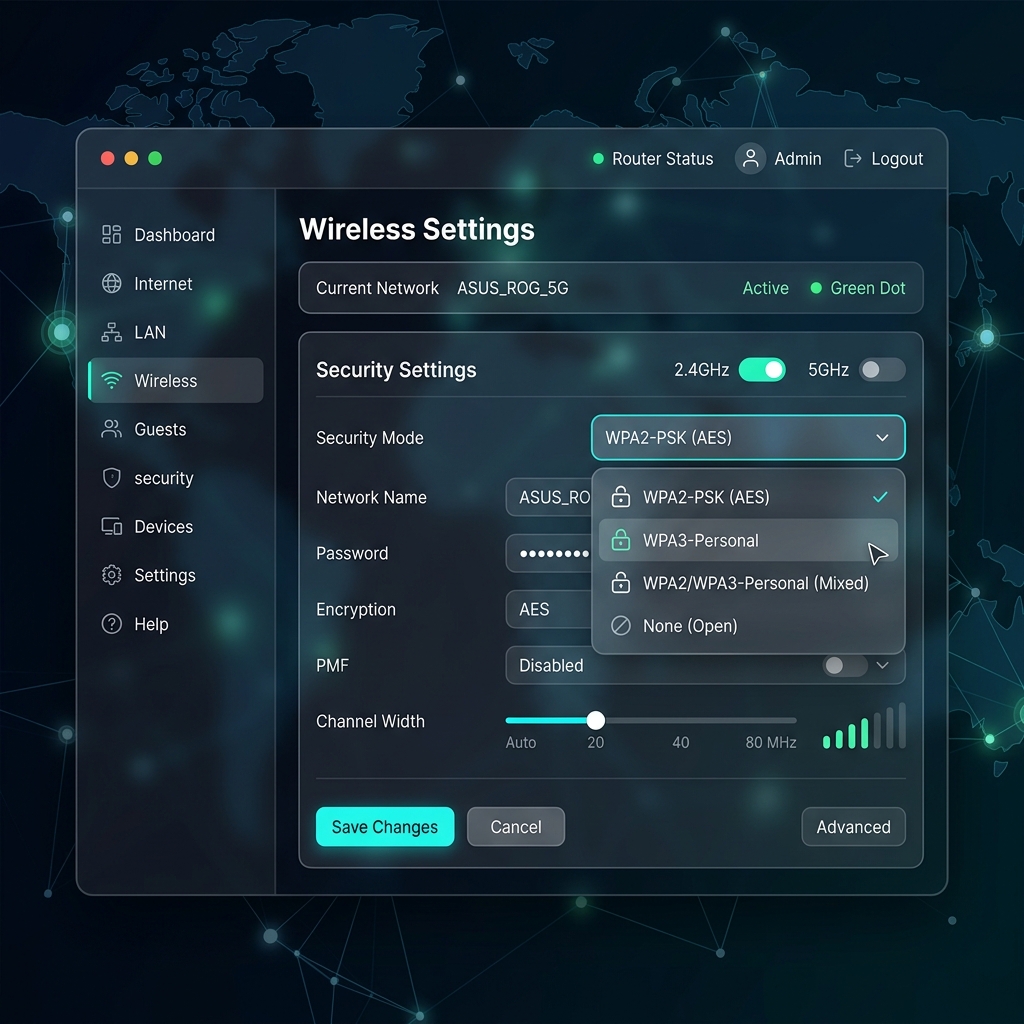
- Log into your router's admin page. Open your browser and navigate to your gateway address (e.g.
192.168.1.1or192.168.0.1). - Look for Wireless, Wi-Fi Settings, or Wireless Setup in the menu — naming varies by brand, but it's almost always one of these three.
- Find the Name or SSID field. Clear it and type your new network name.
- Find the Password or Network Key field. Clear it and type your new password.
- Click Apply or Save.
That's it on most routers. A few ask you to confirm the change or briefly restart the wireless radio, which is normal.
Change It Through an App
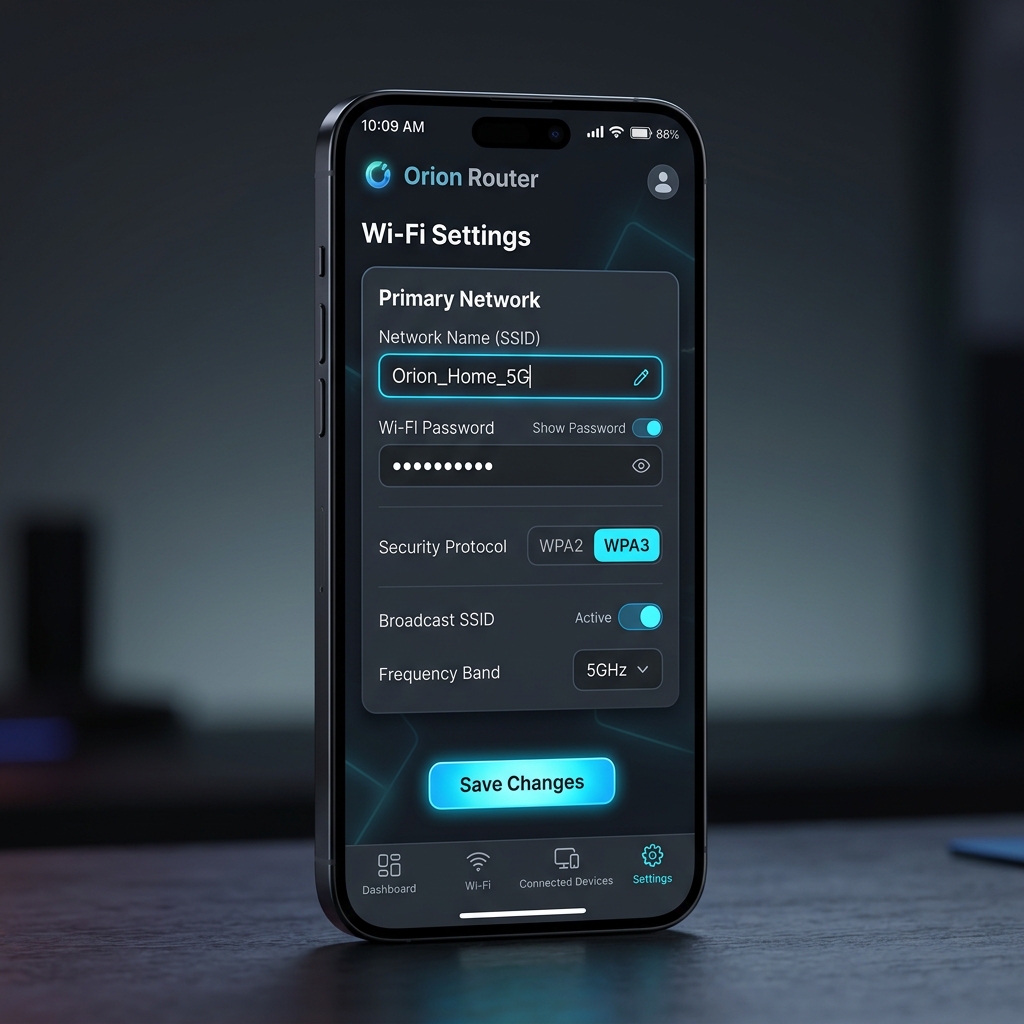
- Open your router's official app and log in.
- Go to Settings or Network, then find Wireless Settings or Main Network Profile — exact wording depends on your brand.
- Tap the network name and password fields to edit them.
- Tap Apply or Save.
Modern routers, especially mesh systems and ISP-provided ones, increasingly push people toward the app instead of the browser for exactly this task. If you're with a major provider like AT&T, Xfinity, or Spectrum, their official app usually skips the browser and IP address entirely — open the app, sign in, and the Wi-Fi settings are right there. If your router came with an app, it's usually the easier path.
Dual-Band Routers: One Network, or Two?
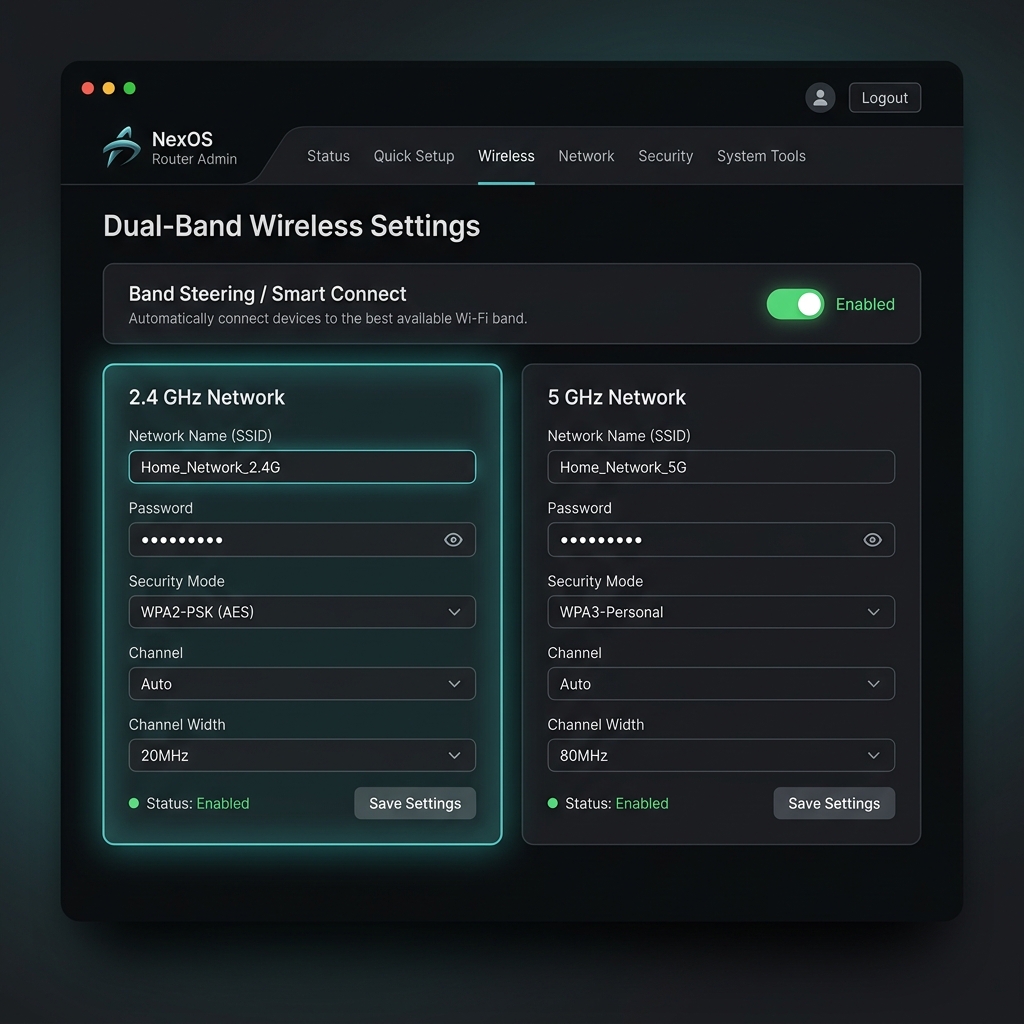
Here's what trips people up more than anything else in this process. Most routers made in the last several years broadcast two separate networks — one on the 2.4GHz band, one on 5GHz — and depending on your router, they might have completely separate names and passwords.
If your router has a feature called Smart Connect, Band Steering, or something similar turned on, both bands share one SSID and password, and changing it updates both automatically. You're done after one edit.
If that feature is off, or your router doesn't have it, you'll see two separate SSID/password pairs in your settings — something like "HomeNetwork" and "HomeNetwork_5G." Change one and the other stays exactly as it was. Any device still connected to the untouched band keeps working on the old credentials, which can look like your change "didn't take" when really it only applied to half your network.
Quick way to check: scroll through your Wireless settings before you start. If you see two separate name/password blocks, you've got two networks to update.
Choosing a Strong Password
Character requirements vary by router, but most fall somewhere in a similar range: passwords generally need to be at least 8 characters, and many routers accept up to 63.
A few things actually matter here:
- Mix uppercase, lowercase, numbers, and symbols
- Skip anything guessable — names, birthdays, "password," sequential numbers
- Don't reuse a password you use anywhere else
- Longer beats clever. A random 16-character string beats a short password with substituted symbols every time
If your router offers a password generator, it's a fine shortcut. Just write the result down somewhere before you save it. To share network access easily with visiting family, you can generate a printable card using our Wi-Fi QR Code Generator.
WPA2 vs. WPA3: Which to Pick
While you're already in this settings screen, check the security protocol dropdown if your router has one. You're choosing between WPA2 and WPA3, and it's worth getting right since you're here anyway.
| Security Mode | Compatibility | Security Level | Recommended For |
|---|---|---|---|
| WPA3-Personal | Modern phones, PCs, tablets (2019+) | Highest (resistant to offline dictionary attacks) | New networks with up-to-date client hardware |
| WPA2-PSK (AES) | Universal (all legacy Wi-Fi gear) | Good (standard robust encryption) | Older smart home gadgets or legacy laptops that reject WPA3 |
| WPA2/WPA3 Mixed Mode | Broadest household compatibility | Adaptive per connected device | Mixed households with older smart bulbs alongside new iPhones/laptops |
WPA3 is the newer standard and the better choice if every device on your network supports it — most hardware made in the past few years does. It handles password security more robustly and closes off some older attack methods entirely.
WPA2 is still fine and widely compatible, but it's the fallback, not the ideal. Pick it if you've got older devices — some smart home gadgets and older laptops — that don't support WPA3 and refuse to connect otherwise.
Some routers offer a mixed WPA2/WPA3 mode that lets both device types connect at once. If that option exists and you've got a mix of old and new hardware, it's usually the least frustrating choice.
What Happens After You Save
Every device drops off the network the instant you hit save, and some routers restart briefly to apply the change — don't panic if the lights blink or the internet cuts out for 30 seconds. For phones, laptops, and tablets, this is a non-issue: open Wi-Fi settings, find the new network name, enter the new password, done.
Smart home devices are where this gets tedious. Many won't automatically pick up the new credentials the way a phone does — you'll likely need to open each device's own app (or hold a reset button, depending on the device) and walk through its Wi-Fi setup again from scratch. If you've got a dozen smart plugs and bulbs, this is genuinely the longest part of the whole process, longer than actually changing the password.
Troubleshooting
Devices won't reconnect with the new password. Double check for typos, especially anything with similar-looking characters (0 vs O, 1 vs l). Passwords are case-sensitive, so confirm caps lock isn't on.
Only some devices reconnected. You're probably dealing with a dual-band setup where you only updated one band. Go back into Wireless settings and check whether the other band still has the old credentials.
Smart home device won't reconnect at all. Most need a factory reset before they'll accept new Wi-Fi credentials, not just a retry. Check the manufacturer's app for a reset procedure specific to that device.
Changes won't save. Some routers reject SSIDs or passwords with certain special characters, or ones that are too short. Try a simpler password first to confirm the save works, then adjust from there.
Frequently Asked Questions
Will changing my Wi-Fi password disconnect everyone using my network?
Yes, immediately. Every connected device, including ones you don't control directly like a roommate's phone or a smart TV, drops off the moment you save the change.
Do I need to change my router's admin password too?
That's a separate setting from your Wi-Fi password, and it's worth doing on its own if you've never changed it from the factory default. It doesn't happen automatically when you update your Wi-Fi name and password.
How often should I change my Wi-Fi password?
There's no universal rule, but changing it after giving it out to guests you don't fully trust, or if you suspect unauthorized access, is a reasonable trigger. Changing it purely on a schedule isn't necessary if your password is already strong and unique.
Why do I have two Wi-Fi networks with similar names?
That's your router broadcasting separate 2.4GHz and 5GHz bands as two networks instead of merging them into one. Both are the same physical router — you can usually rename or merge them in your Wireless settings if you'd rather see just one network.
Can I change my Wi-Fi password from my phone?
Yes. If your router has an official app, that's usually the easiest way to do it from a phone — no browser or IP address needed. Without an app, you can still do it from your phone's browser the same way you would on a computer: connect to the Wi-Fi, open the browser, and go to the router's IP address.
Is it possible to change my Wi-Fi password at all, or does it require special access?
Any Wi-Fi network can have its password changed, as long as you can get into the router's admin settings. You'll need the admin login, not just the current Wi-Fi password — those are two different sets of credentials.
Bottom Line
Updating your Wi-Fi name and password is a quick task that takes only a couple of minutes in your router's browser interface or mobile app. The real time commitment comes right after you hit save: reconnecting your phones, computers, and especially smart home devices to the refreshed SSID. Before making the switch, check whether your router runs separate 2.4GHz and 5GHz bands so you don't leave half your network running on outdated credentials, choose WPA3 or WPA2/WPA3 mixed mode for security, and keep your new passphrase stored safely.