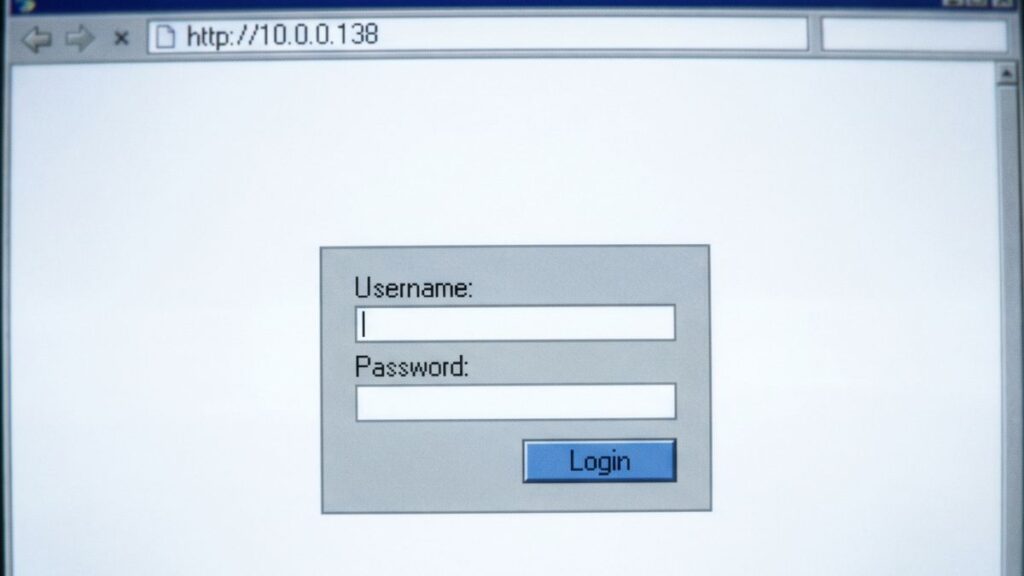
You’ve typed 10.0.0.138 into your browser and got a login screen, an error, or nothing at all. This guide handles all three. I’ll walk you through the full login process on PC, iPhone, and Android, explain five specific reasons this address won’t load and exactly how to fix each one, cover the factory reset step by step, and show you what to actually configure once you’re inside the admin panel.
10.0.0.138 is a less common gateway IP — it’s associated primarily with SpeedTouch (Alcatel) DSL modems and routers, plus A1 (Austrian ISP), Belong (Australian ISP), and some Netgear equipment. The SpeedTouch credential quirk in particular trips up a lot of people, so I’ll cover that upfront.
Router Access Panel
Type
10.0.0.138
in your browser or click the link to access the router admin page.
It works only when you’re connected to the same Wi-Fi network.
10.0.0.138 is a private IP address that functions as a default gateway — the address your router or modem assigns to itself on the local network. Type it into a browser while connected to your home network and it opens your device’s admin dashboard: the panel where you control Wi-Fi settings, connected devices, security options, port forwarding, and firmware updates.
What makes this address stand out is its 10.x.x.x prefix. Most home routers use 192.168.x.x addresses. The 10.x.x.x range is an equally valid private address block — it covers a massive span from 10.0.0.0 to 10.255.255.255 — and some manufacturers and ISPs prefer it. The .138 host address is unusual even within the 10.0.x.x range, which is why most people searching for it are encountering it unexpectedly.
A note on context: If you’re seeing 10.0.0.138 as your Default Gateway, you almost certainly have SpeedTouch DSL equipment (made by Alcatel, later Thomson), an A1-supplied router in Austria, Belong-supplied hardware in Australia, or a Netgear unit that was configured to use this subnet. It can also appear on enterprise networks where the 10.0.0.x subnet has been chosen by an IT administrator.
10.0.0.1 router login page with simple admin interface
Default Credentials for 10.0.0.138
This is the section most guides completely ignore for this IP — and it’s where the most important quirk lives. SpeedTouch (Alcatel) devices use a non-standard username that catches almost everyone off guard.
SpeedTouch / Alcatel — Primary Brand at This Address
Model
Default Username
Default Password
SpeedTouch 510
Administrator
(blank — leave empty)
SpeedTouch 530
Administrator
(blank — leave empty)
SpeedTouch 570
Administrator
(blank — leave empty)
SpeedTouch 580
Administrator
(blank — leave empty)
SpeedTouch 716
Administrator
(blank — leave empty)
SpeedTouch (Thomson-era models)
Administrator
(blank — leave empty)
Critical SpeedTouch note: The username is Administrator — with a capital A — not admin. And the password field is left completely blank: don’t type “none,” don’t type “(blank),” just leave the field empty and click Login. This combination trips up the majority of SpeedTouch users who expect admin/admin.
Other Brands at This Address
Brand
Default Username
Default Password
A1 (Austria)
admin
admin
Belong (Australia)
admin
admin
Netgear
admin
password
Netgear (some models)
admin
admin
TP-Link
admin
admin
Asus
admin
admin
Linksys
admin
admin
D-Link
admin
(blank)
Cisco
admin
cisco
Tenda
admin
(blank)
Belkin
(blank)
(blank)
Huawei
admin
admin
Always check the label. The sticker on the bottom or back of your device lists the exact factory-default credentials for your specific model. That label is always the most reliable reference — especially for ISP-supplied equipment from A1 or Belong, which may have ISP-specific credentials.
How to Log Into 10.0.0.138 on a PC
Before credentials, before troubleshooting — the most common login failure is typing the IP address into the search bar instead of the address bar. The search bar sends your input to Google. The address bar navigates your browser directly to the page. They’re both at the top of the browser window but do completely different things.
Connect your PC to your router or modem — via Ethernet cable or Wi-Fi. Ethernet is more reliable for making configuration changes, since Wi-Fi can drop mid-save if you change wireless settings.
Open any browser — Chrome, Firefox, Edge, or Safari.
Click the address bar at the very top of the browser — the strip where URLs normally appear, like https://google.com.
⚠️ Address bar, not search bar. If pressing Enter takes you to a Google results page, you typed it in the wrong field. Click the address bar at the top, clear it out, and type fresh.
Type 10.0.0.138 and press Enter.
A login page should load. Enter your username and password.
SpeedTouch users: enter Administrator (capital A) and leave the password field completely empty.
A1 / Belong / Netgear users: try admin / admin or check your router label.
Click Login or Sign In.
If you’re in — jump to “What to Do After You Log In.” If you got an error, the troubleshooting section below covers the five most common causes.
How to Log Into 10.0.0.138 on a Phone
No competitor page for this IP provides any mobile login guidance. Here are separate, platform-specific steps for iPhone and Android.
On iPhone (Safari)
Connect your iPhone to the Wi-Fi network managed by your router or modem. Make sure you’re on this router’s network specifically — not a guest zone, not a neighbor’s hotspot, not any other SSID.
Open the Safari app. Tap the URL address bar at the top — not Spotlight search, not any search field.
Type 10.0.0.138 and tap Go.
The router login page should load. Enter your credentials and tap Login.
If Safari routes your input to Google search instead of the admin page, add the full URL prefix: http://10.0.0.138. That signals to Safari that this is a direct URL, not a search query. If you’re on a SpeedTouch device, use Administrator as the username and leave the password field empty.
On Android
Connect your Android phone to your router’s Wi-Fi. Watch for a common issue: Android often keeps mobile data active in the background even when Wi-Fi shows connected, routing traffic through mobile data instead of your local network. Local addresses like 10.0.0.138 are only reachable through your local network — if mobile data overrides Wi-Fi, this address will never respond.
Open Chrome or your preferred browser.
Tap the address bar at the top.
Type 10.0.0.138 and tap Go or press enter.
The admin login screen should appear. Enter your credentials and tap Login.
If Chrome shows “This site can’t be reached,” pull down your notification panel and verify mobile data is off and Wi-Fi is the active connection. Disable mobile data temporarily and try again.
Troubleshooting — 5 Reasons 10.0.0.138 Won’t Load
If you’re unable to access the 10.0.0.138 router login page, you’re not alone. Below are the most common issues users face and how to fix them quickly.
1. You’re not connected to the right network
Cause: 10.0.0.138 only responds to devices on the local network it manages. If your laptop is connected to a different Wi-Fi network, your phone has mobile data overriding Wi-Fi, or you’re on a guest zone from a separate router — this address will not respond no matter how many times you try.
Fix: On Windows, open Command Prompt and type ipconfig. Find the Default Gateway line under your active network adapter. It should read 10.0.0.138. If it shows something else — 192.168.1.1, 10.0.0.1, or any other address — that different address is your actual router gateway. On Mac, go to System Preferences → Network → select your active connection → Advanced → TCP/IP → check the Router field. On your phone, turn off mobile data and confirm Wi-Fi shows your home network as the active connection. Also check for an active VPN — VPNs tunnel traffic away from your local network and will prevent access to any local gateway address. Disable the VPN and try again.
2. The gateway IP was changed
Cause: On ISP-supplied equipment (A1, Belong), the default gateway IP is sometimes changed by a technician during installation. If 10.0.0.138 was changed to something else, this address points to nothing.
Fix: Use the ipconfig / Default Gateway method above to find the current gateway. If you can’t access the router at all and suspect the IP was changed, a factory reset (see below) will restore 10.0.0.138 as the default on SpeedTouch and other devices that use it.
3. You have a typo in the address
Cause: 10.0.0.138 gets mistyped in several predictable ways. People type 10.0.0.13 (dropped the 8), 10.0.0.183 (transposed last two digits), 10.0.0.138. (trailing dot), or 10.0.138 (missing an octet entirely).
Fix: Type it one segment at a time: 10 . 0 . 0 . 138. The last group is 138 — not 13, not 183, not 1380. Confirm the full address before pressing Enter. You can also run ipconfig on Windows or check TCP/IP settings on Mac to confirm your actual Default Gateway rather than guessing. The how to find your router’s IP address guide walks through this visually.
4. Your browser has cached a previous failure
Cause: Browsers store failed requests and sometimes serve the cached error even after the problem is fixed. Chrome is particularly aggressive about this with local network addresses.
Fix: Press Ctrl + Shift + R on Windows or Cmd + Shift + R on Mac to force a hard refresh that bypasses the cache. Even better — open a private or incognito window and try 10.0.0.138 fresh from there. If it loads in the private window but not your regular browser, clear your browser cache and cookies.
5. The router or modem needs a restart
Cause: Routers and DSL modems are small computers that occasionally freeze or get into a degraded state — especially after extended uptime. Your internet connection may still work fine while the admin panel becomes completely unresponsive. SpeedTouch DSL modems in particular can develop this issue after days of continuous uptime.
Fix: Unplug the router or modem from power. Wait a full 30 seconds — not five, not ten, a full thirty. Plug back in and allow 60–90 seconds for a complete boot. Then try 10.0.0.138 again. A power cycle solves this more reliably than anything else, and it costs nothing to try first.
Factory Reset Guide for 10.0.0.138 Routers
If you’ve forgotten the admin password and can’t get in, a factory reset restores all settings and credentials to factory defaults — including the gateway address 10.0.0.138 and the original username/password.
Back up your settings first if you can still log in. Most admin panels have a Backup or Export Configuration option under Administration or System Tools. Save that file — it makes post-reset restoration much faster than rebuilding from scratch.
What gets wiped:
Admin username and password (reverted to factory defaults)
Wi-Fi name (SSID) and password
All port forwarding rules
Parental controls and URL filters
Static IP / DHCP reservations
Custom DNS entries
DSL line configuration (on SpeedTouch and other DSL modems — see note below)
DSL modem note: SpeedTouch and similar DSL modems store your ISP’s line configuration (PPPoE credentials, VPI/VCI settings). A factory reset may wipe these, meaning your internet won’t reconnect until you re-enter them. Have your ISP credentials handy before resetting — or call your ISP (A1 in Austria, Belong in Australia) to have them re-provision the connection remotely if needed.
How to reset:
Keep the device powered on — don’t unplug it before pressing Reset.
Find the Reset button — a small recessed pinhole on the back or bottom panel. On SpeedTouch units it’s usually labeled.
Insert a straightened paperclip, SIM ejector, or thin pen tip.
Press and hold firmly. Keep holding.
Watch the LED indicators — they’ll blink rapidly or change behavior to confirm the reset triggered.
Release and wait 60–90 seconds for the device to fully reboot.
Try 10.0.0.138 with the factory defaults: Administrator / (blank) for SpeedTouch, or check the label for other brands.
Reset hold times by brand:
Brand
Approx. Hold Time
SpeedTouch / Alcatel / Thomson
10–15 seconds
Netgear
7–10 seconds
TP-Link
10 seconds
Asus
10 seconds
D-Link
10 seconds
Linksys
10–15 seconds
Cisco
10–15 seconds
Huawei
10–15 seconds
What to Do After You Log In
Getting into the admin panel is just the start. Here’s what to actually configure, in order of importance.
1. Change Your Admin Password
Factory defaults are public knowledge. SpeedTouch’s Administrator / (blank) combination is literally listed in published tables and guides. Anyone on your network who knows your router brand can get in with these. Change the admin password immediately after first login.
Log into 10.0.0.138.
Look for Administration, Management, System, or Tools in the navigation. On SpeedTouch devices, look for Advanced → Users or Configuration → Users.
Find Admin Password, Change Password, or User Management.
Enter your current credentials, then set a new password.
Choose something long and memorable — a passphrase of three or four unrelated words is both easier to remember and harder to crack than a short random string. The NIST password guidelines are worth reading: length matters far more than character complexity.
Save and re-login with your new password.
2. Change Your Wi-Fi Name and Password
Go to Wireless Settings or WLAN Settings. Change the SSID to something that doesn’t broadcast your router brand or ISP — “SpeedTouch_5G_A1” tells anyone nearby exactly what hardware and service you’re running. Set a strong Passphrase or Key. After saving, all connected devices will need to reconnect.
3. Set Your Encryption to WPA2 or WPA3
In wireless settings, find the Security Mode or Encryption Type field. If it shows WEP — change it right now. WEP is decades old and can be cracked in seconds. WPA2-Personal is the current minimum standard for any home network. If your device supports WPA2 vs WPA3, go with WPA3 — it’s meaningfully more resistant to modern brute-force attacks. Older SpeedTouch hardware may only support WPA2 or WPA, in which case WPA2 is the right choice.
4. Check Connected Devices
Under DHCP Client List, Connected Devices, Network Map, or LAN Hosts, you’ll see every device currently on your network. Each entry shows a device name, assigned IP, and what is a MAC address — a unique hardware identifier. Look for anything unfamiliar. An unrecognized device is worth investigating. Most routers let you block unknown devices by MAC address directly from this screen.
5. Set Up a Guest Network
A guest network gives visitors internet access without exposing your main network to them. They’re on a completely separate segment — they can browse the internet but can’t see your computers, printers, NAS drives, or smart home devices. Look for Guest Network or Guest Zone in your wireless settings. See how to set up a guest network for a detailed walkthrough if your device’s interface isn’t obvious.
6. Port Forwarding
If you need a service reachable from outside your network — a game server, home NAS, IP camera system, or remote desktop — configure it under Port Forwarding, Virtual Server, or NAT. Understanding how port forwarding works before making changes prevents the most common setup mistakes. For DSL modems like SpeedTouch, port forwarding works in conjunction with your ISP’s PPPoE or IPoE connection type — make sure your WAN connection is active and you have a stable public IP before testing forwarded ports.
7. Update Firmware
Go to Administration → Firmware Update or System → Software Upgrade. Check for available updates and install them. SpeedTouch / Thomson devices are older hardware — official firmware updates may no longer be available from Alcatel-Lucent or Thomson, but third-party community firmware may exist for some models. For Netgear, A1, and Belong equipment, check the manufacturer or ISP’s support site for the latest firmware.
Common Misspellings of 10.0.0.138
10.0.0.138 contains three zeros in a row before the 138, which makes it more prone to typos than most gateway IPs. Here are the most common mistakes:
10.0.0.13
10.0.0.183
10.0.0.1380
10.0.0.138.
10.0.138
10.0.0.13.8
10.0.0.l38
100.0.138
10.0.0138
http//10.0.0.138
www.10.0.0.138
10.0.0.138/admin
The correct address:10.0.0.138
— four number groups, three dots, three zeros in a row followed by 138.
Which Brands and ISPs Use 10.0.0.138?
SpeedTouch / Alcatel / Thomson
SpeedTouch is the primary hardware brand at this address. Touch DSL modems and routers were manufactured by Alcatel (later acquired by Thomson, then Technicolor). They were widely deployed by European ISPs throughout the 2000s and early 2010s — particularly in Austria, Belgium, the Netherlands, and Australia. The 10.0.0.138 gateway address is specific to SpeedTouch equipment.
Models confirmed at this address include the SpeedTouch 510, 530, 570, 580, and 716 series. The distinctive credential pair — Administrator / (blank) — is unique to SpeedTouch hardware and has no equivalent across other brands.
A1 (Austria)
A1 Telekom Austria has deployed SpeedTouch and other gateway hardware to residential broadband subscribers using the 10.0.0.x subnet. If you’re an A1 customer in Austria and your modem router shows 10.0.0.138 as the Default Gateway, this is the correct admin page address.
Belong (Australia)
Belong — a subsidiary of Telstra operating in Australia — has supplied gateway hardware to residential NBN subscribers that uses the 10.0.0.x subnet, with 10.0.0.138 appearing as the default gateway on some deployed units.
Netgear
Certain Netgear models have been configured or shipped with a default gateway in the 10.0.0.x range, though Netgear more commonly uses 192.168.0.1 or 192.168.1.1. If your Netgear device shows 10.0.0.138, the standard Netgear credentials (admin / password) are your starting point — then check the label.
If you’re a US user and seeing 10.0.0.138, run ipconfig to double-check it really is your Default Gateway — you may have SpeedTouch equipment or a network that was manually configured to use this subnet.
Frequently Asked Questions
What is 10.0.0.138 used for?
It’s a private IP address that serves as the default gateway for SpeedTouch (Alcatel) DSL modems and routers, as well as some A1, Belong, and Netgear equipment. Typing it into a browser while connected to your local network opens the router’s admin panel.
Why does SpeedTouch use 10.0.0.138 instead of 192.168.1.1?
SpeedTouch devices use the 10.0.0.x private subnet rather than the more common 192.168.x.x range. Both are valid private IP blocks — Alcatel simply chose the 10.x.x.x space for SpeedTouch hardware, with .138 as the specific host address for the gateway.
What are the SpeedTouch default login credentials?
Username: Administrator (capital A). Password: leave completely blank — don’t type anything, just click Login. This is different from the universal admin/admin that most consumer routers use.
Why does 10.0.0.138 say “This site can’t be reached”?
Most likely you’re not connected to the right network, or there’s a typo. Run ipconfig on Windows or check Network settings on Mac and look at the Default Gateway. If it shows something other than 10.0.0.138, that’s your actual router IP. Also check whether a VPN is active — VPNs block access to local gateway addresses.
Is 10.0.0.138 safe to access?
Yes — it’s your own router’s admin page. The risk isn’t accessing it; it’s leaving the default credentials in place. SpeedTouch’s Administrator / blank combination is especially vulnerable because it requires no password at all. Change it immediately after first login.
What’s the difference between my Wi-Fi password and my admin password?
Two completely separate things. Your Wi-Fi password is what your phone or laptop enters to connect to the network. Your admin password is what you enter at 10.0.0.138 to access the router settings. Changing one has no effect on the other.